If you’re managing multiple Instagram accounts and don’t have time to post every day, you can avoid last‑minute stress by using Instagram’s native scheduling feature. This method lets you plan posts in advance.
In addition, there is no requirement to connect your Facebook account before scheduling. So, what you need to do is check out this blog to know how you can actually do it and learn what to do if the post doesn’t publish after the specific time period you have chosen.
What is Instagram Post Scheduling?
Instagram has a native feature, post scheduling, that is only available for public or professional account users. However, this feature is not accessible on a private account. So, if you have one, you need to convert it into a public account. With this feature, users can easily schedule their posts up to 30 days in advance. And the best part is, Instagram allows its users to schedule 25 posts in a single day.
Most importantly, just remember that this feature is only for those users who want to post their carousels, reels, or images in advance. As of 2026, you can’t plan your stories, collaborations, or sponsored posts and think that all these content will automatically be published.
Why Does It Actually Matter?
Our in-depth research analysis says that you should use Instagram’s schedule feature because of the following reasons:
- Increases Consistency & Efficiency: Instagram lets you create multiple posts at once so that you can make sure that there is a steady feed without requiring manual efforts on a daily basis.
- Maintains Reach & Engagement: Our research says that if you use this native scheduling feature, it doesn’t impact algorithmic reach as compared to standard publishing.
- Convenience for Smaller Creators: Anyone can easily use this feature and save their time on other days when they don’t need to upload content manually. However, Instagram saves your scheduled content for up to 30 days.
- Consistency in Brand Identity: You can smoothly maintain a consistent look and thematic focus in your captions and posts. However, it will increase audience engagement.
Prerequisite Requirements
Before you start, understand these key points.
- You are using any type of public account, such as professional, business, or creator.
- The scheduling feature is not applicable to private account holders.
- Users are only allowed to schedule 25 posts for every day and up to 30 days in advance.
- While scheduling a post on Instagram, your target audience and privacy settings are locked for that period of time.
How To Schedule an Instagram Post Natively Without a Facebook Account
Now, you can perform the following steps:
- Click on + Create to start the process.
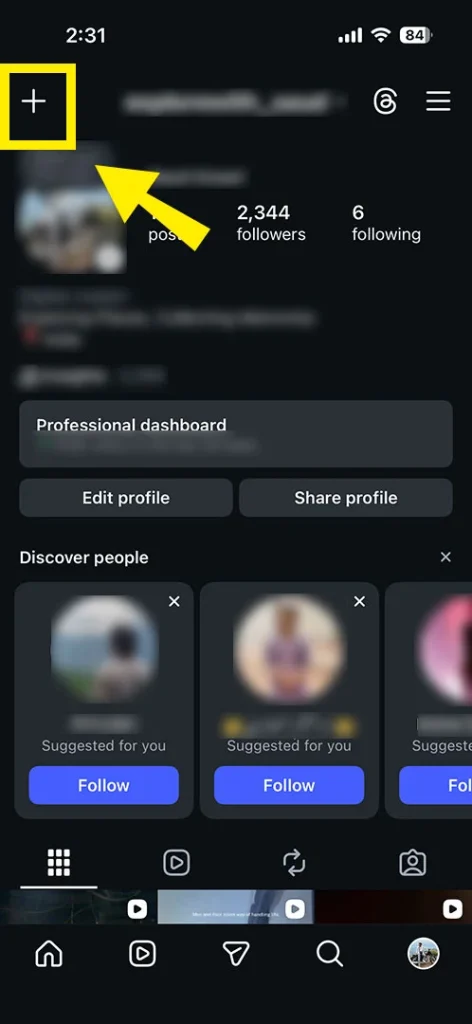
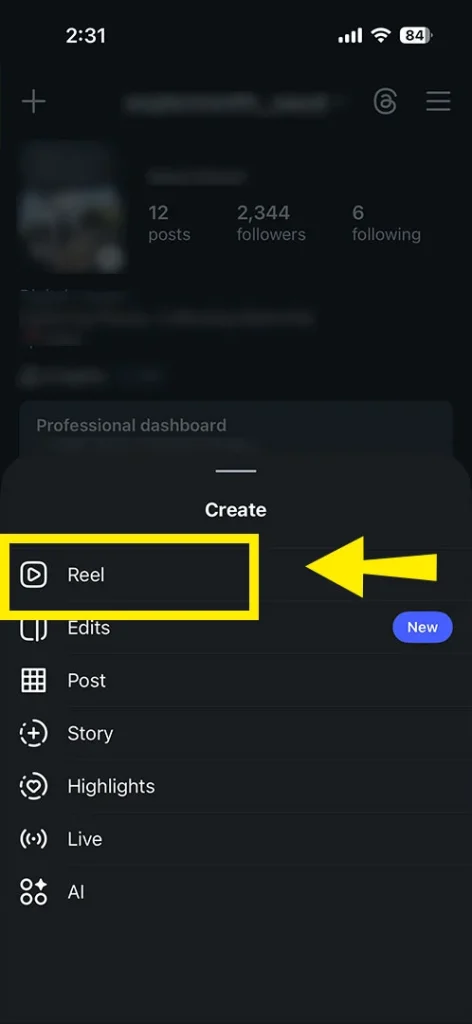
- You need to pick a favorite image or video. Click on Next.
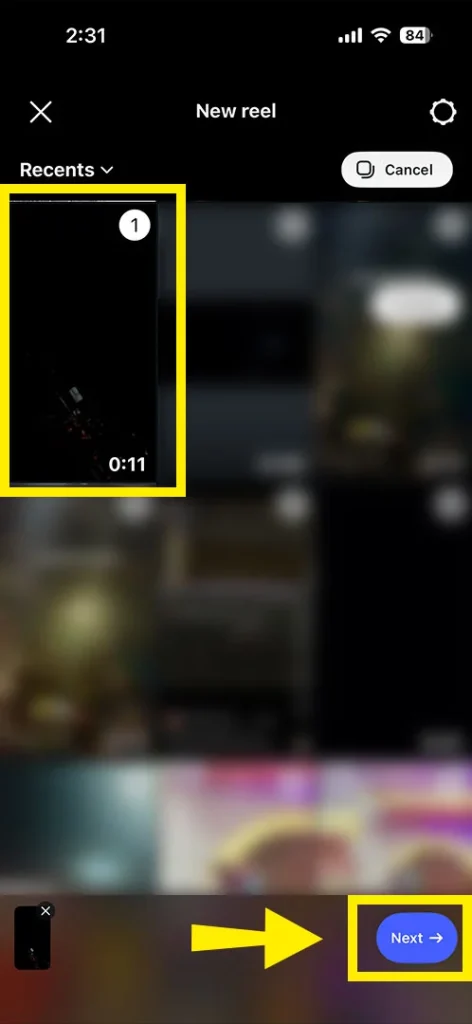
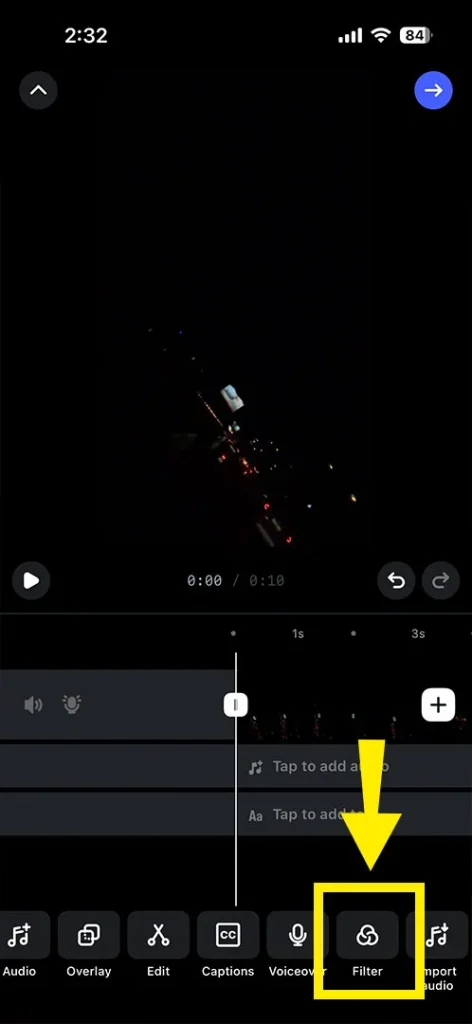
- Apply effects or filters as per your requirement. Then, add a caption.
- Go for the three horizontal dots or More options.
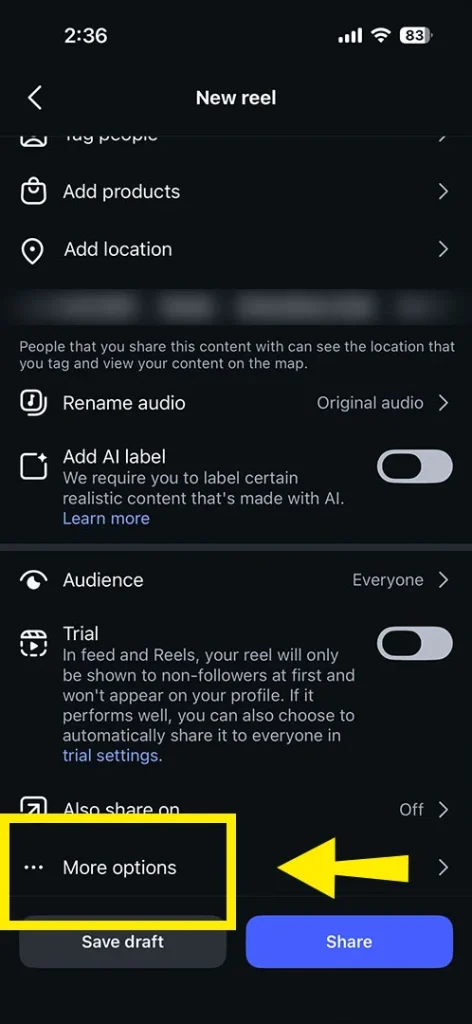
- Make sure to enable “Schedule this reel” or “Schedule this post.“
- Decide the time and date.
- Tap Done and go Back.
- After that, just hit the Schedule button.
Important Point to Be Noted! If you are collaborating on posts, tagging the product, sponsoring, or fundraising, you won’t be able to schedule your posts. However, this Instagram native feature doesn’t support it.
How to Edit the Caption/Media After It Has Been Scheduled on Instagram?
We have two solutions for you from which you can easily manage your scheduled reels and posts on Instagram. These are:
- From your Profile
- While creating a new reel or post
So, let me define it for you.
Note! These two approaches will only work if your post or reel is already in the queue. Apart from that, remember that you can’t edit, alter, or reschedule your post within the first 5 minutes of its publication time.
Approach 1: From Your Profile
- Open your Instagram profile.
- Tap on three horizontal lines to open Menu.
- Tap on Scheduled Content under Your Insights and Tools.
- Go for the Options.
- Here, you can Edit, Delete, Share Now, or Reschedule your post.
Key Point! If you switch your public account to a private one, your saved queue will be removed without any warning or backup.
Approach 2: While Creating a New Reel or Post
- Again, tap on + Create.
- Choose what you want to create a Post or Reel for. Go with the one option.
- Go to the Scheduled section to view your already scheduled content.
- Choose the post you are willing to edit.
- Move towards the Option.
- Choose Reschedule, Edit post, Delete, or Share Now.
Important Point to Be Considered! Once you have scheduled your reel or post, it can’t be swapped out. Moreover, if you want to Edit Your Post, you can only change alt-text, captions, location, time/date, cover image of reels, and tags.
Best Practices for Scheduling Instagram Posts
Just dive into the following best practices, as I have also performed when I was trying to schedule my Instagram posts without having a Facebook account.
- Optimize Captions and Visuals: Make sure your images are in high resolution to avoid scrolling. Plus, be sure to add keywords for enhancing searchability.
- Stay Agile: Try to schedule your post one or two weeks in advance. If you are scheduling too far out, such as one month, there is a high chance that it can lead to posting insensitive or irrelevant content during unexpected events.
- Use Native Analytics: Instagram’s native scheduler lets you handle content timing around your target audience’s active hours.
- Update Your App: Make sure to update your Instagram app on a daily basis to make sure you can easily access the scheduling feature.
Common Mistakes (and How to Avoid Them)
These are the common mistakes that I am going to list down:
1. Account Type Mistakes
- Mistake: You are using a private or personal account and trying to schedule your preferred Instagram posts or reels.
- How to Avoid: Follow these steps to avoid such a mistake:
-
- After opening your Instagram account, go to Menu.
- Navigate to Settings.
- Choose Account.
- Move towards the Switch to Professional Account option.
However, the scheduling feature is not applicable to the private account.
2. Feature Limitations & Technical Errors
- Mistake: You might be trying to schedule your collaborations or stories.
- How to Avoid: You just need to understand that Instagram’s native feature is currently not supported for stories, sponsored posts, or collaborations. However, this is limited only to your posts, carousels, and reels.
- Mistake: You might be exceeding the scheduling limits.
- How to Avoid: You can only schedule your 25 posts per day for up to 30 days.
- Mistake: You don’t remember to enable the Schedule This Post option.
- How to Avoid: We’ve listed the instructions so that you can’t make the same mistake again.
-
- Open Settings by tapping on the Menu tab on your Instagram profile.
- Go to Advanced Settings.
- Look for Scheduling this Post.
- Turn it on.
- Set the Date.
3. Content and Scheduling Strategy
- Mistake: You have set the scheduled post and forgotten about the engagement.
- How to Avoid: This scheduling feature can only manage publishing. However, you need to log in to your account again to reply to messages and comments if you want to increase the engagement. As a result, it will help the algorithm.
- Mistake: Scheduling the post at the wrong time.
- How to Avoid: Consider using your Instagram Insights to analyze when your target audience is highly active.
- Mistake: You are posting irrelevant content for the future.
- How to Avoid: Don’t schedule your time-sensitive posts, such as Join Us Today. However, they became totally irrelevant for the future.
4. Workflow and Management Errors
- Mistake: You have forgotten to check the Scheduling Content folder.
- How to Avoid: You can do one thing:
- Visit your Instagram profile on a daily basis.
- Navigate to Scheduled Content so that you can easily review which content is queued till now.
- Mistake: You are not thoroughly reviewing your content.
- How to Avoid: Take a pause so that you can verify all the images that you are going to schedule are properly cropped. Make sure your caption doesn’t have any typos before scheduling it.
- Mistake: You have already assumed that you may need a Facebook account if your Instagram app doesn’t work properly.
- How to Avoid: If the scheduling process fails, you can restart or force-close your Instagram app. By doing this, you can smoothly fix all temporary glitches without requiring any third-party apps.
Troubleshooting: Scheduled Posts not Publishing
In this section, we will cover troubleshooting solutions for why your Instagram scheduled posts are not being published yet.
- Clear App or Browser Data: You just need to clear the app’s cache and data in Instagram so you can smoothly delete corrupted data.
- Check In-App Notifications: Sign in to your Instagram account and see whether there are any pop-up notifications that require you to resolve suspicious activity or accept new terms that stop you from automatically publishing posts.
- Check Media Constraints: If you are scheduling your Instagram Reels, make sure not to use trending audio from the library during the initial phase of setup. However, by doing so, it can cause failure when the time comes for publishing.
- Manual Retry or Workaround: If your scheduled posts are failing, you can try to publish them manually. If you are encountering the same problem again and again, you can try to use your web-based Instagram, not your mobile app.
- Check Authorization: Be sure your Instagram app has given authorized permissions. In addition, check whether it should not be blocked by Page Publishing Authorization or Two-Factor Authorization issues.
Native Scheduling vs. Third-Party Tools (2026)
This section will provide you with a tabular representation of Instagram’s native scheduling and other third-party tools.
| Feature |
Native Instagram Scheduling (2026 Update) |
Third-Party Scheduling Tools |
| Facebook Account Requirement |
There is no longer a need to have a Facebook account. You just need to switch your personal account to a public account. |
There are some tools that still require Facebook or Meta integration for API access. |
| Content Types Supported |
For up to 30 days, you can only schedule 25 posts per day. |
- Feed posts
- Reels
- Carousels
- Stories
It totally depends on you, which tool you’ve chosen. Plus, there are some reminder-based ones for Stories. |
| Analytics |
You will get the basic insights dashboard, such as impressions, reach, engagement, and follower activity. |
With these tools, you will get advanced analytics dashboards, like hashtag optimization, AI-powered insights, and audience segmentation. |
| Ease of Use |
It is simple. Moreover, it is built into the Instagram app. Plus, there is no extra setup. |
It requires an external app or platform. In addition, it has a more challenging learning curve but more powerful features. |
| Cost |
Free for all public accounts. |
It is often subscription-based, like you need to pay monthly or annual fees. |
| Collaboration Features |
None, and it is designed for individual creators. |
Here, you will get approval workflows, team collaboration, and bulk scheduling for agencies. |
| Automation & AI Features |
Features are limited, as you can only schedule your post manually. |
There are advanced AI features, such as:
- AI-powered caption suggestions,
- Feed planning,
- Bulk uploads,
- Smart posting times
|
| Best For |
- Solo creators,
- Small businesses,
- Anyone who wants free and simple scheduling.
|
- Agencies,
- brands,
- And power users who need scale, analytics, as well as automation.
|
General Questions Along With Answers
Here, you will learn how you can smoothly schedule your Instagram post natively without having a Facebook account.
Q1. Can you schedule natively on Instagram?
Ans. YES! You must have a public, professional, creator, or business account if you want to schedule natively on your Instagram.
Q2. Can you schedule an Instagram post without a professional account?
Ans. NO! Instagram doesn’t permit you to schedule a post on your personal account. Instead, you need to switch to a professional account so that you can unlock this feature and schedule the post for up to 30 days in advance.
Q3. Why don’t I have the option to schedule Instagram posts?
Ans. It might be because of the following reasons:
- You are using a personal account rather than any professional or public one.
- There is a missing Advanced Settings option.
- Your Instagram app is not updated yet.
- There might be some regional restrictions.
Q4. How to post on Instagram without it going to your Facebook?
Ans. Follow these instructions as listed below:
- Convert your personal account into a public or professional (business or creator) one.
- Start creating a post by tapping on the + or the Create button.
- Choose the type of post you are willing to add.
- After that, come to the caption screen.
- Scroll down a bit and go with the Advanced Settings.
- Enable the Schedule this Post option.
- Set the desired time you want to schedule.
- Tap on Schedule to confirm the process.
Q5. Can I set up Instagram without Facebook?
Ans. YES! You can easily decide the time period for how long you want to schedule your preferred content. Just make sure you are using a professional or public account to do so.
Q6. What are alternatives to Instagram scheduling?
Ans. We have some alternatives that will help you to schedule your Instagram post that don’t require you to have a Facebook account. These are:
- Buffer
- Later
- Planoly
- Hootsuite