How to Save Snapchat Memories to Google Photos for Free (Bypass 5GB Limit 2026)

You can easily save your Snapchat memories to Google Photos by enabling the Memories and Camera Roll option. Then, configure it with your local device camera. In fact, you can delete the excessive snaps if you no longer need them. However, this method is most effective, and you can easily decide which one should be saved or removed. Besides this, Snapchat has now put a restriction that if your Snap Memories exceed the 5 GB Storage, they will start deleting after a 12-month grace period. 

So, if you don’t want that to happen, set a reminder and export your Memories in a ZIP format via the My Data tool. Read this blog to know more. 

The Snapchat 5GB Limit: Why Users Call it “Digital Ransom.”

Some common reasons why Snapchat restrictions feel like digital blackmail. 

  • Forced Subscription Model: As we already know, Snapchat has restricted unlimited storage to 5 GB. Due to this, users are moving toward premium or platinum subscription plans. For example, if users want to get storage for 100 GB, they have to pay $1.99 per month. 
  • Ensure Easy Access to your Memories: Snapchat has provided a 12-month grace period to its users after exceeding 5 GB of storage. If they don’t comply with Snapchat’s rules, their photos will be deleted to make more space. 
  • When Free Storage isn’t Free Anymore: There are various users who have been using Snapchat for the last 7 years, including me. From that time, I have saved lots of data in my Memories section, such as photos, short videos, etc. Now, Snapchat is charging additional fees for storage. 
  • Difficult Export Process: Users can download their Memories data, but still some of them complain, like not all data is completely saved or some snaps are missing.
  • The 12 month temporary storage loophole: Snapchat currently ignores your over-limit data for exactly one year. After 365 days, they delete the newest memories first. You must save Snapchat memories to Google Photos for free before this window closes.

What Happens When You Hit the 5GB Memory Cap?

Here’s what will happen after going over the 5 GB storage space. 

  • 12-Month Grace Period: Snapchat offers you a year of temporary storage for the Memories that can go beyond the 5 GB restriction. In addition, it lets you manage your space effortlessly. 
  • Automatic Deletion: When the grace period is over, and you have not taken any subscriptions, Snapchat will automatically start erasing your memories that exceed the limit. 
  • No New Backups: You can’t save any data to your Memories unless you purchase the subscription plan or free up storage. 
  • Low Storage Alerts: Snapchat will show you a pop-up on your Memories screen that you are exceeding the limit. 

The 12-Month Grace Period: Export Before Your Snaps Vanish

Here are some best practices that will help you escape your 12-month window: 

  • Back Up Early: Make sure to back up your Memories data before the year on your Google Photos or iCloud. 
  • Set a Reminder: Set an alert that will help you to know what the remaining Snapchat storage is and what you have exported as data. 
  • Batch Export: You should manually export your memories up to 100 photos at a time. 
  • Organize in Google Photos: Ensure to create an album for the snaps you are exporting before the 12-month grace period. 
  • Check Quality: Before redownloading the data, cross-check what images you have exported. However, various users complain that the quality has been compressed because of this.

How to Save Snapchat Memories to Google Photos for Free

There are two methods from which you can effortlessly save your Snapchat memories to Google Photos for free. 

  1. My Data tool. 
  2. Using Google Photos as a backup.

Let’s dive into the details. 

Method 1: Power Move: Bulk Export via the “My Data” Portal

Make sure to follow the steps below on your computer, rather than on your mobile screen, to avoid any further errors. 

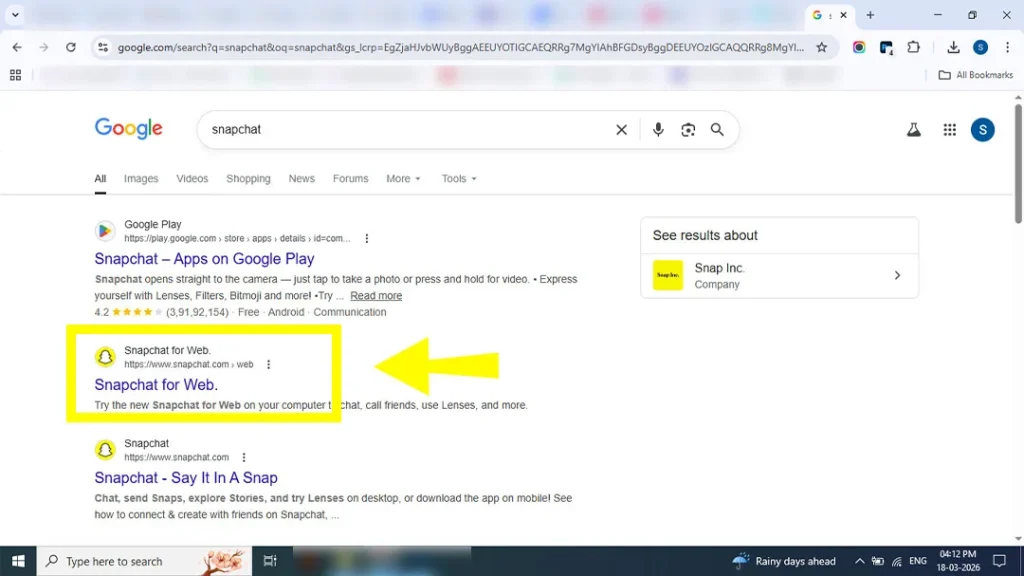
Open your default web browser and search for Snapchat. 
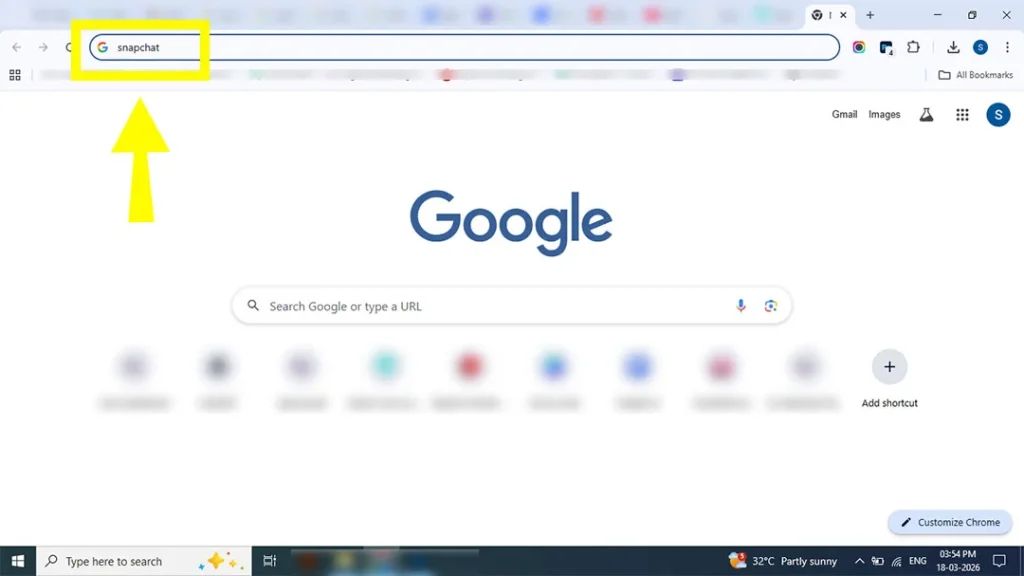
Searching for Snapchat Web on a default browser to begin memory export.

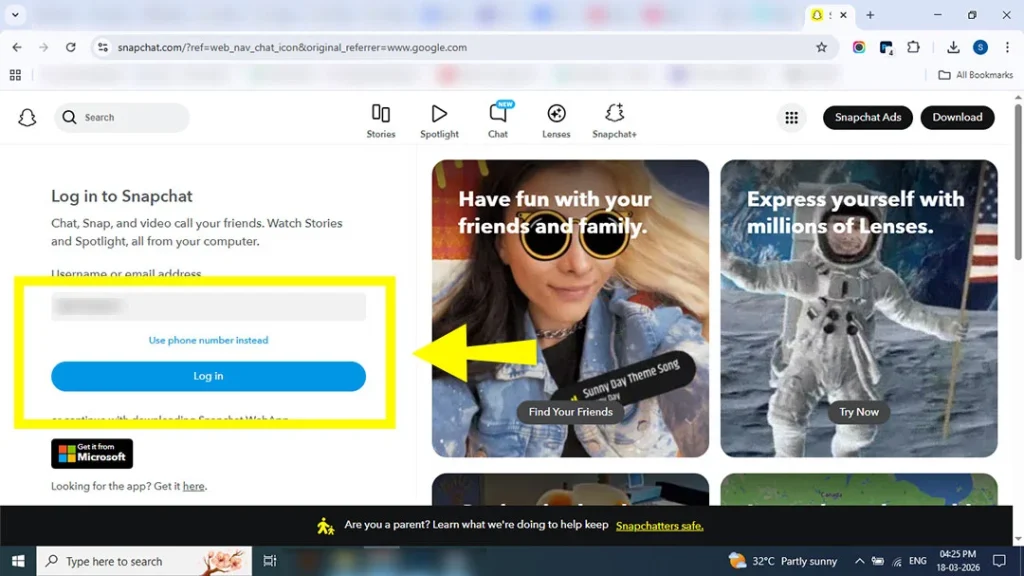
Click on the second tab

Selecting the official Snapchat login tab on a web browser.

Sign up with your credentials on accounts.snapchat.com

Signing into Snapchat account portal to bypass the 5GB storage limit.

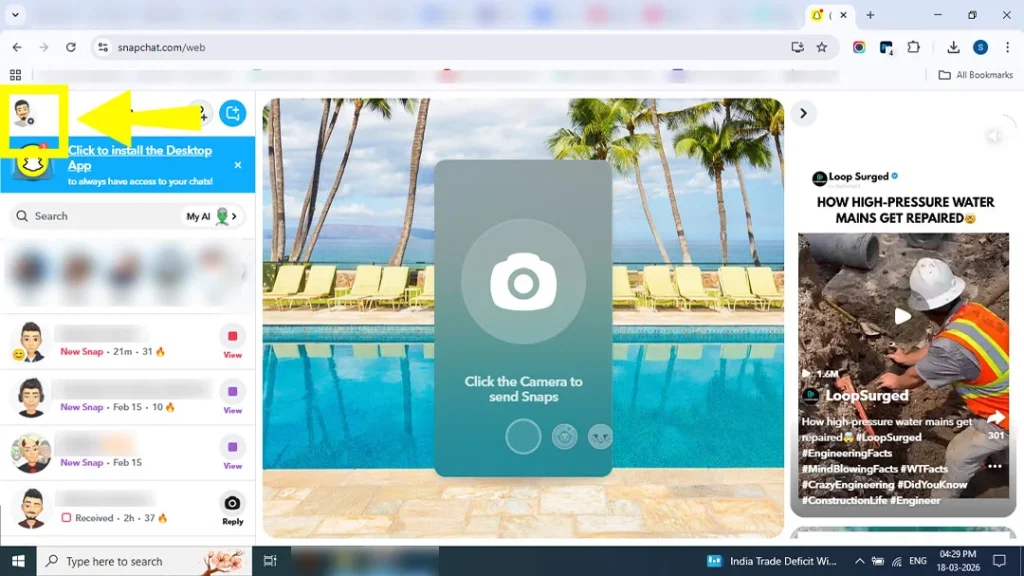
Go to your Bitmoji image. 

Clicking on the Bitmoji profile icon in Snapchat account settings.

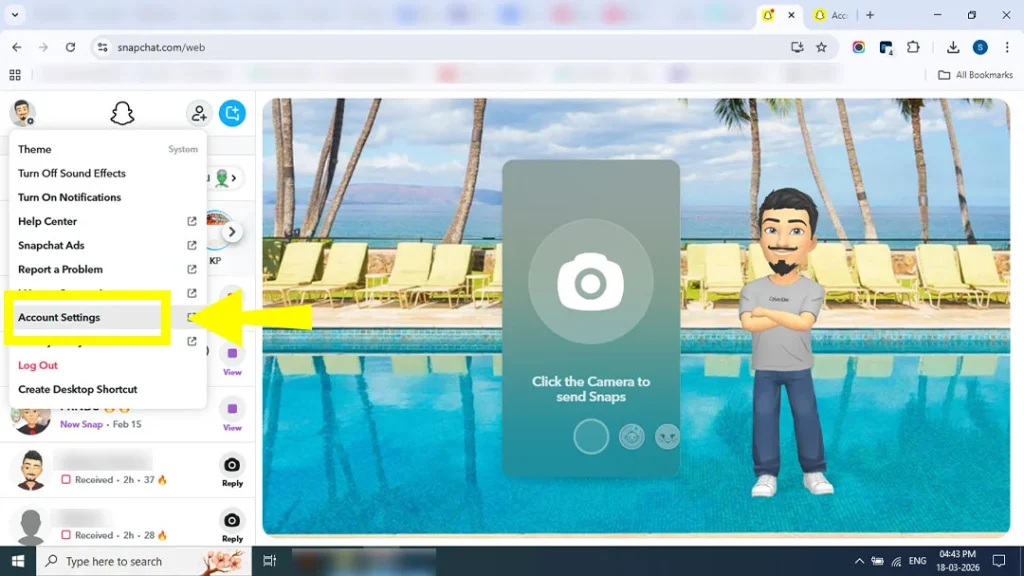
Look for Account Settings.

Navigating to the Account Settings menu to manage Snapchat data.

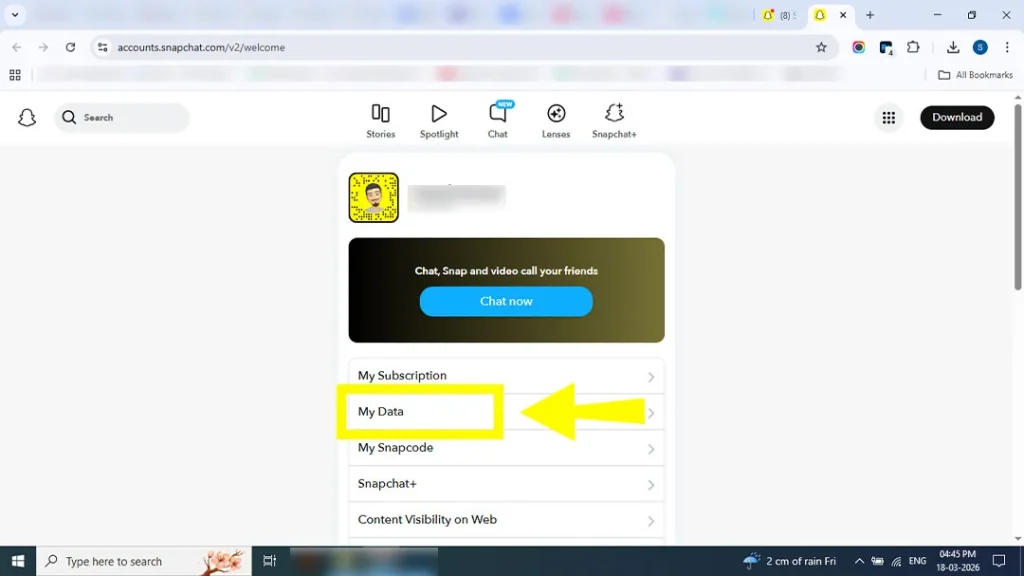
Click on My Data.

Selecting the My Data option to export Snapchat memories for free.

Enable the Export Your Memories option under Select Data to Include. 
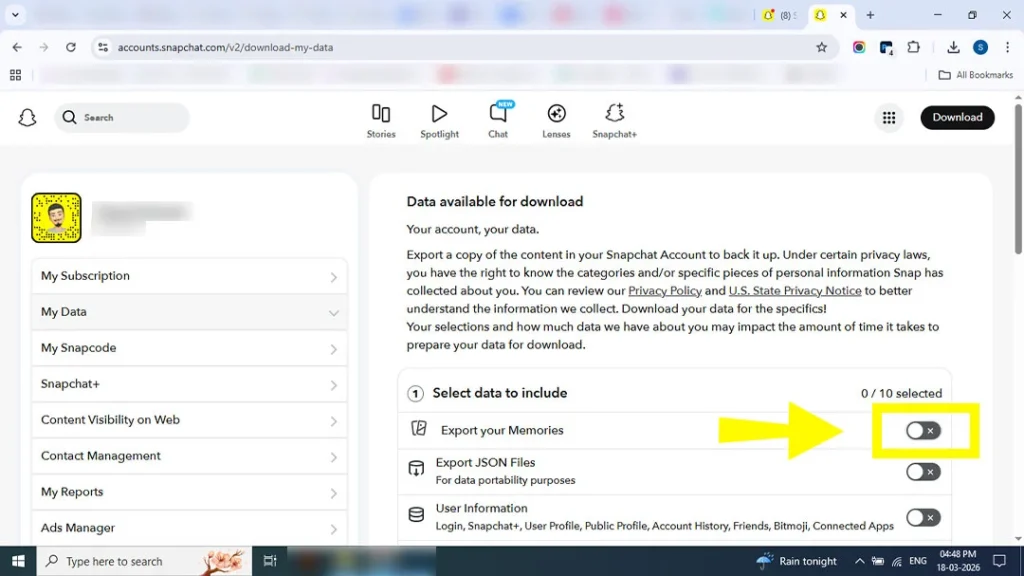
Enabling the Export Your Memories option in the Snapchat data menu.

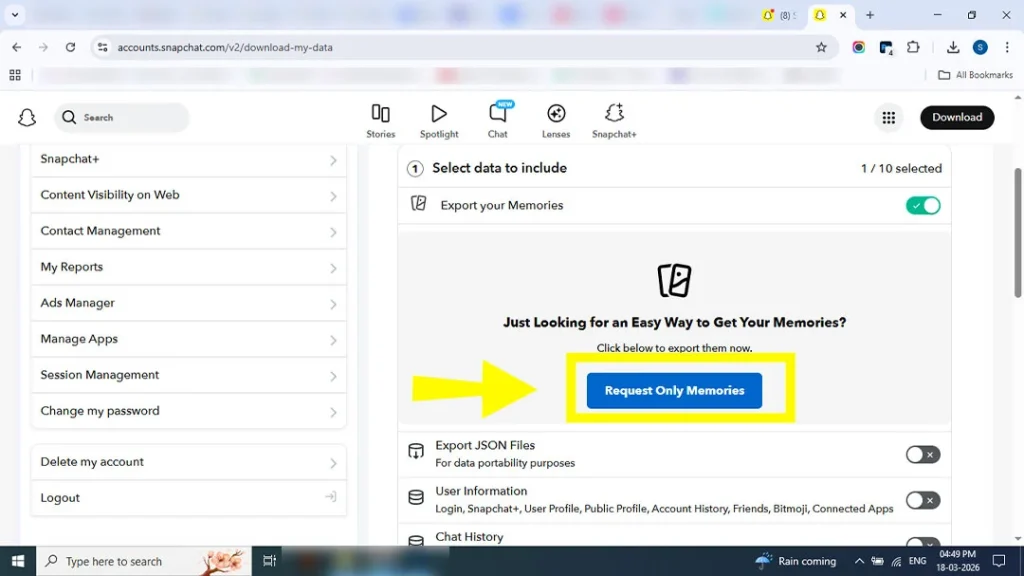
Click on Request Only Memories

Clicking Request Only Memories to filter Snapchat data for export.

Pick the specific date range of data you are willing to export. 
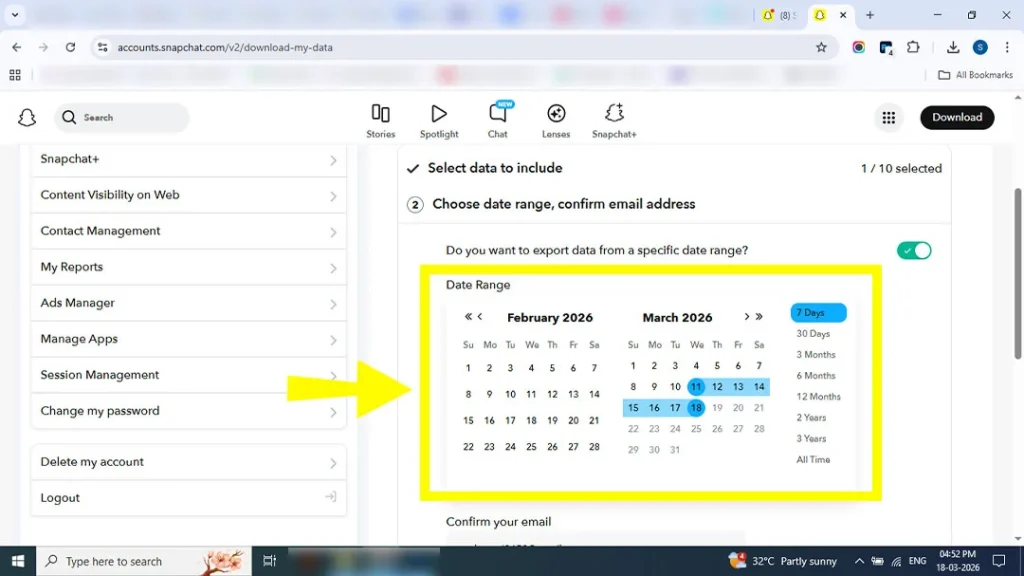
Choosing a specific date range for bulk exporting Snapchat memories.

Note! If you want to export data for a longer period of time, make sure it will take time to process. 

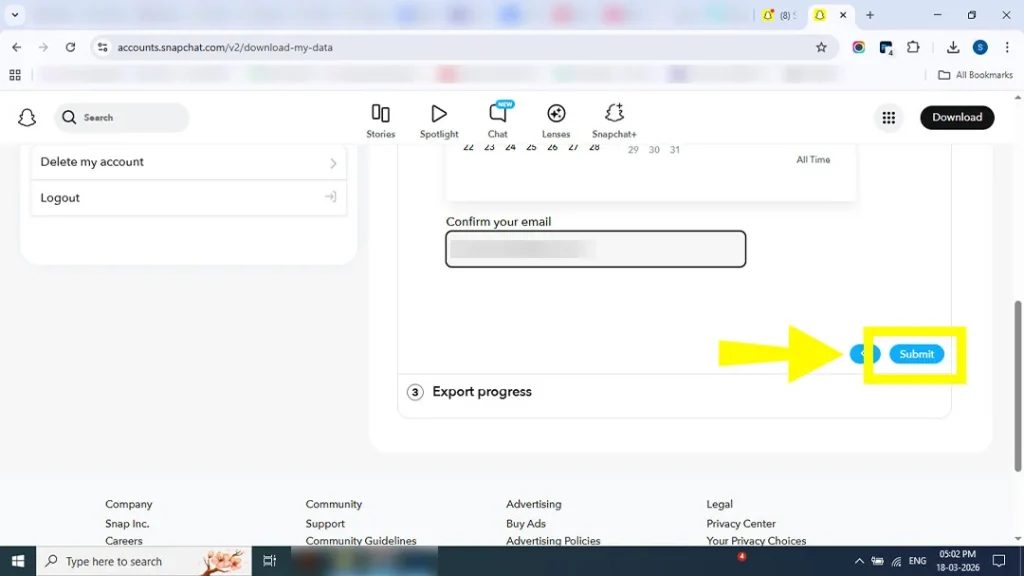
Confirm your email address so that you will be alerted when the export process is ready. 
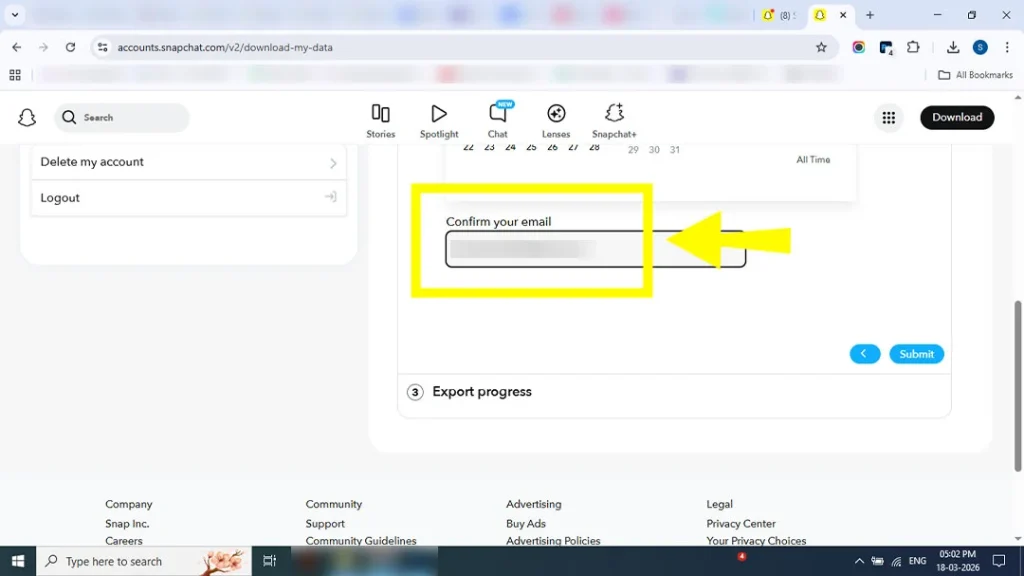
Entering and confirming email address for Snapchat data export alert.

Click on the Submit button.

Clicking the Submit button to start the Snapchat memories backup process.

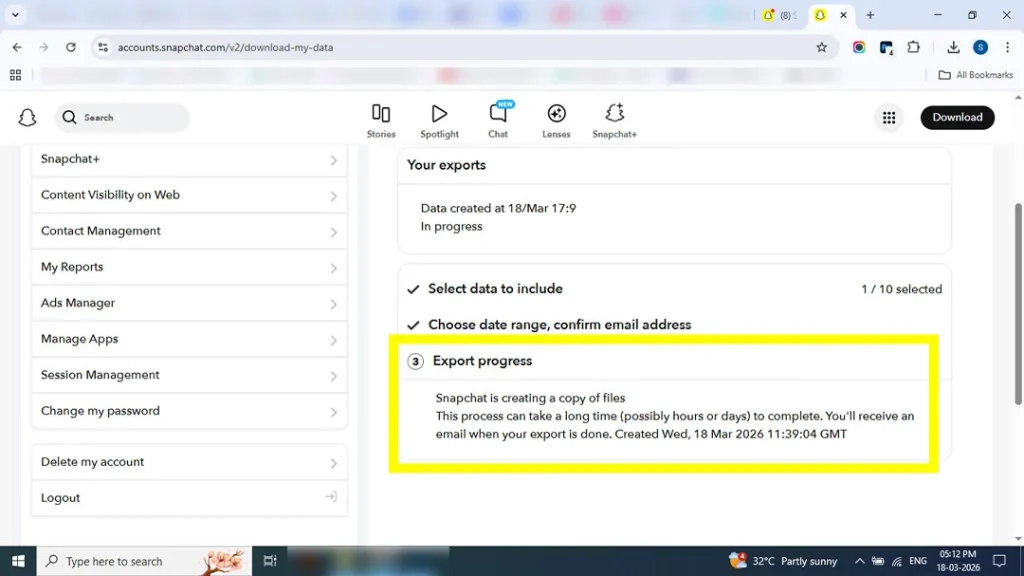
Pro Tip! If you would like to see your recent exports, click on this

Accessing the Recent Exports tab to download Snapchat memories ZIP file.

  • Choose See Exports and then click on the Download option so that you can export your data. 
  • After downloading the data, double-click on the ZIP file so that you can take out the memories from it. 
  • Double-click on the index.html. 
  • Again, navigate to Memories

Now, you can download multiple or single memories according to your needs.

💡 Related Read: While you’re managing your account data, have you ever wondered how Snapchat ranks your friends? Check out our deep dive into how the Snapchat story viewer order actually works and what it says about your profile.

Important Points to be Considered! 

  • Usually, Snapchat delivers your downloaded data within 7 days, but be patient, as longer and heavier data takes a little bit more time. 
  • If you haven’t used the My Data tool, there is a chance that your account may get hacked. To secure your account from any other challenges, there are some steps that you can follow: 
    • Consider changing your Snapchat password. 
    • Add another way for login verification. 
    • Make sure to mention the Recovery Code                                                                                                                                                                                                                         

Method 2: The Google Photos Hack for Free Unlimited Backups

Follow these steps to sync your memories.

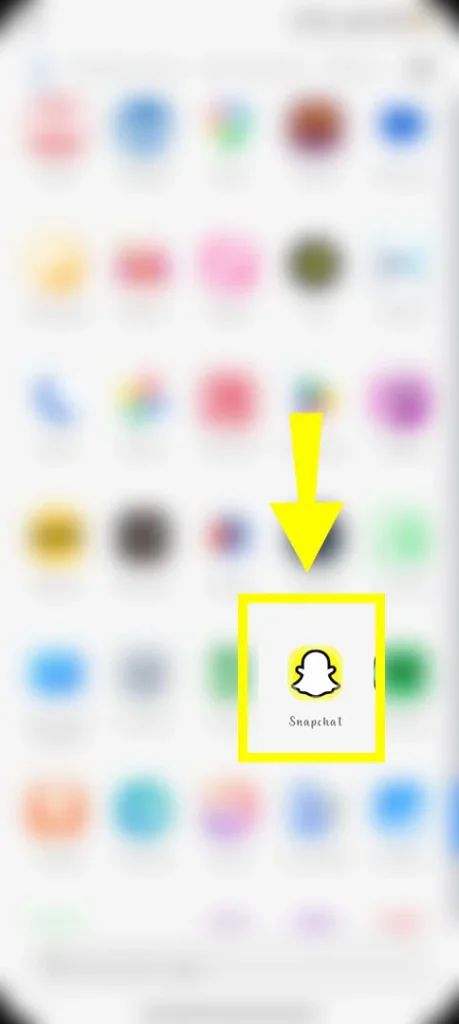
Open Snapchat

Opening the Snapchat app on a smartphone to begin the process of exporting memories before the 2026 5GB limit takes effect.

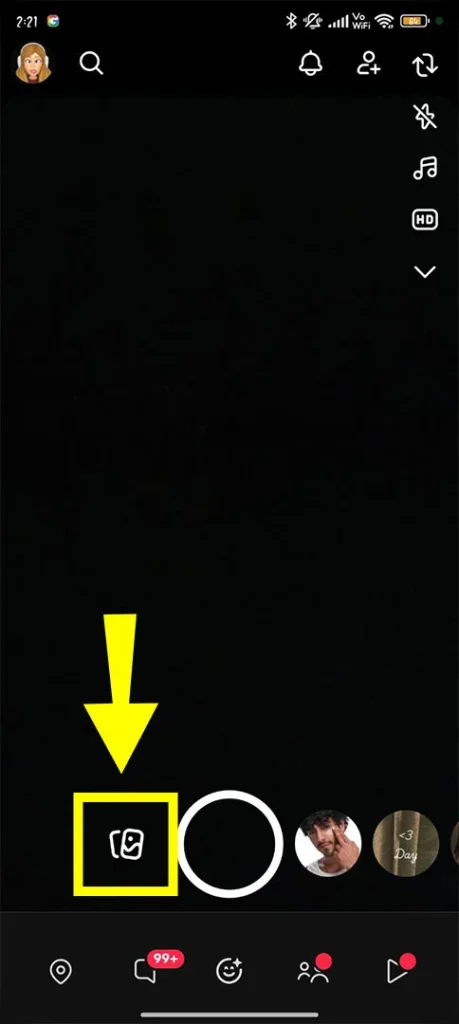
Tap on the Memories or double-wrapped rectangles

Tapping the Snapchat Memories icon (the double-wrapped rectangles) located at the bottom of the camera screen to access saved Snaps.

Key Point! Make sure you have already enabled the Memories and Camera Roll option so that all your snaps are automatically saved in the Camera Roll category. 

Select your favorite photos by navigating to the Select option. 

Using the 'Select' tool in Snapchat Memories to batch-select up to 100 photos and videos for a free backup to Google Photos.

Note! Here, you can add up to 100 photos at a time. 

Move towards the Export option. 
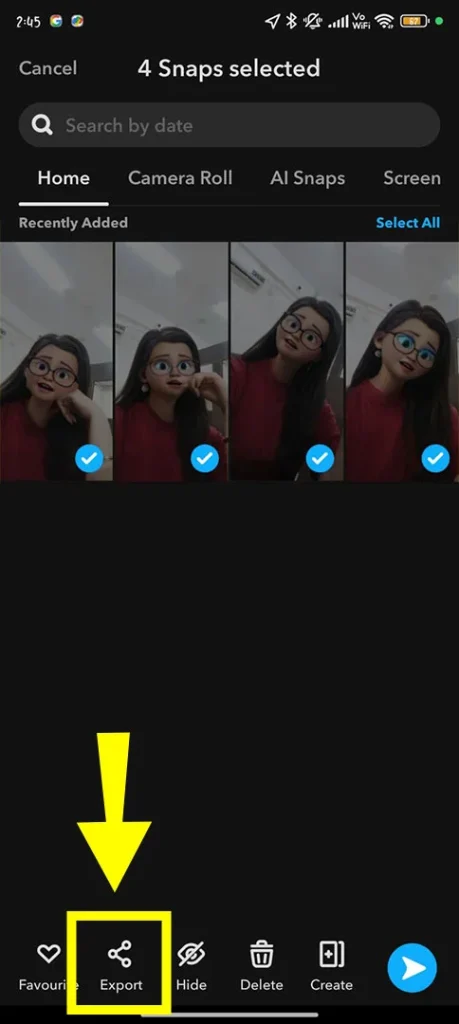
Navigating to the 'Export' menu in Snapchat to prepare the selected memories for a high-quality download to the device gallery.

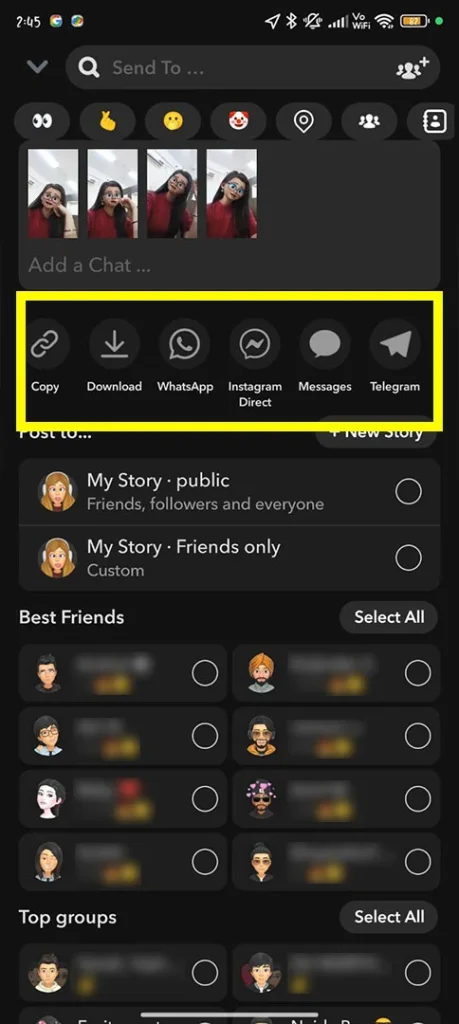
Choose your saving location

Selecting the 'Download' or 'Camera Roll' option from the Snapchat sharing menu to save files locally for Google Photos syncing.

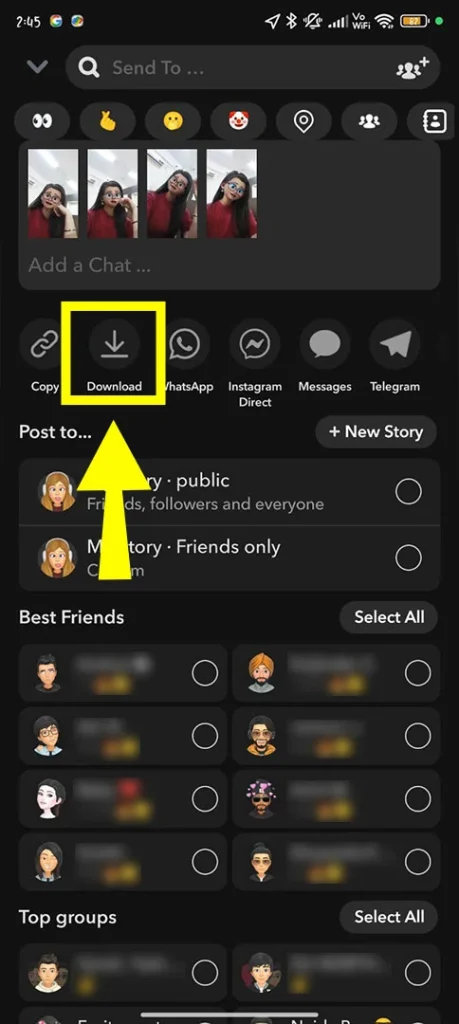
Tap on Download

Tapping the final 'Download' button in the Snapchat app to move memories to the phone storage and bypass the 12-month deletion rule.

Pro Tip! If you are saving memories to your Phone storage, make sure to configure it with Google Photos. By doing this, your photos will be automatically backed up for a longer time. 

Fixing the Date Glitch: Restore Original Timestamps

If you want to get rid of this Metadata glitch, just understand one thing: when you export your data, the date is signified only when you downloaded it, not the real time when you captured it. 

For that, you can use some tools (not recommended, as there are high chances that it will break Snap’s Terms and Conditions). 

For Desktop Devices: You can consider using an open-source tool, such as a Python-based script or any Snapchart Memories Downloader. 

Otherwise, you can also manually resolve this issue. What you need to do is decide which snaps you actually save the date for by yourself. Follow its quick steps to have basic knowledge. 

  •  You can edit the few snaps in the Google Photos app or web interface. 
  • Choose the photo. 
  • Click on More or simply navigate to the three dots. 
  • Go to Edit date and time. 

Snapchat+ vs Google Photos: The Cost Breakdown

Below is a tabular representation of which one you should consider: Snapchat subscriptions or Google Photos. 

Feature Snapchat+ Paid Google Photos Free
Monthly Cost $1.99+ $0
Storage Limit 100GB-5TB 15GB + Unlimited Compressed
File Ownership Snapchat Controls You Own Everything
Export Speed Time depends on the chosen data to export 5-10 Minutes Setup

iPhone vs. Android: Avoiding Sync Failures

Let’s elaborate on the common problems that users encounter with iPhones and Androids. 

If a User has an iPhone:

Problem: iPhones have a very strict policy. Suppose you are trying to save 300 snaps at a time; your phone screen may be working, but in reality, not even a single snap is saved. However, the device doesn’t have the appropriate permission so that it can easily download to your photo gallery. 

Data Mess: While taking a Snap Video on your iPhone, Google Photos automatically thinks that the backed-up video was captured today. In fact, it loses the metadata, such as the exact date when the data was taken. That is why all your previous data is shown under the latest album of the year. 

Solution: Don’t totally rely on saving data to your Camera Roll. Instead, set the reminder to Back up your data of your Memories to your Google Photos. 

If a User has an Android Device:

Problem: Sometimes, users face the common issue that all their memory data is moved into their primary Camera section. 

The Storage Issue: Google Photos automatically backs up all your camera data to its server, even before you are actually ready to upload. However, it can easily fill 15 GB of storage, even if you don’t want to.

Common Pitfalls & Fixes

Some common errors users usually face, and their solutions, are listed below. 

  • Sync Fails: First, ensure you are using a high quality of internet connection. After that, try to erase your Snapchat cache. Otherwise, you can check your Google Photos synced folder. To do so,
    1. Access Google Photos. 
    2. Navigate to Library. 
    3. Go to Photos on Device and then View All. 

Note! Make sure to enable the Back up & Sync option, specifically for Snapchat. 

  • 12-Month Timer: Be sure to check your Snap’s memory storage. If you are exceeding the limit, export your Snaps or trim unnecessary ones. 

People May Also Ask

Our experts have compiled a list of additional and necessary questions. So, read on. 

Q1. How do I save Snapchat memories to Google Photos for free?

Ans. There are a few ways to do so: 

  • Save memories to your Camera Roll and turn on your backup in Google Photos. 
  • Consider using Snap’s My Data built-in tool. 

Q2. What is Snapchat’s 5GB memory limit?

Ans. Currently, Snapchat is restricting your memory limit to up to 5GB. It means you have to pay for additional storage. However, it is done because Snapchat wants to handle an immense cultural infrastructure. 

Q3. How long before Snapchat deletes my memories?

Ans. Usually, Snapchat’s memories stay there for an indefinite period of time till you manually delete them. However, if you exceed the limit, you have a 12-month grace period. 

Q4. Can I export all Snapchat memories at once?

Ans. YES! You can export all your Snapchat memories at once through the My Data export option. Otherwise, you can manually export your data by choosing 100 photos/videos at a single time. 

Q5. Why do exported Snapchat memories lose dates?

Ans. There is a prime reason for it. However, the exported Snapchat memories process shows the saved file’s creation date, rather than when the photo was actually taken. 

Q6. Does Google Photos back up the Snapchat folder automatically?

Ans. NO! Not all your Snapchat memories need to be automatically backed up in Google Photos. However, you need to make sure that you have toggled on Memories & Camera Roll. In that case, Google Photos will take an instant backup if you have configured it with your local device’s camera. 

Q7. Is Snapchat charging for memories in 2026?

Ans. YES! In late 2025, Snapchat officially announced that you need to take an additional subscription plan if you have exceeded the 5GB storage limit. 

Q8. What is the Camera Roll export limit on Snapchat?

Ans. You can export your Memories in batches of 100 data at once. Moreover, if you have more than that, consider using Snap’s built-in My Data tool. 

Q9. Should iPhone users use iCloud or Google Photos?

Ans. iPhone users should use Google Photos so that they can effortlessly save their memories to their camera roll, as it offers them 15 GB of storage. That’s why it is the best and most reliable option. 

Q10. Worth buying Snapchat+ for memory storage?

Ans. YES! You can take a subscription to Snapchat if you have more than 5 GB of data for memories. Premium users will get storage up to 250 GB, and Platinum planners can get up to 5 GB. Besides this, you will get additional benefits, such as customized app icons and 3D chat wallpapers. 

Pro Tip: While the extra storage is a major draw for the 2026 update, many users also upgrade to access social features like the meaning of Snapchat Planets in dating, which helps you track your “Friend Solar System” and see your closest best friends.

Concluding Words!

If you are surpassing the limitation, don’t stress out! Snapchat provides you a grace period of 12 months where you can export your Snaps easily. Even if the storage limit is full, all the snaps will be saved. In fact, at that time, you can set a reminder to see how much data you need to delete. Otherwise, you have three options: 

  • Back up your data to Google Photos
  • Delete the unwanted Snaps in a timely manner. 
  • Opt for any of the Snapchat premium tiers. 

So, the choice is yours, and decide what you want. Else, Snapchat will delete your Snaps after the time so that you can save other ones.  

Leave a Reply

Your email address will not be published. Required fields are marked *