Physical Address
304 North Cardinal St.
Dorchester Center, MA 02124
Physical Address
304 North Cardinal St.
Dorchester Center, MA 02124
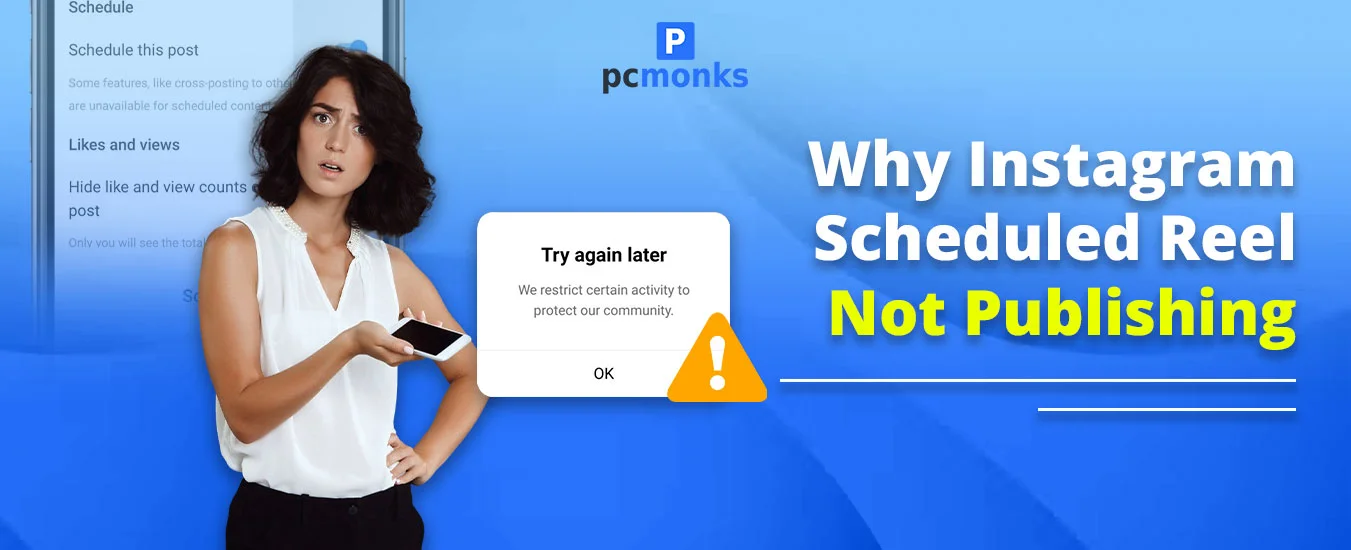
A few days back, you prepared a vertical reel on your Instagram social media platform. You had a thought to schedule it, not to publish it at the same time. So, what you have done is set the particular date and time so that the consistency won’t break. But now, when the time has come, you are seeing that the particular reel has not been published yet. In such a scenario, you just need to stay calm first. Thereafter, you can check whether you are a business or a private account.
There are some other reasons as well why your reel has not been uploaded till now. To know, you just need to scroll down and read the whole blog.
Have a look at the quick diagnostic tabular representation that will help you to fix the scheduled content Instagram not showing error.
| Symptoms | Likely Causes | Fixes |
| The reel fails silently (no error, no post) | The secure connection between Instagram and third-party social media schedulers has ended. In short, the app no longer has permission to automatically upload your reels. | Reconnect your Instagram account within your scheduling tool, such as Later, Buffer, PostPlanify, or many more. |
| Scheduling option missing entirely | You might be using a personal account. However, this scheduling feature is only available for Creator or Business accounts. | Switch your personal account to a professional one. To do so, follow these steps:
|
| The reel is scheduled, but disappears from the queue | You have disconnected your Facebook page. However, Meta Business Suite needs your IG to be linked to your FB page. | Re-link your Instagram account to your Facebook page. What you need to do is, under Settings, see Linked accounts. |
| Reel uploads but fails to publish | Users have used an unsupported media format, such as a wrong aspect ratio or oversized file. | Make sure your reels are 9:16 (1080x1920px) MP4/MOV and under 4GB[1]; otherwise, you might find your Instagram Reel taking so long to upload. Feed posts: 4:5–1.91:1. |
| Error when trying to schedule | Outdated Meta Business Suite or Instagram app. | Just update both apps to the latest version and restart your device. |
| Reel rejected without notice. | You have violated the content policy by including copyrighted music, flagged images, or restricted hashtags. | Try to remove the particular content. After that, adjust your media or hashtags, and then reschedule it. |
These are some common reasons behind it:
Let’s discuss some troubleshooting steps that can actually help you out.
Solution 1: Connect Your Instagram Account Properly.
Why reconnect: API tokens expire weekly; reauthorizing renews permissions for auto-publishing[2].
Solution 2: Aspect Ratio or Media Format is Invalid.
For reels, you must use the aspect ratio of 9:16. So, before scheduling your reels, you must double-check them on the basis of file formats, like MP4.
Solution 3: You Try to Schedule a Carousel or Story Through an Unsupported Tool.
Cross-check whether the social media scheduler officially supports the particular type of content you are willing to schedule.
Solution 4: Instagram API Limitations or Outages.
You just need to visit the downdetector.com website to ensure that Instagram is currently facing any technical errors from its end or not.
Solution 5: Data Saver or Low Data Mode Is Turned On.
Let’s discuss some common Instagram scheduling errors and what they mean.
On Instagram, this error usually occurs when there is a network issue, connectivity problem, or corrupted app data. Moreover, if you schedule multiple posts on Instagram, it automatically exceeds API limits.
To fix this error, don’t plan on any post for a minimum of 1 to 2 hours. After that, you can try to schedule again. If you still encounter the same error, avoid scheduling for a whole day.
This Instagram error pops up as “We restrict certain activity to protect our community.” This issue is caused when Instagram detects that your account has done any suspicious activity, such as behaving like a bot or violating community guidelines.
To get rid of this issue, you need to avoid doing all automated stuff for one to two days. And make sure your IG content does not violate its policy.
Error 190 (OAuthException) shows us that we are not able to access the Instagram token because it has expired, the session was invalidated, or it has been revoked for security purposes.
To resolve this error, you need to reauthenticate your account. It means enter your ID and password into your chosen scheduling tool. Thereafter, you can refresh the connection.
Users usually encounter this problem within their Meta Business Suite. It happens because of a personal or private account restriction or a technical glitch.
You can easily resolve this error by switching your personal account to a public or professional one. Otherwise, you can update your app. And make sure to keep one thing in your mind that you are not exceeding the API limits.
Instagram Error 9004 has a subcode, 2207052, which indicates that Meta’s API won’t be able to access or download your media from your provided URL. Users see this issue because there is a blocking of CDN, invalid image URLs, restrictive WAF rules, or bulky files being uploaded.
To get rid of this error, you can try some troubleshooting steps. Make sure your content is not moved, hosted, or deleted on a private server. Apart from that, you need to use supported formats.
Our experts have thoroughly executed deep research for you to clear all your doubts. Afterwards, we hope you can easily get rid of Instagram’s Scheduled Reel Not Publishing.
Ans. These are the specific instructions that will help you to find where your scheduled reels go on Instagram.
Note! If you are not able to access the option straightforwardly, check it under Professionals or Account Type and Tools.
Ans. Your scheduled reel is not uploading because of these issues:
Ans. Yes! You can easily schedule your reels on your Instagram app for up to 30 days in advance. Note that it just requires you to have a professional or creator account.
Ans. The following are circumstances that can happen:
Ans. These are the walkarounds that you can follow:
Ans. Here are some troubleshooting steps that will help you.
Ans. There are some most likely reasons that lead you not to schedule your posts, even with a professional account.