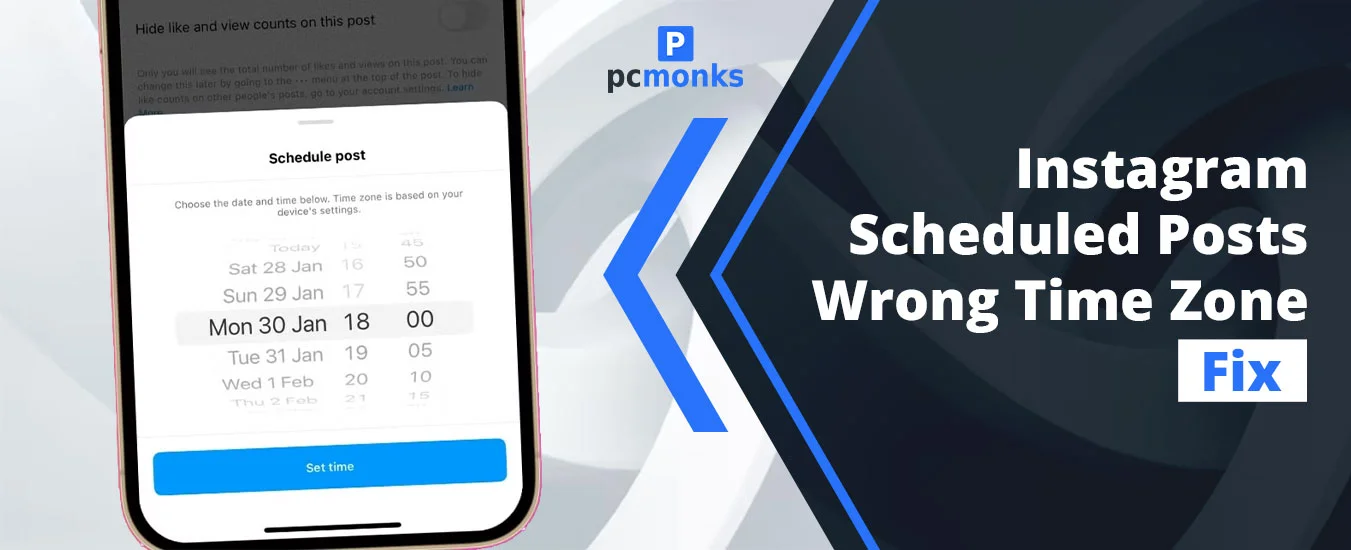
Have you ever found yourself in a situation where you encountered the Instagram scheduled posts wrong time zone error? If yes, we have got you covered. This issue usually indicates that there is a mismatch between the Meta Business Suite, your device, or third-party scheduling tools’ time settings. Moreover, all these assume that they have the wrong time set or are in a different time zone. Because of this, your device won’t be able to match the actual time. As a result, it provides you with a different country or region’s time zone.
So, to know how you can smoothly get rid of this error, we have prepared a thoroughly researched guide for you. By the end, it will clear all your questions.
Why Your Instagram Posts Are Publishing at the Wrong Time
Let’s discuss the common reasons behind this:
- Timezone Mismatches and Device Settings: There can be three scenarios that can happen:
- Suppose you are traveling to another region and your device is not set to the Automatic time zone. So, there is a high chance that Instagram will show you a different time zone.
- If you are utilizing third-party schedulers, such as Hootsuite or Buffer, their time zone may be set totally different from your local time.
- You might be employing an earlier version of Instagram that caused you to fail in scheduling a post in the wrong time zone.
- Misunderstanding Best Times: You haven’t checked yet when your target audience comes online. To do so,
-
- Go to your Instagram Insights.
- Move towards the Total Followers option.
- Scroll down a bit.
- Here, you will see the Most Active Times option.
- Tap on it to view the data.
Pro Tip! Another scenario can also happen that there might be some lagging issues in publishing your scheduled content. Or, it may delay publishing the content at the exact scheduled time.
- Algorithm and Engagement Factors: If your scheduled content is uploaded, and at the same time you log out, the Instagram algorithm will understand and determine that there is low early engagement. It fails because the post doesn’t have a positive impact on your audience. Besides this, consistency also matters, along with knowing peak hours.
Read: Instagram Scheduled Reel Not Publishing: 5 Proven Fixes
The Quick Fix: Update Your Phone’s Date & Time Settings
Here are the quick instructions that you are looking for.
For an Android Device:
- Open Settings on your device.
- Navigate to General Management or System.
- Access Date and Time option.
- Make sure to enable the Automatic date and time option.
- Choose your preferred time zone.
For Your iOS:
- Access the device’s Settings.
- Navigate to General.
- Tap on Date and Time.
- Turn on the Set Automatically option.
Alternatively, you can toggle off the Set Automatic option. Afterwards, you can proceed towards the date or time so that you can change it.
How to Fix Time Zone Mismatches When Traveling
Time zone mismatches while traveling happen because Instagram totally relies on your local device’s date and time, not where you are traveling.
To fix this mismatch error, you can go through these instructions:
- After opening Instagram,
- Go to the Notifications section by tapping on the heart symbol.
- Access the Scheduled content.
- Choose the content for rescheduling.
- Tap on the three horizontal dots.
- Tap on Reschedule.
- Here, you have a choice: you can delete or redo.
How to Check Scheduled Post Times in Meta Business Suite?
Here is how you can get rid of scheduled post times within Meta Business Suite.
- Access business.facebook.com.
- Tap on the appropriate page.
- Navigate to All Tools.
- Tap on Page Settings.
- Look for the Address section that will be accessible under Contact and Basic Info.
- Move towards the Hours.
- Simply go with the Pencil icon.
- Start editing your preferred time zone.
- Tap on Save.
If you want to check your scheduled post times, have a look at these instructions.
- Open Meta Business Suite.
- Go to Planner.
- Choose the particular Instagram post on the calendar.
- By doing so, you will be able to view the exact date and time when the post is scheduled to go live.
Alternatively, you can simply head over to Content and then Scheduled.
Pro Tips: Ensuring Future Posts Go Out Correctly
Follow these best practices that will help you out further.
- Check if the phone is set to the Automatic or Native Scheduling option.
- Verify the Meta Business Time Zone on your desktop.
- Always try to schedule your post 10 minutes ahead so that you can confirm the exact publication time within the queue.
- Try to reconnect your account if you are using third-party tools.
- Consider using Instagram Insights so that you can smoothly adjust the time zone when your target audience is highly active.
Read | How To Schedule an Instagram Post Natively Without a Facebook Account
People May Also Ask
Check out these extra questions that will help you get rid of this error smoothly.
Q1. How to fix the Instagram time zone?
Ans. Try to update your device’s time and date settings. By doing so, Instagram will automatically set its time perfectly.
Q2. How do I change the time of a scheduled post on Instagram?
Ans. Follow these instructions to change the time for your scheduled post.
- Open Instagram.
- Go to the three horizontal lines.
- Open your Scheduled Content.
- Decide on the post or reel whose time you are willing to change.
- Tap on the Reschedule option.
- Confirm and set the preferred time.
Q3. How to fix a wrong time zone?
Ans. If you are using any scheduling tools that offer you analytics, such as spreadsheets, make sure to opt for the appropriate time zone before tapping on the confirm button to schedule your post.
Q4. Why can’t I change my timezone?
Ans. The prime reason behind this is that the Instagram app’s time zone totally relies on your local device’s system clock to check the time. Moreover, there is no native option to change the time in Instagram settings.
Q5. Which time zone does Instagram use?
Ans. Pacific Standard Time (PST/PDT or UTC-8/-7) is the specific time zone that the Instagram API or third-party social media schedulers use.
Q6. Why does Instagram think I’m in a different country?
Ans. There are some common reasons behind this:
- You are using a VPN that has retained your location.
- Your IP address may correspond to a different region.
- User has changed their device settings on their device.
Q7. How do I set a post for a certain time on Instagram?
Ans. Go through these instructions that will help you out.
- Create your post within the Advanced Settings of Instagram.
- Make sure you have switched your personal account to a creator or a business one.
- After that, the rest of the things will be done by Instagram.