Physical Address
304 North Cardinal St.
Dorchester Center, MA 02124
Physical Address
304 North Cardinal St.
Dorchester Center, MA 02124
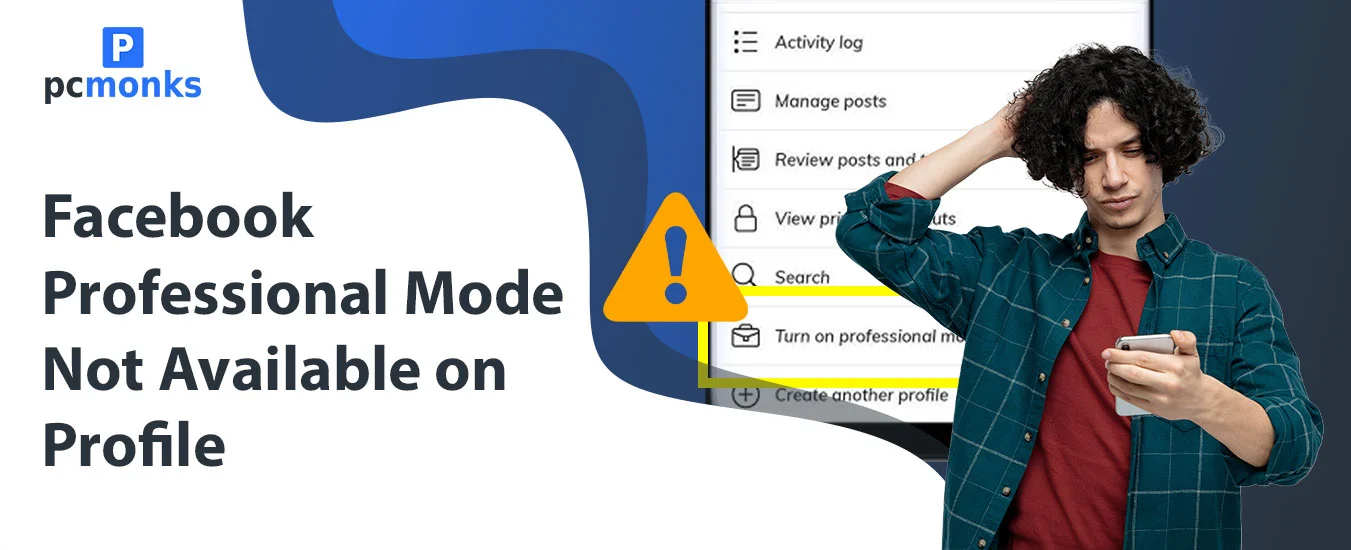
Are you looking to convert your standard Facebook account into a professional one? You can do that using Facebook Professional Mode. I will walk you through the actual steps to activate Pro Mode on your profile and explain where you are stuck if Facebook Professional Mode is not available on your profile.
Facebook offers its users a way to transform their personal Facebook profile into a creator-focused hub. You don’t need a separate page for this. Meta introduced it to compete with Instagram Creator accounts and TikTok’s creator tools, and by 2026, it had become one of the most powerful options for individual content creators on the platform.
In this, you keep your personal identity (name, friends, memories) while unlocking tools that were previously exclusive to Pages and brands. For example, audience insights, follower analytics, monetization features, and the Creator Dashboard.
If you use Facebook Pro Mode, it comes with several benefits, with being popular or becoming a personal creator being the most prominent one. You can:
Before you get confused, we offer you a clear differentiation among Facebook Page, Professional Mode, and Personal Profile. Have a look:
| Feature | Personal Profile | Professional Mode | Facebook Page |
| Public followers | No | Yes | Yes |
| Audience insights | No | Yes | Yes |
| Monetization tools | No | Yes (eligible accounts) | Yes |
| Friend system | Yes | Yes | No |
| Personal identity retained | Yes | Yes | No |
| Creator Studio / Dashboard | No | Yes | Yes |
| Business branding tools | No | Limited | Strong |
| Reels performance data | No | Yes | Yes |
| Free to use | Yes | Yes | Yes |
If you don’t find the professional mode on your Facebook profile, that’s because of many reasons; not meeting eligibility criteria is one such. Explore the reasons:
This is the most common reason. Facebook Professional Mode is not available to every account by default. The profile should meet the following criteria:
Facebook gives you the choice to keep your account private or public. If you choose to keep it private, then the pro mode will not be highlighted. That’s for a reason: Switching to a pro account means being visible to others, which you can’t with a private profile. However, the good news is you can always choose to make your profile public from your profile, and so to enable professional mode on your profile.
As it’s one of the replacements for a Facebook page, you cannot just find the Pro Mode option while you’re on your Facebook page. The feature is only for personal accounts. So, you must switch your account to a personal one and follow the steps further.
If you have Facebook App that’s not updated for a long time, you cannot see the Pro Mode option in your profile. Since the feature is new, it’s hidden for an outdated app.
There is a necessity of having a clean Facebook history to be able to use Facebook Pro Mode. If your profile does not have this option, that’s because you are involved in breaching the Facebook policy.
It was when I decided to turn on Facebook Professional Mode on my profile. I visited the profile and started looking for the option. But it was not visible on my profile.
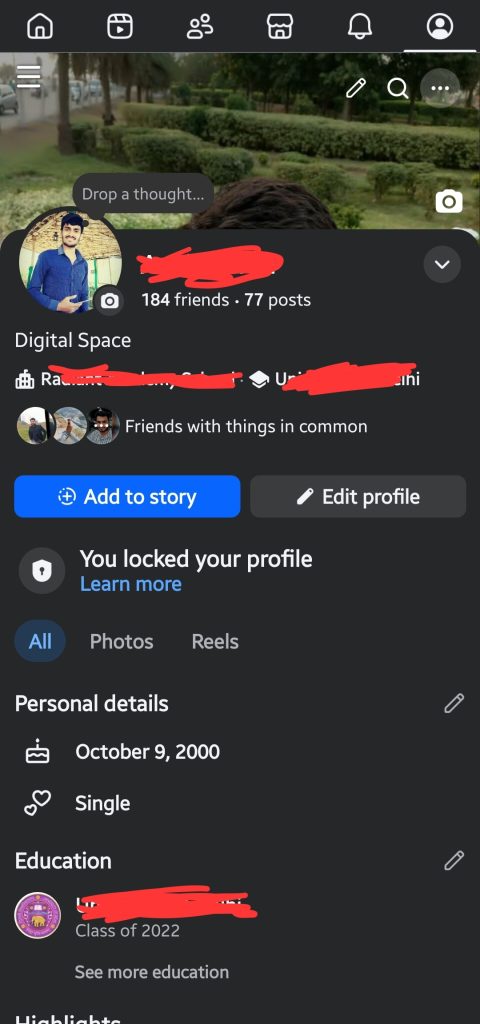
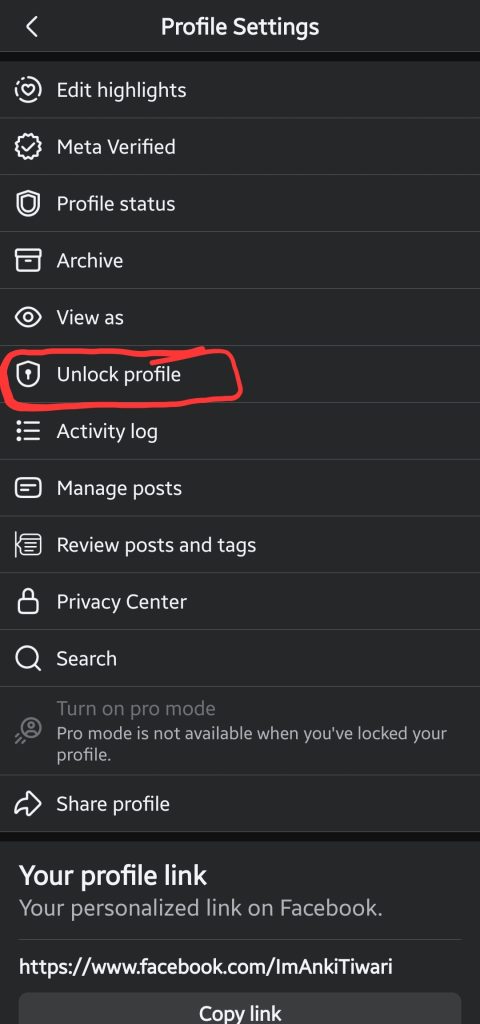
After searching for the reason behind it, I found that my Facebook profile was set to private. That is why the option was not highlighted to switch my profile to Pro Mode.
So, I made my profile public first.
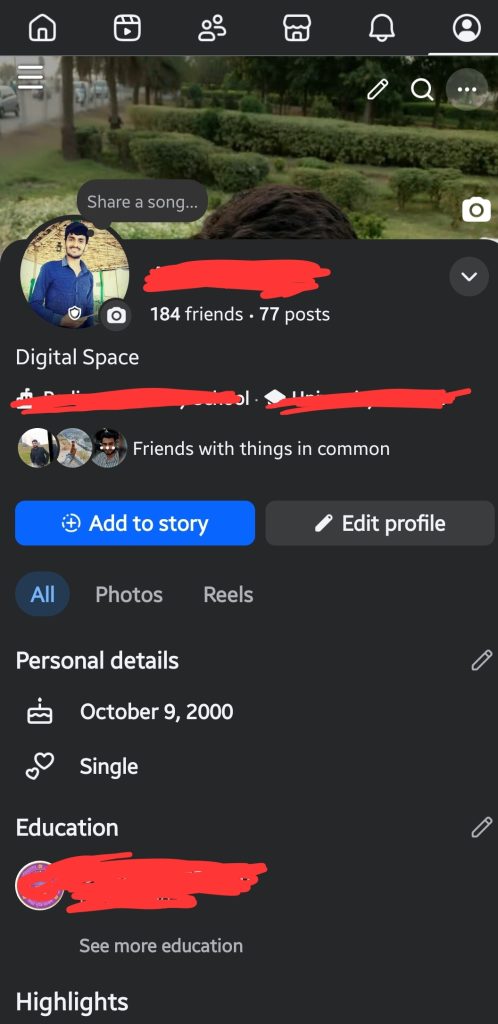
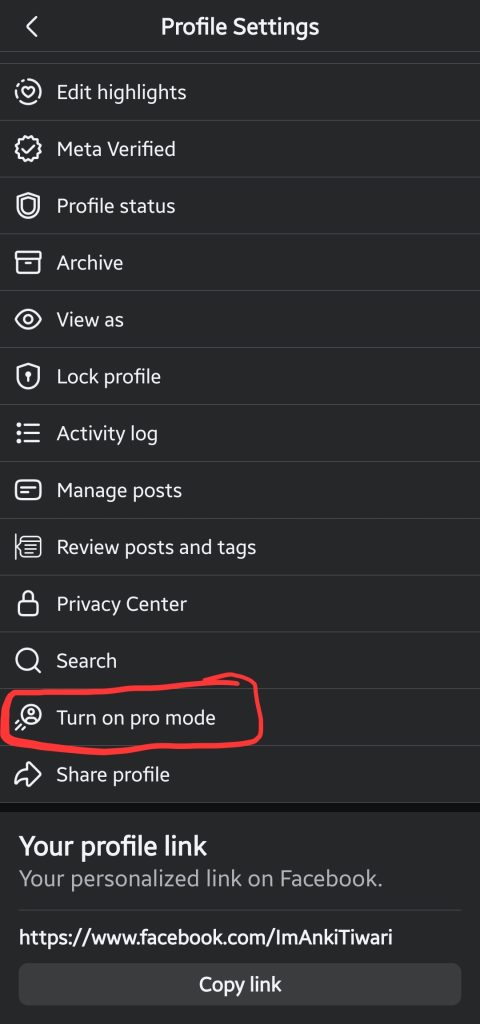
After putting it public, I visited my profile and checked if the Professional Mode option is visible. And it was there right in front.
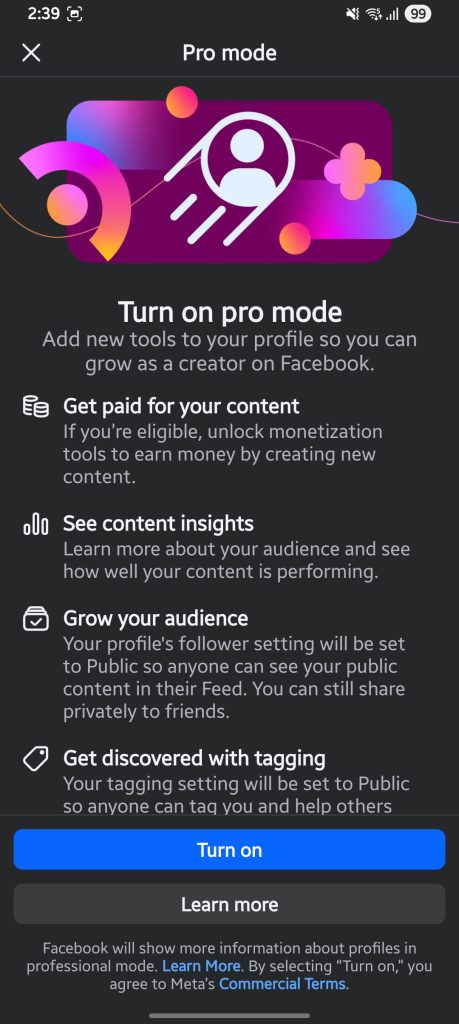
The moment I tapped the “Turn on pro mode” option, a new window appeared where it asked me to confirm my action.
I tapped the “Turn On” option from the bottom and my account was now a professional one.
In my case, I first unlocked my profile and made it public. After that, the Pro Mode option was visible.
If I put it in steps, it would look this way:
Just in case the above steps are not working for you, then you have other options to seek out help from officials. The quick one is to report a problem. I will help you know how to do it.
Ans: Meta doesn’t always refresh your account status instantly. In my testing and research, it can take anywhere from a few hours to 48 hours for the system to recognize the change and update your menu. If it’s been longer than a week, your account might be restricted due to a past policy flag, or it’s a technical glitch you need to report using the “Shake to Report” method I outlined above.
Ans: Not at all. Your existing friends stay your friends, and you can still see their private updates in your feed. The main difference is that your profile will now feature a “Follow” button for strangers, and your total “Follower” count will combine both your existing friends and your new public followers.
Ans: Yes, you can turn it off at any time through the same three-dot menu. However, there is a catch you should know beforehand: you will permanently lose access to all the audience insights and analytics gathered while you were in Pro Mode. If you turn it back on later, your analytics dashboard restarts from scratch.
Ans: If you are an individual creator, writer, or public figure trying to build a personal brand, Pro Mode is highly effective because it leverages your existing friend network. But if you run a local shop or a brand that requires multiple team members to manage it, stick to a Facebook Page.
The purpose of launching professional mode on Facebook profile is to convert your normal account to a professional one. If you’re a personal creator or advertise your product or service, you can easily manage all of that using this account. With the switch, you get the insights option and access to other tools to analyze your followers and maintain your account professionally. It’s an easy process: you just need to select your profile, tap three dots, tap “turn on pro mode”, and finally, click turn on.


[…] also use this switch feature to jump between other Facebook accounts. This is especially helpful if Facebook Professional Mode is not available on your profile and you need creator tools. Under the “Other profiles” section, you can quickly access […]