Physical Address
304 North Cardinal St.
Dorchester Center, MA 02124
Physical Address
304 North Cardinal St.
Dorchester Center, MA 02124

Suppose you have fully edited your video. But when you try to upload your reel, you see the error that says, “Not posted yet. Please try again.” Or, “Try again later. Something went wrong with your upload.” You find yourself caught up in this cycle and willing to solve this problem as soon as possible.
So, if you are one of those users who are also facing difficulties while uploading your reels, this is a common issue caused by network, app, or file problems. These steps address the most frequent causes based on Instagram’s official troubleshooting guidance. In addition, there are some other reasons as well. You just need to read out the whole blog to fix this issue.
There are some reasons behind it:
You can try these steps in order, as they target the most common causes.
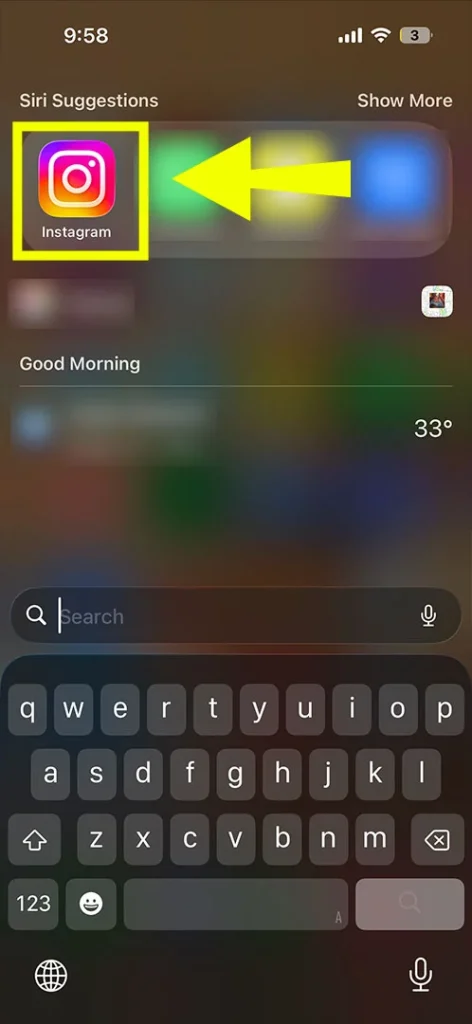
Access the Google Play Store or App Store. It totally depends on you which OS you are using, whether it is Android or iOS. Further go through these steps:
Tap Update. An outdated app may lack fixes for upload bugs released in recent versions.
After updating your Instagram app, if you still encounter the same error, you need to see that there are no regional restrictions. To do so, visit the Instagram Help page.
To turn off Data Saver, we have highlighted some instructions.
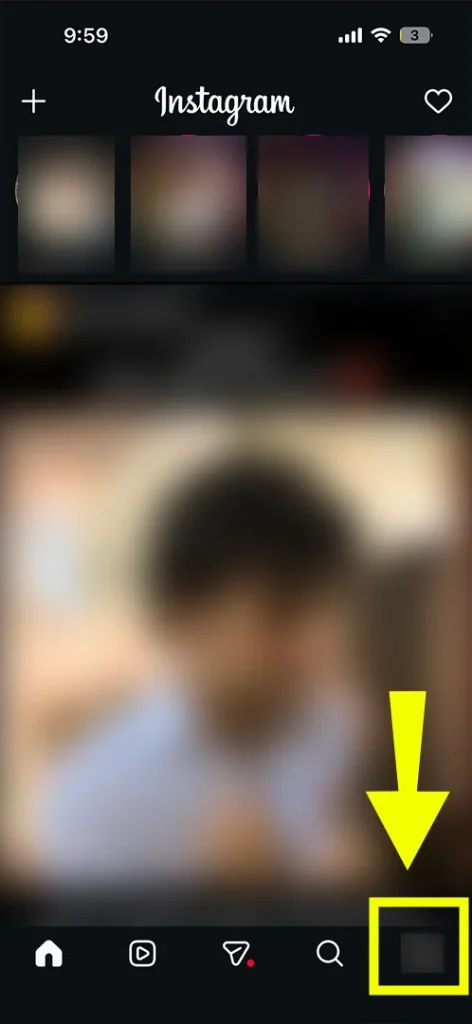
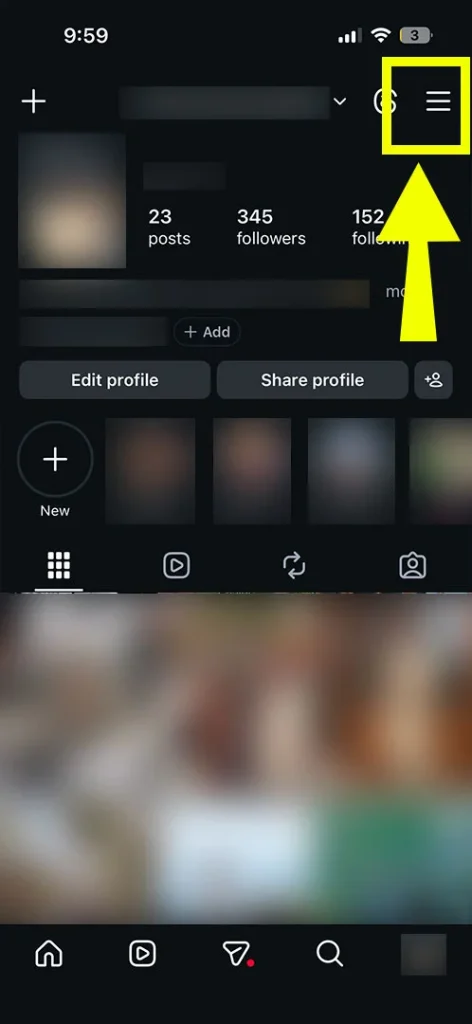
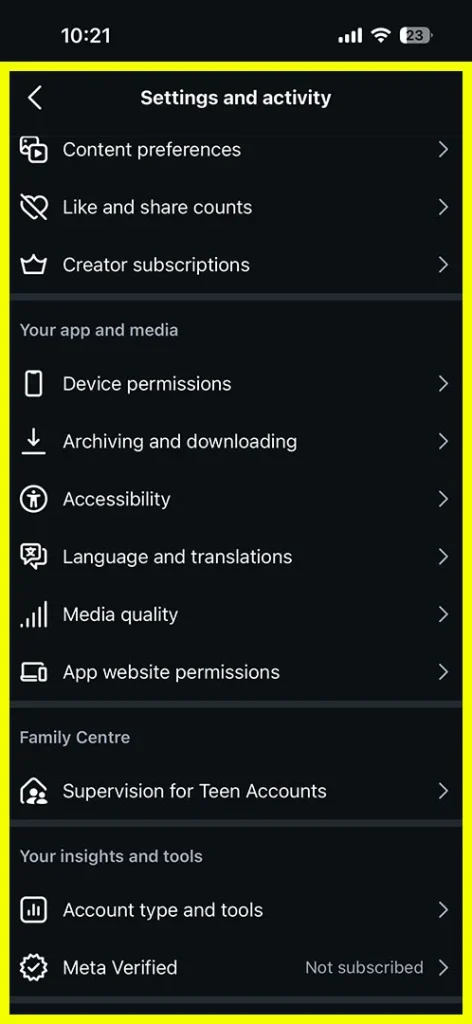
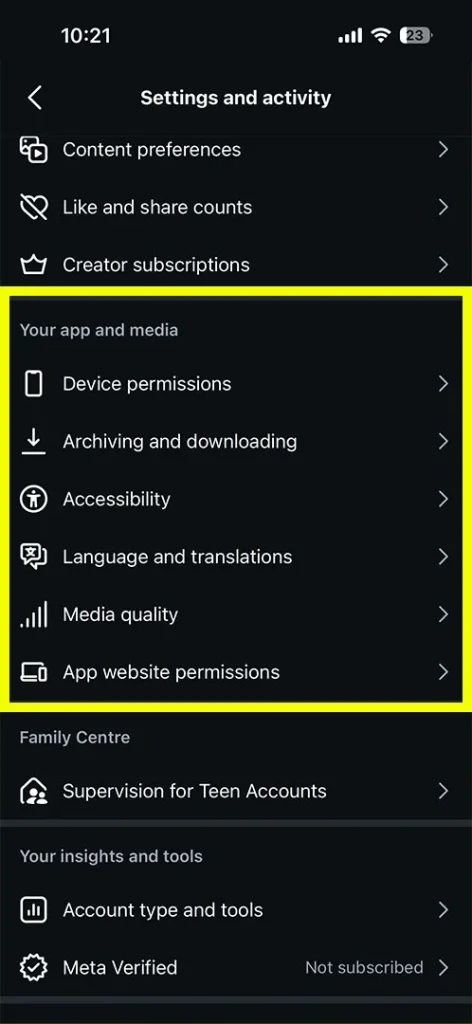
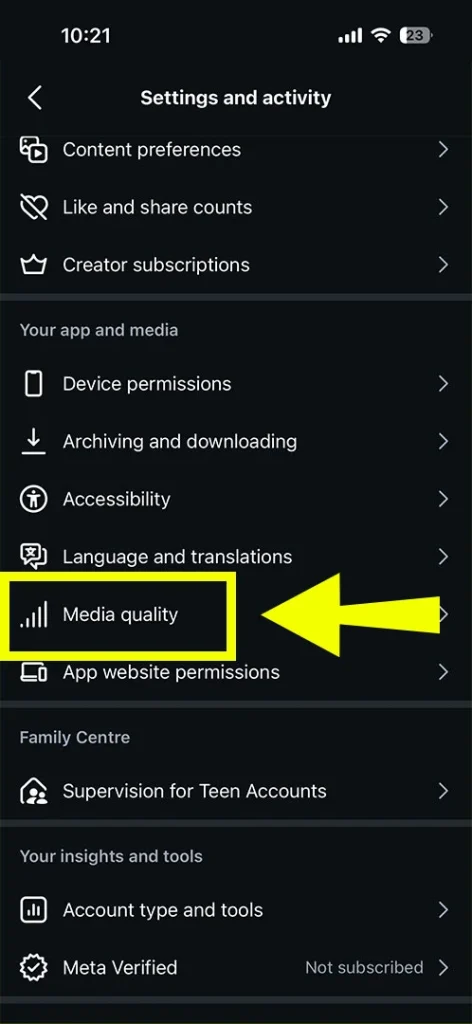
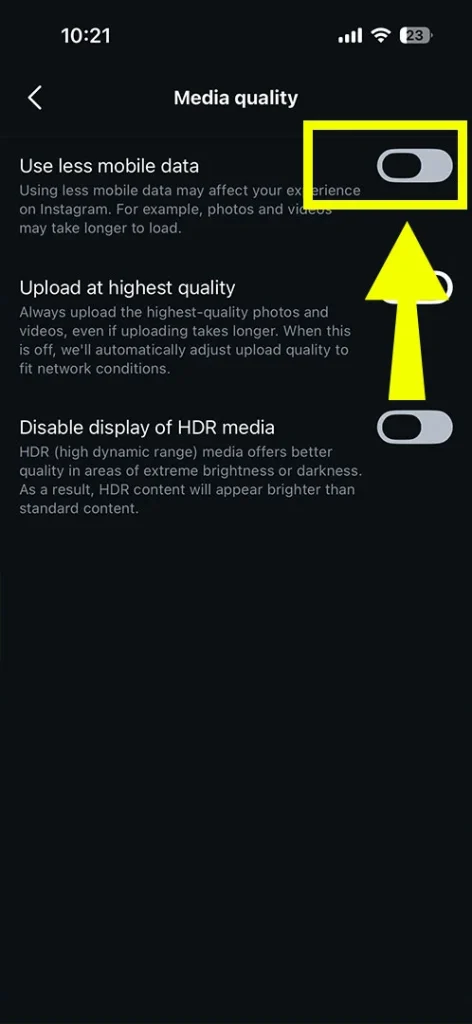
Make sure to check that your internet connection is stable and connected with WiFi (highly recommended). After that, try to restart your router or simply turn off all background apps that consume your cellular data.
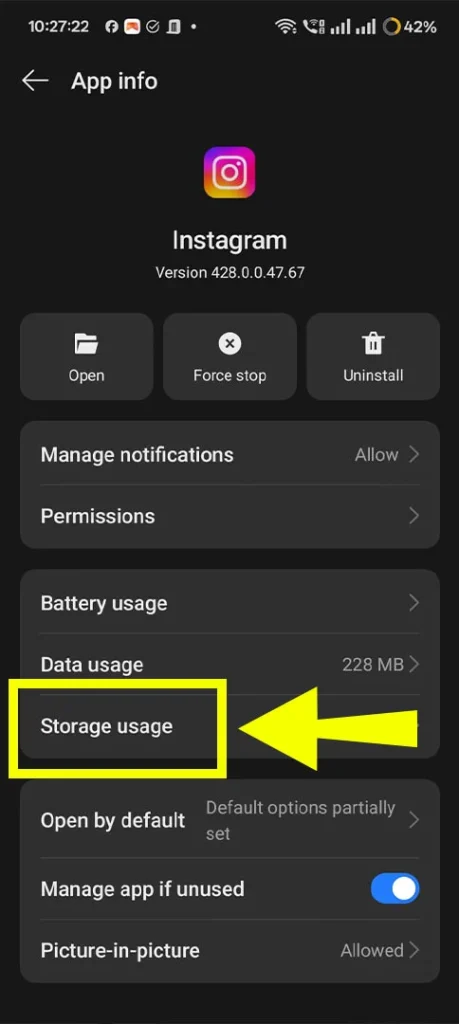
Follow these steps for your Android device:
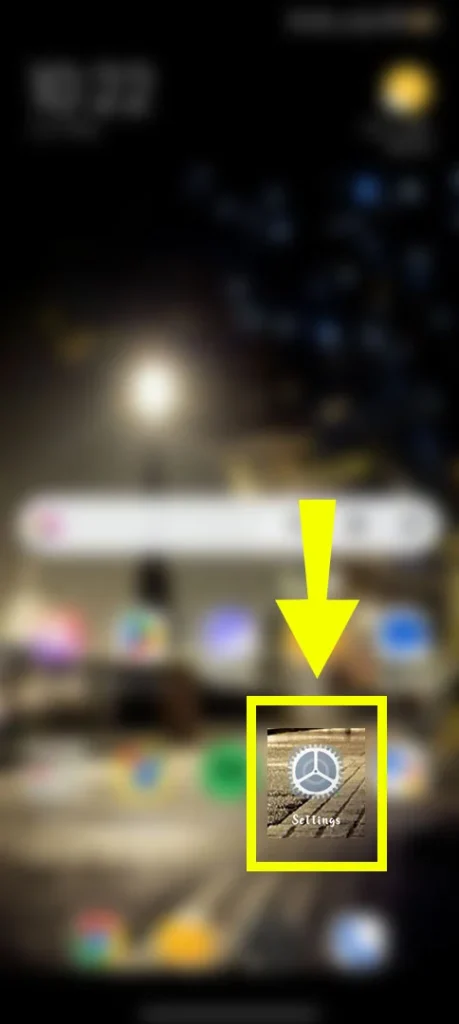
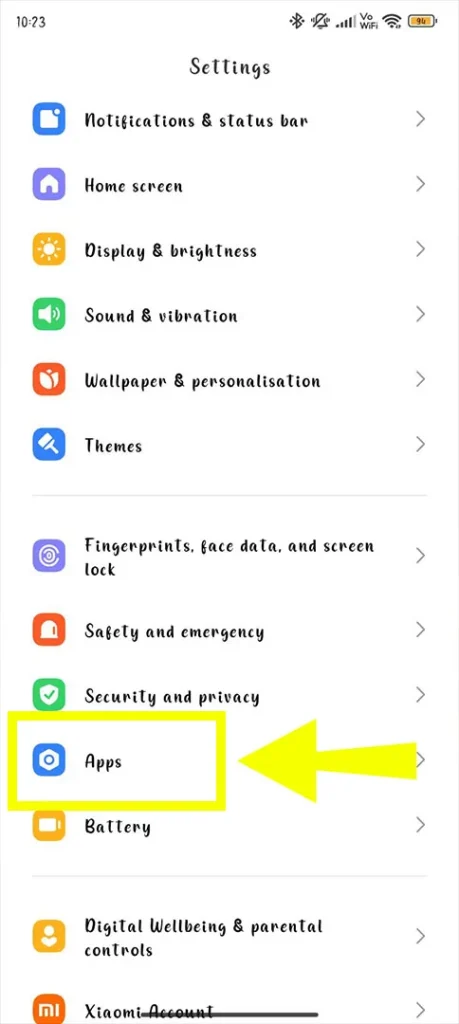
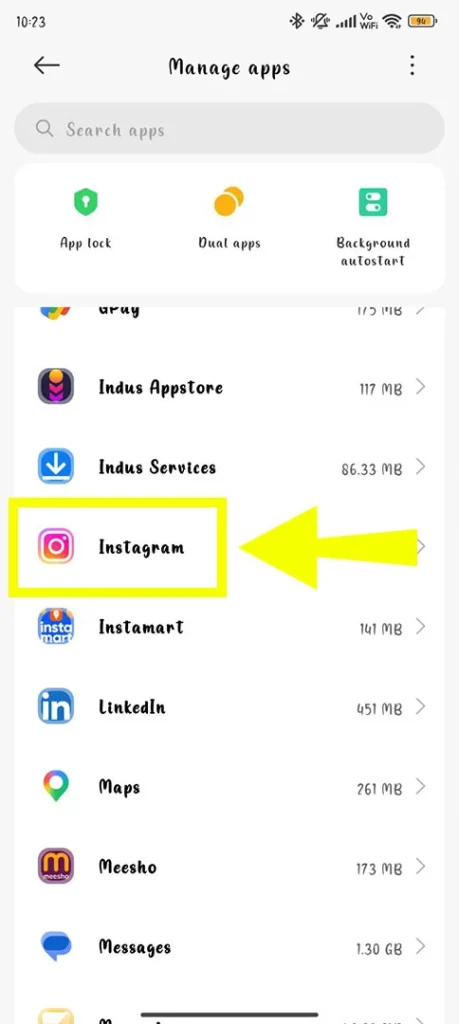
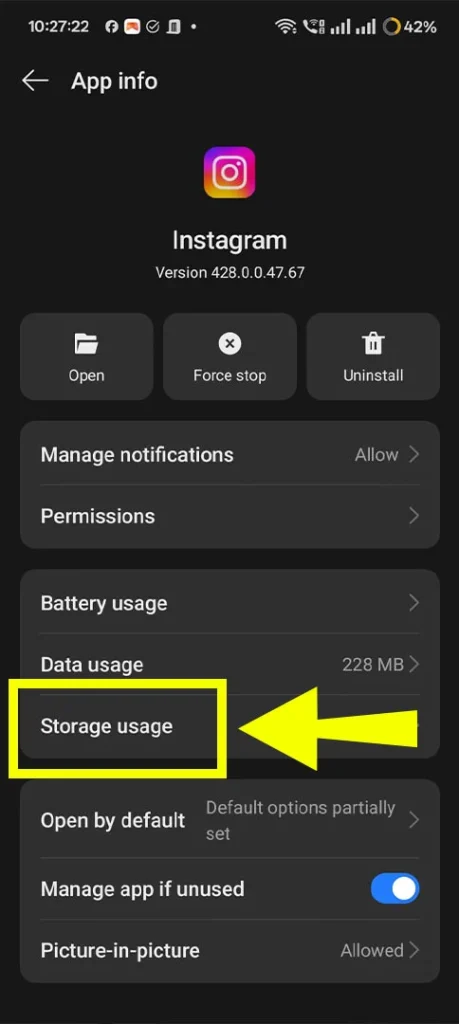
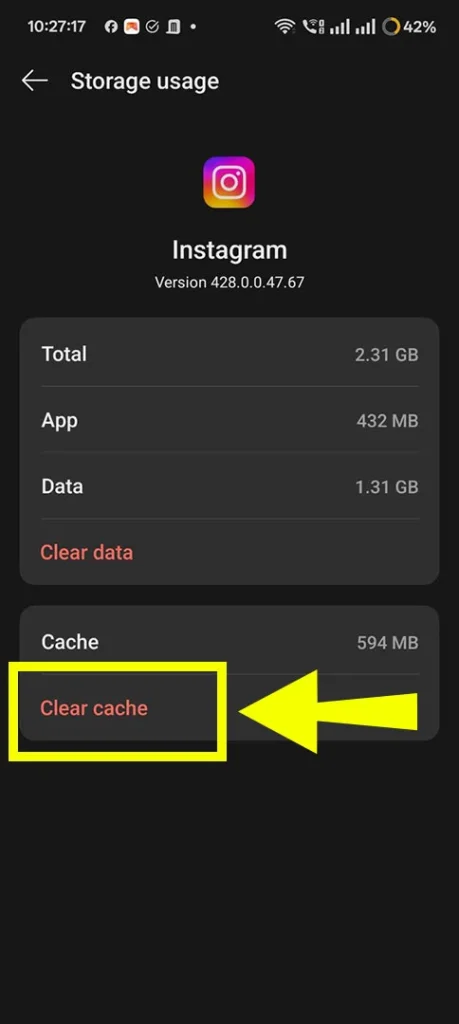
Note! iPhone lacks a direct cache clear; offload or reinstall the app via Settings > General > iPhone Storage > Instagram.
Follow these tips and tricks below.
Here, we hope all your doubts will be clear, and you’ll smoothly get rid of the Instagram reel stuck uploading error.
Ans. These are some tricks that will help you out.
Ans. You can try to turn on airplane mode to trigger the connection. After that, tap on Delete or X on your reel. If the problem still exists, follow these alternatives.
Ans. If you find out that the slow Instagram Reel upload error appears on your device, it is because you are using an unstable internet connection. Sometimes, it can also happen that you have uploaded a larger file size, or there might be temporary bugs.
Ans. Yes! If you have low phone storage, it automatically affects Instagram reel uploading. Moreover, it can slow down the processing speed and stop you from saving any drafts.
Ans. Just remember that while uploading Instagram Reels, it should be about 4 GB, not more than that. Moreover, if you are using bulkier file sizes of about 1 GB, it is considered heavy or large. So, the recommended size based on my experience is 100 MB to get the best results.
Author note: These steps are based on Instagram Help Center guidance and common user reports as of May 2026. If issues persist, check Instagram’s status page for outages.
Not medical or financial advice; for app troubleshooting only.