Physical Address
304 North Cardinal St.
Dorchester Center, MA 02124
Physical Address
304 North Cardinal St.
Dorchester Center, MA 02124

If your Instagram Story won’t post, cancel the stuck upload, force close the app, switch between Wi-Fi and mobile data, and post a plain photo as a test. That short routine fixes most stuck uploads in a few minutes, and it tells you whether the problem is your connection, your video file, the app, or your account.
The usual causes are a weak connection, a stuck upload queue, or a video file Instagram can’t process. This guide goes through each one in the order worth trying them, so you don’t reset your phone when a simple network switch would have done the job.
Last checked: November 2026. Menu names shift between app versions and phone models, so yours may look a little different.
| What you see | Try this first |
|---|---|
| Progress bar frozen, often near the end | Cancel the stuck Story, force close Instagram, and retry on a different network |
| “Waiting for connection” or “Upload failed, tap to retry” | Switch networks, turn off VPN and Data Saver, check that Instagram can use mobile data |
| Photos post, but one video won’t | Re-export the video as a 1080 x 1920 MP4 (H.264), turn off HDR, remove music and stickers |
| Nothing posts and your feed won’t refresh | Check Downdetector for an Instagram outage and wait 10 to 15 minutes |
| “Try again later” or a warning message | Open Account Status and pause heavy activity for a day or two |
| Story posts, then disappears | Check Account Status for a removal notice, often a music copyright match |
Run these five steps in order, and test after each one. Stopping as soon as something works keeps you from making changes you don’t need.
If the test photo posts, your connection and account are fine. Focus on the video file, its edits, music, or stickers. If the photo also fails, check for an Instagram outage, your account status, and your phone settings.
Most Stories fail because the upload gets interrupted or the app can’t process the file. A weak signal, a stuck draft, a heavy or unusual video, low phone storage, missing app permissions, or an old app version can all cause it. Less often, Instagram itself is down or your account has a limit.
| What you see | Likely cause | Where to look |
|---|---|---|
| Progress bar frozen, often near the end | Connection dropped mid-upload, or the upload queue is stuck | The cancel and retry section |
| “Waiting for connection” even with signal | Blocked mobile data, VPN, Data Saver, or wrong date and time | The “Waiting for connection” section |
| “Upload failed” and “Tap to retry” keep coming back | Bad connection, old app, or damaged temporary data | Connection and settings sections |
| One video fails, but photos post fine | File format, HDR, frame rate, or length | The video file section |
| Works on Wi-Fi but not mobile data (or the reverse) | Data permissions, data saver settings, or the network itself | The settings section |
| Can’t pick photos or the camera won’t open | Photo, camera, or microphone permission turned off | The permissions section |
| Nothing posts and your feed won’t refresh either | Connection problem or possible Instagram outage | The outage section |
| “Something went wrong” while posting a video | A bug in a new app version, or a file Instagram can’t process | The video file section and the update tips |
| The Story posts, then disappears within minutes | Possible content flag, such as a music copyright match | The account section |
| A warning or “Try again later” message | Account restriction or action block | The account section |
Save a copy before you cancel, if Instagram gives you the option. A failed upload doesn’t always show a save button, so also confirm you still have the original photo or video in your gallery.
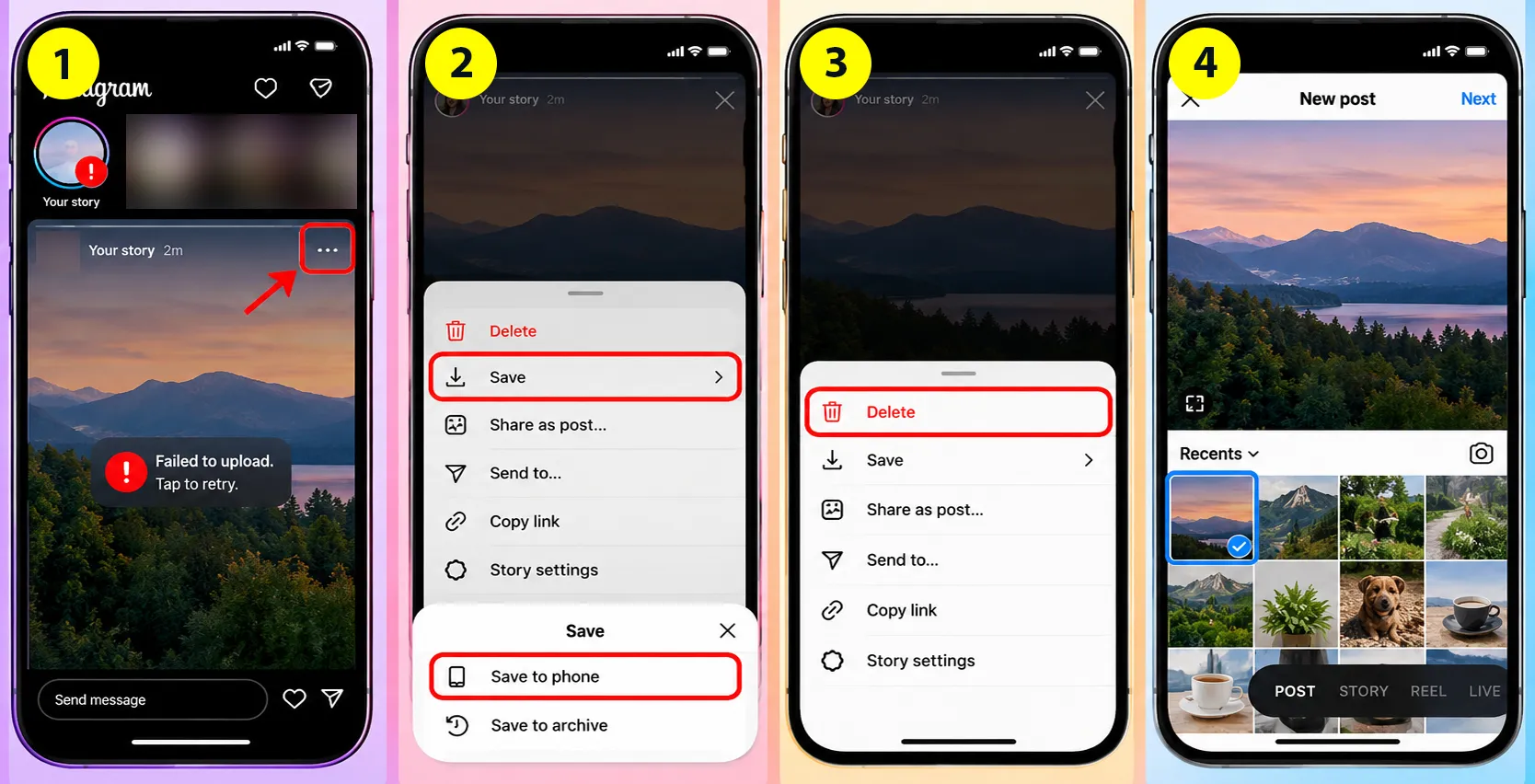
If the stuck upload won’t respond to taps, turn on Airplane Mode and make sure Wi-Fi is off too. Open Instagram. With no connection, the upload usually stops trying and the Cancel or Discard option becomes available. Turn Airplane Mode off afterward before you post again.
If it still won’t clear, force close the app and restart your phone. On Android, clearing the app cache (covered below) also removes most stuck uploads.
Cancelling matters because tapping Retry on a broken upload often repeats the same failure. A fresh attempt starts clean.
A saved copy keeps the look of your edits, but interactive stickers won’t stay tappable. Add polls, questions, quizzes, links, and countdowns again on the new Story. You may also need to re-add music.
“Waiting for connection” means Instagram can’t reach its servers, even if your phone looks online. The app is blocked or slowed somewhere between your phone and Instagram. These are the common culprits:
If none of these apply and your feed also won’t load, Instagram may be having an outage. Jump to the outage section.
Yes. Full bars only show that your phone is connected to the router. They don’t show how well data is moving out to Instagram, and uploads need far more upload speed than browsing does.
Quick test: open a web page or play a video on the same connection. If that feels slow too, the connection is your problem. Then try these:
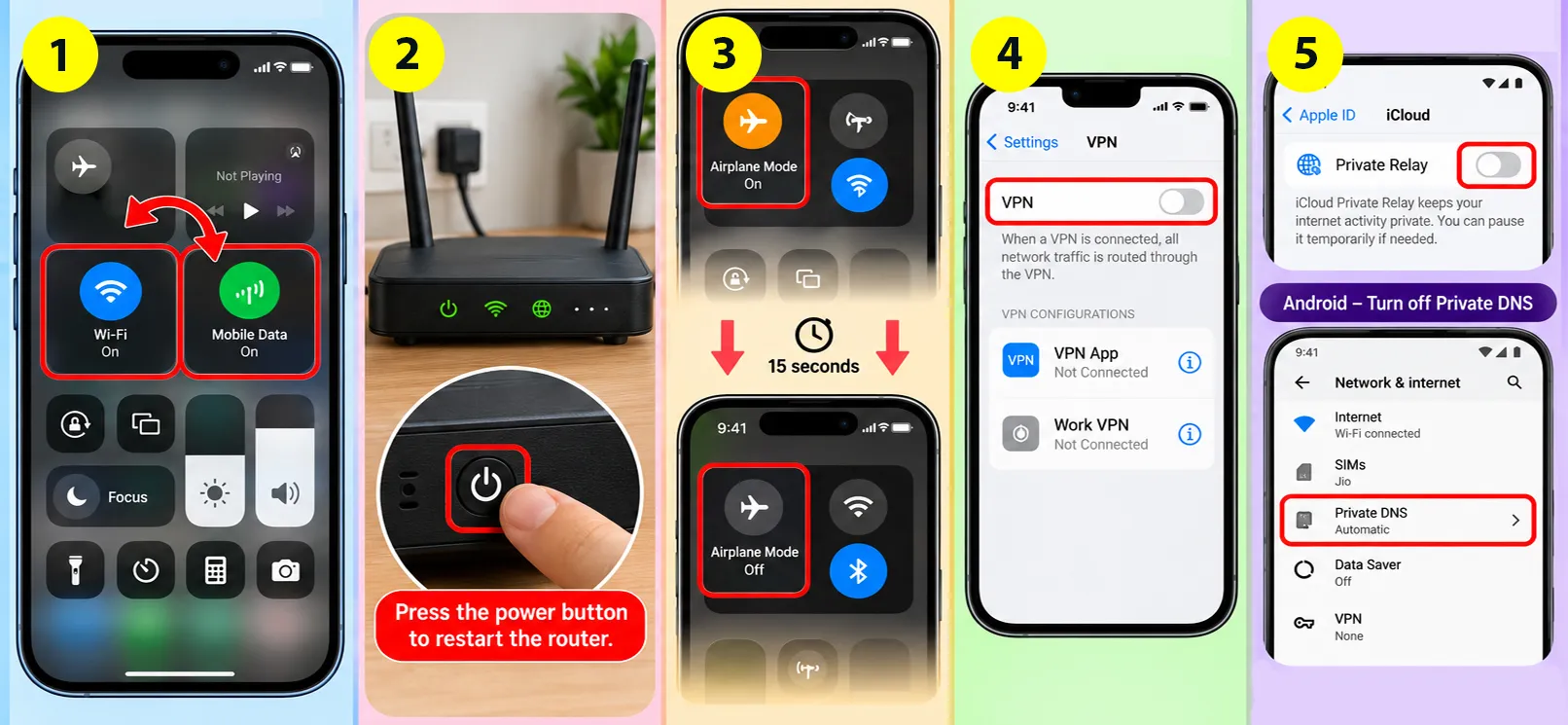
Pick one steady connection and stay on it until the upload finishes. Walking out of Wi-Fi range halfway through is a classic way to break an upload. So is posting from a moving train, a crowded public hotspot, or a room with thick walls.
Yes, especially when photos post and one video doesn’t. Instagram Stories are built for tall, short clips. Files that stray far from that can stall without a clear error.
| Setting | What to aim for |
|---|---|
| Shape | Vertical, 9:16 |
| Size in pixels | 1080 x 1920 |
| Video format | MP4 or MOV |
| Photo format | JPG or PNG. Very large or unusual image files (like RAW) are worth converting first. |
| Codec | H.264 video with AAC audio (the most commonly recommended pairing) |
| Frame rate | 30 frames per second is the usual recommendation. If a clip uses an unusual rate, re-export it at 30. |
| Length | Up to 60 seconds plays as one Story clip. Longer videos are split into multiple clips. |
About file size: Instagram doesn’t publish one simple limit for Stories, so don’t chase a single number. Focus on a compatible format and a reasonable file. If a long or heavy clip fails, trim it and export it as a 1080 x 1920 MP4 using H.264 video and AAC audio.
It can be. Newer iPhones record HDR video by default, and many creators report that Instagram sometimes struggles with HDR clips. Some also look washed out or overly bright after posting.
If an HDR video fails but a normal photo posts, export or re-record the clip in standard dynamic range (SDR) and try again. If it uploads, HDR was likely the issue.
On many iPhones, go to Settings > Camera > Record Video and turn off HDR Video. The exact name can vary by iPhone model and iOS version. Some Android phones have a similar HDR or “HDR10+” video option in the camera app settings.
These file rules apply beyond Stories. If your Reels hang too, these fixes for Instagram Reels stuck uploading cover the same ground.
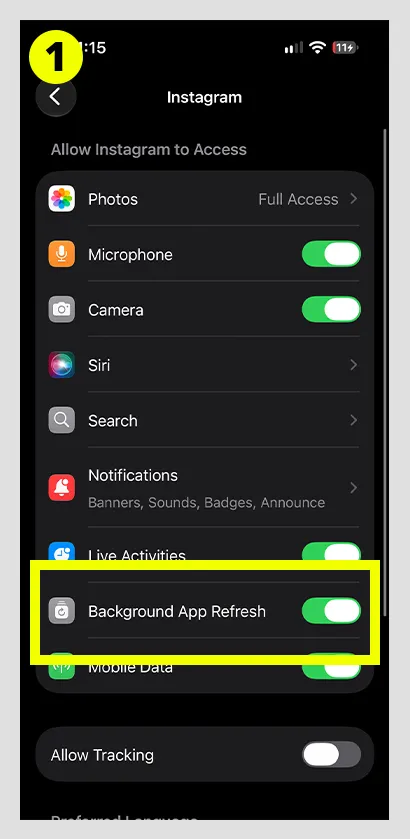
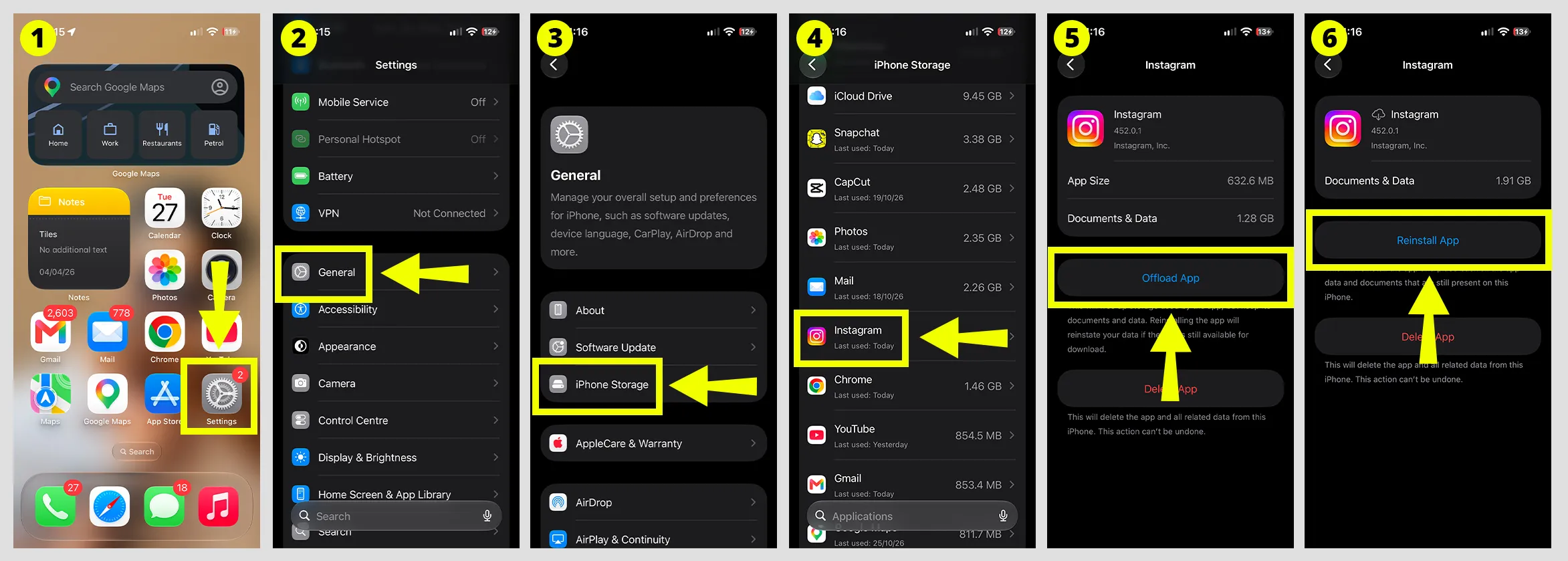
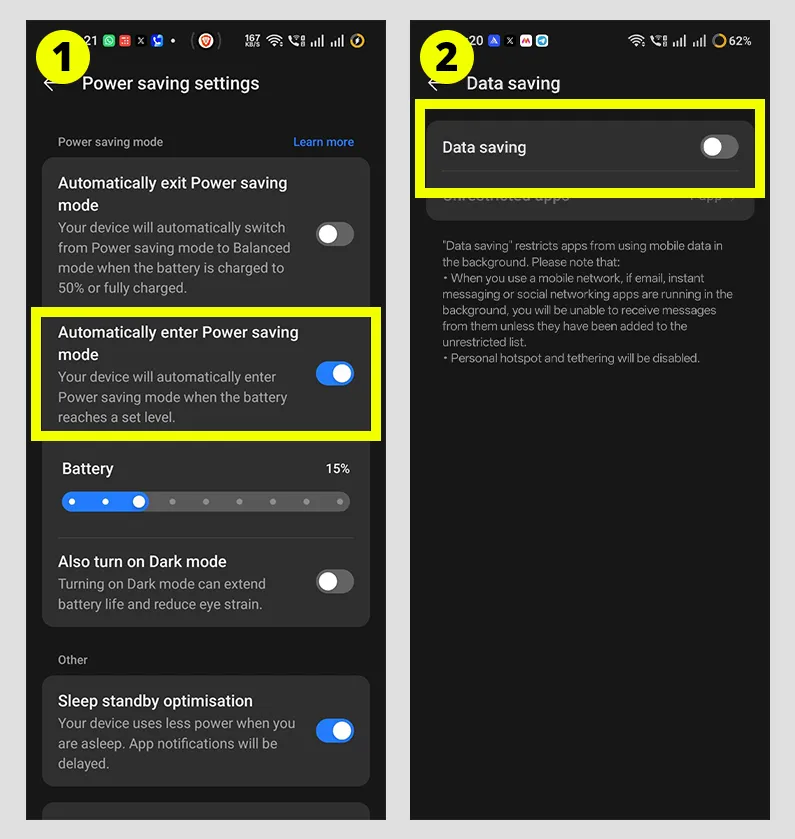
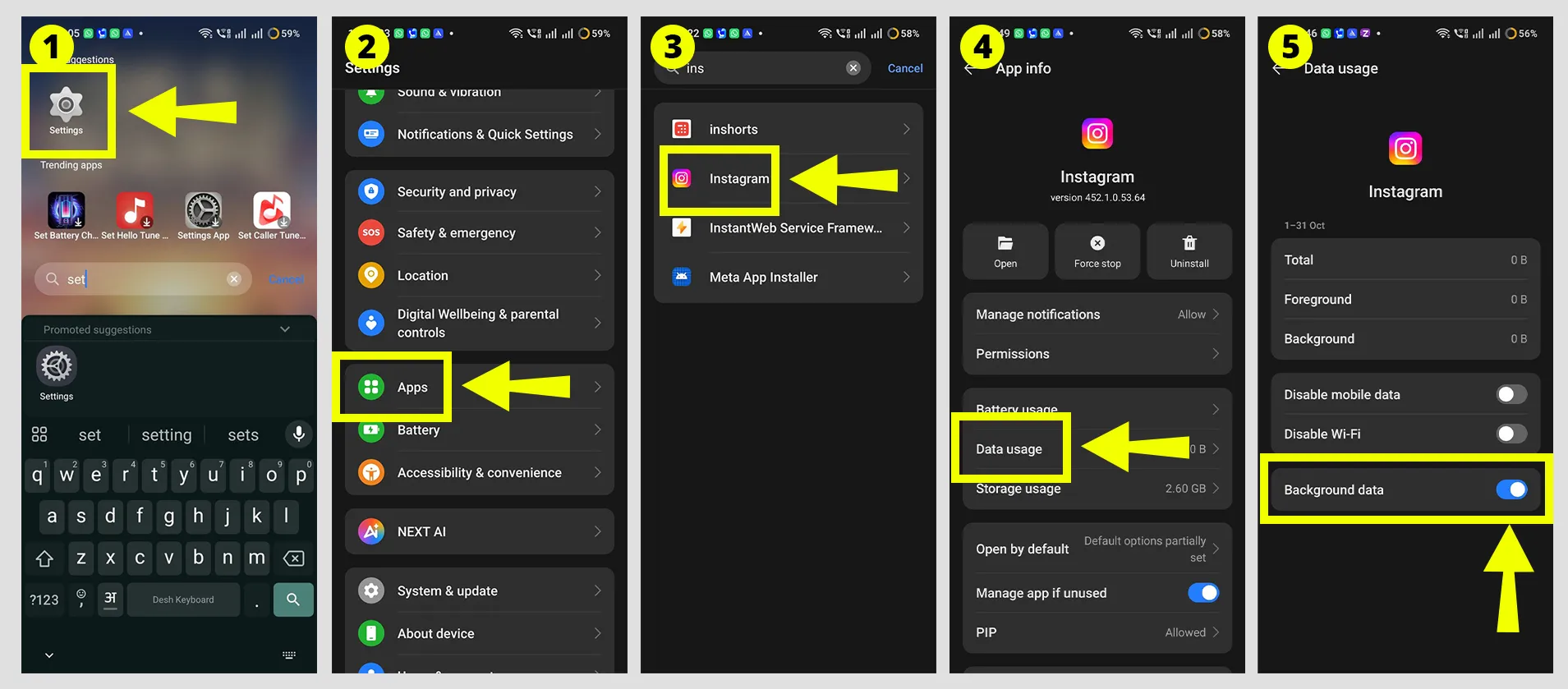
Data saver, background restrictions, missing permissions, and low storage are the usual ones. None of them shows an obvious error, so people skip right past them.
Go to your profile, tap the menu, then Settings and activity. Find Data usage and media quality. You’ll see two toggles that matter: Data Saver (sometimes called “Use less cellular data”) and Upload at highest quality.
Change one setting at a time and retry the same Story. Turn off Data Saver while testing. If Upload at highest quality is on, try turning it off for one test on a weak connection. These are tests, not guaranteed fixes.
While you’re in the app, try logging out and back in. It refreshes your session and can clear upload errors tied to a stale login. Make sure you know your password before you do this.
Instagram needs access to your photos, camera, and microphone to create Stories. If one is turned off, you may not see your gallery, the camera may not open, or videos may post without sound.
If you chose “Limited Access” on iPhone, Instagram only sees the photos you picked. A new photo or video won’t show up until you add it to the allowed list.
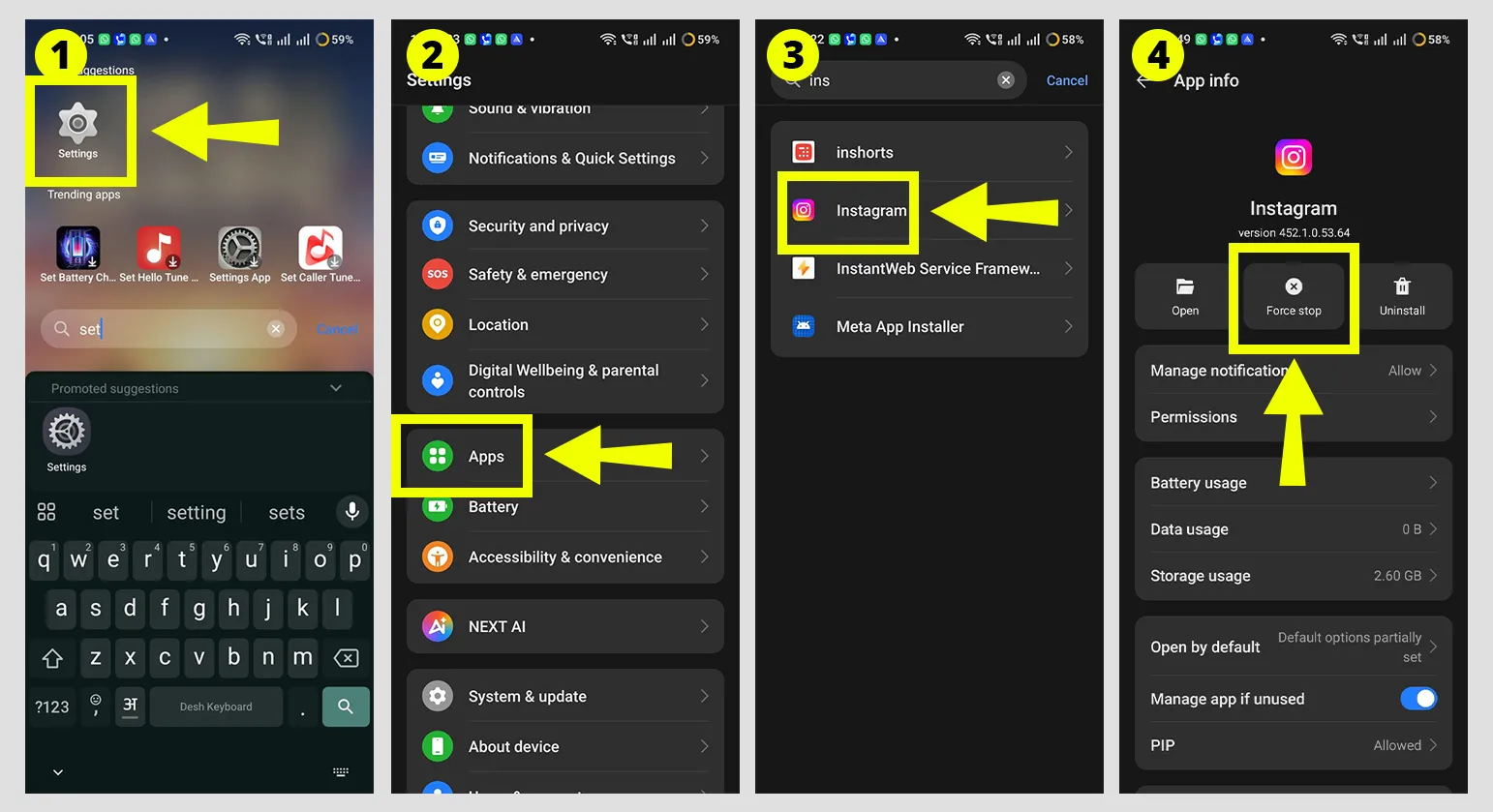
Settings > Apps > Instagram > Storage (or Storage usage) > Clear cache. This removes temporary files and often clears stuck uploads. You stay logged in.
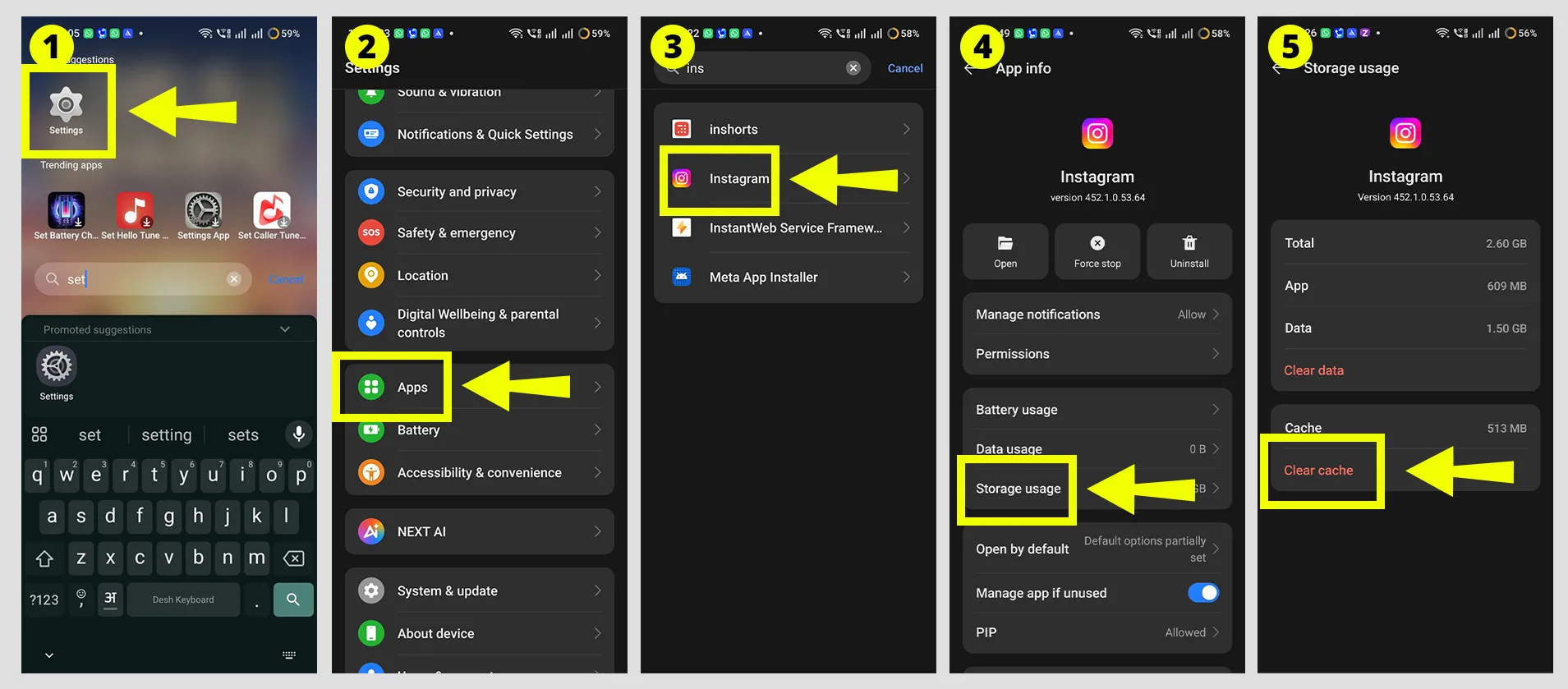
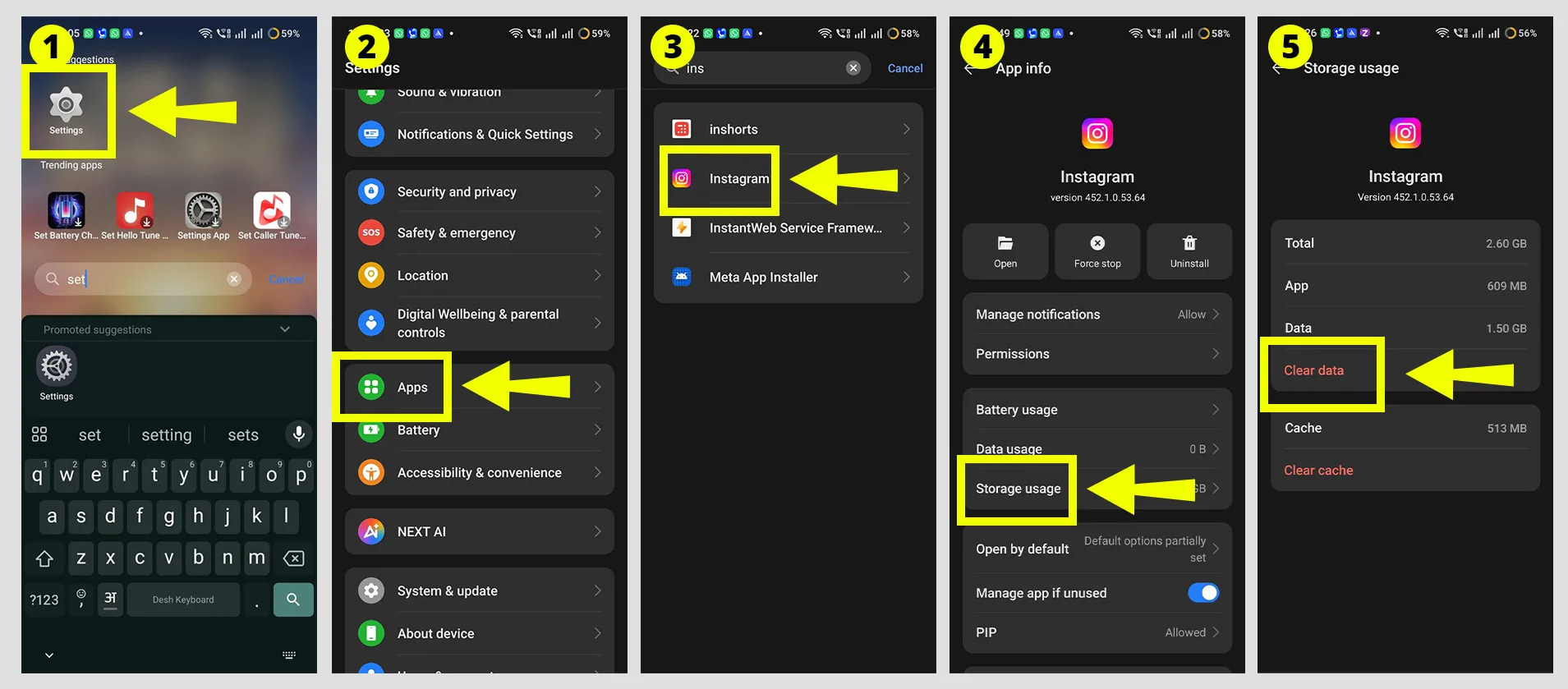
Use this only if clearing the cache didn’t work. Clearing data logs you out and may remove drafts stored on the phone, but it doesn’t delete your Instagram account. Save important Story media and make sure you can sign back in first.
Settings > Apps > Instagram > Storage > Clear data.
Yes. Instagram processes your video on the phone before it uploads. A nearly full phone can fail at that step, before the upload even starts. Keeping a few gigabytes free is a safe cushion. Also check for a pending iOS or Android update, since an outdated system can cause problems with newer app versions.
Each one has a different cause, so test them separately.
Your own view isn’t always what followers see. If your Story shows on your profile but friends say it’s missing from their Stories bar, check these before assuming the upload failed:
Open Account Status in Settings and activity. If you can’t find it, type “Account Status” in the settings search bar. Instagram explains what it shows on its Account Status help page.
It lists removed content and any limits on features. A useful rule: a restriction usually comes with a clear notice, and a plain upload failure usually doesn’t. Don’t assume a restriction just because an upload failed. If a Story posts and then vanishes within minutes, look here for a removal notice. Some Stories are flagged automatically, for example over copyrighted music.
A clean status helps, but it doesn’t rule out everything. Some short-term action blocks don’t appear there. If you see “Action Blocked” or “Try again later,” you may have done a lot in a short time, like many follows, likes, or messages. Instagram doesn’t publish exact limits. Stop that activity and give it a day or two.
Usually not. Forum posts often blame a “shadowban” for every failed upload, but a failed upload is almost always a technical problem. When Instagram limits an account, the content typically still posts and Account Status shows the limit. If your test photo fails too, look at your connection, phone, or an outage before you worry about your account.
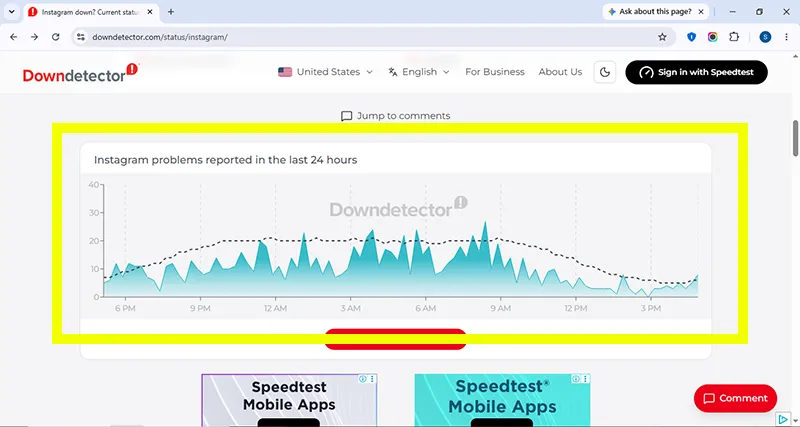
Possibly, especially if your feed won’t refresh either. Check Downdetector’s Instagram page and look at the report chart. It’s a third-party tracker built on user reports, not an official Instagram status page, but a sudden spike usually means many people have the same problem. You can also search “Instagram down” on X or Threads for live reports.
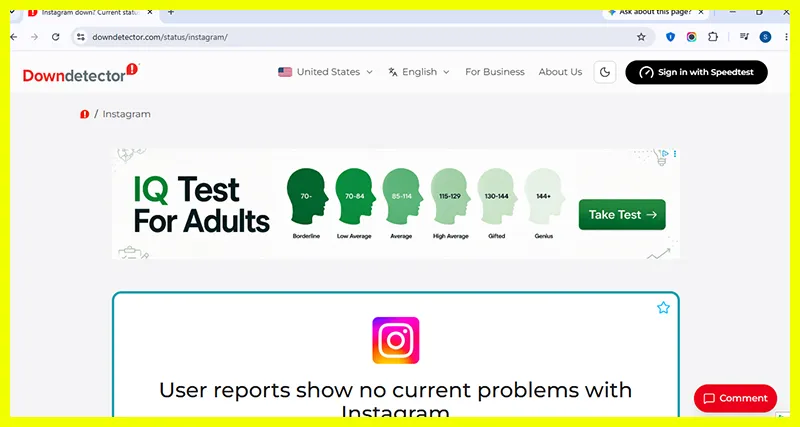
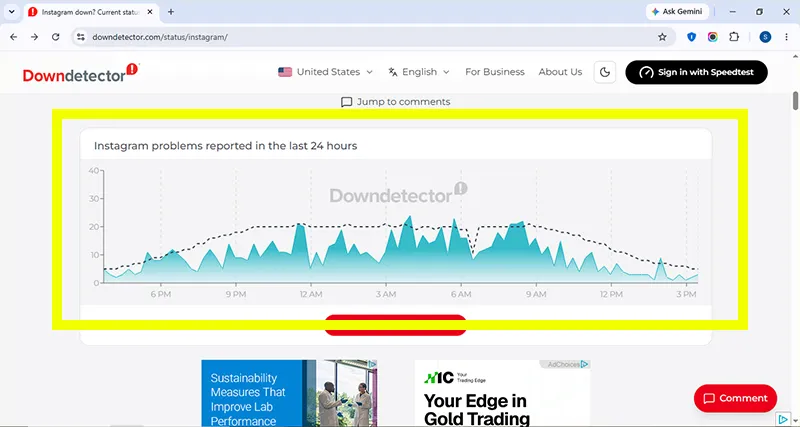
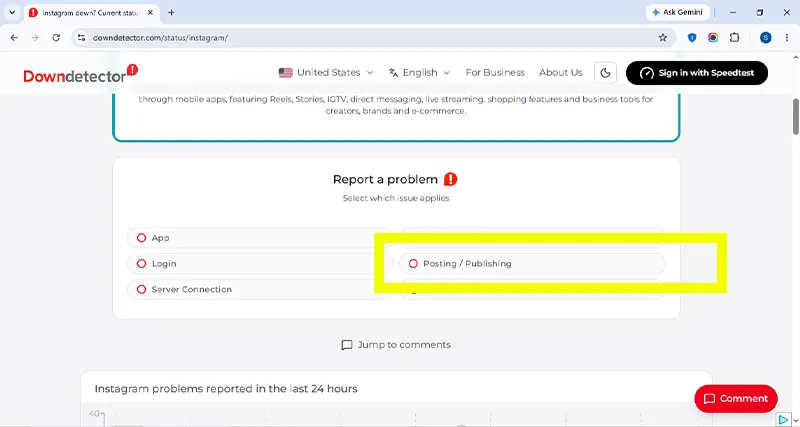
If you want to add your own report, tap Report a problem on the Downdetector page and choose Posting / Publishing. That’s the closest match for a Story that’s stuck, failed, or won’t post. Reporting doesn’t fix your upload. It only helps show whether others have the same issue.
During an outage, don’t reinstall the app, clear data, or change your password. None of those fix a problem on Instagram’s servers, and clearing data can cost you unsaved drafts.
Maybe, depending on your account type. If you have a Business or Creator account linked to a Facebook Page, Meta Business Suite lets you create and schedule Stories from a computer. It doesn’t support music or some interactive stickers, so plan around that.
Another quick test: log in to the same account on a different phone. If the Story posts there, the issue is your phone or its settings, not your account.
Once your Story is live, ask a friend to open it. Your own view can show a preview even when something is off for everyone else. And if replies come in but you never get an alert, check this guide on Story replies not notifying you.
Failed attempts don’t post. But sometimes an upload finishes while the app still shows an error. Check your Story from your profile before you retry, so you don’t end up with a duplicate.
No. Your account and posts live on Instagram’s servers. You’ll need your login details to get back in. Anything stored only on your phone, like an unsent draft, may be lost, so save it to your camera roll first.
Test it. Log in to the same account on another phone, or log in to a different account on yours. If the same account fails everywhere, look at Account Status. If every account fails on your phone, look at the phone, its storage, and its settings.
Instagram is probably blocked from using mobile data, or Data Saver or Low Data Mode is limiting it. Check the app’s mobile data permission and your carrier’s data balance. If it’s the reverse, your Wi-Fi network may be slow on uploads or blocking social apps.
The upload started but can’t finish, usually because the connection dropped or the file is too heavy. Cancel it, switch networks, and post again. If the same video keeps stalling, re-export it as an MP4 before your next try.
Go to Settings and activity, then Help, then Report a problem. You can also shake your phone while in the app on many devices to open the report screen. Describe what happens and add a screenshot. Instagram’s help page for when something isn’t working has more troubleshooting options.
Start with the simple test: cancel the stuck Story, force close the app, switch networks, and post a plain photo. If the photo posts, fix the video file by re-exporting it as a 1080 x 1920 MP4 and turning off HDR. If nothing posts, check Downdetector first, then Account Status, then your phone’s data, permission, and storage settings. If every step fails and the app is up to date, report the problem to Instagram with a screenshot.





[…] never finished posting: If the upload itself is stuck, start by trying to fix an Instagram story that is not posting, because there is nothing to save until it goes live. You can also save a story before posting it, […]