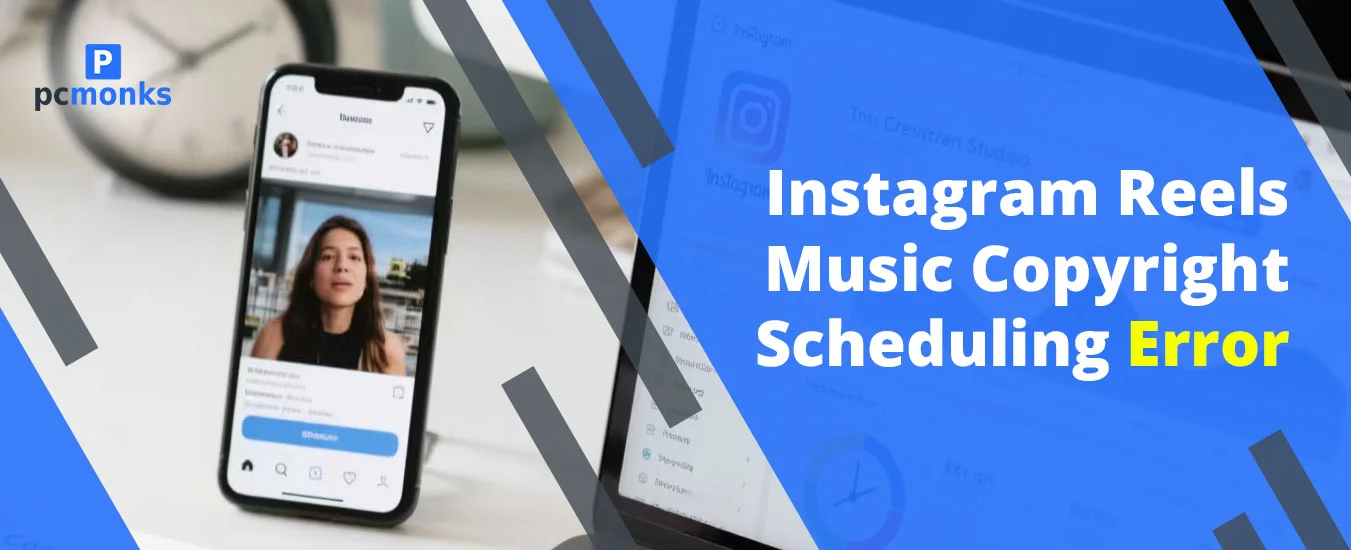
Graphic showing a smartphone screen with an Instagram Reels copyright error and a fix using Meta Business Suite.

How to Fix Instagram Reels Music Copyright Errors When Scheduling (2026)

Stop scrolling if you are scheduling your Instagram reels with the latest trendy audios. In addition, if you are a business account holder, you need to stop and think, as in 2026, this approach will also fail for this copyright trap. None of these strategies will work. Instead, what you need to do is use original or authorized audio clips. Plus, make sure to schedule your Instagram reels with the help of the Meta Business Suite. By doing so, it instantly detects which content is being copyrighted. 

Just go through this blog and understand each reason along with the fixes for the future. 

Summary Checklists! 

Objective Recommended Tool/Action
Safest Scheduling Go with Instagram’s native in-app scheduler.
Bulk Management Meta Business Suite provides you with automated copyright checks so that you don’t need to worry at all. 
Avoid Licensing Bans Switch to a Creator or a Personal Account
Originality Bonus Use AI-generated music (e.g., Beatoven.ai). 

What Does the Instagram Reels Music Copyright Scheduling Error Actually Mean? 

Just suppose one hypothetical scenario where you have scheduled one reel so that it will automatically be published in the future. Whether you have chosen Meta Business Suite or any third-party social media management tools, Instagram has removed or chosen video. Moreover, it can also happen that it has blocked your post because this music is only available for live or personal videos. However, you are not allowed to utilize it for automatic, robot-pasting, scheduled, or tech-driven purposes.

In fact, Instagram uses an AI detection system that lets it know which content is copyrighted. Plus, you will get to know the target audience of Instagram users, who love to hear transparency.  

What Does the Error Mean for Your Content? 

  • Muted Audio: It means that your video post or reels will exist, but your added song will be removed. In addition, it only leaves the genuine or original audio. 
  • Blocking: Your post may fail to appear globally. 
  • Restricted Reach: Your content may be ineligible or deemed inorganic for recommendations if it is using any unauthorized audio clips. 

Why Scheduled Reels Lose Audio/Copyright Issues

Check out these reasons that will help you to determine on the Instagram app, or you can do one thing. 

These are the common reasons that will give you an idea of why this error actually occurs. 

  • API Licensing Restrictions: The Graph API of Instagram is leveraged by third-party social media management tools that have unique, more restricted licensing restrictions as compared to the normal or standard Instagram mobile app. 
  • Limitation of a business account: If a user is using a business account and forgets to switch their account to a personal, professional, or creator one. Moreover, business account owners usually have a limited commercial music library. As a result, they are totally restricted from utilizing copyrighted or trending music. 
  • Copyright Detection: Instagram uses an automated detection system that constantly scans all potential infringements. So, whenever you schedule a post, the IG system automatically flags the commercial track. And after that, you face this irritating error. 

Solutions to Fix Scheduled Reels Music 

Now, it’s time to dive into the troubleshooting solutions that you are actually looking for. 

1. Use Native Scheduling Method:

It is highly recommended that you should schedule your Instagram reels directly within your app, rather than using any third-party social media management tools. As a result, it helps IG to easily recognize the actual and original voice license. 

To do so, go through these walk-arounds. 

  • Open Instagram
  • Go to the + Create icon. 
  • Decide whether you want to create a post or a reel. 

Note! Here, we’re choosing Reel to schedule for the future. 

  • Pick a photo or video you want to use as per your requirement. 
  • Add filters, effects, and mention the caption as well. 
  • After that, go to the three horizontal dots. By tapping on it, you will be able to see the menu. 
  • Be sure to enable the Schedule this Reel option. 
  • Thereafter, you will be required to set the time and date so that it can automatically be uploaded further. 
  • Tap on Done
  • Go back to the home page. 
  • At the end, just go with the Schedule feature so that your post can easily be uploaded further. 

With the above workarounds, you can also see your scheduled reels on your Instagram account. 

2. Add After Rescheduling Your Audio Clip: 

 Whenever you schedule your reels on Instagram, always remember to add music manually when the time period has come. Or, simply, you can edit the song; even if you uploaded the song once, you need to change it immediately if you want to protect your post from being blocked. 

3. Consider Using Free-Use Audio:

You just need to choose the audio from the Instagram collection. In addition, it will be highlighted as safe, or simply use the licensed or authorized tracks. 

4. Switch to Creator or Personal Account:

If you are having a professional or business account, you should convert it into a personal or creator account. By doing so, you will be able to get access to broader, non-licensed audio tracks. However, just keep one thing in your mind that this approach won’t be to solve any Instagram API scheduling problems. 

Pro Tips That Can Help You! 

These are some expert-driven tips that may help you. 

  • Consider using Meta Business Suite to upload the reel. This tool has a built-in AI detection system that recognizes whether the content is using any copyrighted audio before finalizing it for scheduling. 
  •  Try to go with the shorter copyrighted audio clips, as there are very few possibilities of being detected. 

General Questions Along With Their Answers 

Go through these most common questions that clearly describe the Instagram reels music copyright scheduling error. 

Q1. Why is Instagram not letting me use copyrighted music?

Ans. Here are some common reasons behind this to know why Instagram doesn’t allow it. 

  • You might be using your business account. 
  • There might be some regional licensing issues. 
  • The owner of the songs may have revoked their copyright issues regarding their albums or songs. 
  • Instagram also leverages an AI system to detect which content is copyrighted or without a license. 

Q2. How to fix the copyright issue on Instagram?

Ans. You can simply fix this error by removing your scheduled post. After that, you need to upload it manually and add a song by using the Instagram Music Library. 

Q3. How to avoid copyright issues on Instagram Reels? 

Ans. We have listed down some preventive steps that can help you out. 

  • Avoid using external music or an audio album.
  • Check the account type that you are using currently on your Instagram app. 
  • You can also use third-party platforms, such as Soundstripe or Beatoven.ai, that offer you music without triggering copyright issues.  

Q4. How do you post reels on Instagram without it saying you copyright music?

Ans. Follow these steps to do so. 

  • If you are containing a “May Contain” pop-up, you should try to appeal the claim if you have removed the song or licensing rights. 
  • If you still encounter the same error, what you can do is reschedule your reel. Thereafter, choose the preferred audio from your Instagram app, rather than any other AI tools. 

Q5. How to trick Instagram music copyright?

Ans. Some instructions are highlighted below for you. 

  • If your scheduled video is muted and you have a license for the music album to use, simply appeal in an app. 

Note! If you find that your video has been deleted unfairly, just submit a counter-notification.

  • For example, if you modify any pitch, speed, or try to blend with other audio, Instagram automatically assumes that you are using copyrighted music.    

Q6. How to use copyrighted music legally on Instagram without breaking its content policy?

Ans. Keep these highlighted points in your mind very clearly. 

  • You must adhere to Meta’s licensing requirements. 
  • Consider using the perfect and appropriate account type. 
  • Leverage Instagram’s native tools.

Leave a Reply

Your email address will not be published. Required fields are marked *