Physical Address
304 North Cardinal St.
Dorchester Center, MA 02124
Physical Address
304 North Cardinal St.
Dorchester Center, MA 02124

Have you also faced a scenario where you try to upload the shorts on your YouTube channel, but it’s posted as a regular video instead? Or, when you try to upload to the platform, but it does not work at all? That’s frustrating!
We know how problematic it can be and therefore offer you a quick solution shot through this blog. Upon trying our solutions, you can fix errors like Shorts stuck on uploading, “processing abandoned” errors, upload failed messages, Shorts uploading as a normal video, and so on. Also, the device-specific solutions will cover you entirely.
As much as we have observed (since we upload loads of shorts), the most common causes behind shorts loading failure are unstable internet connection, unsupported video format, app cache corruption, an outdated YouTube app, or a YouTube server issue. The quick fix to this is: App restarting, cache clearing, video compressing, video timing, and format.
Most upload failures fall into one of these categories:
You need to figure out where the issue is stemming from. That will become easier to fix soon.
Many upload failures occur simply because the video doesn’t match what YouTube expects. Here are the current Shorts specifications as of 2026:
| Feature | Requirement / Recommendation |
| Aspect Ratio | 9:16 (Vertical) — Required |
| Duration | 1 second to 3 minutes (180 seconds) |
| Preferred Resolution | 1080 × 1920 px (Full HD) |
| File Format | MP4 (Recommended) |
| Video Codec | H.264 |
| Audio Codec | AAC |
| Max File Size | 256 GB (or 12 hours) |
| Frame Rate | 24–60 fps |
Duration Update (2026): Earlier in 2024, the YouTube Shorts duration was 60 seconds. But after October 2024, this has changed to 3 minutes (180 seconds). You can keep your shorts between 15-30 seconds for being effective mostly.
While uploading shorts, the internet connection must be absolutely flourishing. Run a quick speed test online and find yours. You need at least 5 Mbps upload speed for reliable Shorts uploads. Ideally, aim for 10+ Mbps.
Try This:
You can restart the YouTube app when facing issues with short uploading. A simple force-close clears temporary glitches that cause uploads to stall. Here’s how you restart YouTube:
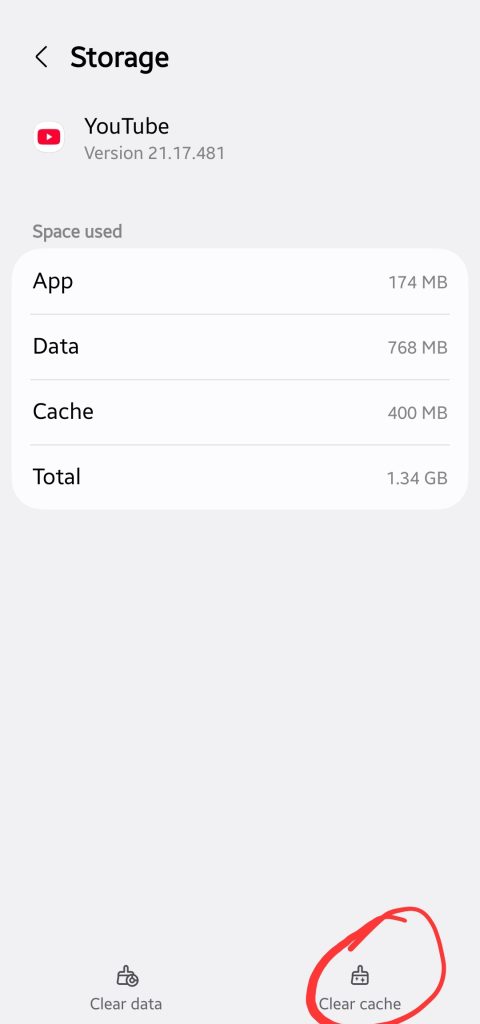
A corrupted cache is a silent killer of uploads on Android. It won’t show an obvious error — uploads will just freeze or fail repeatedly. Clearing the cache doesn’t delete your account or data.
Steps
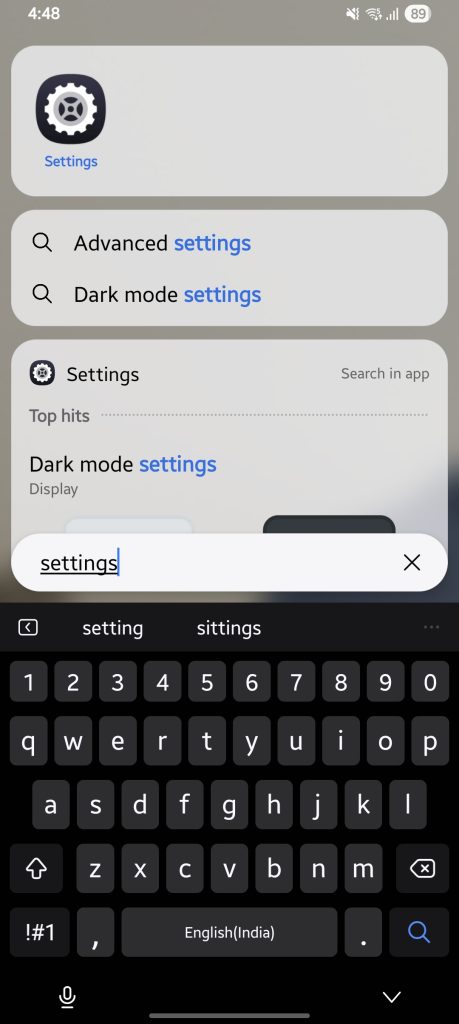
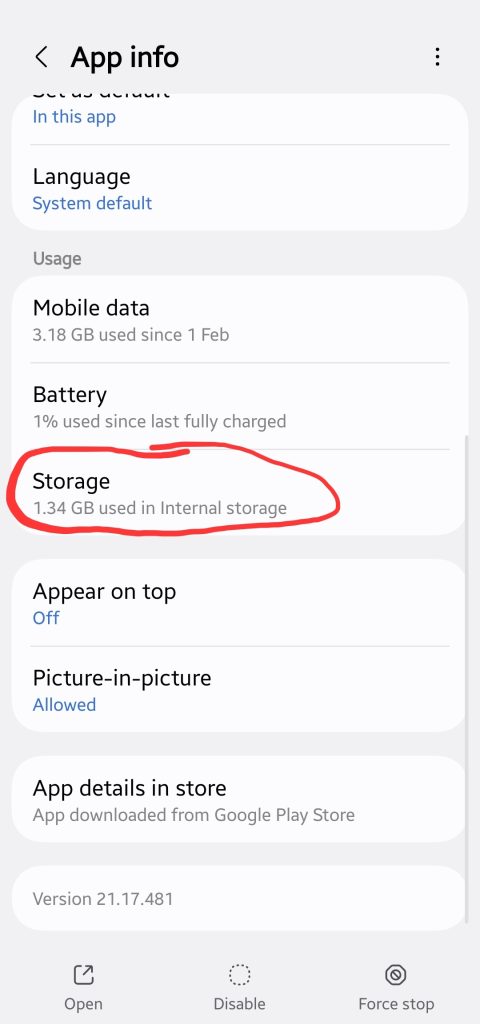
1. Go to Settings on your Android phone
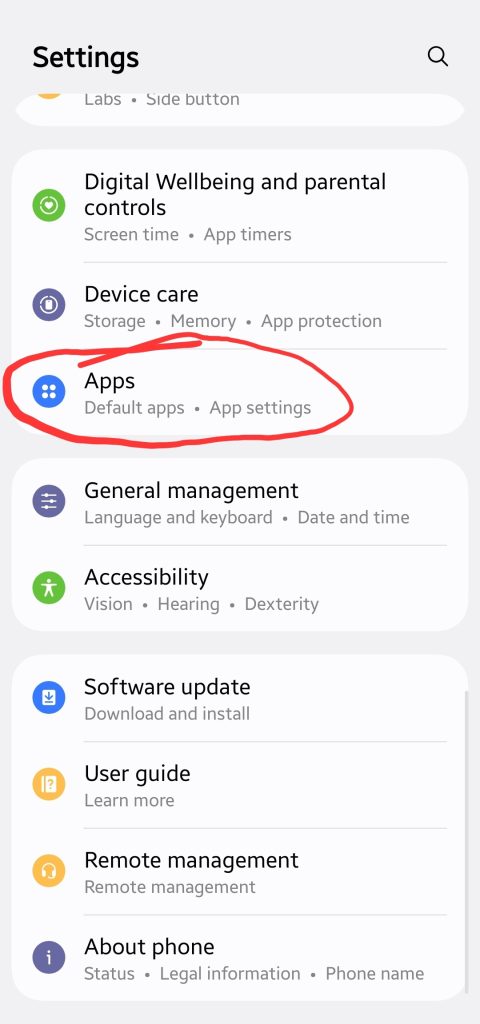
2. Tap Apps (or App Management)
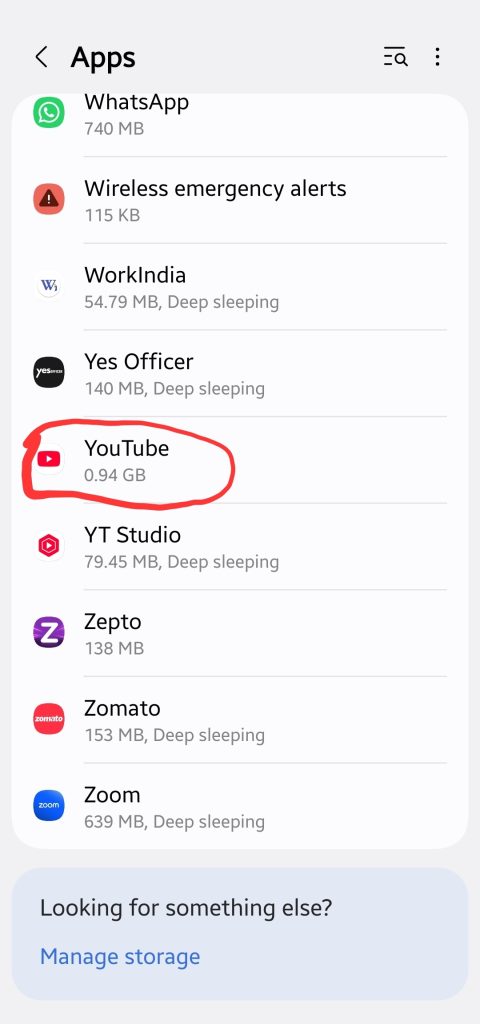
3. Find and tap YouTube
4. Tap Storage
5. Tap Clear Cache
6. Reopen YouTube and try again.
On iPhones, offload the app:

An outdated YouTube version may flag loading shorts while uploading because outdated app versions often contain upload bugs. Update it before anything else.
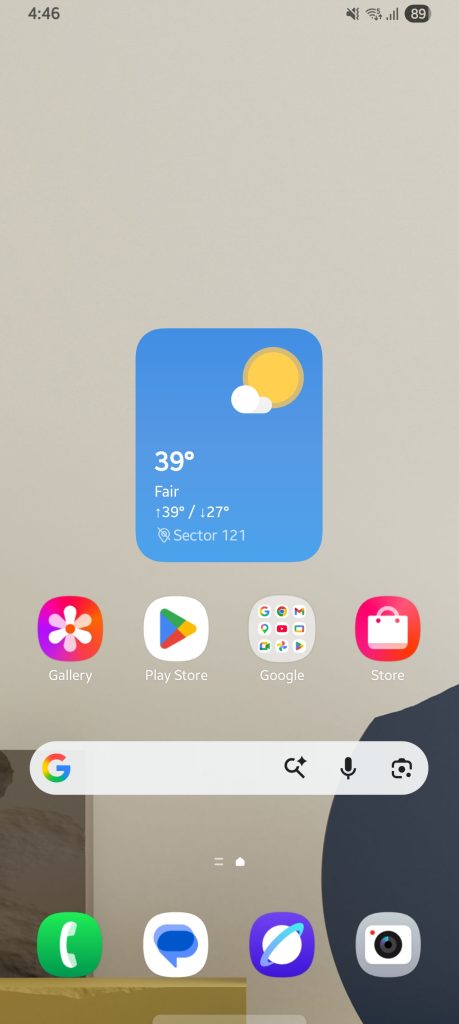
Visit Google Play Store
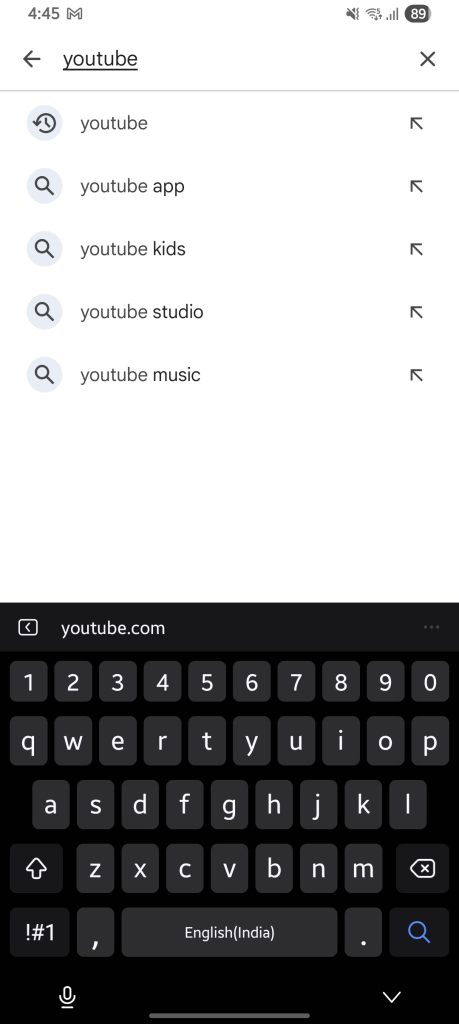
Search YouTube
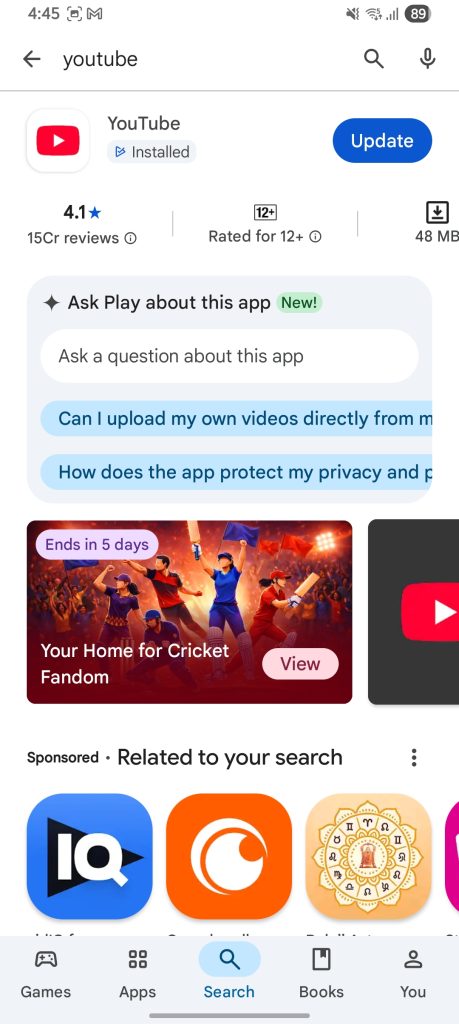
Open the App Store
Click your profile icon
scroll to find YouTube and update.
Keep your video file size under what’s required. YouTube is strict about file size, so keep it within limits. A typical 60-second Short should be well under 500 MB. Most are 50–150 MB.
If your file is larger than needed, you can reduce the size using many free online tools, such as HandBrake, Compress Video on mobile, etc.
Another useful thing is to keep your video in the right size and correct time frame. The ideal size for a YouTube video is 9:16 vertical format, and the ideal duration should be up to 3 minutes. If you fail to fix these two, your video will be uploaded as a regular video, rather than a short.
When you edit the video with other tools and export it to your device, it may often be attached with codecs like HEVC (H.265), ProRes, or VP9. These can cause processing errors or “processing abandoned” messages. Thus, you convert to MP4 with H.264.
Recommended Export Settings
If your Short uses a song you don’t have rights to, YouTube’s Content ID system can block the upload during processing — often causing it to appear stuck or show a vague error. The upload may complete, but the video will be muted or restricted in certain countries. Therefore, you should use YouTube Audio Library or royalty-free sources to avoid this entirely.
You can switch from the YouTube app to YouTube Studio on your browser. Doing so will make it easy for you to upload shorts. Because desktop uploads are more stable, give you better error messages, and bypass app-specific bugs entirely. Make sure your file is vertical (9:16) and under 3 minutes — YouTube Studio will still recognize it as a Short.
Occasionally, the problem has nothing to do with your device. YouTube experiences partial outages that affect uploads specifically, sometimes for hours. Before spending time troubleshooting, check Downdetector or search “YouTube down” on X (formerly Twitter) to see if others are reporting the same issue.
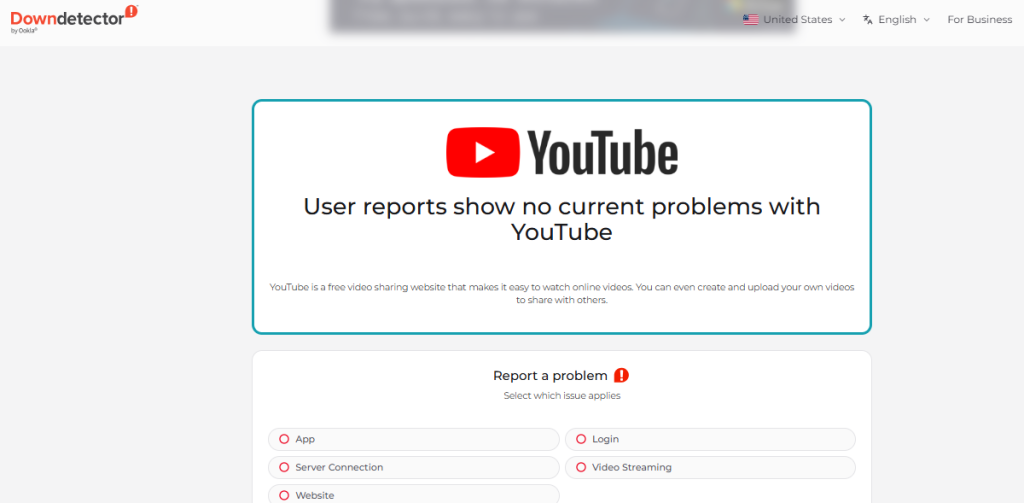
Tip: YouTube’s own status page at Google Workspace Status also shows real-time service disruptions.
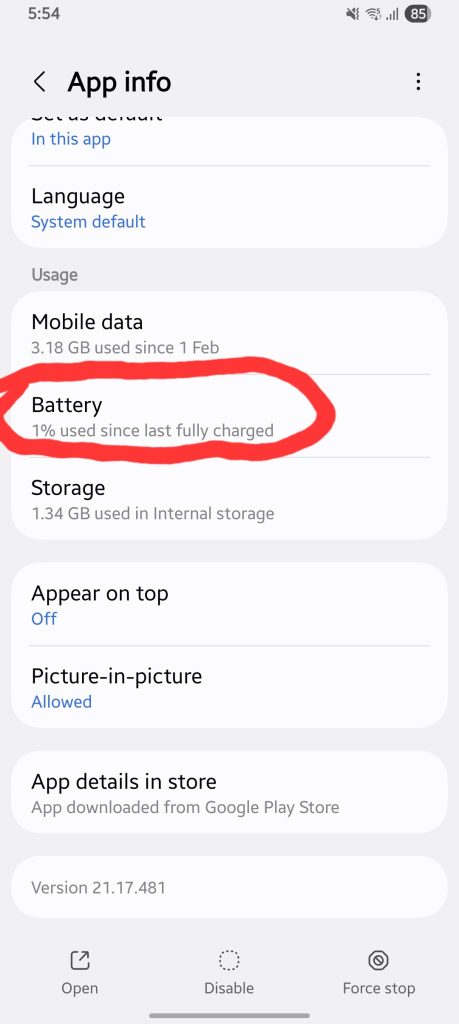
If you use Android for short uploading on YouTube, that’s where you get most errors. This happens because of how aggressively Android manages battery and background processes. Here’s what’s specific to Android.
Go to Settings
Find Apps
select YouTube
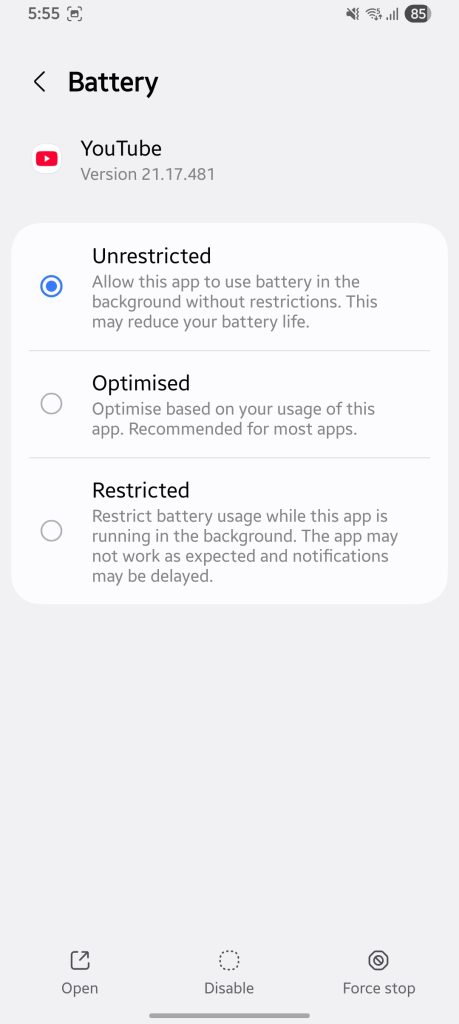
Tap Battery option.
Choose Unrestricted.
Go to Settings
Apps
YouTube
Mobile Data
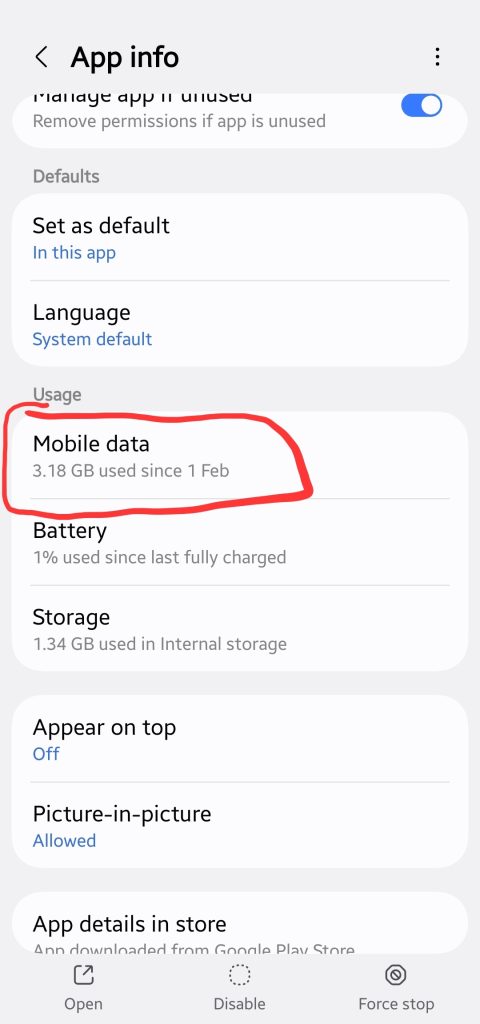
Enable Background Data by toggling On.
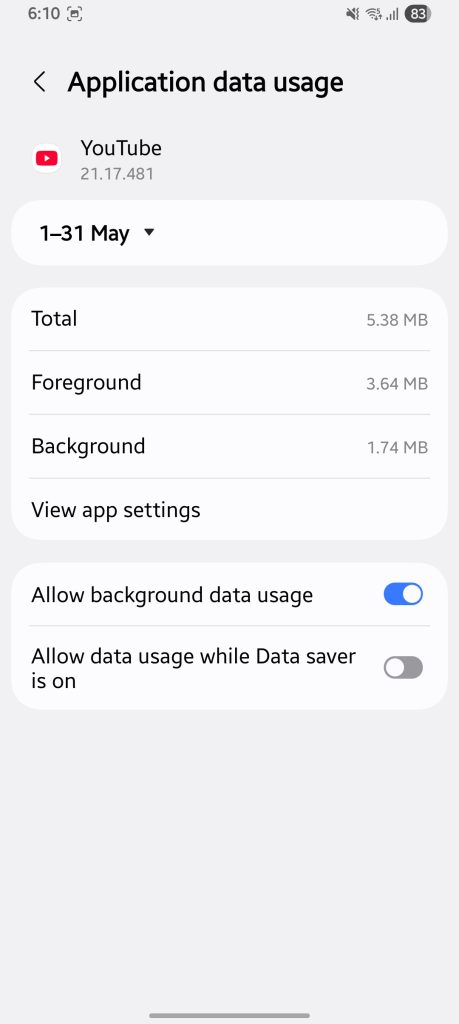
Note: Without this, uploads may pause the moment you lock your screen.
Go to Settings
Apps
YouTube
Permissions
Storage and ensure YouTube has full access.
Note: If storage permission is denied, the app can’t read your video file to upload it.
Mostly iOS system settings that restrict what apps can do in the background.
Step by Step
1. Disable Low Power Mode: Settings > Battery > Low Power Mode > Off

2. Enable Background App Refresh: Settings > General > Background App Refresh > YouTube > On

3. Check Photos Permission: Visit YouTube > select ‘+’ icon > Tap ‘Videos’ and set to ‘Allow Full Access’

4. Pause iCloud Sync temporarily while uploading
5. Delete and reinstall the YouTube app

6. Restart your iPhone (hold side button + volume down → slide to power off)
So, you have tried everything we discussed so far, but got no result? You can try out these fixes instead.
Remove your current YouTube account and sign in with a different one. Try uploading shorts with new account, and if that works fine, the error is specific to your channel. In case a case, you can contact YouTube support.
Go to studio.youtube.com on a desktop browser. Click Create → Upload Videos, select your file, and fill in the details. YouTube Studio often gives more specific error messages than the mobile app and tends to be more reliable for larger files.
Ask for help from YouTube when nothing works to resolve the shorts loading error. Simply visit support.google.com/youtube and use the Get Support option. If you’re a part of YouTube Partner Program (YPP), support is significantly faster. As soon as you connect, make sure you provide the video file details, your device model, and the exact error message you received. In short, be sound when connecting with YouTube help.
Most commonly, it’s a weak internet connection or a background process interrupting the upload. Try switching to Wi-Fi, force-closing the app, and re-uploading.
This usually means YouTube’s servers started processing your video, but couldn’t finish. It happens when an unsupported video codec, a corrupted file, or a server-side timeout occurs.
YouTube shorts are uploading as a normal video because it’s not under the given size and duration, which is 9:16 horizontal or square orientation and under 3 minutes, respectively.
Stuck at 99% usually means the video has uploaded but is failing during the final processing or copyright scan stage. Check if the audio triggers Content ID, or try re-uploading the video with different background music.