Physical Address
304 North Cardinal St.
Dorchester Center, MA 02124
Physical Address
304 North Cardinal St.
Dorchester Center, MA 02124
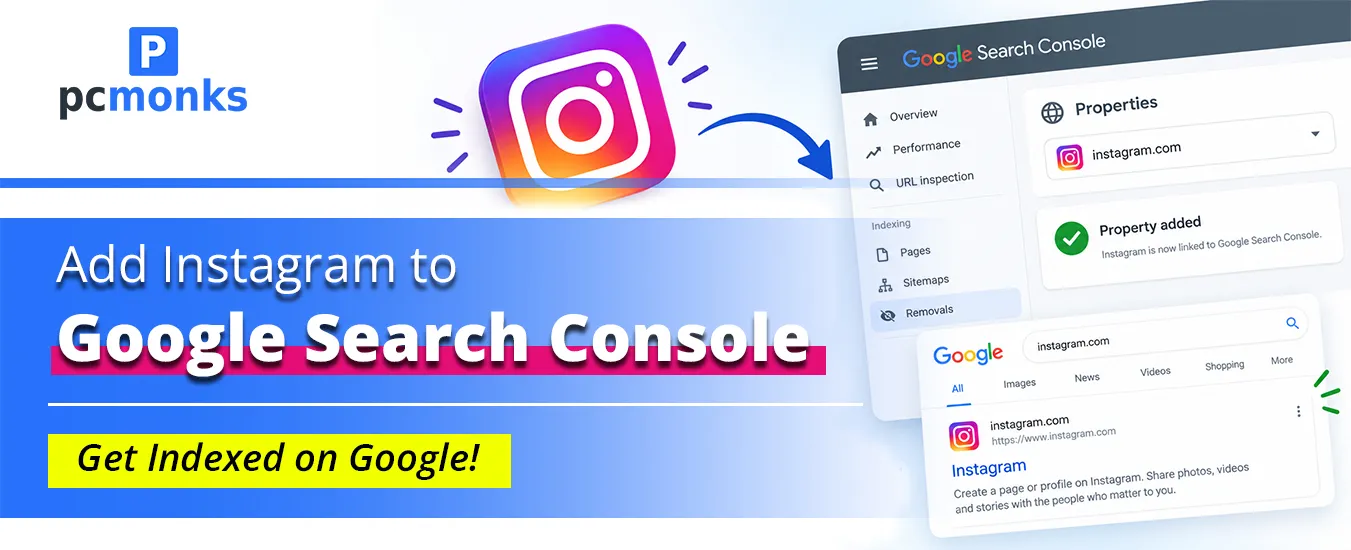
You can add Instagram to Google Search Console in about five minutes. Open Search Console, click Add property, click Add next to Instagram, and approve the login. Then give it a few days to fill with data.
Google calls this a “platform property.” It does not need a website. It also rolled out only in July 2026, so a few small things trip people up. This guide covers the setup, the common fixes, and what to do with the numbers once they show up.
If Instagram is missing from the list, the feature may not have reached your account yet. The fixes are further down.
It shows you how your Instagram content performs in Google, not inside the Instagram app.
You get clicks, impressions, average click-through rate, average position, and the search terms people typed before they found your posts. Google covers Search, plus Discover and Google News when your content shows up there.
Before this feature, Search Console only worked for websites you could prove you owned. You do not own instagram.com, so there was no way to verify a profile. Old guides that tell you to add instagram.com/yourname as a regular property are out of date for that reason.
Google announced the new route on July 7, 2026, and said in a July 29 follow-up post that platform properties were globally available.
A regular Search Console property tracks pages on a website you own or control. A platform property tracks eligible content from a verified account on a supported platform, such as Instagram, TikTok, X, or YouTube.
That means you do not need to own Instagram or add a DNS record. You connect your Instagram account through its own login, and Google shows how its eligible public content performs in Google Search.
Not much. Have these ready so the setup goes in one go:
Follow these steps in order. The wording on your screen may change slightly because Google is still rolling out this feature.
Go to the Search Console welcome screen. If you already use Search Console for a website, open the property selector in the left sidebar dropdown area.
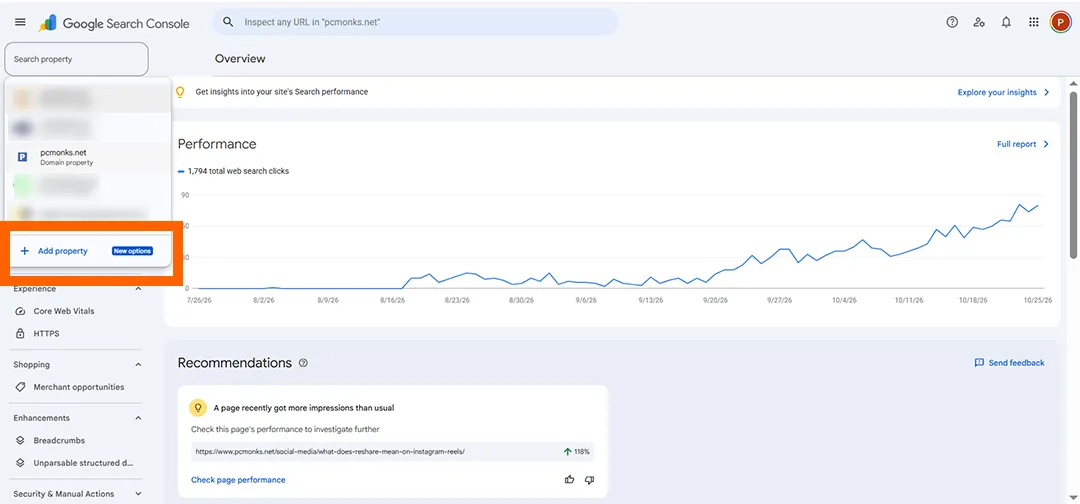
From your list of properties, choose Add property. Both options lead to the same property-selection screen.
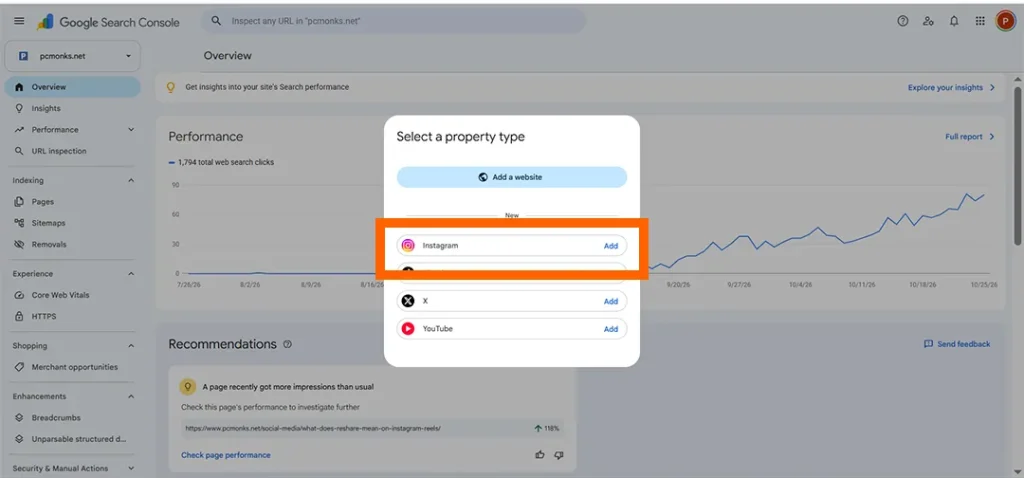
You will see the supported platforms listed. Select Instagram.
You will see “Allow Google access to your Instagram account.” Click Agree and continue to move ahead.
What Google can access: During the connection, Google asks for permission to see your basic Instagram profile information. This is used to confirm that you own the Instagram account you are connecting. You are not giving Google access to your Instagram password.
You can review or remove this connection later from your Google Account’s third-party connections settings.
Each Instagram account becomes its own property, so your Instagram data will not mix with your website data. This separation is helpful because the searches that find your Reels are often different from the searches that find your blog.
Google will send you through Instagram’s own login page. Make sure you sign in to the correct Instagram account that you want to track.
If Instagram shows an “I’m not a robot” captcha, as it did during my setup, complete the captcha and approve it to continue.
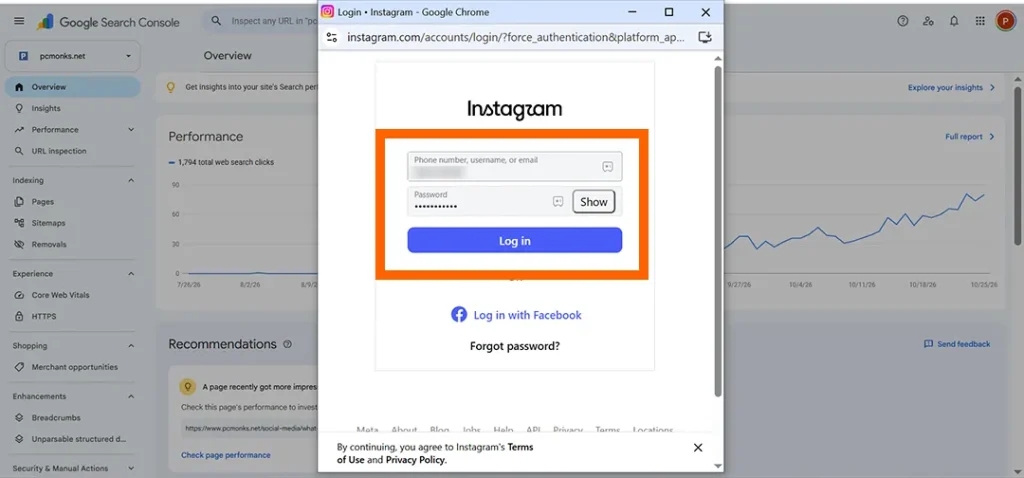
This is where many people with more than one Instagram profile make a mistake, because the browser may already be logged in to a different account.
Note: This step may not appear for everyone. It appeared during my setup because I had not previously logged in to Instagram from that browser or device.
If you have not logged in to Instagram from this account before, Instagram may show a message: “Check your notification on another device.”
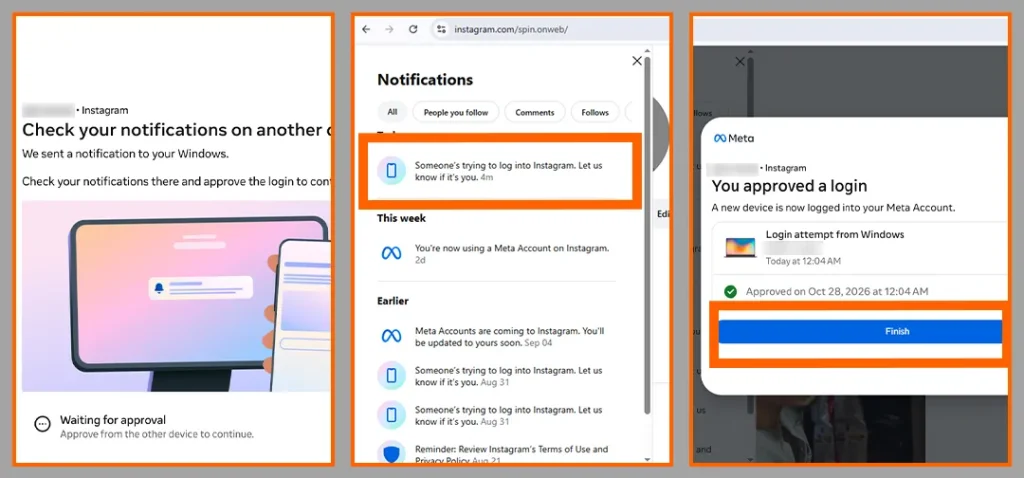
This means you need to approve the login from your phone’s notification bar. You will see a notification that says “Someone’s trying to log into Instagram.”
Tap the notification and select Approve to confirm the login.
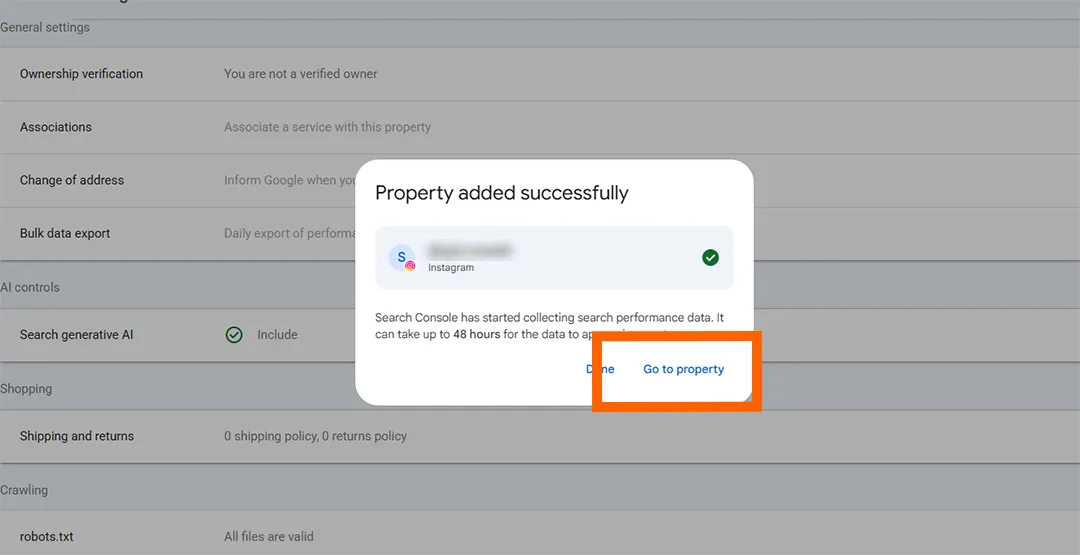
After you tap Allow in the pop-up, Google verifies ownership of your Instagram account and shows the message “Property added successfully.”
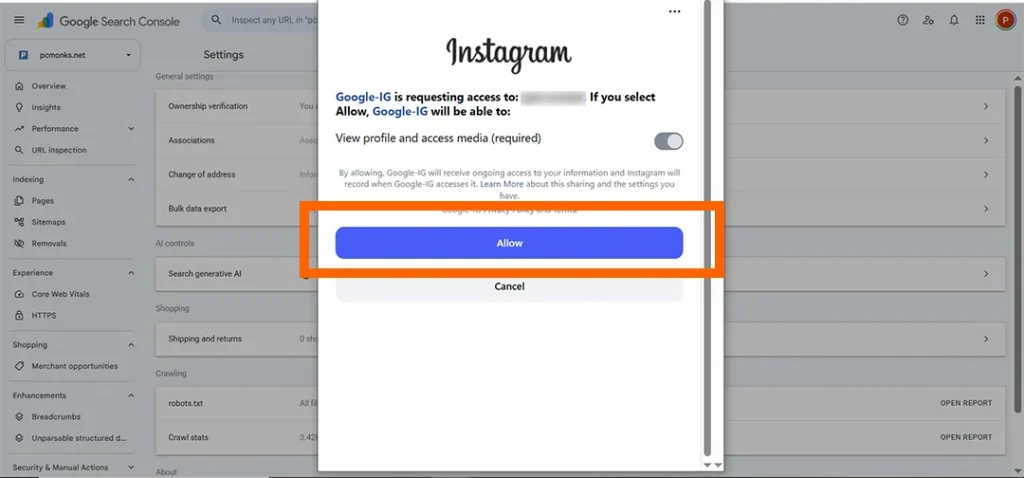
Click Go to property to finish the setup. Your Instagram account will now appear in the property selector like any other Search Console property.
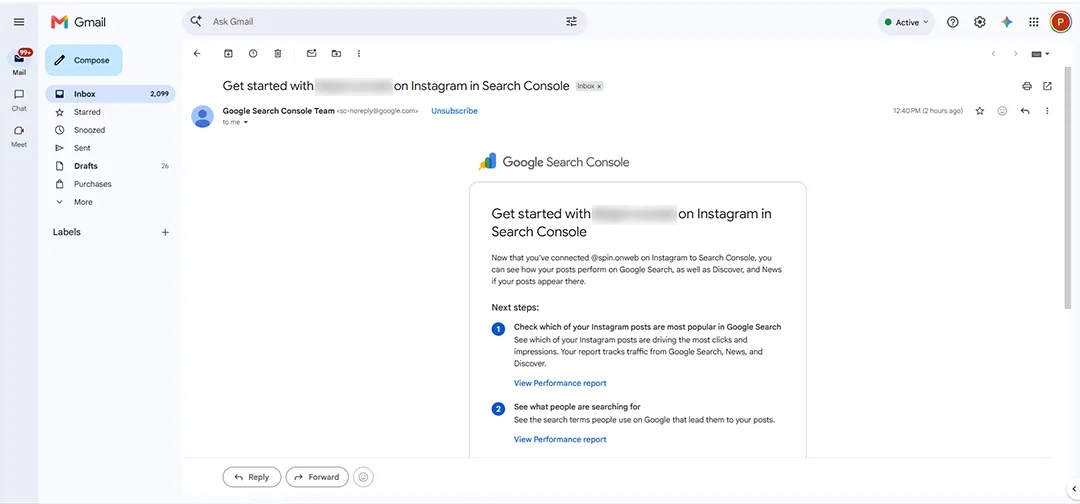
You may also receive an email from Google with the subject line: “Get started with @yourusername on Instagram in Search Console.” This email confirms that your Instagram property has been successfully added to Search Console.
After opening the property, you will reach the Insights page.
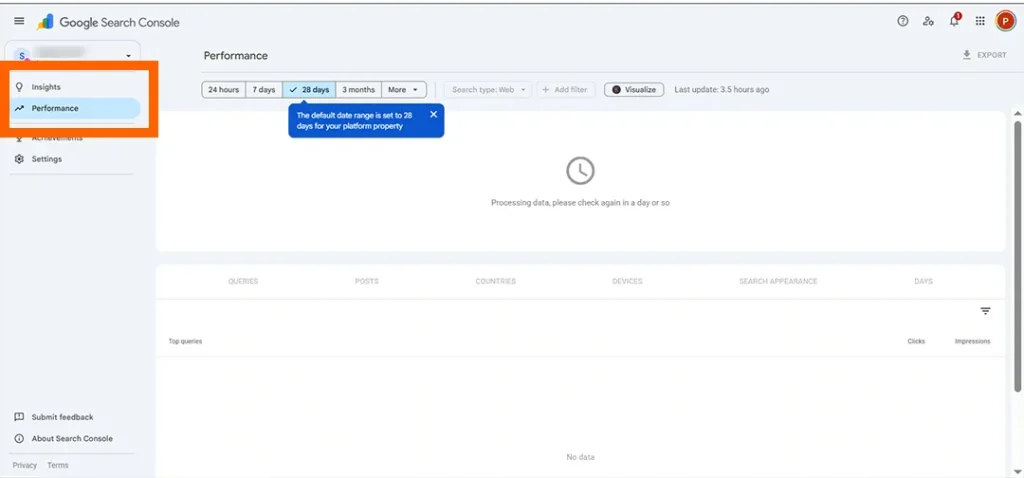
The property includes the Insights and Performance tabs. In the Performance report, you can view data for 24 hours, 7 days, 28 days, 3 months, and other date ranges, similar to a regular website property.
Once data starts appearing, open the Performance report to see more details. You can check performance by:
Start with Queries and Posts. These two views show you what people searched for and which Instagram content is bringing in that traffic.
Inside the reports, the charts may look empty at first and show the message: “We’re processing your data and gathering insights. Check back within 48 hours.”
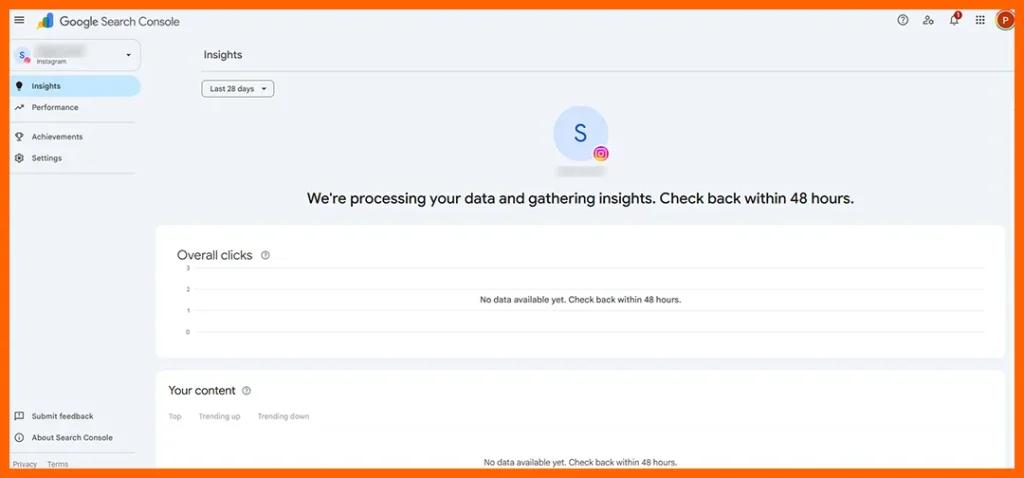
This is normal. Google needs a few days to collect and process your Instagram data. A new property only shows data from the day you connected it, so it does not backfill old history.
The sooner you connect your Instagram account, the sooner you start building a performance record in Google Search Console.
Yes. If you already claimed a Google Search profile, Google’s guide says your verified accounts are added to Search Console on their own. Open Search Console and pick your Instagram account from the property selector.
Search profiles are a separate Google product with their own rules. Right now they are limited to the United States, and Google lists follower and age requirements on its Search profile help page. Most creators will not qualify yet, so the steps above are the normal route.
Most likely, the Instagram option has not reached your account yet. Google announced global availability for platform properties, but its official platform properties help page still notes a gradual rollout.
In practice, some accounts may see the Instagram option later than others.
Try this in order:
Re-verify the property. Google checks ownership from time to time for security. If your Instagram login expires, access to the property pauses until you verify again.
The good news is that you get the same report back. You do not have to wait for data to build up from zero.
If verification fails the first time, check two things:
Mixing up these two accounts is the most common reason a setup looks stuck.
To share your Instagram property with a teammate, open the property and go to Settings → Users and permissions. Add the person’s Google account and choose the access level you want to give them.
This is useful for social media managers, SEO teams, and clients who need to view Google Search performance without using your Instagram login.
If you connected the wrong Instagram account or no longer want to track it, you can remove the property from Search Console.
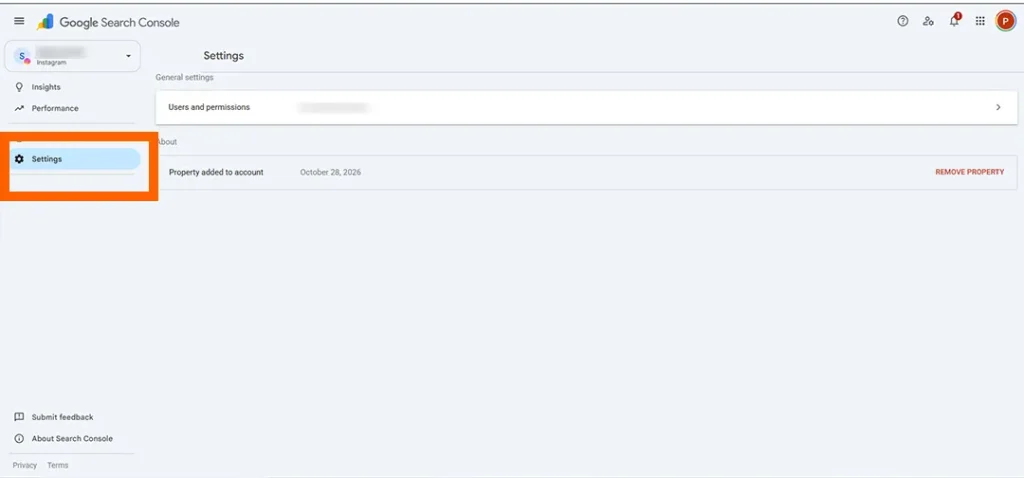
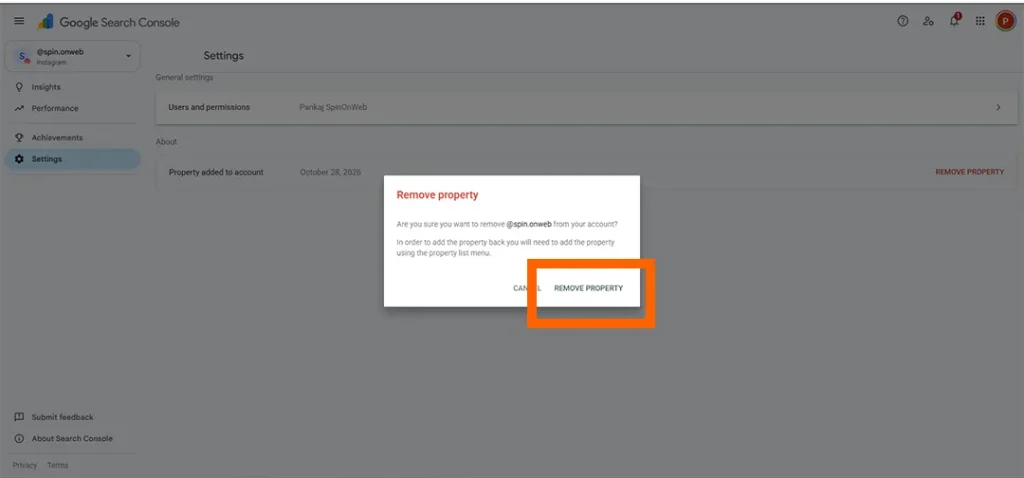
To fully revoke Google’s access to your Instagram account, also check your Google Account third-party connections and Instagram’s Apps and websites settings. Removing the Search Console property stops the reports, but revoking access disconnects the authorization between Google and Instagram.
Either the property is brand new, or Google is not showing much of your content yet. Both are normal.
A new property needs a few days to fill. If it has been longer than that, look at your account settings. In July 2025, Meta began letting Google and Bing index public posts and Reels from professional Instagram accounts. The account has to be public, the owner has to be 18 or older, and the content has to be from 2020 or later. Personal and private accounts are left out.
Open your Instagram privacy settings and look for the option called Allow public photos and videos to appear in search engine results. This setting is relevant for public professional accounts. If it is turned on, Google may be able to show your eligible public photos and videos in search results.
The menu path has changed between app versions, so search your settings for that wording. Even with it on, Google decides what to show. There is no guarantee that every post gets listed.
You get three reports. They look like the ones you may know from website properties, but each is limited to your Instagram account.
| Report | What it shows | Best use |
|---|---|---|
| Performance | Clicks, impressions, average CTR, and average position. You can filter by post, query, country, and date. | Finding which posts and search terms bring people in |
| Insights | Traffic trends, top content, the queries people use, and the countries they come from. | A quick weekly check |
| Achievements | Milestones, such as reaching a new click total from Google Search. | Tracking slow, steady growth |
Both Insights and Performance open on a 28-day view. Discover and Google News data only appears if your content actually gets traffic from those places.
Google’s help page gives a few rules that surprise people:
| What happens on Google | How Search Console counts it |
|---|---|
| Your Instagram story appears in search results | One impression |
| Someone clicks that story | One click |
| Your video appears in Search or Discover | One impression |
| Someone clicks a video and it opens in Google’s own viewer | Still one click |
That last row matters. A click does not always mean someone landed on your Instagram profile. Read it as “someone chose your video on Google.”
One more quirk. On the Insights page, the top summary card counts clicks from web, image, video, and news searches. The lists below it only count web search. So the card can show 1,200 clicks while the top-content list adds up to 850. Nothing is broken. Quote the card for your total, and the lists for which posts won.
It does not show anything that happens inside the app. Google says platform properties only report performance on Google, so these numbers stay in Instagram’s own Insights:
Think of Search Console as a second lens. It answers one question that Instagram cannot: what did people type into Google before they found you?
Start with the search terms. They tell you, in your audience’s own words, what they were looking for. Google’s guide to analyzing social and video content suggests a few simple moves.
The Insights report has a card that groups queries into themes. You can view the top groups, the ones trending up, and the ones trending down. A theme is easier to act on than a long list of single phrases. If a topic is climbing, plan your next caption or Reel around it.
Open the Performance report and click the 24 hours filter above the chart. If a new Reel is suddenly picking up searches, you can see the exact words behind it. Google also suggests cross-promoting the trending post, for example with a Story that points people to your other profiles.
Use comparison mode and create two groups. Compare URLs containing /p/ against URLs containing /reels/. You will see right away which format Google favors for your account. That beats guessing.
If you are deciding where to focus your short-video efforts, our guide on is TikTok or Instagram better for organic reach can help you compare both platforms.
When you rewrite a caption, add an annotation in Search Console. It works like a bookmark on that date. A few weeks later you can look at the chart and see whether the edit changed how people found the post.
Keep in mind that Google only tells you what happens on Google. For the in-app side, our guide on ways to grow your Instagram reach covers what the algorithm rewards, so the two sets of numbers can work together.
Yes. Search Console is a free Google tool, and I found no fee listed for platform properties.
Yes to both. Repeat the setup for each account, because every account is its own property. To share a property, the owner can grant access to other people. Google’s Add a property help page explains how access works. An account can hold up to 1,000 properties.
Not according to Google’s current list. It supports Instagram, TikTok, X, and YouTube. Google has not published a Facebook option, so check the help page if that changes.
No. Connecting only gives you reports. It does not change how Google ranks your content.
A Search profile is a public creator page that Google can show in results. A platform property is private analytics that only you and the people you share it with can see.
Connect your account today, even if you are not sure what you will do with the data. Reports only start from the day you connect, and a few weeks of history makes the query groups far more useful.
Also check that your Instagram account is public and professional, and that the search-engine visibility setting is turned on, so Google has eligible content to report on.
Last updated: October 28, 2026