Physical Address
304 North Cardinal St.
Dorchester Center, MA 02124
Physical Address
304 North Cardinal St.
Dorchester Center, MA 02124

Canva Magic Layers is one of the most talked-about AI design features of 2026 due to its capability to change the elements of an image without affecting the original source file. It converts flat PNG and JPG files into fully editable, layered Canva designs so you can move elements, swap text, recolor shapes, and resize objects without rebuilding from scratch.
You will understand what Magic Layers does, who can use it, how to use it step by step, real-world examples, and solutions to the most common problems.
Quick Answer: To use Magic Layers in Canva, open a supported design (PNG or JPG), select Magic Layers from the editor, let Canva’s AI process and separate the image into editable layers, then adjust individual elements as needed.
Magic Layers is a Canva AI feature that launched in public beta in March 2026. It uses Canva’s proprietary Design Model — an AI system introduced in late 2025 — to analyze a flat image, identify individual design components, and convert them into separate, editable objects inside the Canva editor.
Think of it as reverse-engineering a design. Instead of receiving a locked image you can’t touch, you get a layered workspace where every element is independent.
In its first four weeks after launch, Magic Layers was used over nine million times, making it one of the fastest-adopted features Canva has ever shipped.
When you upload a flat image, Magic Layers:
The key difference from simply placing an image on a canvas is that each element becomes its own editable object, not a locked block of pixels.
A quick differentiation is given below:
| Feature | Magic Layers | Traditional Layers |
| Main purpose | Convert flat images into editable designs | Organize elements you already built in Canva |
| Ease of use | Automated — AI does the separation | Manual — you place each element yourself |
| Editing workflow | Upload → process → edit generated layers | Build from scratch → stack layers manually |
| Best for | Repurposing existing flat designs | Creating original designs from the ground up |
| AI assistance | Yes — powered by Canva Design Model | No — fully manual process |
Magic Layers launched in public beta, meaning Canva is rolling it out progressively. As of mid-2026, the feature is available to Canva users in the United States, the United Kingdom, Canada, and Australia, with a broader global rollout planned. It works across Canva Free and paid plans, though availability during beta may vary by account.
Magic Layers is primarily accessed through the Canva web editor on desktop. Mobile availability during the beta period may be limited — if you’re not seeing it on mobile, try accessing Canva through a desktop browser first.
Notably, as of June 2026, Magic Layers also works inside top AI tools like ChatGPT and Gemini through Canva’s connected app integrations — so you can convert AI-generated images into editable Canva designs without leaving those tools.
Currently, Magic Layers supports single-page PNG and JPG files. Multi-page documents and other file formats are not yet supported during the beta period.
Go to canva.com and log in to your account. Prepare a flat PNG or JPG file you want to make editable. This could be a social media graphic, a promotional banner, an AI-generated image, or any flat design you want to repurpose.
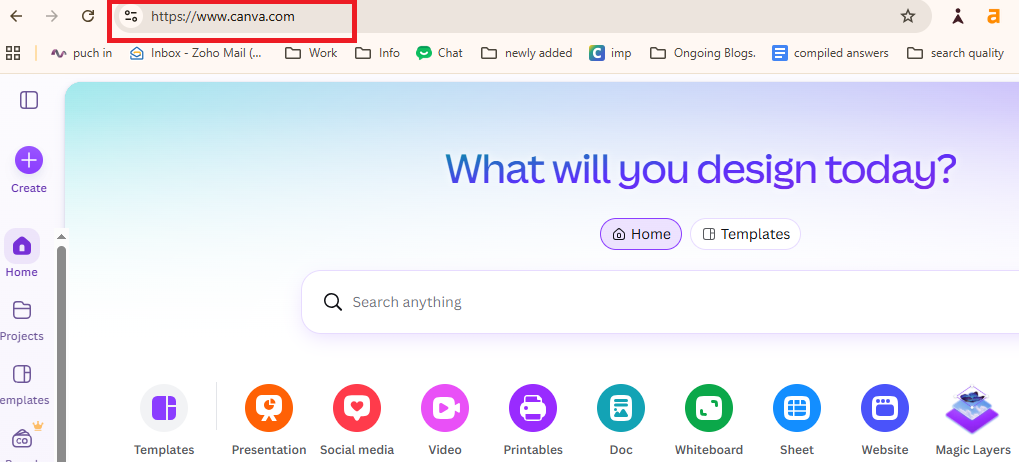
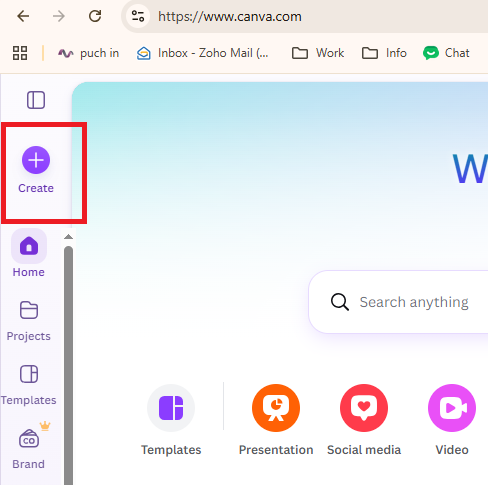
From the Canva homepage, start a new design (click the +/Create icon). You can also open an existing image. Upload your PNG or JPG by clicking “Uploads” in the left sidebar and dragging your file in, or clicking the upload button. Place the image on your canvas.
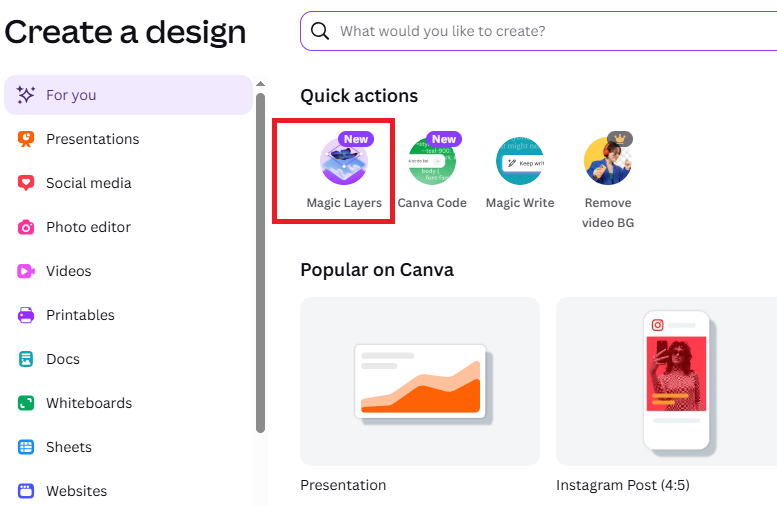
With the uploaded image selected on the canvas, look for the Magic Layers option. It typically appears in the top toolbar or as a right-click context menu option on the selected image. Click “Magic Layers” to begin processing.
Note: If you don’t see Magic Layers in your toolbar, check the “Edit image” or “AI tools” section in the top bar—Canva periodically updates its UI, so the exact placement may shift.
Canva’s Design Model AI analyzes your image. Processing usually takes a few seconds to about a minute, depending on the complexity of the design. During this time, the AI identifies individual components, maps their spatial relationships, and prepares the layer structure. Don’t close the tab or navigate away while it processes.
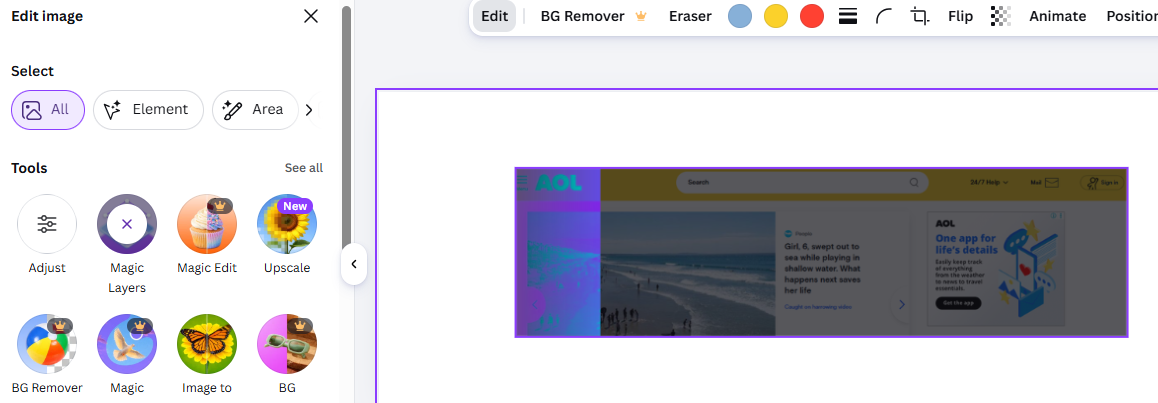
Once processing completes, your flat image is replaced by a set of individual, selectable elements on the canvas. Click on different parts of the design to see how Canva has separated them. Text areas should now be live text boxes. Shapes, icons, and graphic elements should each be independently selectable.
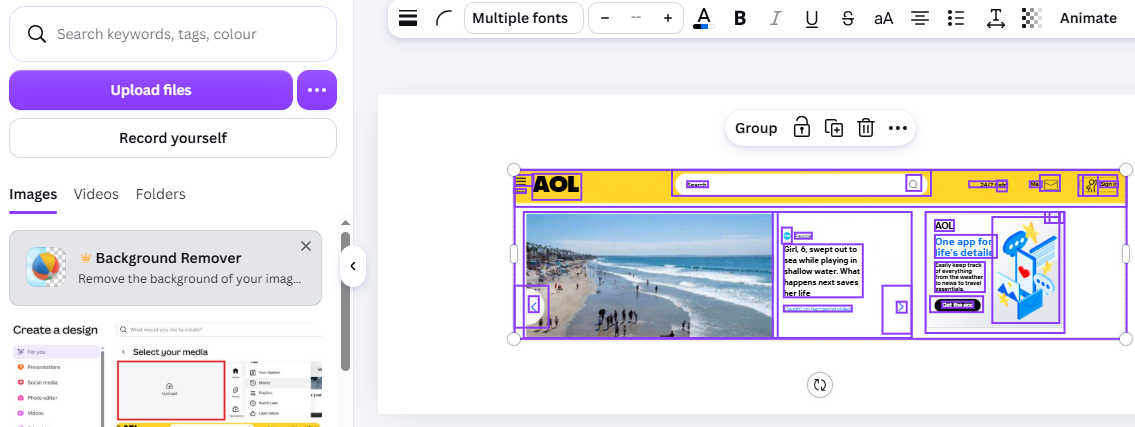
Note: Always review every layer at this stage. AI separation is impressive but not perfect—some elements may be grouped differently than you’d expect, or a complex background may not separate cleanly.
Now you can make edits just like any native Canva design:
AI separation sometimes leaves minor imperfections — a background that didn’t separate fully, text that was grouped with a shape, or an element with slight edge artifacts. Use Canva’s standard editing tools to clean these up. The Background Remover tool can help tidy up edges on individual elements.
Canva saves automatically as you work. When you’re done editing, use “Share” → “Download” to export in your preferred format — PNG, JPG, PDF, or MP4 if your design includes animation. You can also resize the design for different platforms using Canva’s “Resize” feature.
If you find an issue with Canva, know why it’s not working and fixes.
Magic Layers performs best on designs where elements are visually distinct. Flat designs with clear separation between text, objects, and background tend to produce more accurate layer separation than designs with heavy overlapping or soft gradients.
Before running Magic Layers, duplicate the design page in Canva. This preserves your original flat image as a reference in case the AI separation produces unexpected results.
Magic Layers is a powerful starting point, not a perfect final output. Budget a few minutes to review each generated layer, correct any grouped elements that should be separate, and clean up edge artifacts. The time saved still far exceeds rebuilding from scratch.
Text recognition works best when the source image has clearly readable text. Decorative fonts, very small text, or text that overlaps complex backgrounds may not restore correctly as live text boxes.
First, confirm you’re in an eligible region (US, UK, Canada, or Australia as of mid-2026). Try accessing Canva on a desktop browser rather than on mobile. Check that your uploaded file is a single-page PNG or JPG. If you’ve confirmed all of these and still don’t see it, the beta rollout may not have reached your specific account yet—check Canva’s What’s New page for updates.
This is a known limitation of AI-based separation, especially with complex designs. Try these fixes: crop the source image to reduce background noise, use a higher-resolution source file, or manually separate problematic elements using Canva’s standard editing tools after the initial AI pass.
Very stylized fonts, text embedded in complex graphics, or low-resolution source files can confuse the AI. If text doesn’t restore as a live text box, delete the AI attempt, add a fresh text element manually, and type in the correct content.
Processing time scales with design complexity. Large, detailed images can take longer. Check your internet connection and avoid running other heavy browser tasks during processing. If it times out, try again — or use a simplified version of the source image.
If you’ve duplicated your design before running Magic Layers (as recommended), simply return to that duplicate page. If not, use Canva’s version history (File → Version History) to restore an earlier state.
| Canva Feature | What It Does | Best For |
| Magic Layers | Converts a flat image into editable, separated layers | Repurposing existing flat designs or AI-generated images |
| Magic Grab | Lets you grab and move a specific object within a photo | Repositioning a single subject in a photo |
| Background Remover | Removes the background from an image | Isolating a subject for a transparent background |
| Magic Eraser | Removes specific objects from a photo | Cleaning up unwanted elements from a photograph |
The key distinction: Magic Layers works on the whole design structure and is built for design repurposing. The other tools handle specific, targeted edits within a single image. Use Magic Layers when you want to make a flat design fully editable; use the others for photo retouching tasks.
Pros:
Cons:
Magic Layers is a Canva AI feature that converts flat PNG or JPG images into editable, layered designs inside the Canva editor. It separates individual elements—including text, shapes, and graphics—so each can be edited independently without rebuilding the design from scratch.
Upload a PNG or JPG image to a Canva design, select the image on the canvas, and look for Magic Layers in the top toolbar or the right-click context menu. The option appears when your account has access to the feature during the beta rollout.
Magic Layers is available during its beta period to users across Canva Free and paid plans in eligible regions. Availability may change when the feature exits beta—check Canva’s official pricing page for the most current information.
Yes. That’s precisely what it’s designed for. It analyzes the flat image and separates it into individual, editable objects in the Canva editor—including restoring text as live text boxes rather than locked pixel images.
Magic Layers is currently in public beta and limited to the US, UK, Canada, and Australia. Within those regions, Canva is rolling it out progressively. You may also need to use a desktop browser and upload a single-page PNG or JPG for the option to appear.
No. Magic Grab lets you select and reposition a single object within a photo. Magic Layers converts an entire flat image into a fully editable, multi-layer Canva design. They solve different problems—Magic Grab is for photo editing; Magic Layers is for design repurposing.
Yes. Use Canva’s standard undo function (Ctrl/Cmd + Z) immediately after processing if the result isn’t what you expected. If you duplicated your design before running Magic Layers (recommended), you can also return to the duplicate at any time.
Yes, as of June 2026, Canva announced that Magic Layers is available inside ChatGPT and Gemini through Canva’s connected app integrations. You can convert AI-generated images into editable Canva designs without leaving those platforms.
For anyone who regularly works with flat images, templates, or AI-generated visuals, yes, absolutely. Magic Layers solves a real workflow problem that has frustrated designers, marketers, and content creators for years.
The ability to take a flat PNG or JPG and make it fully editable in seconds is genuinely useful. The text restoration feature alone — turning image text into live, editable text boxes—is a significant time saver.
That said, it’s not magic in a perfect sense. Complex designs will require manual cleanup.
The tool is best for marketers and content creators who repurpose existing designs regularly, non-designers who inherit flat files and need to make quick changes, and anyone working with AI-generated images who wants design-level control.
When the feature is available to you and your file fits the supported format, Magic Layers is one of the most practical AI tools Canva has shipped. Use it, but review every generated layer before publishing.