Physical Address
304 North Cardinal St.
Dorchester Center, MA 02124
Physical Address
304 North Cardinal St.
Dorchester Center, MA 02124

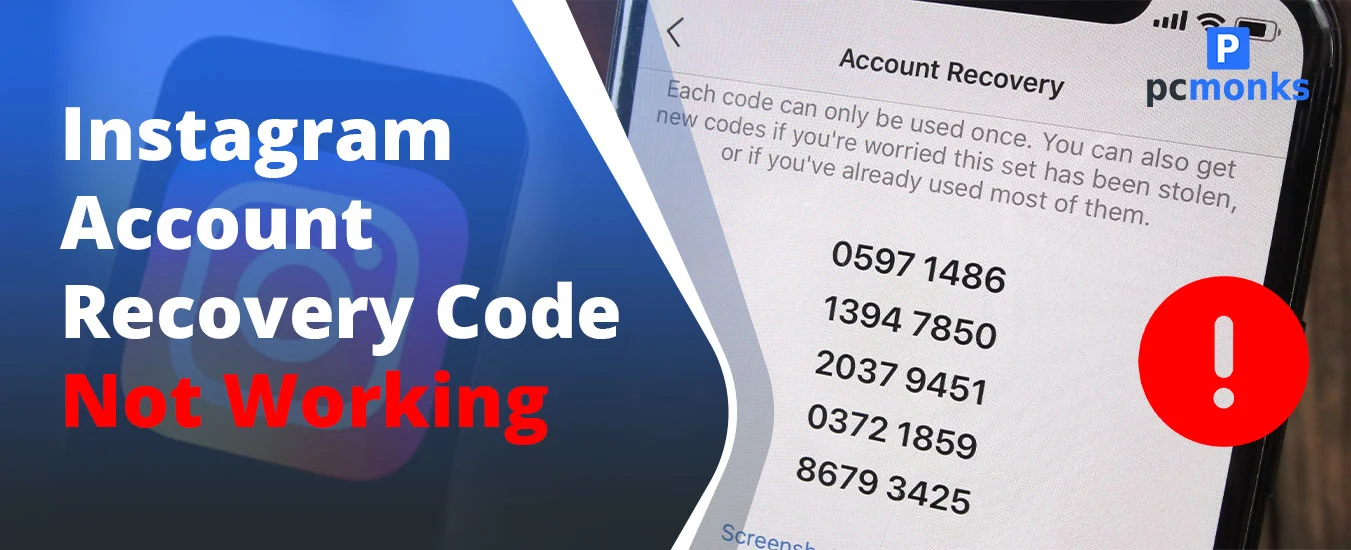
It’s frustrating when you cannot access your Instagram account because your Instagram account recovery code is not working. I have faced it myself, and when I went to find a solution for this, a lot of new things came up. Today, I will share practical advice to recover your account quickly. And that looks different than usual.
First, let’s understand:
These are the real-time users’ views on the issue. This is from the Reddit forum, where users have shared what they have experienced during this phase of not being able to access their Instagram account.
“Instagram asked me for the 2FA code when going to recover the account.”
“Already submitted a ticket and sent the picture with the code, username and name, but don’t have any reply yet.”
“Submitted 3 Videos of my face already and haven’t gotten a reply in 4 weeks now”
“Backup codes in the app are changing randomly without me asking for new ones – so I am forced to go check every day if they changed”
“This is really ridiculous, instructions told me to write down the codes, I wrote them down, however they didn’t tell me they were not permanent and would change randomly. And now I can’t recover my account after a phone reset. How come a giant tech company can fuck up 2FA process like that is unbelievable.”
“I have two accounts, and on one of them backup codes are always the same as they should be, while on the other they change every week out of nowhere.”
“Tried the video authentication thing and says error. Backup codes won’t work. I’m not even receiving text messages for when the backup codes won’t work. I’m frustrated”
After reading comments of each user, it’s clear that the issue is permanent and a lot of users get affected by it. So, I thought to resolve this problem by digging deeper into what’s causing it and the ideal fix.
If your Instagram DM is missing, you can explore the blog.
Before you start trying random fixes, you need to know why your code isn’t arriving or isn’t working. There are several different causes — and each one has a different solution. Let’s break them down.
Instagram’s fraud detection system is aggressive. In 2026, it’s more sensitive than ever. If the platform flags your login attempt as suspicious, it will silently block or delay code delivery. Common triggers include:
Even when Instagram sends the SMS code, it may never reach your phone. The reasons are usually on the carrier side, not Instagram’s:
The recovery email lands in the wrong place — or doesn’t land at all — more often than you’d think:
Instagram’s recovery codes have a very short window. Here’s what most people don’t realize:
Sometimes the problem is entirely on Instagram’s end — and there’s nothing you can do except wait:
Not all recovery codes work the same way. Knowing which type you need saves you from troubleshooting the wrong thing.
A 6-digit code sent via text to your registered phone number. Used for both login and account recovery. Expires in about 10 minutes.
A link or 6-digit code sent to your linked email. Used when your phone number isn’t accessible. Also time-limited — most links expire within 60 minutes.
Generated by an authenticator app (Google Authenticator, Authy, etc.) or sent via SMS. These are time-based and change every 30 seconds. If your phone clock is off by more than 30 seconds, the code will fail.
A set of one-time-use, static codes Instagram gives you when you first set up 2FA. Each code can only be used once. They do not expire on their own — but if you regenerate your backup codes, all old ones become invalid immediately.
The straightforward option to get the recovery code for your Instagram account is: get on the login screen of Instagram, enter email, and click ‘Forgot password?’ Enter your mobile number and tap continue. You will receive SMS from on your device.
But the issue is: you are frustrated because you have not received the code yet. That’s what we are addressing today. Try some useful recovery methods:
Make sure your number is saved in Instagram with the correct country code (e.g., +1 for the US, +44 for the UK). A number saved without the country code, or with a leading zero, can cause delivery failures. Also confirm the SIM is active and not suspended by your carrier.
It sounds obvious, but toggling Airplane Mode off and back on forces your phone to reconnect to cell towers and often clears stuck SMS delivery queues.
A full device restart flushes SMS caches and resets carrier connections. This fixes a surprising number of “code not arriving” cases.
SMS codes arrive via your cellular network, not Wi-Fi — but being on Wi-Fi can sometimes interfere with how the app handles the request. Try switching to mobile data only when requesting the code
If nothing above works, call your carrier directly. Ask them to confirm there are no blocks on short-code SMS delivery on your account. Some carriers add these blocks automatically — especially on prepaid or business plans
Don’t just check your inbox. Instagram emails can land in Spam, Junk, Promotions (Gmail), or Other (Outlook). Search all folders.
Use your email client’s search bar and type: from:instagram.com or from:mail.instagram.com. This will surface any Instagram emails regardless of which folder they were sorted into.
Add security@mail.instagram.com and no-reply@mail.instagram.com to your safe senders or contacts list. Then request the recovery email again.
If you can still partially access the app, go to Settings > Account > Personal Information > Email and confirm the address on file is one you actually have access to. Many people find an old email there that they’ve lost access to.
Open instagram.com in a browser (not the app) and use the “Forgot Password?” flow there. The browser flow sometimes triggers a different delivery pipeline that bypasses app-side bugs.
If someone else changed your password or email, the standard recovery flow won’t work. Here’s how to handle it in no time.
Signs Your Instagram Was Compromised:
For accounts where the email and phone have both been changed, Instagram requires identity verification before restoring access. In 2026, this typically involves one of the following:
This is the most overlooked step but most important. If a hacker has access to your email account, they can intercept every recovery email Instagram sends and lock you out again. Before you recover your Instagram, recover your email — change the password, enable 2FA, and check for forwarding rules that a hacker may have set up.
If you don’t have a phone, email, or backup codes? You still have options.
If you’ve logged into Instagram on another phone, tablet, or computer that Instagram “trusts,” open the app on that device. You may be able to access your account directly without any code. Update your contact info from there.
If your Instagram account is linked to a Facebook account that you still have access to, use the “Log in with Facebook” option on the Instagram login screen. This completely bypasses the code requirement.
Instagram allows multiple contact methods. If you added a secondary email or a backup phone number at any point, try those during the “Get Help” recovery flow. They appear as options if they’re on file.
Through the Help Center, you can submit a manual account review request. This is slower (usually 3–10 business days), but it’s the last-resort option when all else fails. Be as specific as possible — include your username, the approximate account creation date, previous email addresses, and any other identifying details.
If you logged into Instagram through a browser on your computer and chose “Remember Me,” that session cookie may still be active. Open that browser and navigate to instagram.com — you might still be logged in. If so, immediately update your recovery contact info from Settings.
What most people actually experience is that the time can take from minutes to even several days. Below is the explanation:
SMS codes that arrive without issue. Email reset links from providers like Gmail. Authenticator app codes (instant). Recovery via trusted device or Facebook login.
Delayed SMS codes due to carrier issues. Temporary lockouts from Instagram’s fraud detection. Email reset codes delayed by spam filters. Rate limit lockouts after too many failed attempts.
Video selfie identity verification: typically 1–3 business days. Government ID verification: 3–7 business days, sometimes longer. Manual account review for hacked accounts: 5–14 business days. Reviews during high-volume periods (holidays, major outages) take longer.
The most common reasons are: VPN usage, DND mode blocking short-code SMS, a carrier-side delivery block, or Instagram’s fraud system temporarily pausing your delivery.
You’re most likely using an expired code or an older code that was invalidated when you requested a new one. Only use the most recently requested code, and enter it within 10 minutes of receiving it.
Temporary recovery lockouts typically last between 1 and 24 hours for standard login issues. After a suspicious activity flag or multiple failed attempts, the lockout can extend to 72 hours.
Yes. Use your linked email via the “Forgot Password?” flow. Alternatively, try logging in via Facebook, use a trusted device, or use backup recovery codes if you saved them.
Check the email address on file before it was changed — Instagram sends a notification to the original email when the address is updated, with a Revert This Change link. If you missed that window, use the “My account was hacked” option and submit for identity verification via video selfie or government ID.
Backup codes don’t have a time-based expiry, but they become invalid the moment you generate a new set or disable and re-enable 2FA.
Yes, absolutely. Instagram’s security system recognizes VPN IP addresses and can block or delay code delivery as an anti-fraud measure. Thus, always turn off your VPN before attempting account recovery.