Nowadays, it is very common that while scrolling your Instagram feed, one notification pops up on your screen saying, “Someone wants to send you a message.” After checking on it, you are again busy with different tasks. But after some days, when you check, these DM requests disappear. It can happen because the sender might have deleted the chat, deactivated their account, or there might be some technical errors within Instagram.
If you also find the same and want to know how you can easily recover those disappearing message requests, go through our quick guide.
TL;DR for DM Requests Disappearing
- Instagram automatically removes suspicious DM requests, such as sending excessive links, spam-like text, and much more.
- Users might have accidentally deleted the message.
Why Does Switching Account Type Make DM Requests Disappear?
Here is why DM requests disappear after switching your Instagram account type.
- Creator and Business accounts have additional inbox tabs. So, there are high chances that your message request has been moved to Spam or Hidden folders.
- If you change your account types, your non-followers won’t be able to send you a DM request because you are controlling your privacy.
- If your Instagram account is coming under teen restrictions, message requests won’t appear. However, they may be filtered out or hidden.
Real-Life Example: My Instagram Message Request Disappeared Until I Searched the Username
Problem: On Instagram, I received a message request, but after some time, it suddenly disappeared. I assumed that the user had unsent or deleted it. But here’s the catch. I was just wondering why the specific person had removed the message, so I typed his name. Thereafter, I received the same text, or, say, a message appeared. Why did this scenario happen?
Source: Reddit
Solution: Understand one thing that if a user has blocked you or deactivated their account, the message request won’t be able to appear again.
Here are some common reasons why I face the above scenario.
- The owner of the account has actually removed the message.
- The message request had been pending for the last 30 days. That is why Instagram has removed the text on its own.
- Sometimes, there is a bug that has removed the message request.
- There might be chances that your Instagram app gets stuck in between.
- If a user has a private account, Instagram will temporarily hide the message for a short period of time. This is similar to how privacy filters can sometimes cause you to lose interactive stickers on Instagram Stories.
How Can I See Message Requests on Instagram?
Now, after understanding my above query, let me tell you how easily I can find and view message requests so that you can also perform the steps.
- Open Instagram.
- Look at the bottom of your screen to find the Messenger or arrow icon.
- Tap on it.
- Then, come to the Request section.
- Here, you will be able to view the list of all pending message requests.
- You just need to go with any of the above Requests so that you can have proper communication with the other user.
- Plus, Instagram offers you different options that you can opt for:
Important Point to Be Considered! These three options will only be available after tapping on someone’s chat.
- Scroll down a bit on the Request page.
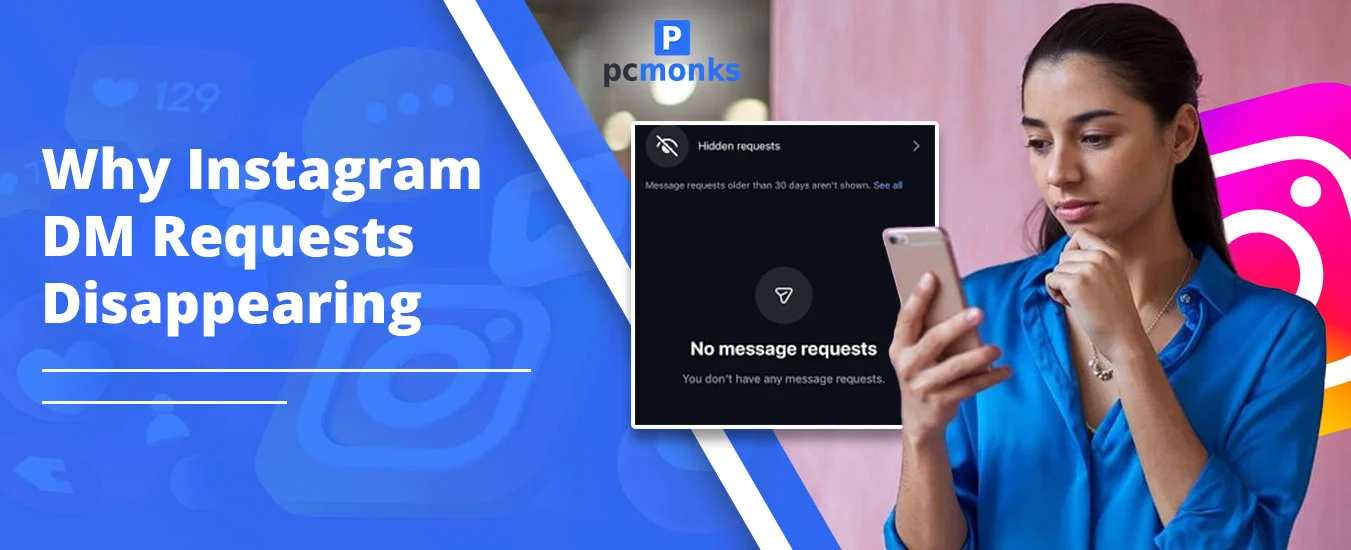
- Tap on Hidden Requests.
Note! These hidden requests usually consist of unwanted or spammy messages that Instagram hides from you to maintain your privacy.
Is There Any Way to Recover Disappearing Message Requests on Instagram?
Yes! There are two different approaches from which you can easily recover your disappearing message requests on your Instagram account.
Method 1: Check Hidden Message Requests
You just need to follow the above steps, which will help you to view all hidden messages.
Method 2: Export Data by Using Instagram’s Built-In Tool
- After opening your Instagram profile, proceed further to tap on the three hamburger lines.
- It will open the Settings and Activity page.
- Go with the Account Center option.
- Tap on Your Information and Permissions.
- Tap on Export Your Information.
- Choose the Create Export option.
- Here, you need to choose your profile through which you want to
- Tap on Next.
- Choose the Export to External Device option.
- Now, you need to decide from which external device you are going to import data.
- Afterwards, tap on Next.
- Make sure to link to the external device that you have chosen earlier.
- Select how often you are willing to export the data.
- Just make sure to mention the password of your profile so that the exporting procedure will be easy.
- From here, opt for Messages. All types of messages will be exported, including message requests, active messages, and much more.
- Be sure to pick a notification email and format.
- At the end, tap on Start Export.
Key Notes!
- When your export data is ready, Instagram provides you with 4 days so that you can smoothly export all the data within the Available Download section. It will be accessible from the “Export your information” tool.
- All your exported data will be fully encrypted, and you can only access it.
- The number of days can also be taken to get you an export link. However, it depends on how bulky the data is.
How to Adjust Your Message Request Settings?
Follow these listed instructions so that in the future, you can adjust your message request settings.
- Access Instagram.
- Move towards your Profile picture.
- Go to the three horizontal lines that will open a Menu tab.
- Look for the “how others can interact with you” section. Under this, you will find Messages and story replies. Tap on it.
- Under How people can reach you, tap on Message Controls.
- Here, you will get two different options:
- Your followers on Instagram.
- Others on Instagram.
- Just make sure to choose any of the following options:
- Message Requests
- Don’t Receive Requests.
With the above options, you will be able to smoothly manage your message request settings by choosing who can send you messages and how they should be delivered.
How to Send a DM to a Non-Follower (Without Getting Flagged as Spam)
This approach is very simple. Go through the instructions below to know more.
- Choose the specific user whom you are not following currently.
- Open their profile.
- Go to the three dots.
- Choose the Message option.
- And send them a DM.
Things That You Should Keep in Mind:
- You are only allowed to share a normal text message rather than opting for an image, video, voice note, or much more. These features can only be utilized when the other user has accepted your message request.
- If the receiver has changed their privacy settings, your message won’t reach them.
- Instagram doesn’t let you know whether they have read out your message or not yet.
Quick Troubleshooting Steps!
- Update your Instagram app on a weekly basis to patch bugs.
- Clear the cache and restart the app if the hidden message requests suddenly vanish.
- Check your privacy settings.
- Make sure you are using a stable internet connection.
- Connect to customer support if you find Instagram DM requests still disappear.
People May Also Ask For
I recently got the most important and rapidly asked questions while preparing a blog for you.
Q1. Does Instagram delete message requests after 4 weeks?
Ans. YES! Instagram will automatically remove message requests that are ignored or look spammy after 4 weeks or 30 days.
Q2. How can an Instagram conversation vanish without being blocked?
Ans. It can happen because of the following reasons:
Q3. How do you see the hidden message request on Instagram?
Ans. These are the following instructions that you need to follow:
- Open Instagram.
- Tap on the Messenger icon.
- See the Requests section that will come at the top of your list.
- It will navigate you to the Request page.
- Tap on Hidden Requests.
- You just need to tap on any message so that you can view the hidden message.
Q4. Why are Instagram’s hidden DM requests not showing?
Ans. Some common reasons behind this:
- There might be some app cache issues.
- You don’t have an updated Instagram application.
- You have changed your privacy settings.
Q5. How do I stop Instagram from deleting message requests?
Ans. There are three different options from where you can smoothly stop Instagram from doing so.
- Simply accept the message
- request.
- Make sure to turn off the “Hide unwanted message requests” option.
- Check the hidden filters within the chat.
Q6. How do you recover Instagram message requests?
Ans. For this, you need to use Instagram’s built-in Download Your Information tool. Follow these workarounds to do so.
- Open Instagram.
- Move towards your Profile.
- Tap on three horizontal lines to open Settings.
- Go to Account Center.
- Choose Your Information.
- Opt for Messages so that you can request the data.
Pro Tip! Met will export all message requests, along with active chats, deleted chats, and pending requests.
Q7. How to tell if someone deleted your Instagram request?
Ans. Instagram doesn’t let you know that another user has deleted your Instagram message request. However, there are some key indications through which you can get an idea.
- Your chat will automatically be moved towards the general or primary section.
- Users’ chats usually look like a “Delivered” status until someone has “seen” their message.
- Look for their profile or activity status.
- Search for their chat.
Q8. Can someone delete a message request?
Ans. YES! Users are allowed to delete a message request on their Instagram accounts. In addition, the notification will be removed, and if the other user is not active, they won’t be able to know about it.






[…] Server-Side Sync Failure: Instagram stores all its search history in the cloud linked to your profile. Hence, if servers are experiencing micro-outages, your connection drops during a session, and your history won’t show—a sync issue that also explains cases like Instagram DM requests disappearing. […]