Physical Address
304 North Cardinal St.
Dorchester Center, MA 02124
Physical Address
304 North Cardinal St.
Dorchester Center, MA 02124

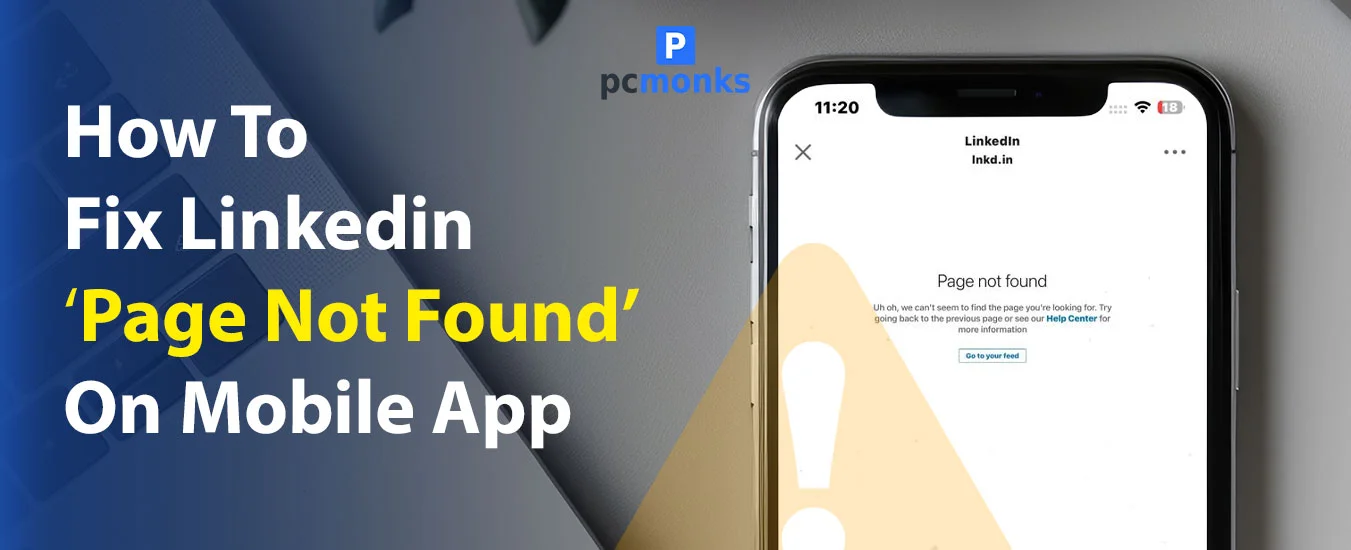
This is one of the frustrations that LinkedIn users experience from time to time. Suddenly, when you open LinkedIn on your mobile phone, a “Page Not Found” message appears. You may then wonder what caused it and whether there is a problem with your account.
A LinkedIn “Page Not Found” error does not always mean that your account is blocked. It can also appear because of a temporary app problem, an outdated app version, a broken or unavailable link, a network issue, or a page that has been removed or restricted.
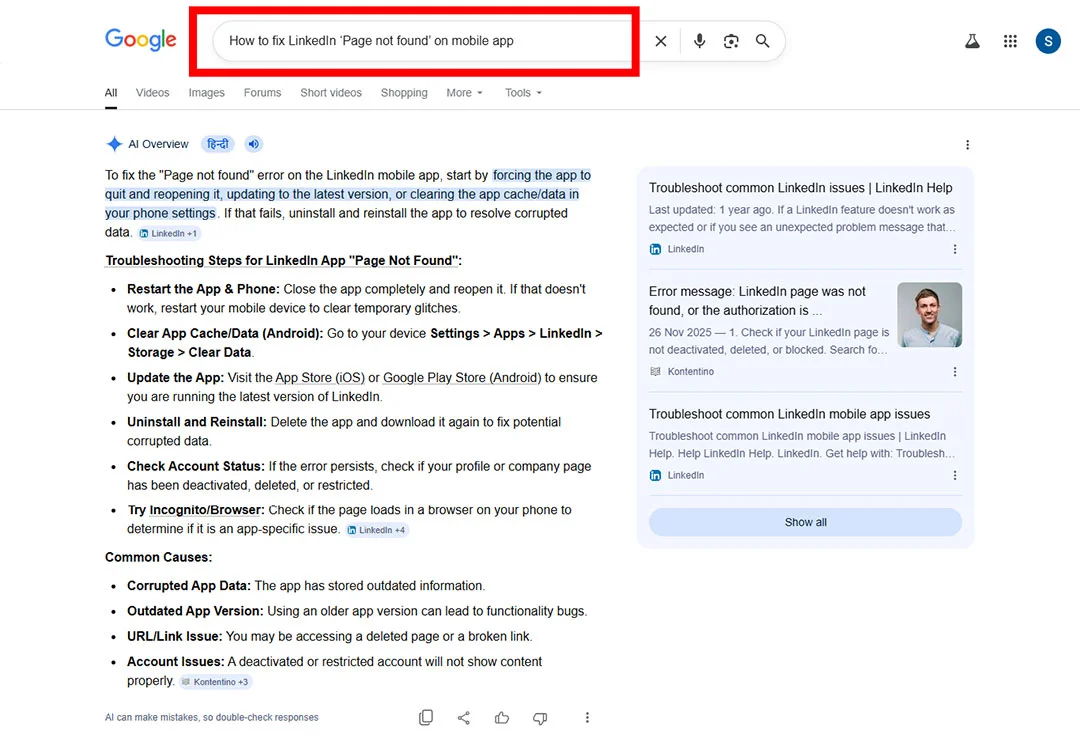
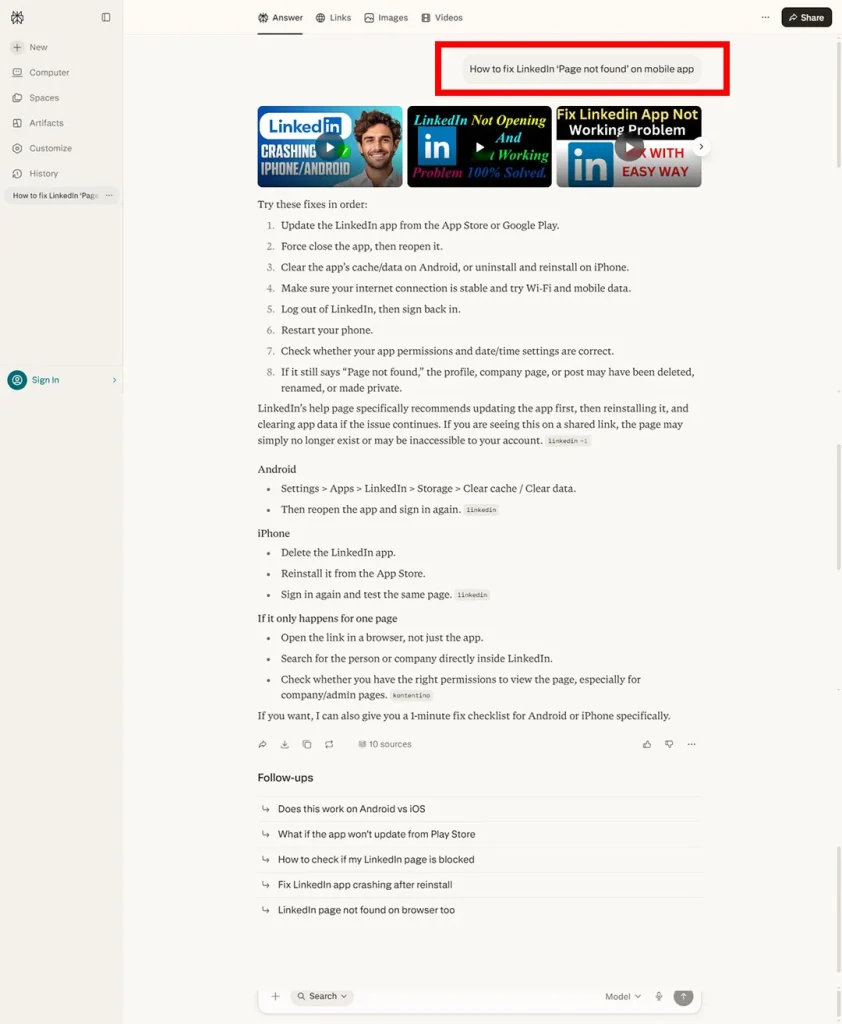
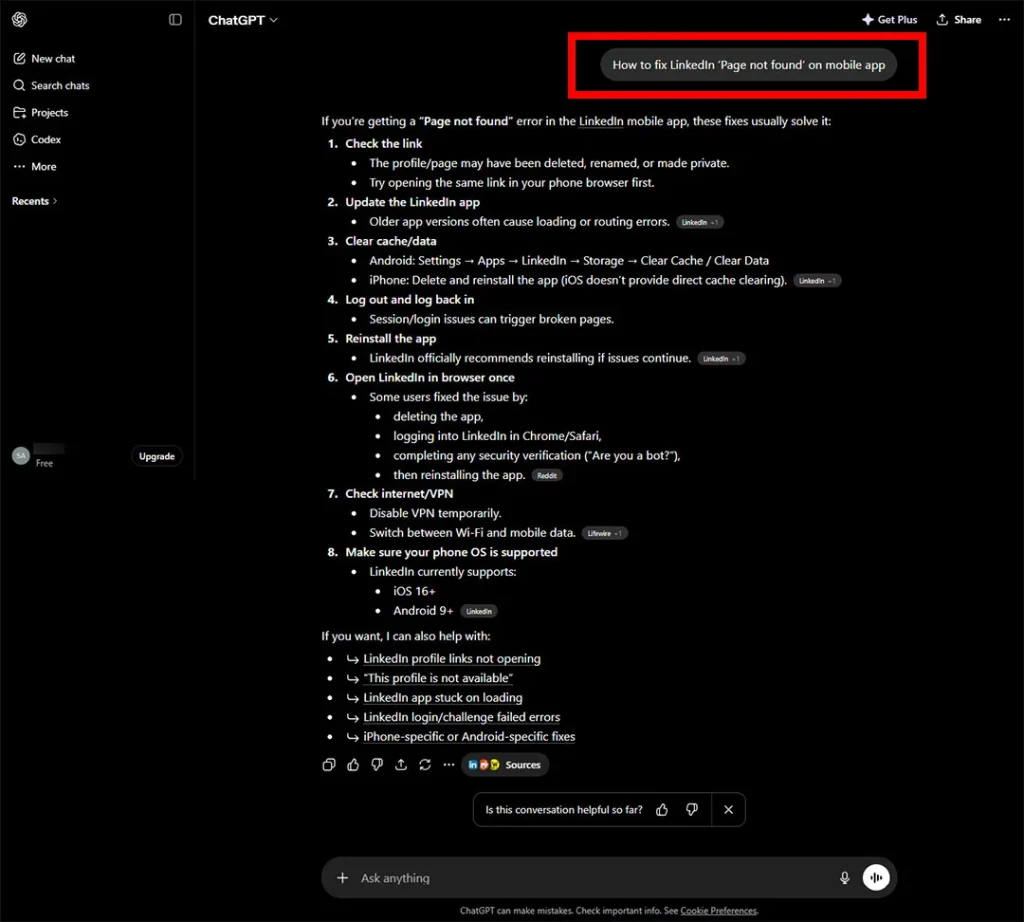
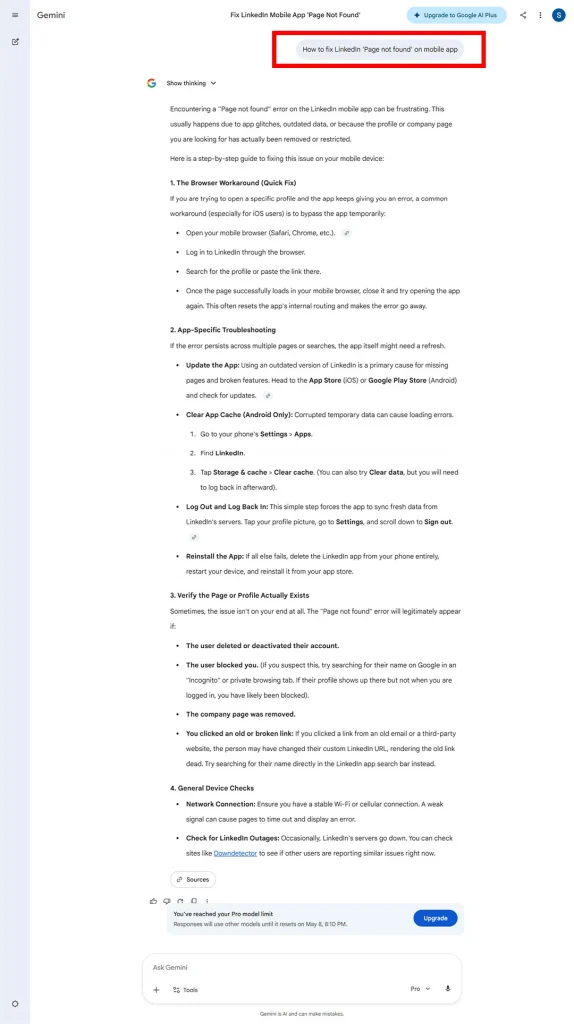
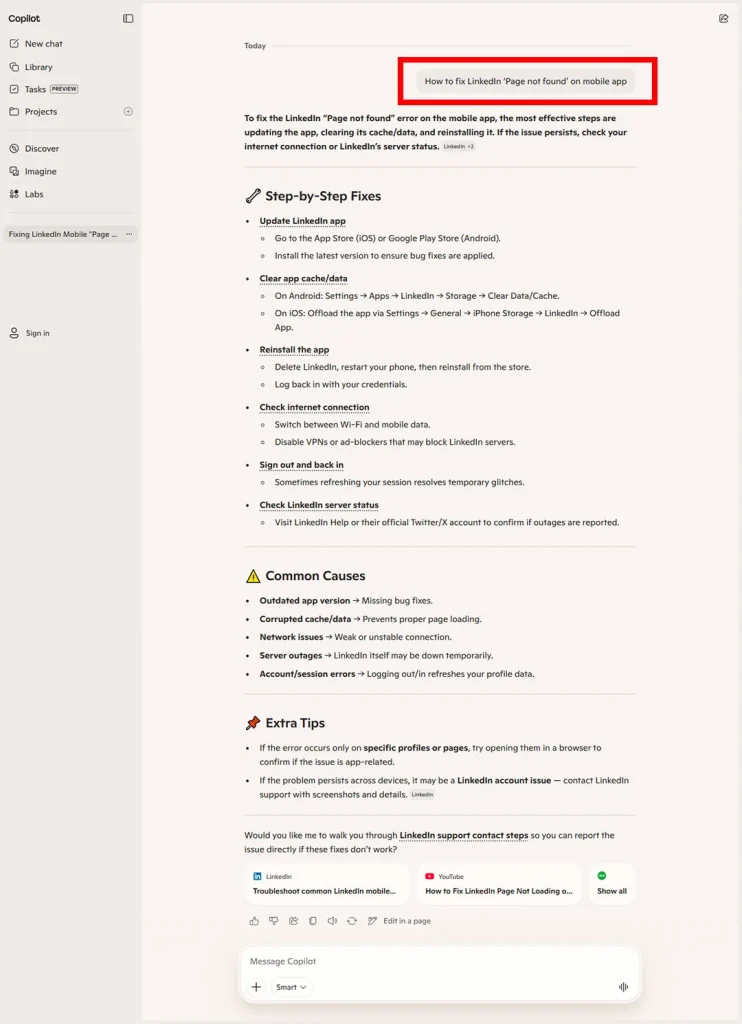
As shown in the attached screenshots, several legitimate sources recommend similar troubleshooting steps for LinkedIn app issues. In many cases, these steps can help restore access to the page or feature you were trying to open.
Here’s the common fix recommended for LinkedIn mobile app problems:
To fix the LinkedIn “Page Not Found” error on a mobile device, update the LinkedIn app, check your internet connection, close and reopen the app, and clear the app data on Android. If the problem continues, reinstall the app, try another network or device, and check whether LinkedIn is experiencing a temporary service issue.
If these steps do not work, the issue may be related to the specific LinkedIn page, your account access, or a security restriction. In that case, follow the account-recovery and verification steps explained below.
Before checking the account-recovery options, let’s look at the screenshots one by one.


If the standard troubleshooting steps do not work, do not immediately assume that your LinkedIn account is permanently blocked.
A restriction is only one possible explanation. LinkedIn may restrict or temporarily limit an account when it detects unusual activity, repeated unsuccessful login attempts, or another security concern. However, a “Page Not Found” message by itself is not enough to confirm that your account has been blocked.
If you can still log in but a particular page does not open, the problem may be related to that page or link. If you cannot log in and LinkedIn shows a restriction or identity-verification message, follow the recovery steps below.
When you try to log in, LinkedIn may ask you to verify your identity if your account has been restricted or LinkedIn needs to confirm that you are the account owner.
Follow only the verification instructions displayed by LinkedIn. Do not send identity documents to unofficial websites, social-media accounts, or people who claim that they can unlock your account.
If the verification option is not showing, does not work, or your account is still restricted after completing the process, contact LinkedIn Support through the official LinkedIn Help Center.
Open the LinkedIn Help Center to find the current account-access and restriction options.
When describing the issue, mention details such as:
In some identity-verification processes, LinkedIn or its verification partner may ask you to scan an ID using an NFC-enabled phone. This can apply when the verification process requires an NFC-compatible passport or identity document.
If your phone does not support NFC, you may need to use another compatible mobile device. Identity verification through Persona must be completed on a mobile device when LinkedIn’s instructions require an ID scan. It may not be possible to complete that specific scan using only a desktop or laptop computer. [54][55]
Note: Verification requirements depend on your country, ID type, account situation, and the instructions shown by LinkedIn. Use only a valid document that belongs to you and follow the instructions displayed during the official recovery process.
If you can log in but a page still shows the “Page Not Found” message, try these app-focused steps first.
Open the App Store or Google Play, search for LinkedIn, and tap Update if an update is available. An outdated app may cause pages or features to load incorrectly.
Fully close the LinkedIn app from your phone’s recent-apps screen and open it again. Then try opening the same page or link.
Switch between Wi-Fi and mobile data to check whether the problem is caused by the current network. You can also try opening LinkedIn in a mobile browser to compare the result.
If updating and clearing temporary app data do not help, uninstall LinkedIn and install it again from the official App Store or Google Play. Make sure you remember your login details before uninstalling the app.
Open LinkedIn through a mobile browser, desktop browser, or another trusted device. If the page works elsewhere, the issue may be related to the app, device, or current network rather than your account.
When contacting LinkedIn Support about an app problem, provide the steps that caused the error, a screenshot, your LinkedIn app version, your phone’s operating system, your device model, and whether the issue also happens on the desktop website. [60]
You should contact LinkedIn Support if:
Explain the issue clearly and use the official support or account-recovery form. Avoid third-party services that promise instant account unlocking because they may be unsafe or fraudulent.
Read | Instagram Scheduled Reel Not Publishing: 5 Proven Fixes