Physical Address
304 North Cardinal St.
Dorchester Center, MA 02124
Physical Address
304 North Cardinal St.
Dorchester Center, MA 02124

Quick answer: Your archived posts are usually not gone. Instagram often opens the Stories Archive by default. Go to Profile → ≡ menu → Archive → tap the dropdown at the top → choose Posts Archive. If it still looks empty, log out and back in, then check Recently Deleted (posts and Reels are kept for 30 days).
Have you archived your Instagram posts or stories, and now they are not showing in the Archive section of your profile? It is quite frustrating.
Make sure you hit the Archive button, not Delete. Most of the time, your posts are not actually missing. Instagram often opens the Stories Archive by default, so many users need to switch to Posts Archive manually.
To find them quickly:
However, if they still don’t show in the Archive section, or your screen stays completely blank and white, you might have a glitch in your app, or you might have tapped “Delete” by mistake.
Let’s go through how to recover your missing Instagram archive posts step by step.
Before troubleshooting, make sure you know which state your post is actually in.
If you archive an Instagram post, story, or Reel, you only hide it from your profile. It is not deleted. It disappears from your public profile but stays accessible privately, and you can put it back in the same position as before.
In simple terms: Archive = Hide, not delete.
If you hit the delete button instead of archiving, the content goes into a temporary holding area. It looks deleted from your side, but it is still recoverable until the time limit expires. Deleted feed posts and Reels stay in Recently Deleted for up to 30 days. Deleted Stories that weren’t saved to Archive are recoverable for up to 24 hours.
Simple rule: Recently Deleted = Deleted, but possibly recoverable for a limited time.
If the recovery window expires, or you manually delete the item from Recently Deleted, Instagram removes the media from its servers. There is no official built-in option to restore it after this.
Simply put: Permanently Deleted = Gone for good.
Now you know how each of these states works for your published content.
Sometimes you want to hide your posts or stories from public view but keep them for yourself. To others, the post looks deleted, but it actually sits in your Archive, visible only to you. To do this, tap the archive button on that post.
There are a few reasons why archiving is a smart move:
In such situations, algorithm trends and audience demands push you to remove content that is not performing, regardless of how much hard work you put into it.
But completely deleting it makes little sense when you can keep it saved privately while still cleaning up your Instagram grid. You can always reuse that media later by remixing, resharing, or repurposing it. So it is better to archive posts instead of deleting them.
Most Instagram users struggle to find their archived posts because Instagram opens a default section called “Stories Archive.” This confuses many people. These steps will help you find your posts in the Archive section.
1. Open the Instagram app and tap your profile picture in the bottom-right corner.
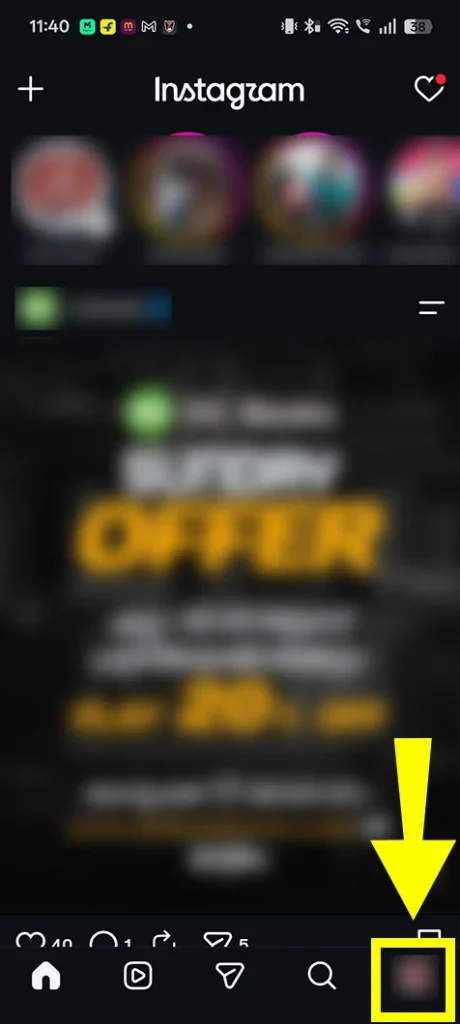
2. Tap the three horizontal lines in the top-right corner.

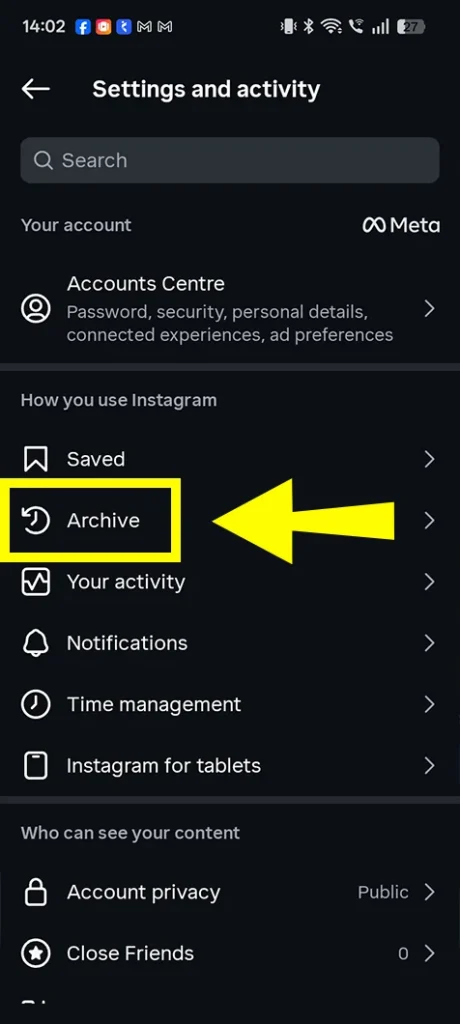
3. Tap Archive. (In my case, it showed in the same window. If you do not see Archive here, tap Your activity, then select Archived or Archived content.)
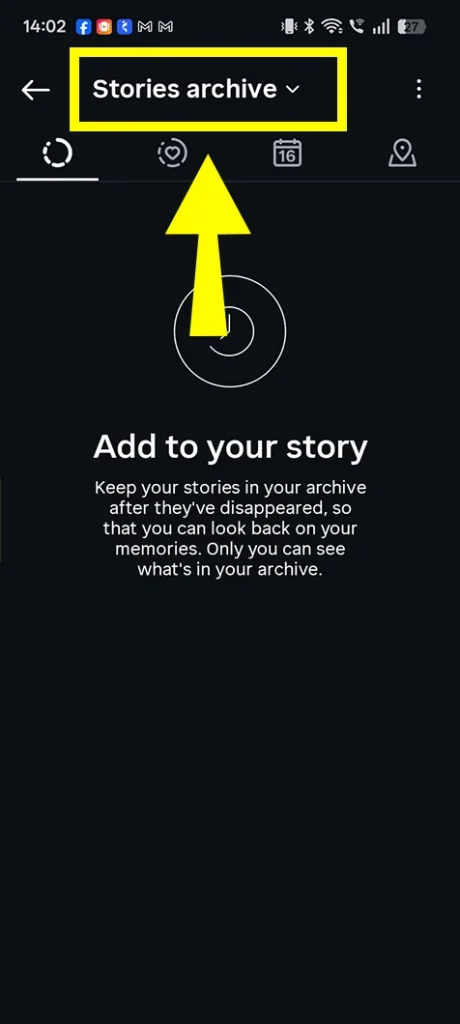
4. At the top of the Archive screen, tap the current archive type, such as Stories archive. If you archived stories, all of them will show up here.
5. Select Posts archive from the list.
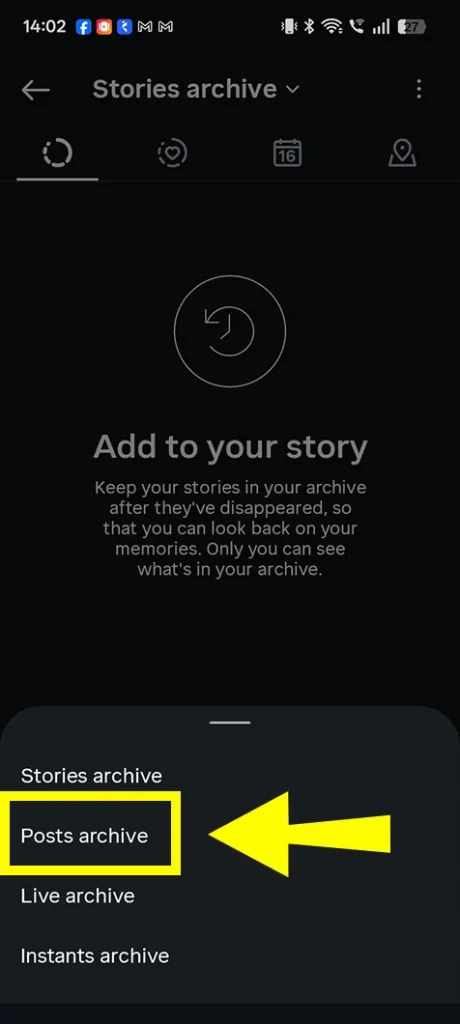
On this page, all your missing archived posts should start showing on your screen.
Note: You cannot see other people’s archived posts on Instagram. You can only see your own archive.
Tip: Instagram’s menus keep getting renamed and moved between updates. If you can’t find Archive, open Settings and search for “Archive” or “Your activity” in the search bar.
Once you locate your hidden post inside the archive, here is how to put it back on your main profile.

2. Open the post, tap the three dots, and select Show on profile.
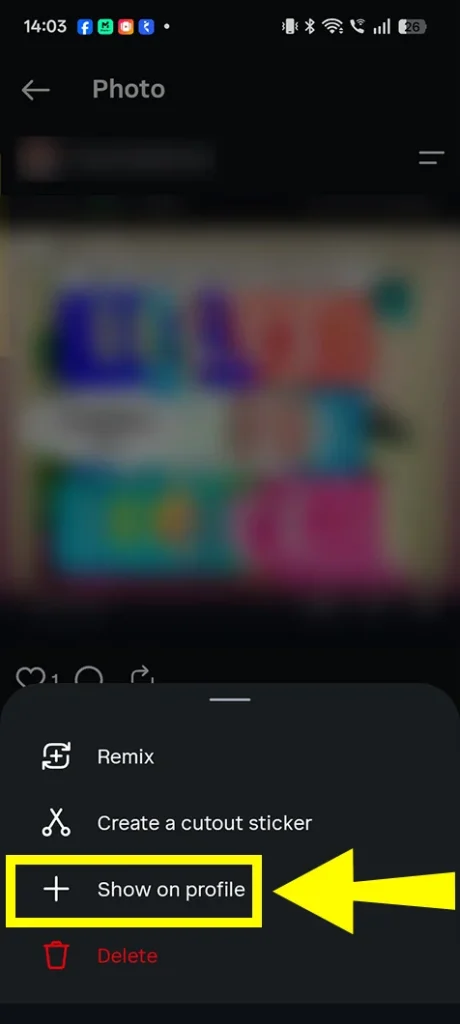
It automatically returns to its original upload date in your grid history. It does not get re-uploaded as a new post.
If your profile or feed looks off after restoring, for example if you keep seeing outdated content, this guide on why Instagram feed shows old posts explains what may be going on.
Instead of posts, stories are the thing that most often goes missing from the archive. It happened to me too. At that time I wasn’t aware of it, so I started researching and found a Reddit thread in r/Instagram where I found the fix. That thread had many solutions, but I logged out, logged back in, and restarted my device, and it literally solved it.
I have gathered the methods mentioned in that thread and what users reported about each one. Note that these are user reports from one community thread, not official statistics from Instagram.
| Fix Method | What Users Reported | Type | Key Findings & Community Feedback |
| Log Out & Log Back In | Worked for most people in the thread | Temporary workaround | Refreshes the app’s cached data. Several users, including the original poster, said the bug can come back after posting new stories. |
| Force Quit & Restart App | Worked for a smaller group | Quick alternative | One user fixed it this way without re-entering login details, which is handy if you manage multiple accounts. |
| App Update | Did not help | Not effective | Users with the latest version still had the problem, which suggests it is a server-side glitch rather than an outdated app. |
| Waiting for an automatic fix | Did not help | Not effective | Some users say the glitch has lasted for months, with no official fix from Meta. |
Log out, log back in, and restart your device. This helped me too, but treat it as a temporary fix, because the bug can return.
If other story features are acting up too, like missing stickers, check this fix for Instagram story stickers missing.
If your stories were never saved, the setting may be off. Go to Settings and privacy → Archiving and downloading (on some versions: Privacy → Story) and make sure Save story to archive is switched on. Stories posted while this was off will not be in your archive.
If you are on the Posts Archive screen but it stays completely blank, your app cache is likely out of sync. A white screen or a page stuck loading is often just a temporary glitch. Follow these steps.
Cache problems can affect other parts of the app too. For example, they can also cause Instagram search not showing recent searches.
If clearing the cache doesn’t work, try these:
If nothing works, delete Instagram completely and download the latest version from the Google Play Store or Apple App Store. This usually resolves persistent Archive loading issues.
If you still can’t find your content after all this, you may have accidentally tapped Delete instead of Archive, so check Recently Deleted next.
If you don’t find your content in the Archive, check the Recently Deleted section. This only works if you deleted the post within the last 30 days. Here’s how:
1. Open Instagram and tap your profile picture in the bottom-right corner.
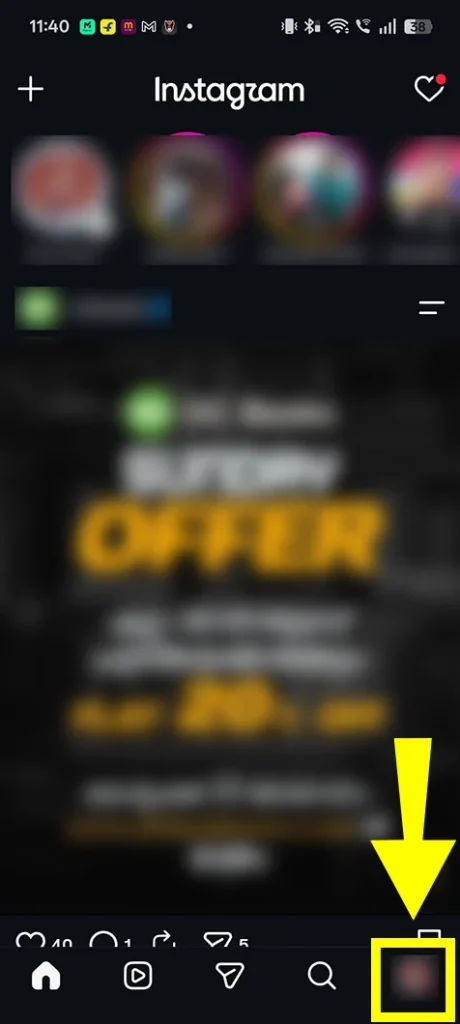
2. Tap the three horizontal lines (≡) in the top-right corner.

3. Tap Your Activity.
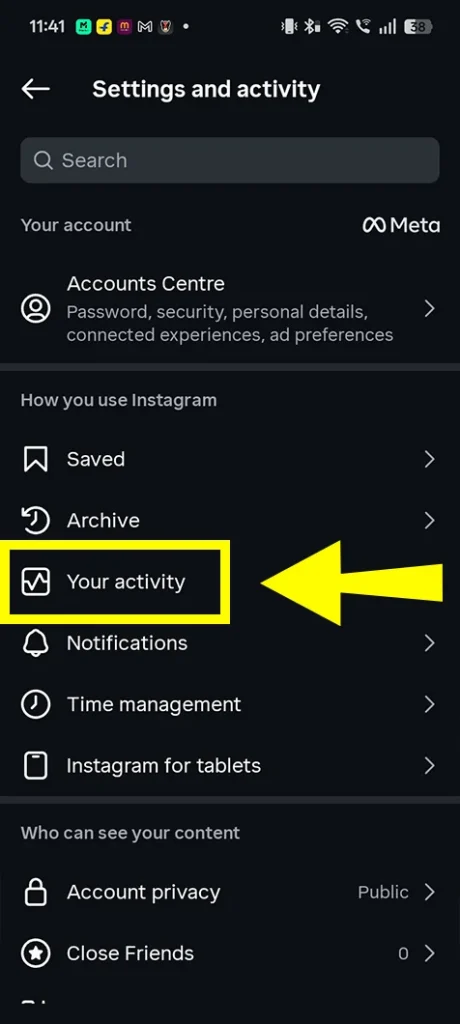
4. Scroll down and tap Recently deleted under Removed and archived content
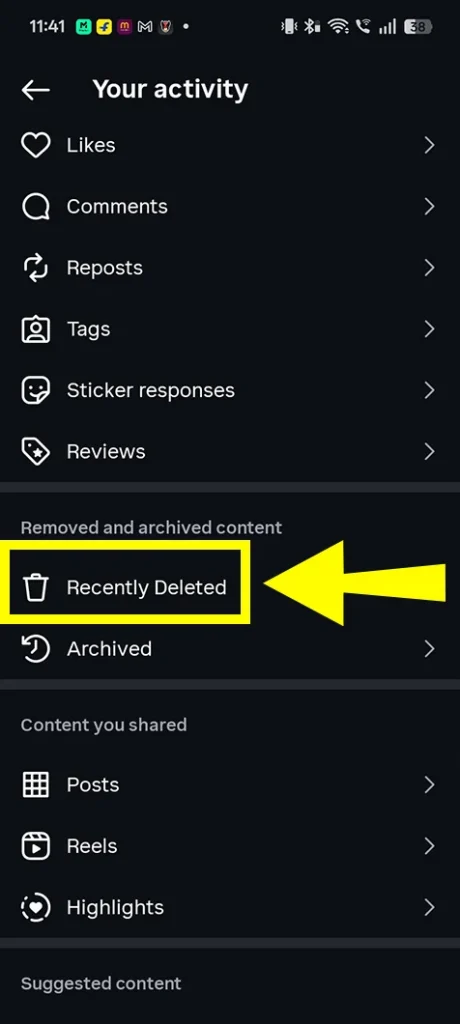
5. Tap the square photo icon to view deleted image posts.
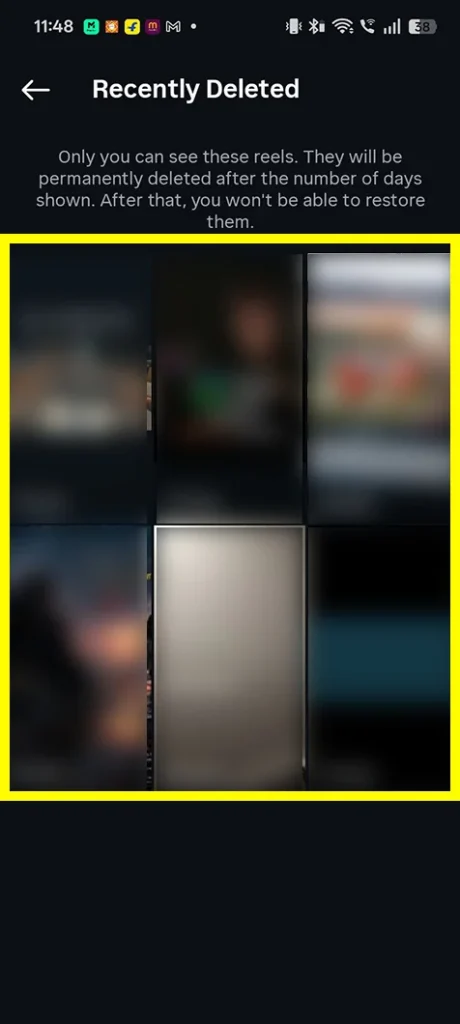
6. Tap the Reels or video icon to view deleted Reels.
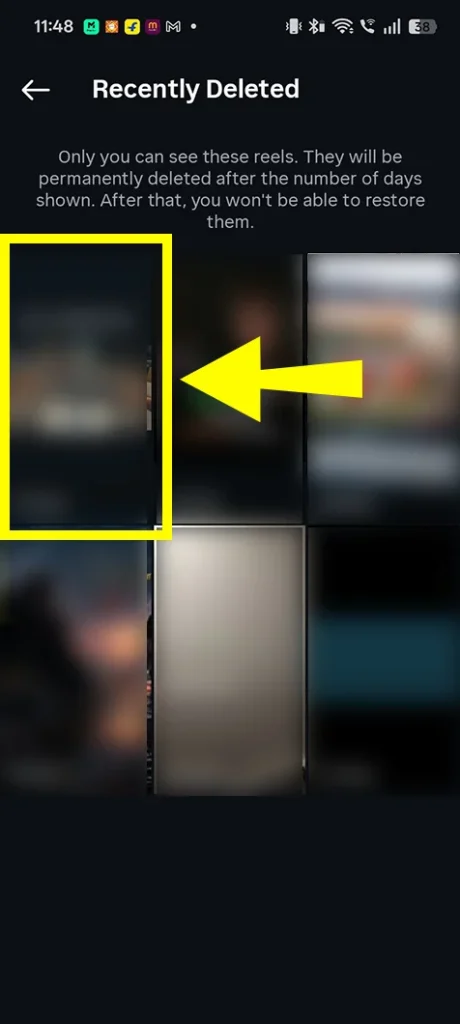
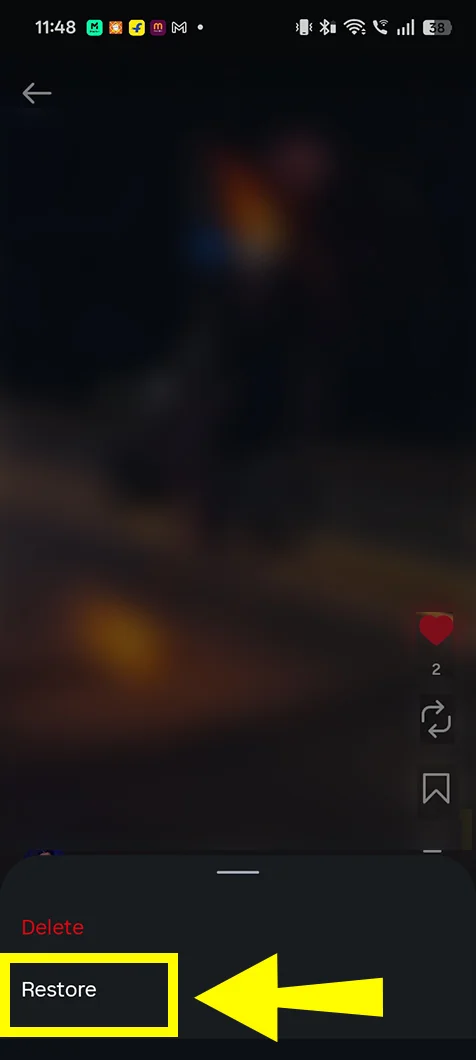
7. Open the deleted post you want to recover and tap the two dots on the post.
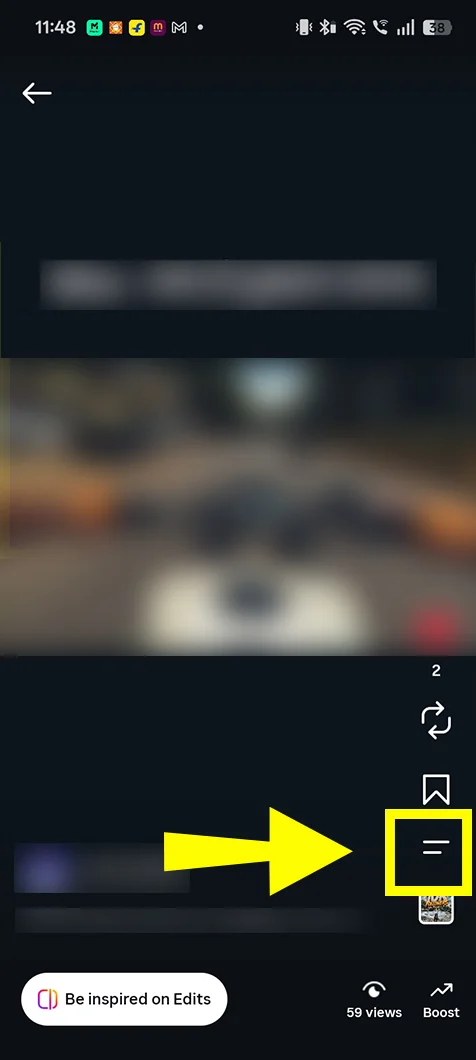
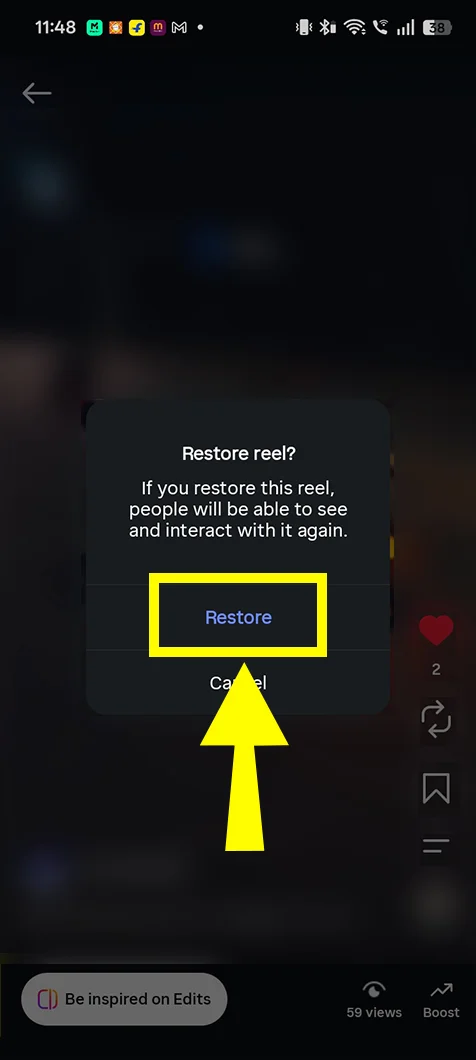
8. Tap Restore.
9. Tap Restore again to confirm.
10. The post will be restored to its original place on your Instagram profile.
Good to know: Instagram may ask you to verify your identity (by email, SMS, or a code) before it lets you restore. If you can’t verify, you can’t restore. Also, if your account is disabled or hacked during that 30-day window, you may lose access to Recently Deleted. Secure your account first.
If your posts are still missing after checking your Archive, Recently Deleted, and clearing your cache, it’s time to alert Instagram. Instagram does not have a customer care phone number or direct email, but you can send a bug report from inside the app. You can also browse the official Instagram Help Center for the latest guidance.
Be direct, because automated filters scan these tickets. You can copy and paste this:
“My Posts Archive is showing completely blank, but my media was never deleted. I have already cleared my cache, updated the app, and re-logged. The server cache appears stuck. Please help refresh my account’s archive data.”
Meta rarely sends personal replies to bug reports. Fixes are usually rolled out quietly through server-side updates or the next app update. Users on forums also report that reporting the same issue repeatedly doesn’t speed anything up, so send it once and be patient.
Never pay anyone on Instagram, X (Twitter), or in comments who claims to be an “ethical hacker” that restores missing posts for a fee. Only rely on official fixes.
Most often, Instagram is showing the Stories Archive by default. Tap the dropdown at the top and switch to Posts Archive. If it is still empty, it could be a temporary app glitch, the wrong account, or the posts may have been deleted instead of archived.
You can’t recover posts you deleted years ago through Instagram. Deleted content stays in Recently Deleted for only 30 days, after which it is permanently removed. However, you can check your own backups, check your Archive (if the post was archived, not deleted), or download your Instagram data from Accounts Center.
No. The Archive is private, and only the account owner can view and restore their own archived posts, Reels, and stories.
There is nothing to undo. Instagram stories automatically move to your Stories Archive after 24 hours (if “Save story to archive” is on), and they are saved privately. You can view them, share them again as a new story, or add them to Highlights.
You can’t do it through Instagram. After 30 days, the content is permanently removed from its servers. But you can check your phone gallery, Google Photos, iCloud, or any PC/cloud backup, or your downloaded Instagram data file.
No. Archiving only hides a post from your profile and feed. It stays in your private Posts Archive with its original likes, comments, and date, and you can restore it at any time.
This is a known glitch reported by many users, and it seems to be a server-side caching issue. Logging out and back in usually brings them back, though the problem can return when you post new stories.
Deleted stories that weren’t saved to your Archive can be recovered for up to 24 hours. Stories saved to your Archive stay there until you delete them.
Every piece of content takes a lot of effort, so we never want to lose it. To be safe: