Physical Address
304 North Cardinal St.
Dorchester Center, MA 02124
Physical Address
304 North Cardinal St.
Dorchester Center, MA 02124

Your Instagram Story won’t post, and the progress bar just sits there. It’s annoying, but it’s usually fixable in a few minutes.
The cause is most often a weak connection, a stuck upload, or a video file Instagram can’t handle. This guide goes through each one in the order I’d try them.
Last checked: October 2026. Menu names shift between app versions, so yours may look a little different.
Delete the stuck story, force close Instagram, switch networks, then post a plain photo as a test. If the photo posts, focus next on the video file, its edits, music, or stickers. If it doesn’t, check for an Instagram outage and your account status.
Most stories fail because the upload gets interrupted. A weak signal, a stuck draft, a heavy or unusual video file, low phone storage, or an old app version can all do it. Less often, Instagram itself is down or your account has a limit.
Use this table to match what you see with the likely cause.
| What you see | Likely cause | Where to look |
| Progress bar frozen, often near the end | Connection dropped mid-upload, or the upload queue is stuck | The cancel and retry section |
| “Upload failed” and “Tap to retry” keep coming back | Bad connection, old app, or damaged temporary data | Connection and settings sections |
| One video fails, but photos post fine | File format, HDR, or length | The video file section |
| Works on Wi-Fi but not mobile data (or the reverse) | Data permissions or data saver settings | The settings section |
| Nothing posts and your feed won’t refresh either | Connection problem or possible Instagram outage | The outage section |
| “Something went wrong” while posting a video | A bug in a new app version, or a file Instagram can’t process | The video file section and the update tips |
| The story posts, then disappears within minutes | Possible content flag, such as a music copyright match | The account section |
| A warning or “Try again later” message | Account restriction or action block | The account section |
Before cancelling the stuck Story, save a copy if possible. A failed upload may not offer a save button, so check that you still have the original photo or video.
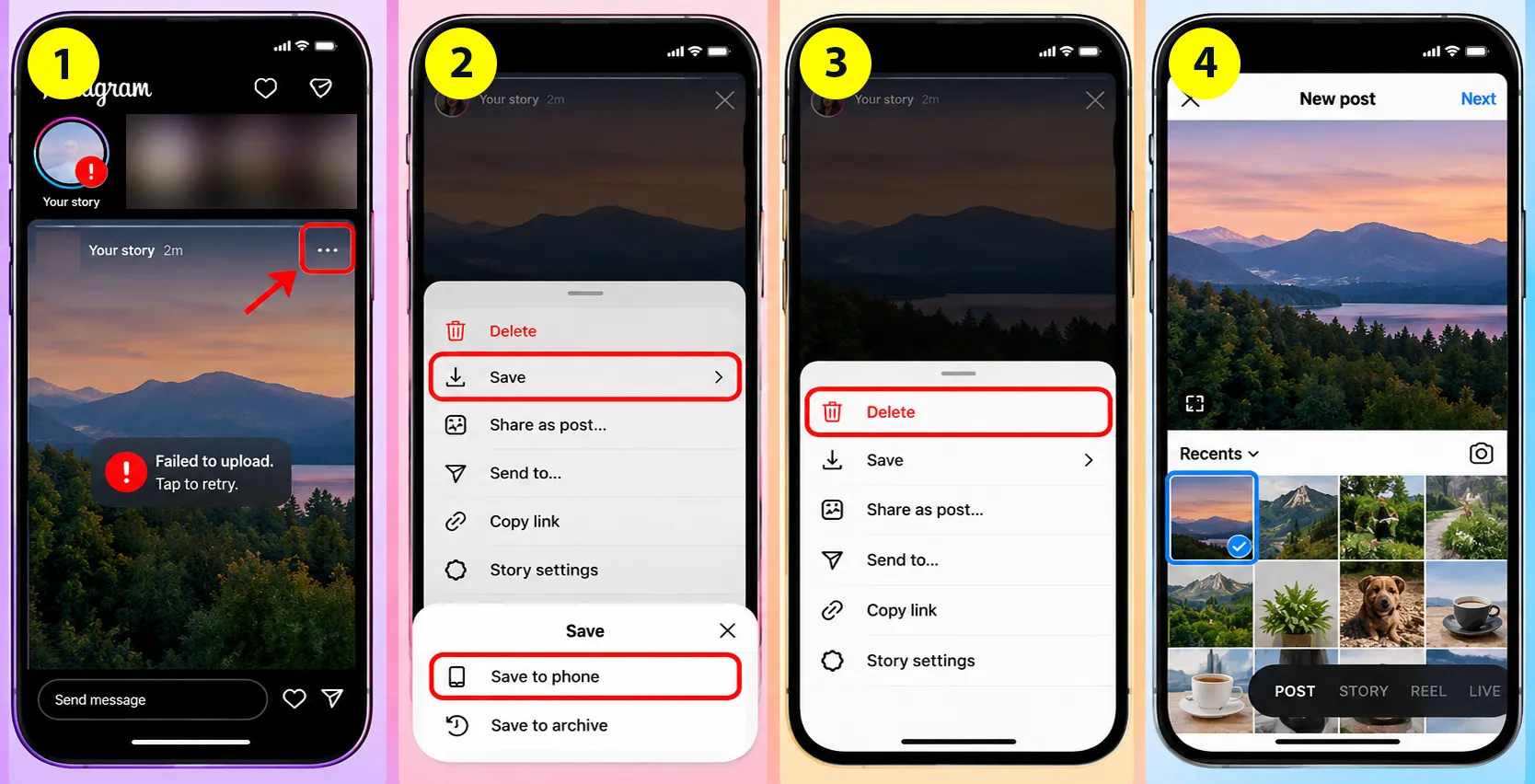
If the upload will not respond, briefly turn on Airplane Mode and make sure Wi-Fi is also off. Return to Instagram and check whether you can cancel the upload. Turn Airplane Mode off afterward before trying to post again.
Cancelling the stuck upload lets you start a fresh attempt instead of repeatedly retrying the same failed upload.
A saved copy may preserve the appearance of your edits, but interactive stickers will not remain tappable. Add polls, questions, and other interactive stickers again when creating the new Story. You may also need to re-add music.
Yes. Full bars only tell you your phone is connected to the router. They don’t tell you how well data is moving to Instagram.
Here’s a quick way to check. Open a web page or play a video on the same connection. If that feels slow too, the connection is your problem. Then try these:
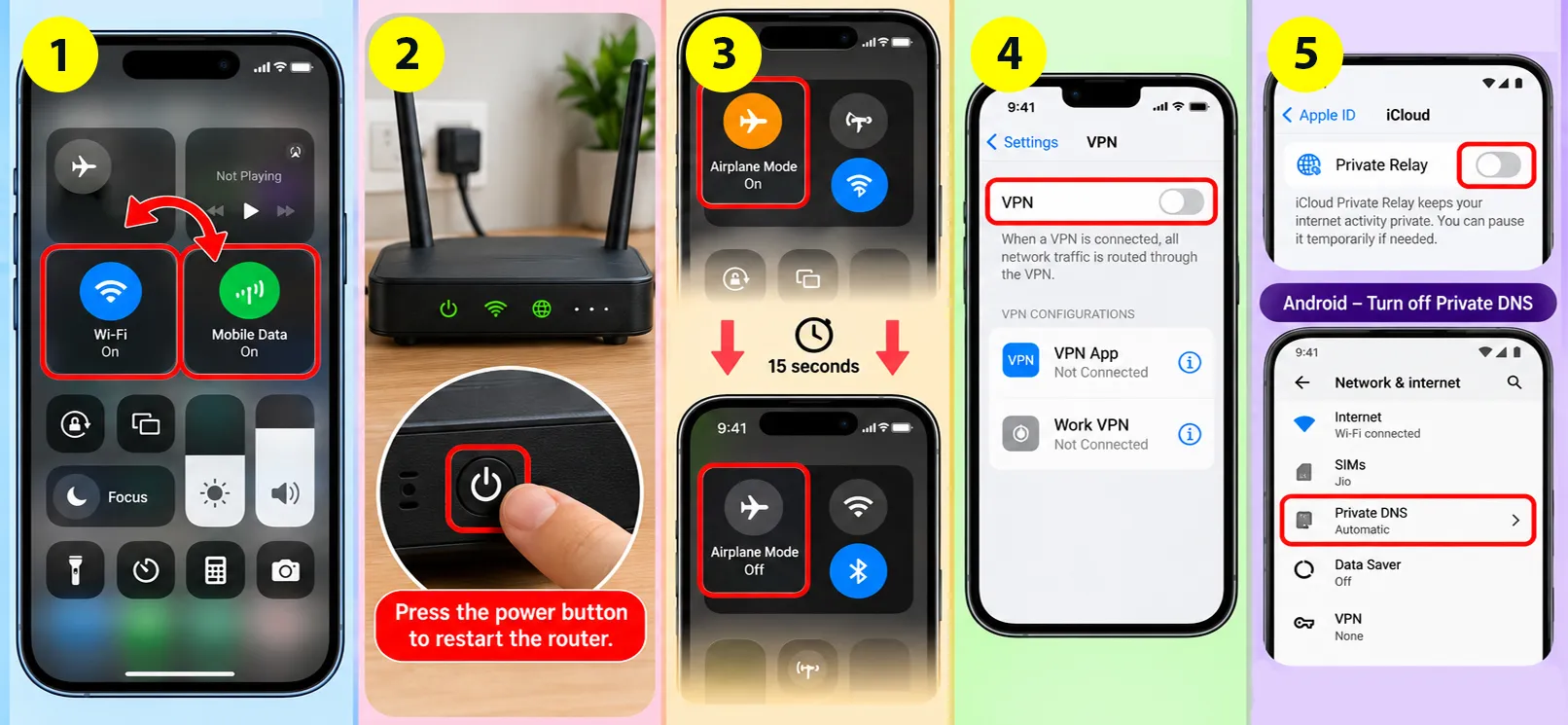
Pick one steady connection and stay on it until the upload ends. Walking out of Wi-Fi range halfway through is a classic way to break a story upload. So is posting from a moving train, a public hotspot with limited bandwidth, or a room with thick walls.
Yes, especially when photos post and one video doesn’t. Instagram stories are built for tall, short clips. Files that stray far from that can stall without a clear error.
| Setting | What to aim for |
| Shape | Vertical, 9:16 |
| Size in pixels | 1080 x 1920 |
| Format | MP4 or MOV |
| Codec | H.264 video with AAC audio (the most commonly recommended pairing) |
| Frame rate | 30 frames per second is the usual recommendation. If a clip uses an unusual rate, re-export it at 30. |
| Length | Up to 60 seconds per clip. Instagram says a video up to 60 seconds appears as one Story clip, while longer videos are split into multiple clips. |
One note on file size. Focus on a compatible format and a manageable file size rather than relying on a single file-size figure. Trim the clip and try exporting it as a 1080 x 1920 MP4 using H.264 video and AAC audio.
It can be. Newer iPhones can record HDR video by default, and some creators report that Instagram sometimes has trouble processing HDR clips.
If an HDR video fails but a normal photo posts, export or re-record the same clip in standard dynamic range and try again. If it uploads, HDR processing was likely the issue.
On many iPhones, go to Settings > Camera > Record Video and turn off HDR Video. The exact menu name and option can vary by iPhone model and iOS version.
These file rules apply beyond stories. If your Reels hang too, these fixes for Instagram Reels stuck uploading cover the same ground.
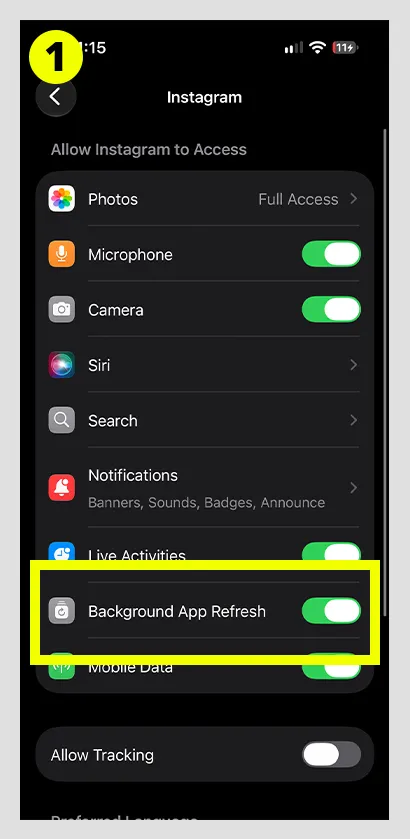
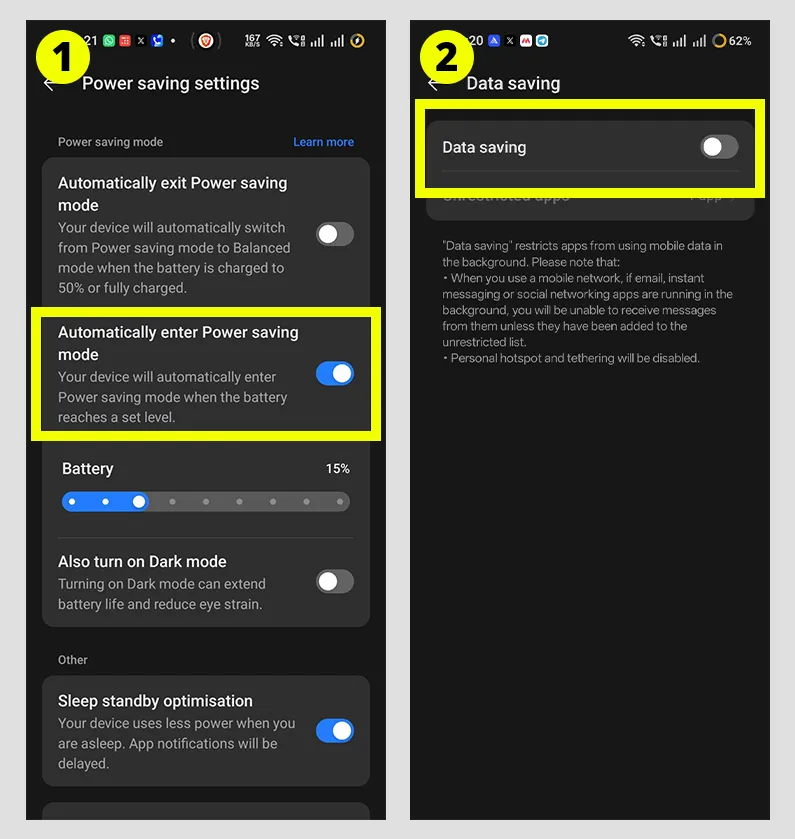
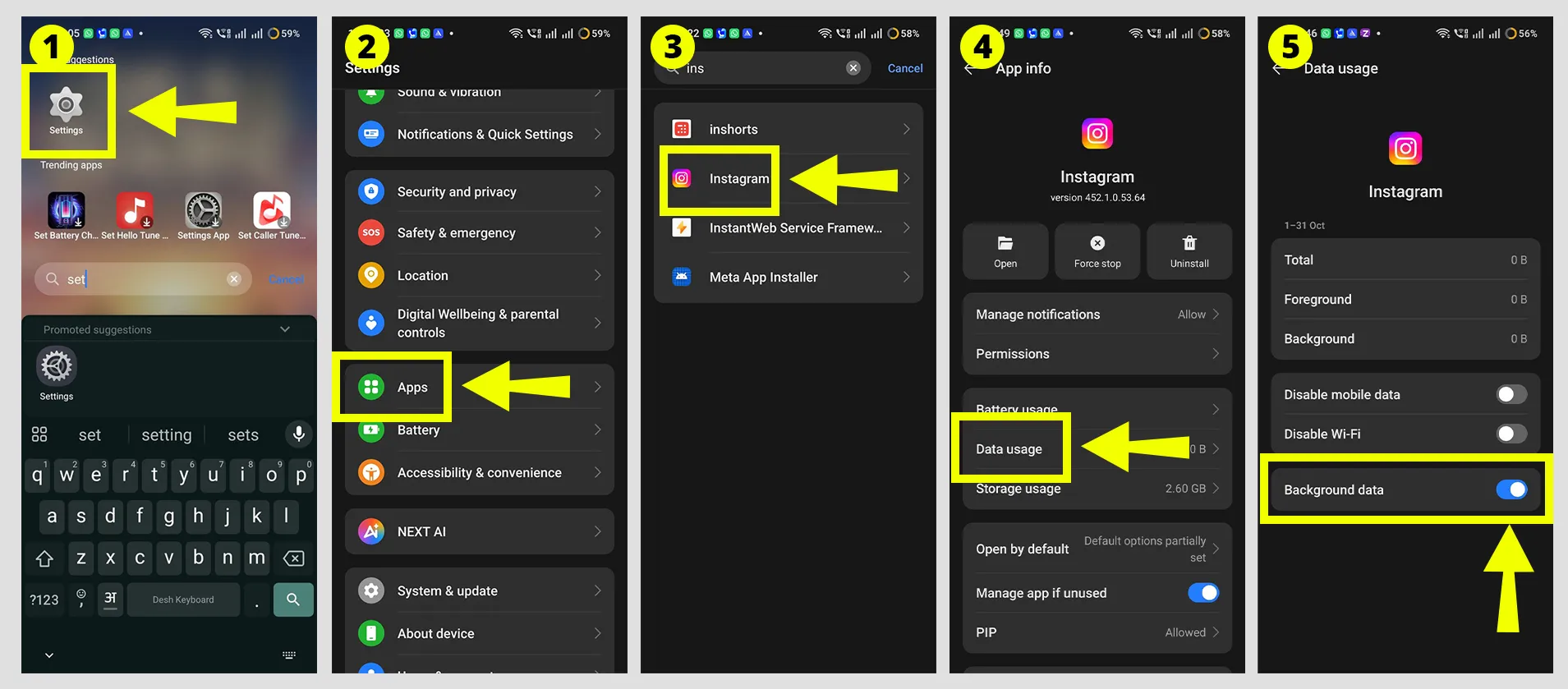
Data saver, background restrictions, and low storage are the usual ones. They don’t show an obvious error, so people skip right past them.
Go to your profile, open the menu, then Settings and activity. Look for Data usage and media quality. On older versions it’s under Account, then Cellular data use. You’ll see two toggles that matter: Data Saver (also called “Use less cellular data”) and Upload at highest quality.
Change one setting at a time and retry the same Story. Temporarily turn off Data Saver while testing. If Upload at highest quality is enabled, try turning it off for one test on a weak connection. These are troubleshooting tests, not guaranteed fixes.
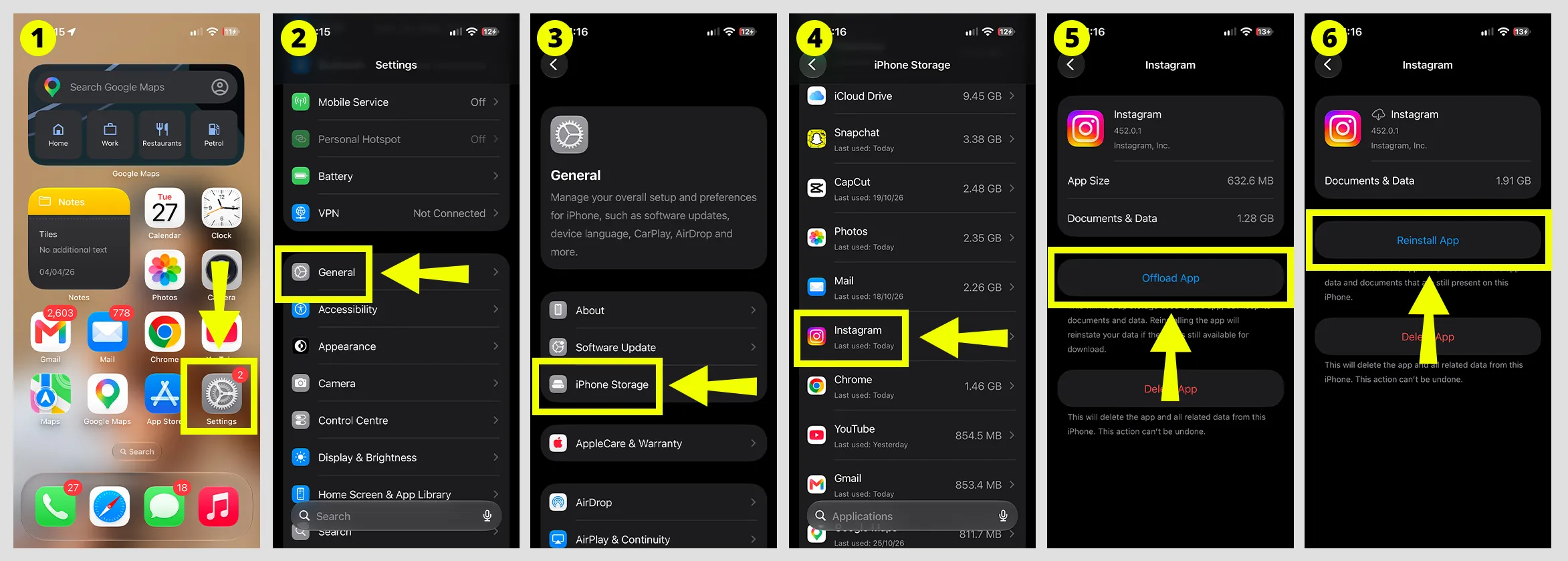
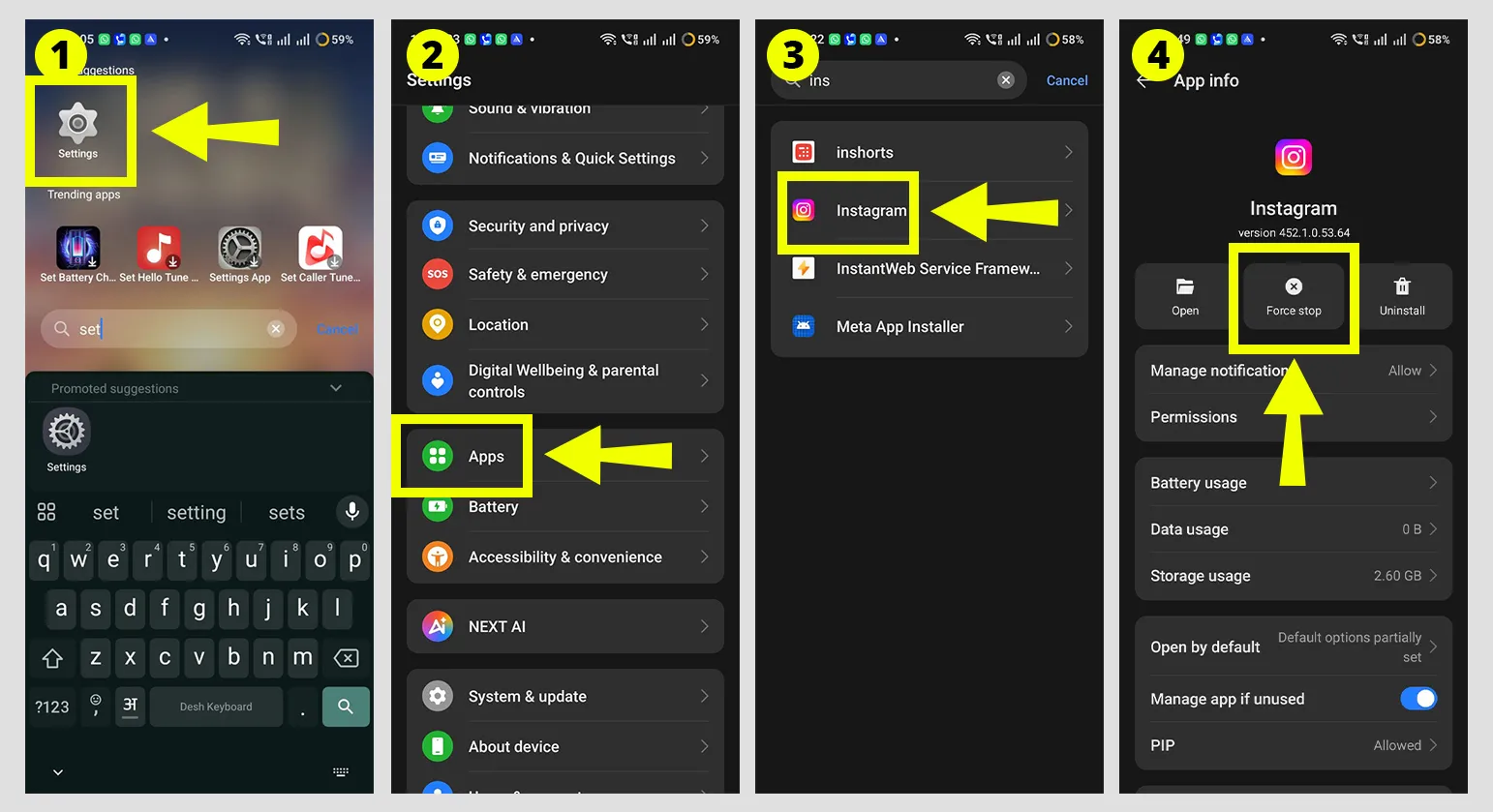
Open Settings → Tap Apps → Select Instagram → Tap Storage usage → Tap Clear cache.
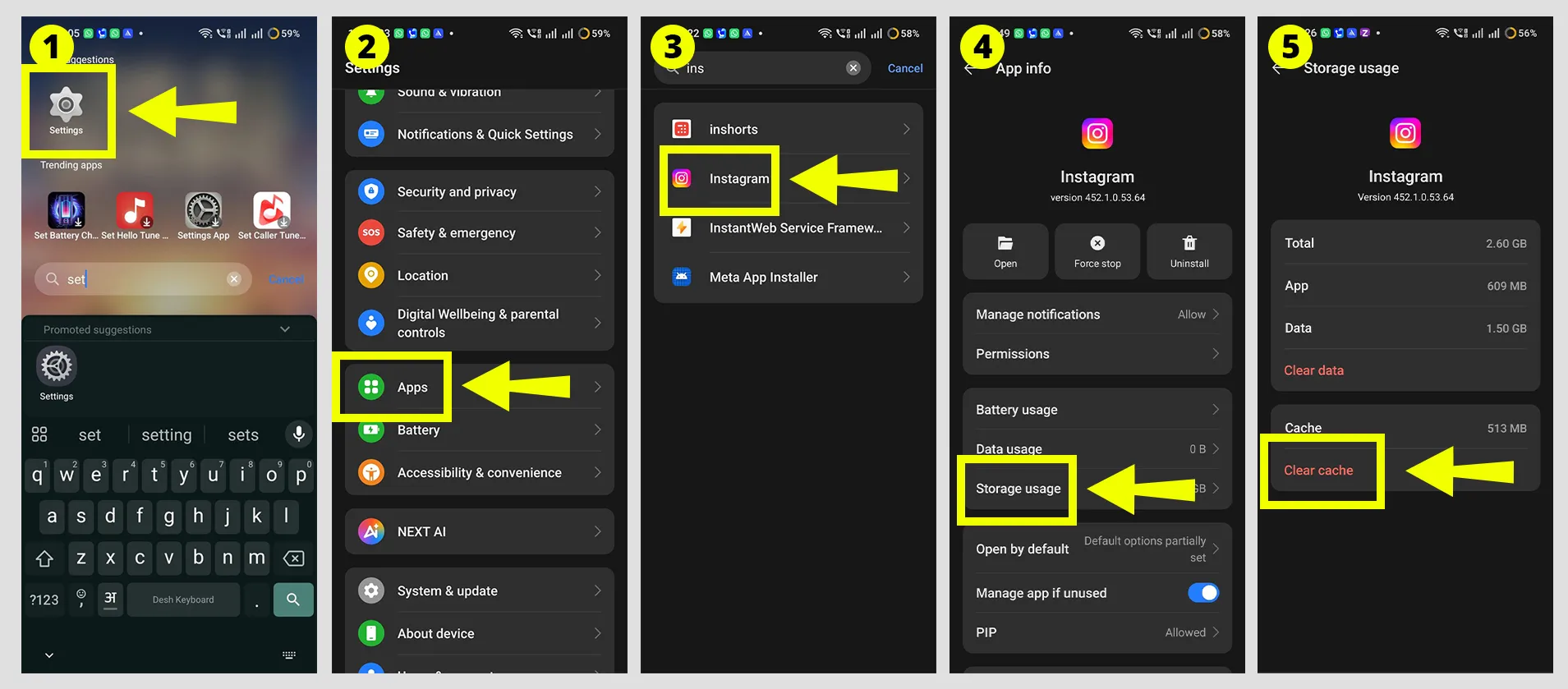
Use this only as a last resort. Save important Story media and make sure you can sign back in before continuing. Clearing app data logs you out and may remove locally stored drafts, but it does not delete your Instagram account.
Open Settings → Tap Apps → Select Instagram → Tap Storage usage → Tap Clear data.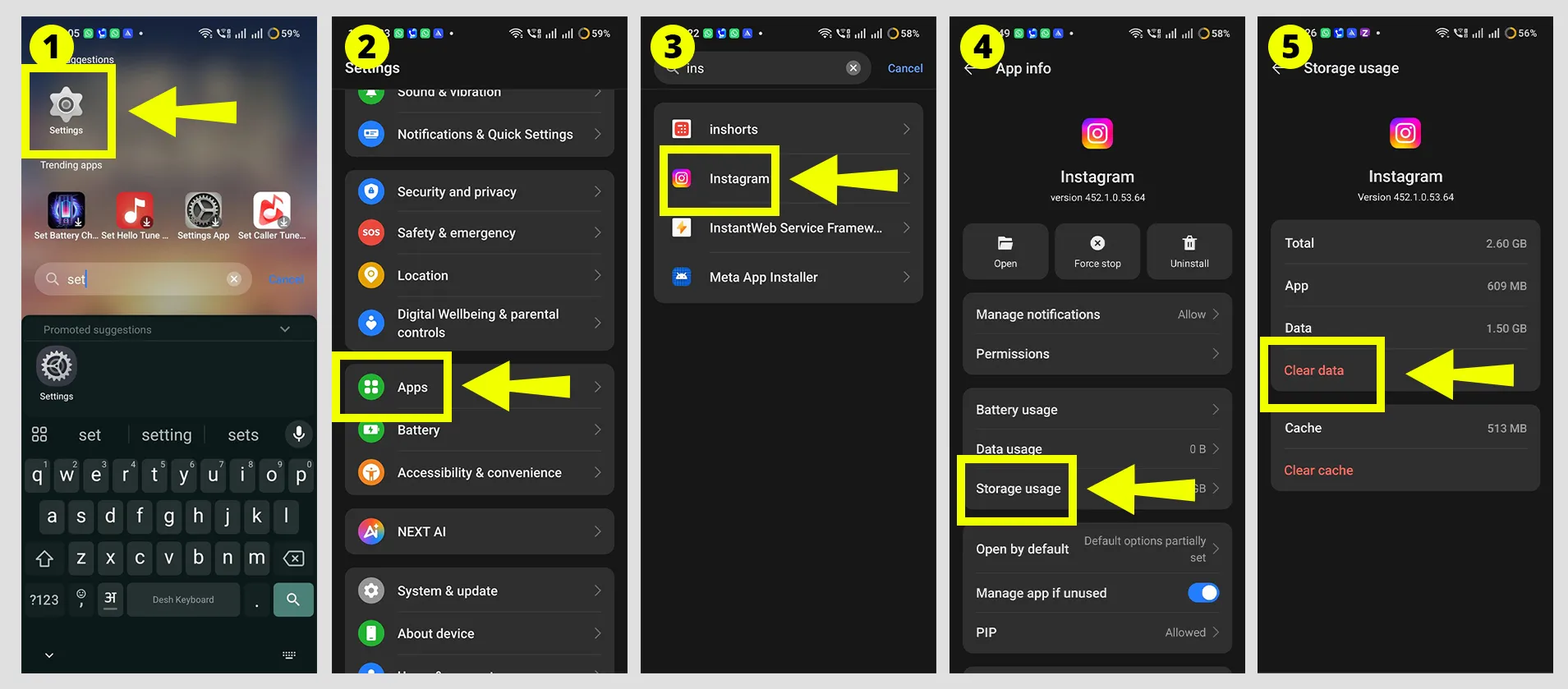
On either phone, check free space. A nearly full phone can fail while it processes the video, before the upload even starts. A few gigabytes of free room is a safe cushion.
Each one has a different cause, so test them separately.
Open Account Status in Settings and activity. If you can’t find it, search for it in the settings search bar. Instagram explains what it shows on its Account Status help page.
It lists removed content and any limits on features. Here’s a useful rule of thumb. A restriction usually comes with a clear notice. A plain upload failure usually doesn’t. Check Account Status for removed content and feature restrictions, but do not use the timing of an upload failure alone to identify an account restriction. If a story posts and then vanishes within minutes, look here for a removal notice. Some stories are flagged automatically, for example over copyrighted music.
A clean status helps, but it doesn’t rule out everything. Some short-term action blocks don’t appear there. If you see “Action Blocked” or “Try again later,” you may have done a lot in a short time, like many follows or messages. Instagram doesn’t publish exact limits. Stop that activity and give it a day or two.
Possibly. Check Downdetector’s Instagram page and look at the report chart. It is a third-party outage tracker, not an official Instagram status page, but a sudden spike in reports can mean many people have the same problem.
Here is how to check it properly:
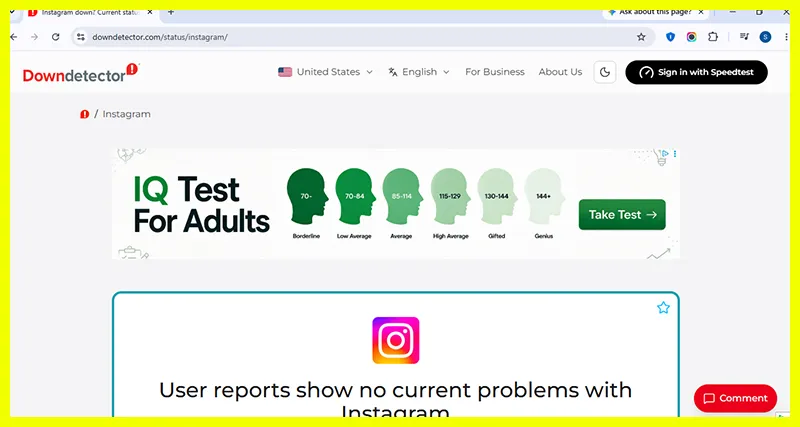
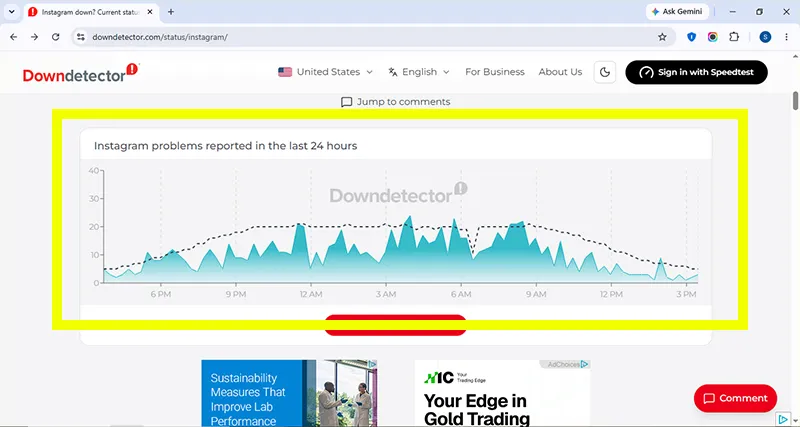
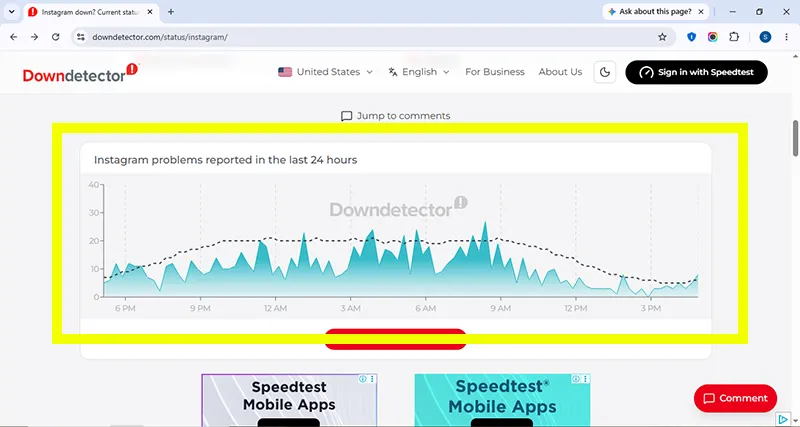
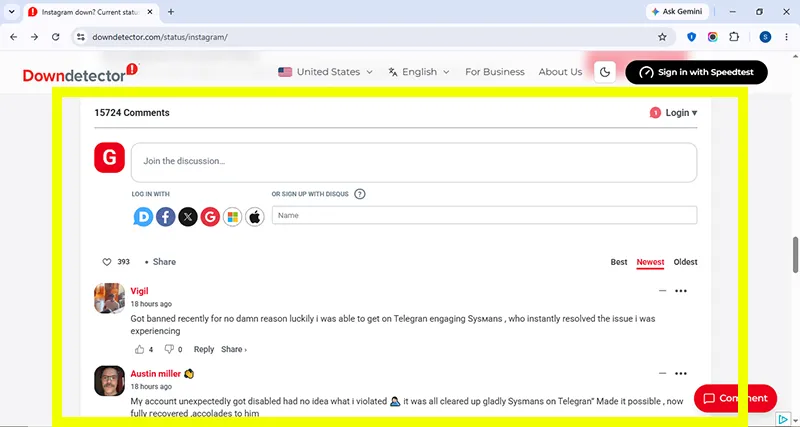
If Downdetector asks you to report a problem, click or tap Report a problem near the top of the Downdetector Instagram page. A box will open with the heading Select which issue applies. From the options — App, Feed / Timeline, Login, Posting / Publishing, Server Connection, Website — select Posting / Publishing.
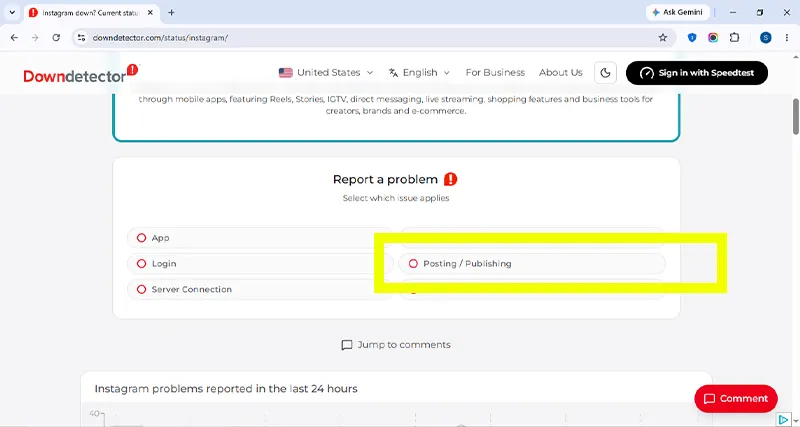
Posting / Publishing is the closest option for an Instagram Story that is stuck uploading, shows “Upload failed,” or will not post.
| Your problem | Select this option |
| Story stuck uploading, upload failed, or Story will not post | Posting / Publishing |
| Feed, Reels, or Explore not loading | App or Feed / Timeline |
| Cannot log in | Login |
| App crashes or will not open | App |
| Instagram website not working | Website |
| Everything is slow or not connecting | Server Connection |
Important: Reporting the issue does not fix your Story upload. It only helps Downdetector show whether other people are facing the same Instagram problem.
If reports suggest an Instagram outage, wait and retry later before making more changes to your phone or account. Reinstalling the app or changing your password will not resolve an outage on Instagram’s side.
Maybe, depending on your account type. Instagram’s website isn’t a full replacement for the story camera. But if you have a Business or Creator account linked to a Facebook Page, Meta Business Suite lets you create stories from a computer. It doesn’t support music tracks or some interactive stickers, so plan your story with that in mind.
A few habits cut down most repeat failures:
Once your story is live, ask a friend to open it. Your own view can show a preview even when something is off for everyone else. And if replies come in but you never get an alert, check this guide on story replies not notifying you.
Start simple. Cancel the stuck story, force close the app, and switch networks. Then post a plain photo. If it posts, work on the video file. If nothing posts, check Downdetector first, then Account Status. If every step fails, report the problem to Instagram with a screenshot.
Failed attempts don’t post. But sometimes one upload finishes while the app still shows an error. Check your story from your profile before you try again, so you don’t end up with a duplicate.
No. Your account and posts live on Instagram’s servers. You’ll need your login details to get back in. Anything stored only on your phone, like an unsent draft, may be lost. Save it to your camera roll first.
Test it. Log in to the same account on another phone, or log in to a different account on yours. If the same account fails everywhere, look at Account Status. If every account fails on your phone, look at the phone, its storage, and its settings.
Go to Settings and activity, then Help, then Report a problem. Describe what happens, and add a screenshot if it lets you. If the app is up to date and you’ve already reinstalled it, this is your next step. You can also browse Instagram’s help page for when something isn’t working.