Have you searched for someone or something on Instagram recently? And wondering if it is removed or not showing on your search history?
Although you can find the search terms in your app’s search history, if you don’t find it, this is typically caused by app bugs, auto-clear settings, or account data corruption.
However, you need not worry at all! This guide will give you proper insight into Instagram search history, its timeline to showcase, and why it is not showing.
Quick Key Takeaways
- Recent Instagram searches disappeared due to manual deletion, bugs, auto-clear settings, or data corruption.
- You can often still view it by going to the Your activity section and clicking on the Recent searches option, even if it is not showing in the search bar.
- Also, export a backup copy of your search logs via Your Activity > Download your information > Recent Searches.
- Instagram does not allow you to restore deleted searches back to the search bar, but some data may still exist on Meta’s servers for a short time.
- If your history keeps disappearing, check Settings and privacy > Accounts Centre > Your information and permissions > Search history to see how long Instagram is set to keep your searches.
What “Instagram Search Not Showing Recent Searches or Accounts” Actually Means
When you tap the search icon on Instagram, the app normally displays a chronological list of your recent search activity—including profiles, hashtags, locations, and audio.
When this feature malfunctions, your search history either appears completely blank or fails to register new searches after you navigate away. This issue generally presents itself in three ways:
- Empty Search Tray: Tapping the search box reveals a blank space instead of your usual recent queries.
- Unsaved Search Activity: You search for and view an account, but it does not appear in your recent list the next day.
- Selective Missing Results: General terms or hashtags appear, but specific user profiles and accounts fail to populate.
While it may look like your account was permanently cleared, it is usually a temporary client-side display error or a cloud sync glitch between the app and Meta’s servers.
Why Instagram Search History or Accounts Might Disappear
Usually, when you search something in your Instagram search box, that exact query gets saved until you hit the cross icon (❌) in front of your query. However, sometimes that cross icon gets tapped accidentally, or someone using your account might tap on it, and it gets removed.
Know why it disappears:
- The App Cache is Corrupted: Your phone holds temporary files to load your app effortlessly. If these files get bugged, the search index fails to render on your screen.
- Server-Side Sync Failure: Instagram stores all its search history in the cloud linked to your profile. Hence, if servers are experiencing micro-outages, your connection drops during a session, and your history won’t show—a sync issue that also explains cases like Instagram DM requests disappearing.
- Accidental Clear: You or someone taps on (❌) or the clear all option under your activity settings. It may trigger a deletion of your recent searches.
How to Check If Your Search History Is Really Gone
If your search bar stops showing recent queries, that’s often the first sign that your search history is missing. However, this does not always mean it has been completely deleted.
You can check your search history in a few different places. If it’s not visible in any of them, it’s likely that your history has been cleared.
Check Your In-App History via “Your Activity”
Here’s the process to check your search history:
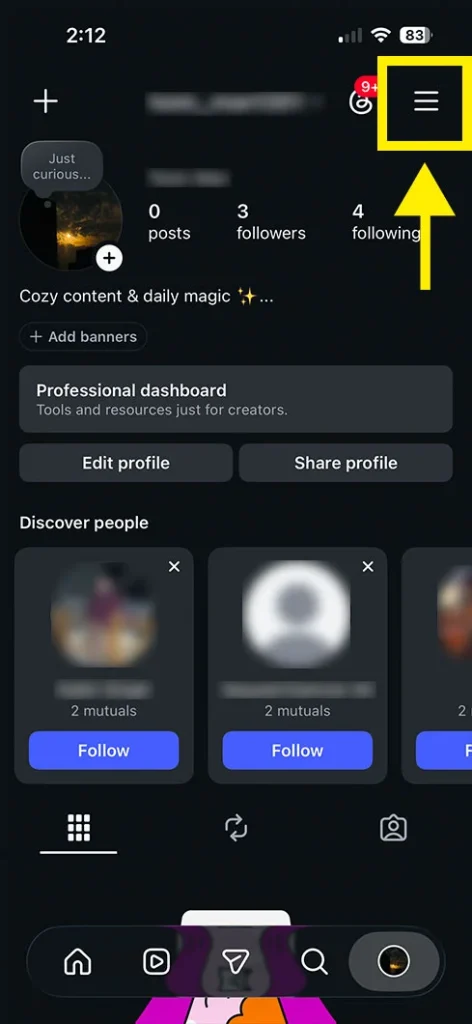
- Go to your profile and tap the three‑line menu (☰) in the top‑right corner.
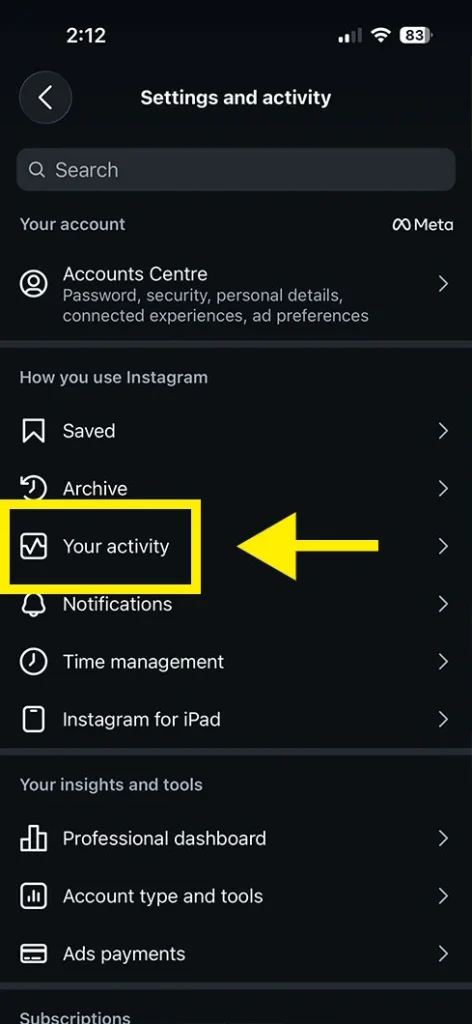
- Select Your activity, then tap Recent searches.
Now, if your queries, accounts, or tags still appear here, it means your data is intact on Meta’s servers, and the search bar itself is just glitching.
However, if your recent searches are empty and it says “No recent searches,” the history was either manually cleared or wiped out.
Check Search History Settings in Meta Accounts Centre
You can also check search history settings in Meta Accounts Centre:
- Go to Settings and privacy > Accounts Centre.
- Tap Your information and permissions, then open Search history.
- Here, you can see the “Keep searches for” retention setting (for example, 3, 7, 14, or 30 days).
If this is set to a short interval, Instagram automatically deletes older searches on a rolling basis.
Can You Recover Deleted Instagram Search History?
You cannot fully restore deleted searches to the search bar, but you can often still view them inside the app or download a record of them.
Method 1: View Past Queries via “Your Activity”
The easiest way is to check your activity logs:
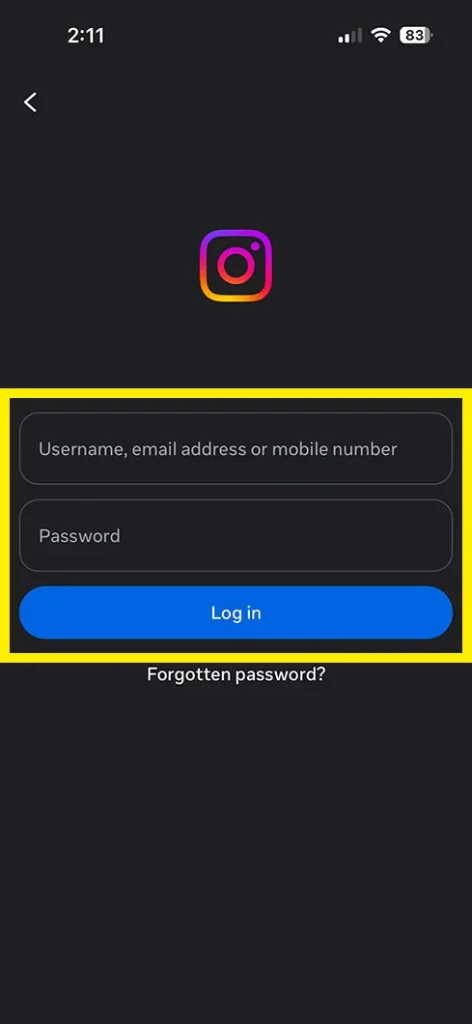
Open Instagram and log in to your account.
Tap the three-line menu (☰) in the top-right corner of your profile.
Select Your activity from the menu.
Scroll down and tap Recent searches.
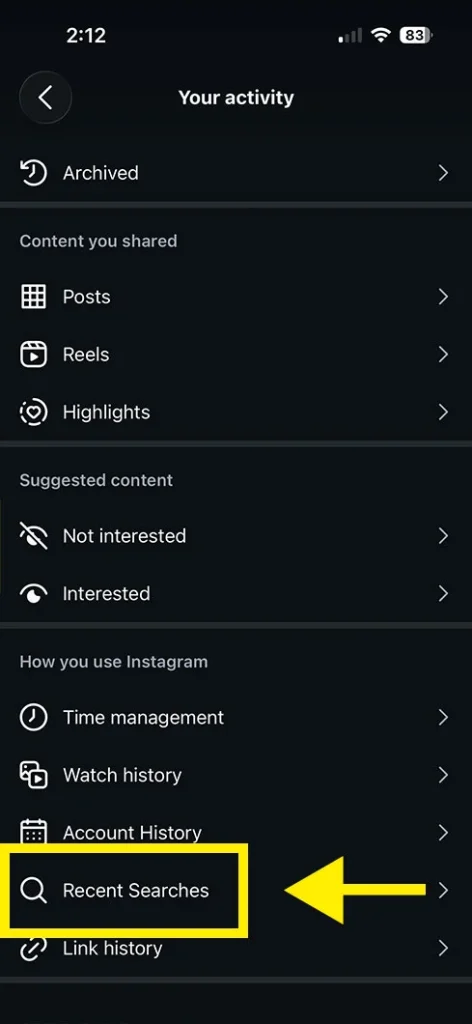
Here, you can see the profiles, keywords, and hashtags you have recently searched for on Instagram, even if they no longer appear in the search bar. You can delete them by following these simple steps.
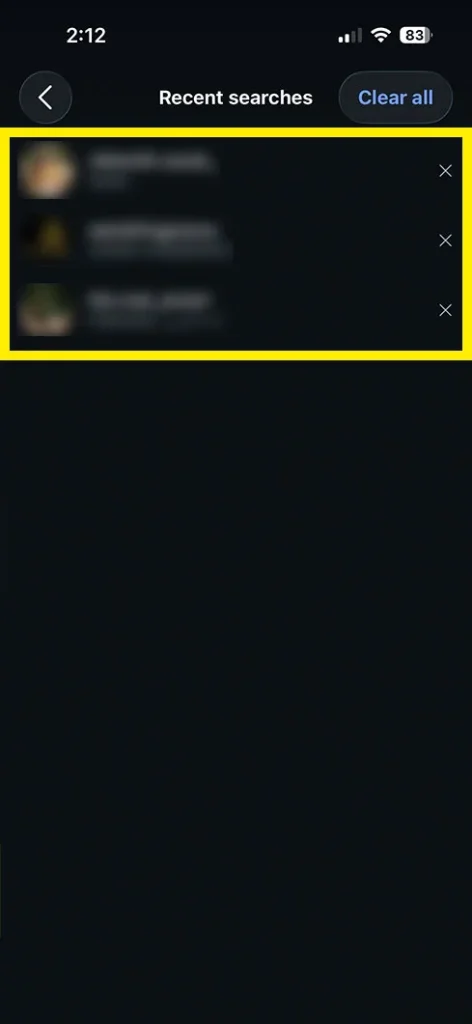
Method 2: Download Your Search Data Archive
Another place you can check if deleted searches are not there is to download them; let’s see how it can be done:
- In the Your activity section, tap Download your information (in the Information tab).
- Tap Download and transfer information, then choose your account.
- Select Some of your information.
- Scroll down and choose Recent searches.
- Select your preferred download format and date range, then tap Create file.
- When the file is ready, download it from the screen or from the email/notification you receive.
Step-by-Step Fixes: Instagram Search Not Showing Recent Searches or Accounts
If you already checked Your activity > Recent searches and Accounts Centre > Search history, and your history is still missing, then I will recommend trying this quick checklist:
- Try to restart your Instagram app on your phone.
- Update Instagram to the latest version from the Play Store and App Store.
- Clear the app cache on Android or offload/reinstall the app on an iPhone device.
- Log out and log back in, or you can test on another device.
After trying these steps, you can check your Instagram search results. You will probably get your search back. Clearing local data and re-authenticating is also the standard fix when troubleshooting missing Instagram features and stickers.
Contact Instagram Support and Official Help Resources
However, if neither of the above methods works for you and following these step-by-step fixes does not help, then you can try to connect with the official methods.
To get help through the official platforms, you can follow these steps for accurate guidelines. Here’s how you can connect with Instagram through official help resources:
- Visit https://help.instagram.com/. On the next page, you will see the Meta interface with a large search bar.
- Here, you have to search your query, like “Instagram search not showing recent searches or accounts” and see various results.
- From the Meta AI support assistant box, you will get a direct answer for it, summarised by Meta AI. (If you have issues with Meta AI not showing up in your Instagram search bar, you can fix that separately).
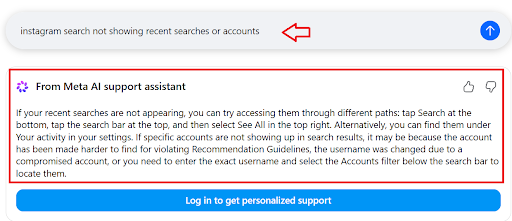
4. Along with it, several blue links will be visible on the screen.
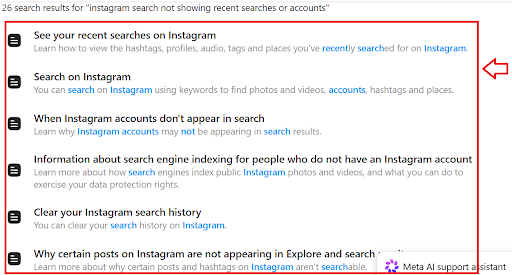
If you’re not satisfied with Meta’s generated answer, you can click these blue links one by one and find your solution. Each of these official links will guide you through more specific support if your issue is caused by a bug, account restriction, or server-side problem with your Instagram.
Why Instagram Search Shows Only Accounts or Hashtags (No Posts/Reels)
Instagram’s search system is versatile. It is designed to show a mix of accounts, Reels, and posts instead of a simple list of all content.
If you see only accounts or hashtags but not associated posts or Reels, then you might be searching for broad keywords like:
- “cafe”
- “gym”
- “travel”
- “fashion”
For such search terms, Instagram tends to surface well-known accounts and top hashtags first instead of showing every post. For many queries, Instagram shows popular profiles and Reels first, and individual posts appear lower in the results or not at all on the first screen.
One more thing that you can notice is that when you search any term on Instagram, there are some options you can see before your results, like:
- For you
- Accounts
- Audio
- Tags, etc.
What It Means
These are basically filters for searches, which you can use to find your content.
Initially, it shows “For you” by default. This mostly shows Reels and posts related to your searched query.
Suppose you searched “small café in California.” At the top, Meta may show a short content description related to that query, and right after it, you’ll see various posts, including Reels (videos) and images.
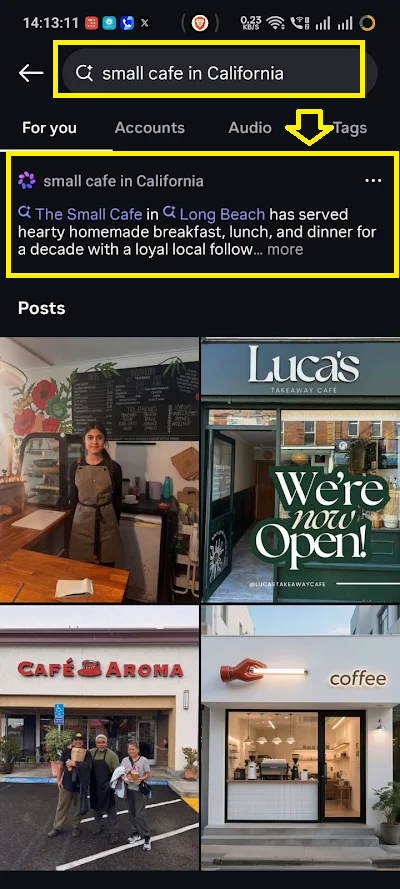
- If you need an account for that particular query, then tap on the Accounts option.
- If you need audio, then tap on that option, and if you need a tag (hashtag), then click on it.
These filters will directly show you the correct path as per the desired content.
Common Reasons Why This Happens
- Instagram prioritizes accounts and Reels: For many queries, Instagram shows popular profiles and Reels first, and individual posts appear lower in the results or not at all on the first screen.
- Restricted or limited hashtags: Some hashtags are restricted due to community guidelines or sensitive content. When you search these, you may see the hashtag page, but many posts under it will not appear in search results.
- Algorithmic feed instead of chronological: Instagram no longer uses a simple chronological “Recent” list for many searches. It shows content based on your interests, engagement, and location, similar to why your Instagram feed shows old posts instead of new ones.
To See More Posts or Reels
- After searching, tap the Posts or Reels tab at the top of the results to filter the view.
- Use more specific keywords, such as “cafe in New York,” “gym in Los Angeles,” or “street food in Chicago,” instead of just “cafe” or “gym.”
- Avoid known restricted or banned hashtags, as they can limit the number of visible posts.
If you still see only accounts or hashtags even after trying these steps, the issue is likely due to Instagram’s current search design and not a problem with your account.
How to Prevent This Issue in the Future
To reduce the chances of Instagram not showing your recent searches or accounts in the future, you can follow these practical steps:
- Keep the Instagram app updated: Be sure to use the latest version of Instagram. You can check your current version using the Play Store / App Store. If your App is updated, it will often fix your search- and cache-related bugs.
- Avoid frequently clearing “Recent Searches”: If you often clear your recent search history, Instagram has less data to show and may appear to forget accounts. Hence, you only clear it when it is needed most.
- Maintain a stable internet connection: Unstable and weak internet connections usually cause search results and recent searches to fail to load. Try to build a strong connection, and if needed, switch from Wi-Fi to mobile data if you see issues.
- Don’t violate Instagram’s guidelines: Repetitive spammy searches, mass follow/unfollow, or automation tools can trigger temporary restrictions, which will affect search behaviour. Hence, you must access your application normally and avoid using any third-party application which can access your account.
- Restart or reinstall Instagram if search behaves oddly: If searches look incorrect or stop working, restart the app and your phone. If needed, delete and reinstall the Instagram app (not your account).
- Check for account restrictions: If the account you searched is restricted or shows “User not found”, then it may not appear in search results. It could be because of blocks, deactivations, or temporary Instagram limits. In such a situation, you can search with another account to confirm.
Frequently Asked Questions (FAQs)
Why is my Instagram search history empty?
An empty search history typically occurs due to manual or account-wide clearing, corrupted app cache, or server-side sync glitches. Additionally, if the app updates or you log out of your account on your device, this could also cause the issue.
Can I recover deleted Instagram search history?
No. Once you clear your recent search history in the app, it cannot be restored to the search bar again. However, you can view it if it is only invisible in your search results but showing in your activity tab.
Your historical search data can also be downloaded by following these steps:
- Go to your profile and tap the Menu (☰).
- Select Accounts Centre > Your information and permissions.
- Tap Download your information to request a file containing your account activity, including past search logs.
Why is Instagram not showing accounts in search?
If your specific searched Instagram Account is not showing, then it could be due to account privacy or blocking, shadowban, or sensitive content flags. In addition to this, if your exact username does not match or there is a local cache issue, then it can also cause the issue.
Why does Instagram search only show hashtags and no posts?
If your Instagram search only shows hashtags without any posts, then it could be due to the removal of the Recent tab, which means Instagram sometimes replaces the chronological Recent tab with an algorithmic feed and Reels feed. In addition to this, using restricted or banned hashtags and using general words without tapping into specific media tabs automatically categorises results.
How do I fix Instagram search not working on Android/iPhone?
You can fix it by following these step-by-step troubleshooting methods:
- Restart your application or just your phone to clear minor background freezes, and it will work again.
- Clear your app cache as per your device:
- Android: Go to Settings > Apps > Instagram > Storage > Clear Cache.
- iPhone: Offload the app via Settings > General > iPhone Storage > Instagram > Offload App, then reinstall it.
- You must update your Instagram app to fix it.
- Log out and log back in to your account, which resets the active session token and forces your account to resync from the Instagram servers.
- You can clear your search history directly, which helps it to work again.
Does clearing cache delete my Instagram search history?
No. Only clearing the cache of your Instagram app can’t delete your search history. It only removes temporary image files, scripts, and media snippets which are stored locally on your device. However, if you choose both options, like clear history and clear data too, then it may delete your Instagram search history from your search.
How long does Instagram keep search history?
Instagram keeps your in-app search history indefinitely until you manually clear it. There is no automatic expiry for this visible recent searches list. However, Instagram/Meta also stores server-side logs of your activity for internal use (recommendations, ads, safety, etc.). Those backend logs are typically retained for up to 90 days for many user metrics and activity types.







[…] Cache problems can affect other parts of the app too. For example, they can also cause Instagram search not showing recent searches. […]
[…] search remembers some recent searches too, but if yours isn’t showing up, our guide on what to do when Instagram search isn’t showing recent searches can […]
[…] You may be able to find a missing request in Hidden Requests or locate the chat by searching the sender’s username. You can also request an Instagram data export, but it will only include messages still stored on […]