Physical Address
304 North Cardinal St.
Dorchester Center, MA 02124
Physical Address
304 North Cardinal St.
Dorchester Center, MA 02124

Have you ever thought of scheduling your collaborative post on your Instagram account? Obviously yes! This idea is effective because you are not willing to collaborate with users at the moment. However, let me define one thing to you very clearly: you can schedule your collaborative post, but not directly within your Instagram or Meta Business Suite.
For that, you need to use a third-party social media management tool. Moreover, if you find the scheduling process is not working, you can make sure that your collaborator has a public or a professional account. Otherwise, the process will fail. So, read out this blog to know how you can smoothly get rid of this error.
Here’s the difference that will help you out.
| Feature | Collab Post | Tagging |
| Visibility | It appears on both profiles once the collaborator has accepted the request. Plus, you can only add 6 users. | Tagging will be visible on the feed of the user who has actually posted the content. In addition, other users will be notified who have been tagged. |
| Authorship Display | The names of both users will show at the top of the particular post. | Tagged usernames will appear in the image or caption tag. |
| Engagement Metrics |
|
Engagement metrics will occur for the original post. Note that the tagged user doesn’t share metrics. |
| Audience Reach | It combines the audiences of all the collaborators. By doing so, it increases trust and exposure. | It is limited to the poster’s audience. Besides this, the tagged users’ followers aren’t able to automatically see it. |
| Content Ownership | A post can easily live on a number of profile grids simultaneously. | The post will live only on the single grid. |
| Collaboration Process | A collab post requires collaborators to accept the invitation before uploading the content. | There is no need to accept the invitation. However, tagging is unilateral. |
| Use Cases |
|
|
| Limitations | You are only allowed to add up to 5 collaborators. (6 accounts total). Plus, it requires mutual agreement. | Unlimited tags are possible. But understand one thing that if you over-tag, it will impact engagement metrics. |
| Strategic Value | It maximizes engagement and builds authentic partnerships. | It provides visibility and acknowledgment without shared publishing. |
Check out the following requirements that will help you out:
YES! Scheduling is possible for your collaborative post on your Instagram account, but not directly. However, there are some limitations that you should know:
On the other hand, third-party social media management tools, such as SocialBee, let you add a collaborator. What you need to do is pick the post type, whether it can be your reels, carousels, or standard posts. After that, schedule it. The collaborative invitation will be sent when the actual time to post arrives.
So, if you are using another third-party tool like Sprout Social, here are the following guidelines that you can go through.
Note! This tool allows you to send the invitation to up to 3 users.
You just need to be sure that the scheduled collaborative post comes across both profiles without requiring manual action.
Check out the following reasons to know why there is a failure of the Instagram collaborative post while scheduling.
These are various troubleshooting steps that we recommend you to follow:
Method 1: Check Account Types:
First, ensure both you and your collaborator user are using creators or a public profile. If not, both users must switch their accounts to a business, professional, or public one.
Method 2: Verify Privacy Settings:
Make sure to ask your desired collaborator user if they have enabled the privacy settings so that they can accept the collaboration invitation.
Method 3: Update or Restart Your App:
Try to use the latest Instagram app. Otherwise, you can restart your application or device, which will help you to fix all temporary bugs.
Method 4: Check Collaboration Invite Settings:
Ask your collaborator user to see whether they have received collaboration invites or not. What they just need to do:
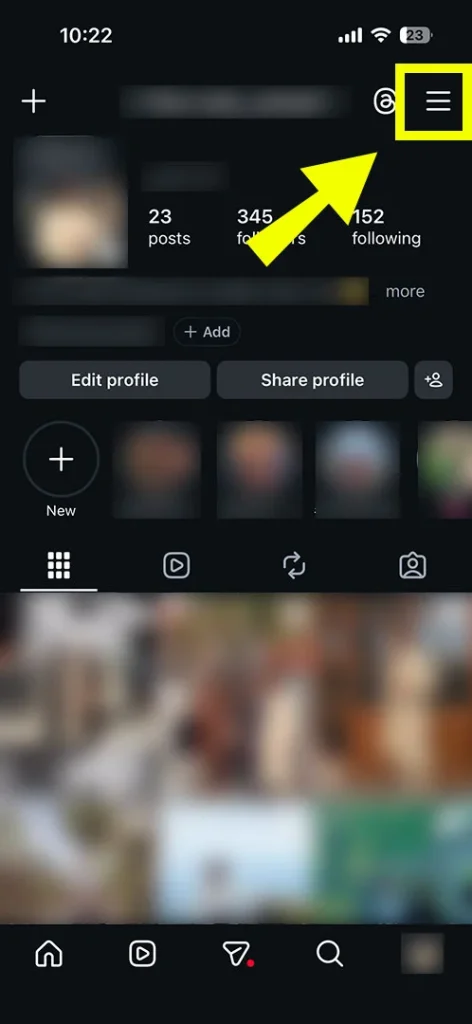
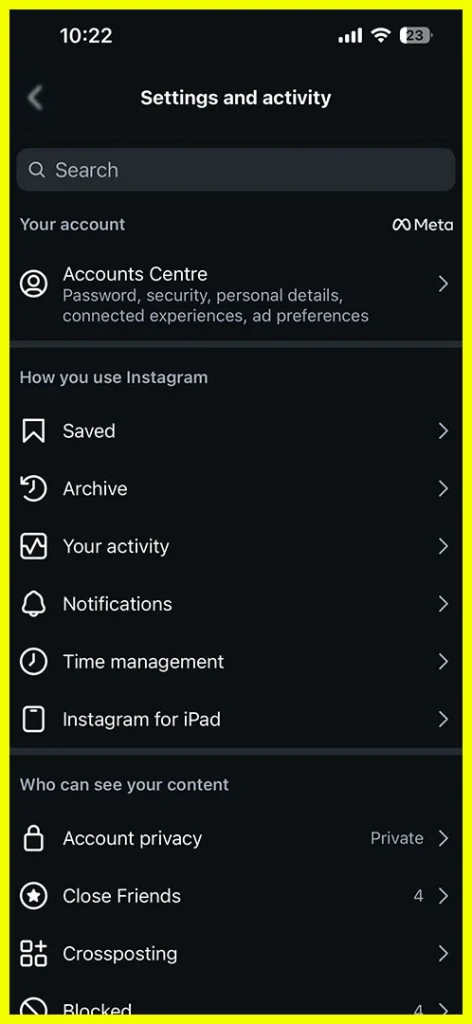
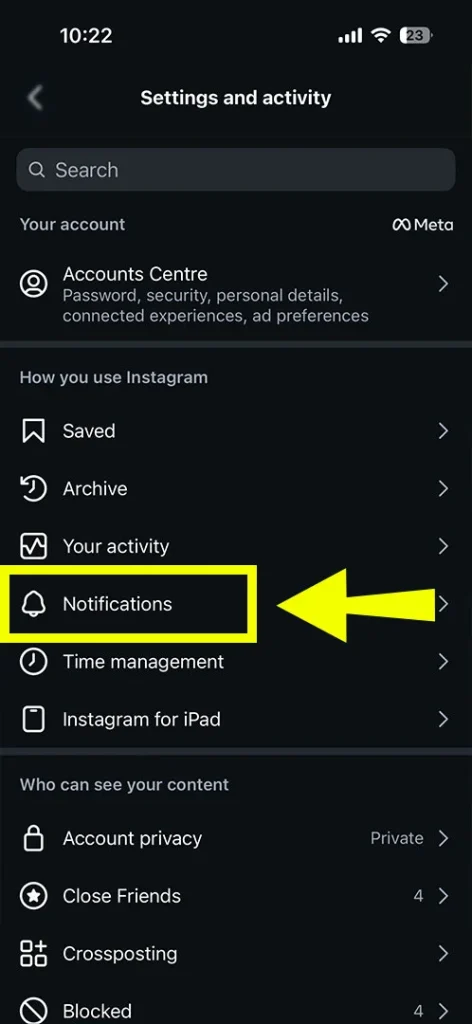
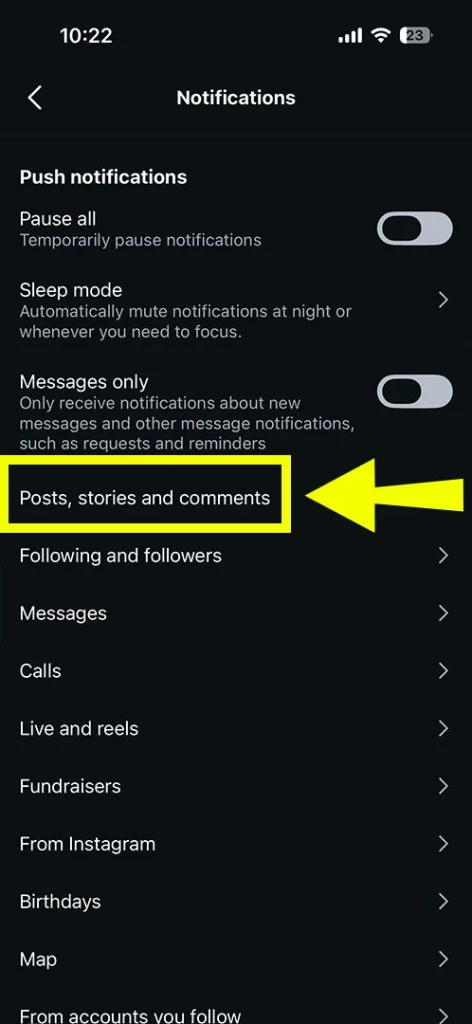
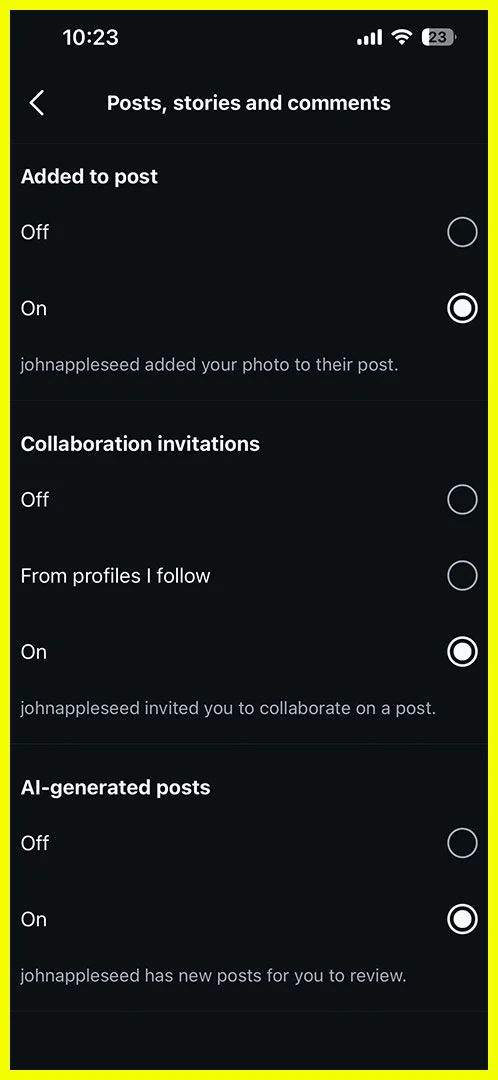
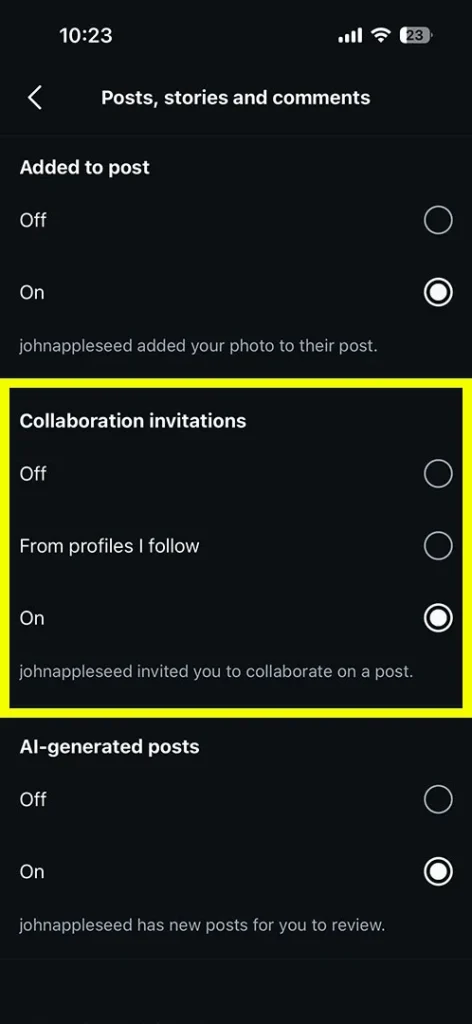
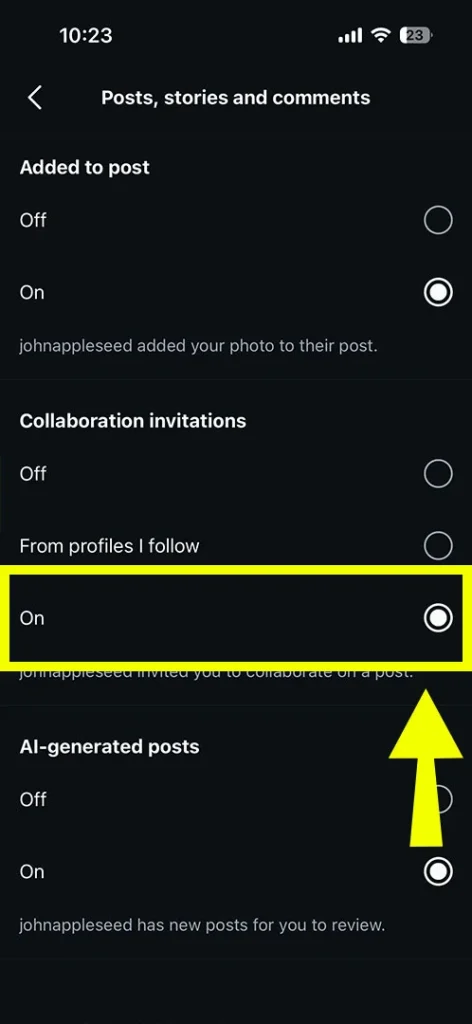
Method 5: Re-enter Handle Name:
Cross-verify that you have written the name of your collaborator appropriately. If not, first check what they have mentioned in their username. After that, retype their name.
Method 6: Manually Accept the Invitation:
Understand that the collaboration invites will only be accepted once the post’s scheduled time has come. However, it just requires your collaborator to accept the request from their DMs. By doing so, on both profiles, the particular post will appear.
You can see and try to follow some proven practices.
This section will clear all your doubts about why your Instagram account is not scheduling your collaborative post.
Ans. Yes! You can easily schedule your collaborative post via your Instagram Meta Business Suite, but not directly. Instead, you need to go with the third-party scheduling tools, such as Loomly, Fedica, Vista Social, or SocialBee.
Ans. These are the steps that are required to follow:
Ans. NO! Instagram has not officially eliminated scheduled collab posts. However, as of 2026, it is currently not supported directly within the Instagram or Meta Business Suite.
Ans. Within the Instagram app, there are various features that are currently not available for scheduling posts. These are:
Ans. One of the main reasons behind this is that collaborative posts require real-time acceptance from the user. However, you can simply prepare the draft, but not actually send the invitation for the future.
Ans. If you are looking for standard scheduled posts on your profile, go to the three lines. Then, look for the scheduled content. Or, for collaborative posts, you need to use the third-party social media management tools.