Physical Address
304 North Cardinal St.
Dorchester Center, MA 02124
Physical Address
304 North Cardinal St.
Dorchester Center, MA 02124

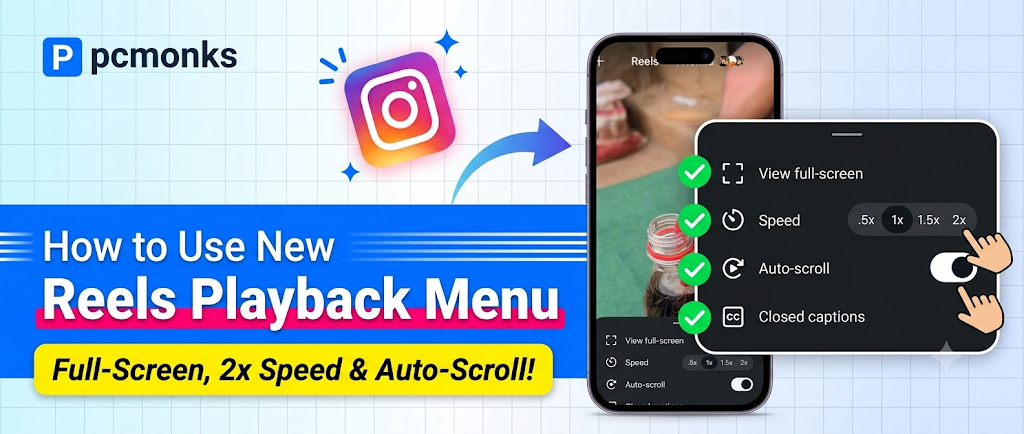
Instagram now lets you speed up Reels to 1.5x or 2x, slow them down to 0.5x, and turn on auto-scroll so the next Reel plays without a swipe. To find these options, open the Reels tab, then either press and hold the middle of a Reel or tap the three-dot icon. A small playback menu slides up with all the controls.
The catch: this menu only appears on real video Reels opened from the Reels tab. If you are watching from the Home Feed, or the Reel is just a photo with a song on it, the options will not show up. Here is how each control works, and what to do when it goes missing.
| What you want | What to do |
|---|---|
| Open the playback menu | In the Reels tab, press and hold the middle of the Reel, or tap the three-dot icon |
| Hands-free Reels | Turn on the Auto-scroll toggle in that menu |
| Change speed for the whole Reel | Tap .5x, 1x, 1.5x or 2x next to Speed |
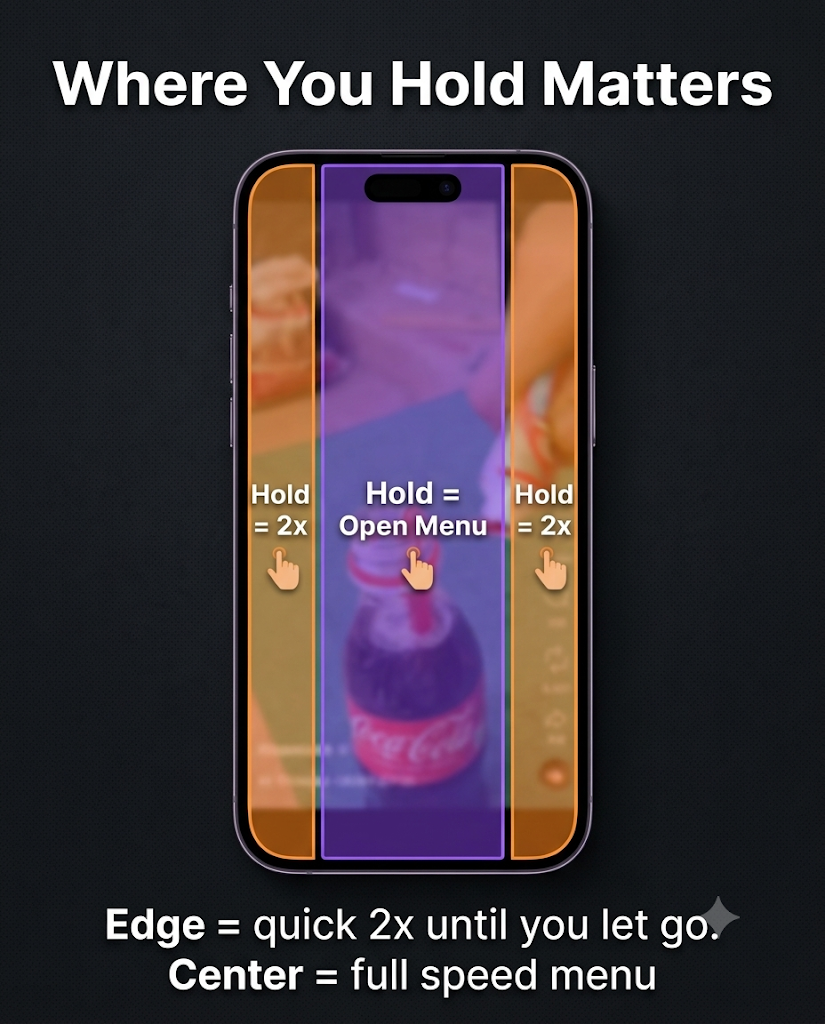
| Quick 2x for a few seconds | Press and hold the left or right edge of the screen, then let go |
| Menu not showing | Switch to the Reels tab, skip photo Reels, and update the app |
It is a bottom panel that slides up over the Reel you are watching. It puts four controls in one place, so you do not have to keep holding the screen or swiping.
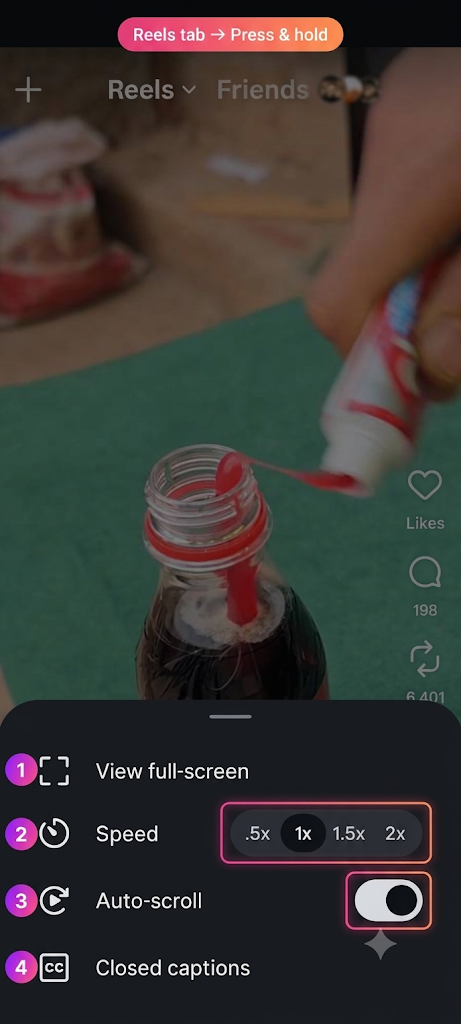
Here is what each option does, in the order you see it on screen:
| Option | What it looks like | What it does |
|---|---|---|
| View full-screen | Square corner-bracket icon | Hides the overlays so the video fills your screen. |
| Speed | Timer icon with four buttons: .5x, 1x, 1.5x, 2x | Slows down or speeds up the Reel. 1x is normal speed. |
| Auto-scroll | Circular play icon with an on/off switch | Moves you to the next Reel by itself when the current one ends. |
| Closed captions | CC icon | Shows text captions for the spoken audio. |
Behind the panel, the usual Likes, Comments and reshare icons stay on the right side. If that looping arrow icon has always confused you, here is a simple explanation of what reshare means on Instagram Reels.
Yes. In 2025, Instagram added a press-and-hold fast-forward: hold the left or right edge of a Reel and it plays at 2x until you let go. TechCrunch reported that this was the only extra speed at the time. There was no 0.5x or 1.5x.
That is why many older guides still say Instagram has no proper speed control. The new menu changes that. You now get four fixed speeds that stay on while the Reel plays, plus auto-scroll and captions in the same place.
| Hold the edge (old) | Playback menu (new) | |
|---|---|---|
| Speeds | 2x only | .5x, 1x, 1.5x, 2x |
| How long it lasts | Only while your finger is down | Stays on while you watch |
| Slow motion | No | Yes, .5x |
| Best for | Skipping a boring part | Watching a whole Reel faster or slower |
There are two ways, and both lead to the same controls. Which one you see depends on your app version.
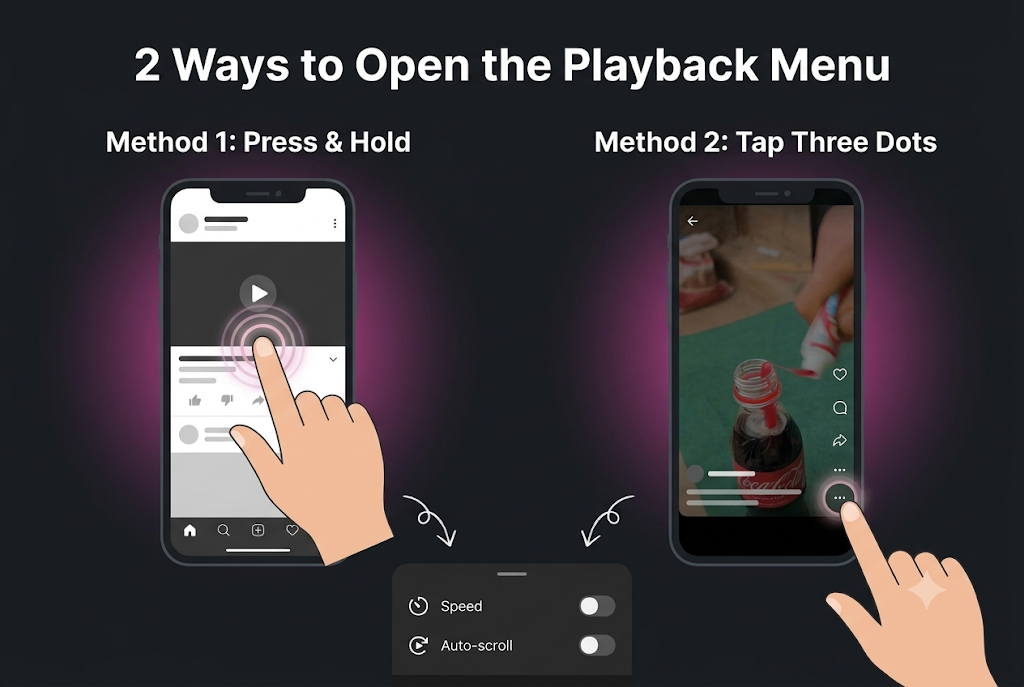
Tip: hold the middle, not the sides. Holding the left or right edge triggers the temporary 2x fast-forward instead of opening the menu.
Open the playback menu on any Reel in the Reels tab and switch the Auto-scroll toggle on. When the current Reel ends, the next one starts by itself.
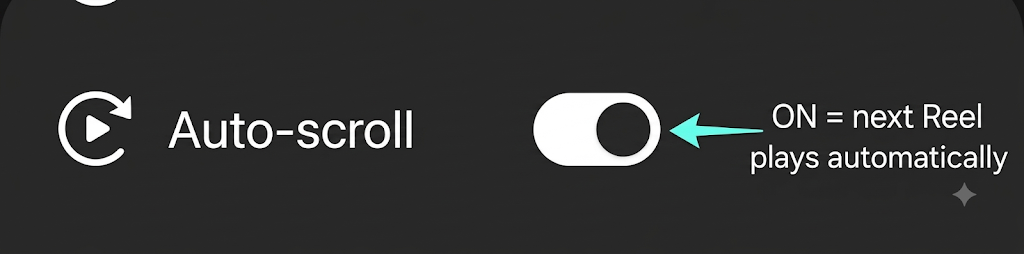
Auto-scroll is off by default, so nothing changes until you turn it on. It also only changes how Reels move forward. It does not change which Reels Instagram recommends.
It is handy when you are cooking, eating or working out. The downside is that Reels move on quickly. If one slides away before you catch the creator’s name, you can still find an Instagram Reel you watched but didn’t save.
Open the same menu and flip the Auto-scroll toggle off. Swiping goes back to normal right away.
Some users say auto-scroll switches itself off after a few weeks. If yours stops working, check the toggle again before assuming something is broken.
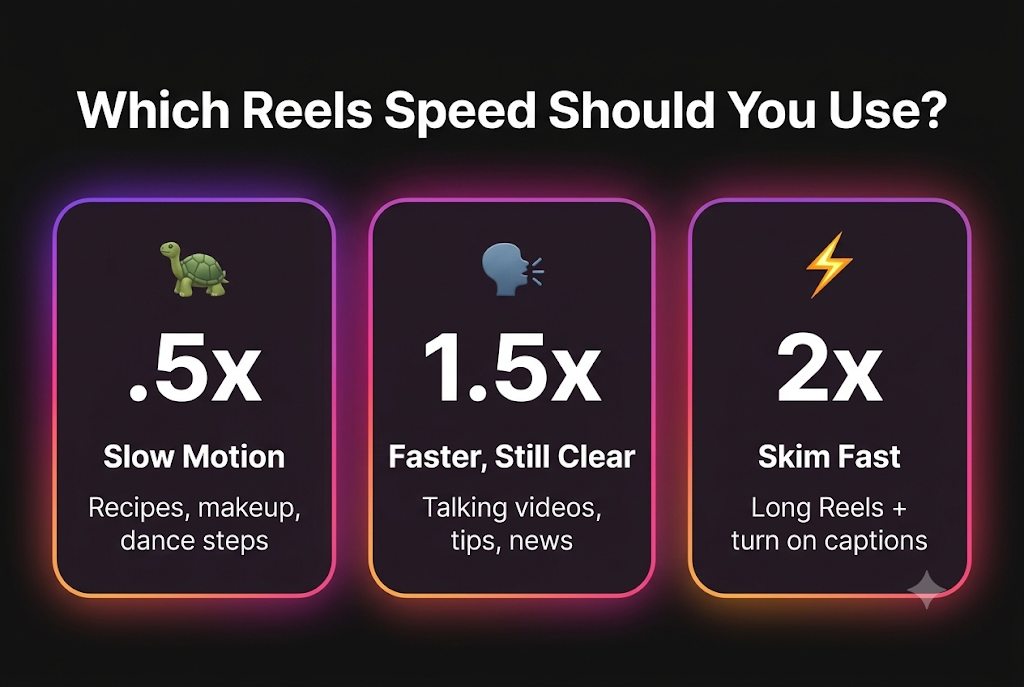
Open the playback menu and tap the speed you want next to Speed. The Reel changes right away.
Which speed should you pick?
Do not confuse this with the speed tool in the Reel camera, which you see when you tap the + button to make a Reel. That one changes the speed of your own video before you post it. The playback menu only changes how you watch other people’s Reels.
Found something worth passing on while speeding through? You can share Instagram Reels to WhatsApp Status without a link, so friends see the video, not just a URL.
The menu and options look the same on both, but they did not arrive at the same time. Auto-scroll reached many iPhone users first, and Android users often got it weeks later. So your friend’s iPhone might show the menu while your Android phone does not, or the other way around.
Instagram has not published a minimum app version for this feature, so being on the latest update is the safest bet.
Usually it is one of four things: you are in the Home Feed, the Reel is a photo with music, the Reel has no real video audio, or the feature has not reached your account yet. We checked each of these while scrolling, and the first two cause most of the confusion.
This is the most common reason. When a Reel shows up in your main Home Feed, the playback menu with Speed, Auto-scroll and Full-screen does not appear.
The fix is simple. Tap the Reels icon at the bottom of the app and watch from there. You can also tap a Reel in your feed so it opens in the full Reels viewer, then try the menu again.
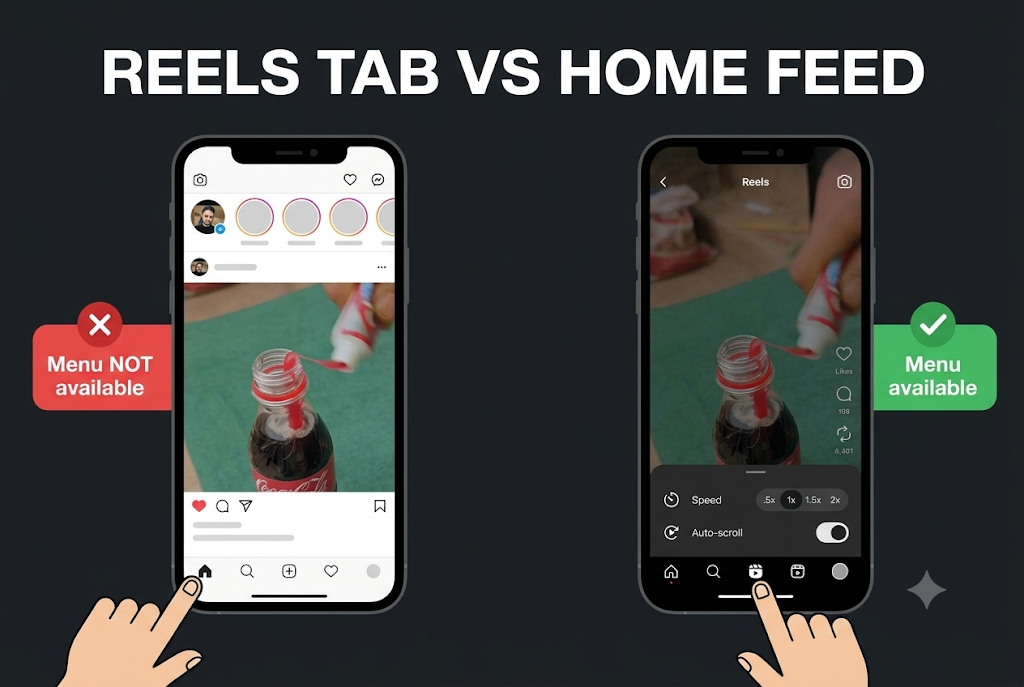
The Home Feed and the Reels tab work like two separate players. The feed mixes photos, carousels, ads and videos, and it follows its own ranking rules. That same logic is why your Instagram feed sometimes shows old posts instead of the newest ones.
Lots of Reels are not videos at all. Someone uploads a single photo as a Reel and adds a song from Instagram’s music library.
On these photo Reels, the speed and auto-scroll options do not work. There is no real video to speed up or slow down, just one still image with a music track over it.
Easy way to tell: if nothing in the frame moves and you only hear a popular song, it is probably a photo Reel. Swipe to the next one and the menu should come back.
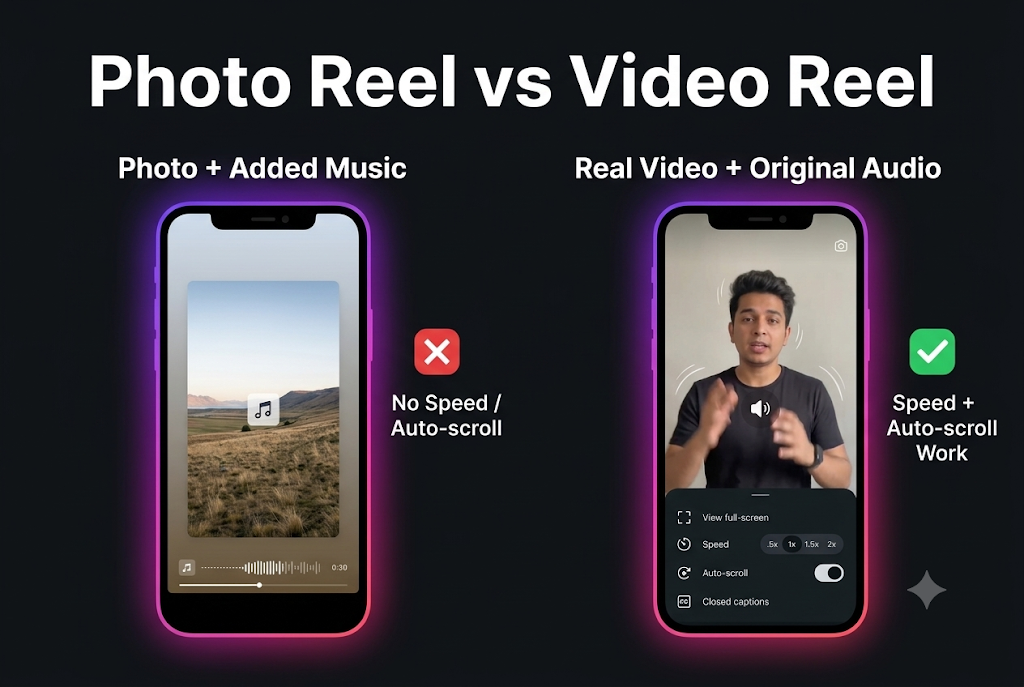
From what we saw, the full menu shows up on genuine video Reels that carry their own original audio. Think of someone talking to the camera, a cooking clip with kitchen sounds, or a street video with natural background noise.
When the sound was added from outside, like a song placed over a photo or slideshow, the playback options did not appear in our checks. So if you are a creator and want viewers to be able to use these controls on your Reels, post real video with real audio.
Creators whose clips sound too low or muffled can try these AI tools for fixing quiet Reels audio before posting.
Instagram releases features in waves, and India has often been one of its early test markets. Two people in the same house can see different menus.
Try these steps in order:
The same thing has happened with other features too, like Instagram Blend not showing for some users weeks after others had it.
Not natively right now. These controls are built for the Instagram mobile app, and the desktop website does not show the same playback menu.
You have two workarounds:
It can be. Plenty of users online have said auto-scroll makes Reels even harder to put down, because you no longer have to make a choice before each video. That is a fair point.
If you use auto-scroll, set a limit so it does not eat your evening. Instagram has a built-in Daily limit reminder. Go to your profile, tap the menu icon in the top right, then Your activity, Time spent and Daily limit. Instagram’s Help Center has the full steps for setting a daily time limit reminder.
For stricter control, use Screen Time on iPhone or Digital Wellbeing on Android to set an app timer for Instagram.
Auto-scroll and speed controls change how people watch your Reels, so a few things matter more now:
Continuous scrolling is what Instagram calls Auto-scroll. In the Reels tab, press and hold a Reel or tap the three-dot icon, then turn on the Auto-scroll toggle.
You have two options. Tap 2x next to Speed in the playback menu to keep it at double speed, or press and hold the left or right edge of the screen for a quick 2x that stops when you let go.
The next Reel is probably a photo with added music, or it opened from your Home Feed. Swipe to a regular video Reel in the Reels tab and the speed buttons should come back.
The playback menu covered here is for Reels in the Reels tab. Instagram has tested auto-scroll for feed posts with some users, but it is not part of this Reels menu.
Yes, it is reaching users in both countries, but not everyone at once. Instagram rolls it out gradually by account and device, so a friend may get it before you do.
Instagram has not said that speed changes affect how views are counted. You are still watching the same Reel, just faster.
Go to the Reels tab, press and hold the middle of any video Reel, and set things up the way you like. Turn on Auto-scroll for hands-free watching. Use 1.5x for talking videos, .5x for tutorials, and switch on Closed captions whenever you go faster.
Not seeing the menu? Make sure you are in the Reels tab and on a real video Reel, then update the app. If it is still missing after that, the rollout has not reached your account yet, so check again in a few days.