Physical Address
304 North Cardinal St.
Dorchester Center, MA 02124
Physical Address
304 North Cardinal St.
Dorchester Center, MA 02124


Meta AI was officially introduced broadly, including Instagram, in April 2024, to turn Meta’s social platforms into useful and engaging AI assistants that directly compete with standalone tools like ChatGPT.
However, while it is now widely used across Meta products for quick access, not everyone likes it.
Most Instagram users want to turn off Meta AI because of privacy concerns about their personal data. Furthermore, the unremovable assistant creates heavy UI clutter that disrupts the traditional browsing experience.
This post explains how to deal with Meta AI on Instagram, regional settings, and what you can actually do.
Meta AI is a free virtual assistant built to help with whatever you search in the search box of Instagram. For example, if you search “I want to go to California for 5 days, plan my itinerary,” it will give you a day-wise plan idea related to your trip.
Additionally, it helps you:
Meta built its Meta AI assistant using the Meta Llama large language model family, which is accessible across almost all Meta products like WhatsApp, Facebook, Instagram, and Messenger. Users from the US and countries like India, Canada, New Zealand, Singapore, Uganda, and Zimbabwe can access this feature seamlessly.
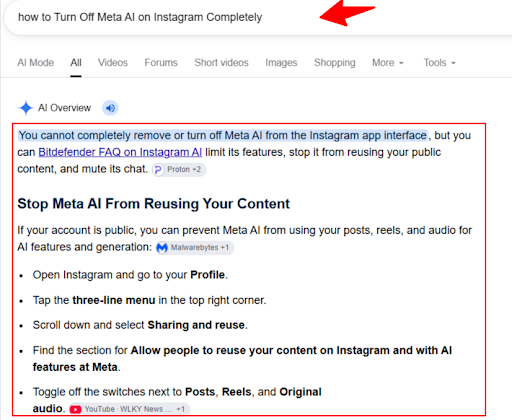
No, there is no universal option available from Meta to “Turn off Meta AI” inside the Instagram app. However, you can use certain shortcuts to hide, mute, or block it.
(Note: In my testing, the block option was not visible on my Realme 12+ 5G device running software version RMX3867_16.0.5.702.)
Here is the quick hiding process:
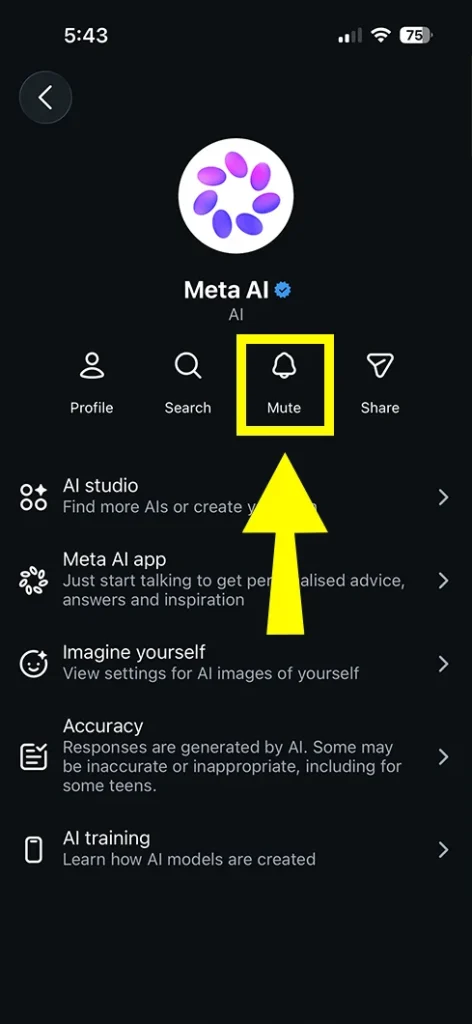
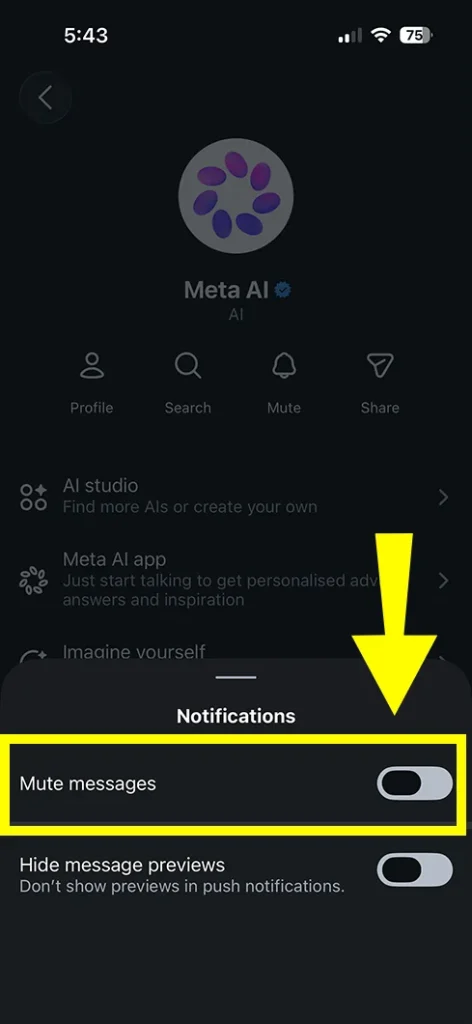
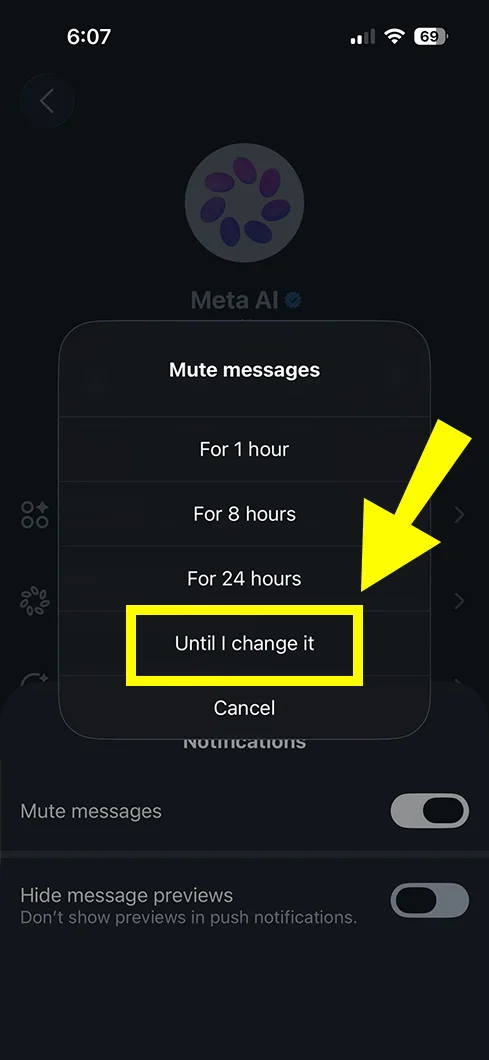
To hide it quickly, open the Instagram app, tap the Messages icon, type “Meta AI” in the search bar, and open the Meta AI chat. Tap the ⓘ information icon or the Meta AI name at the top. Tap Mute, turn on Mute messages, and select Until I change it.
This procedure only works as a temporary remedy. Even after muting or hiding it, the blue Meta AI icon, the “Ask Meta AI” prompt, and the AI search feature may continue to appear on your screen.
If you delete or reinstall Instagram, it will not remove Meta AI, because it is controlled directly by Instagram’s servers, not just the app files on your phone.
Although Meta does not provide a complete switch to turn off this AI feature, here is a quick breakdown of what is actually possible:
| Action | Possible? | What It Does |
| Completely remove Meta AI from Instagram | No | Instagram has no universal removal option. |
| Mute Meta AI messages | Yes | Stops alerts and notifications from the AI chat. |
| Block Meta AI | Sometimes | Stops interaction in that specific chat (account-dependent). |
| Hide Meta AI from search | Depends on account | Removes or reduces the shortcut where supported. |
| Reset Meta AI information | Yes | Clears the AI chat or saved AI information. |
| Limit data use | Depends on region | Provides privacy controls or objection options in some locations. |
I muted Meta AI on Instagram by following a few steps, and it helped immediately by stopping notifications from the AI chats. However, the blue icon still remains visible inside Instagram.
Muting does not delete Meta AI or disable the feature completely—it only mutes the notifications.
The mute procedure works the same across iPhone and Android devices:
Open the Instagram app.
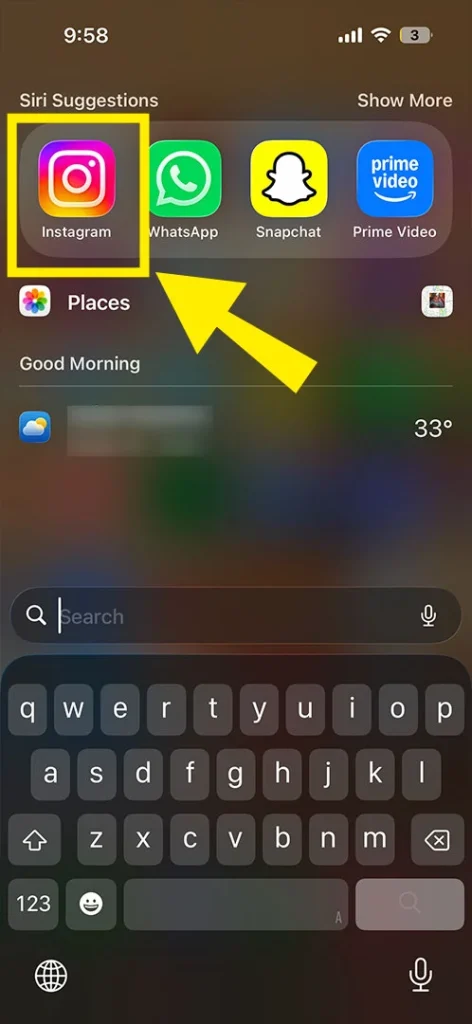
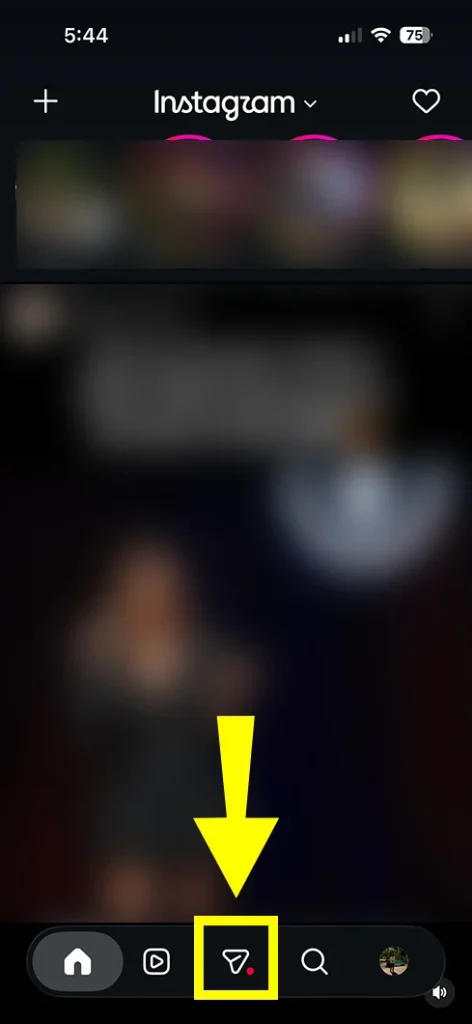
Tap the Messages icon.
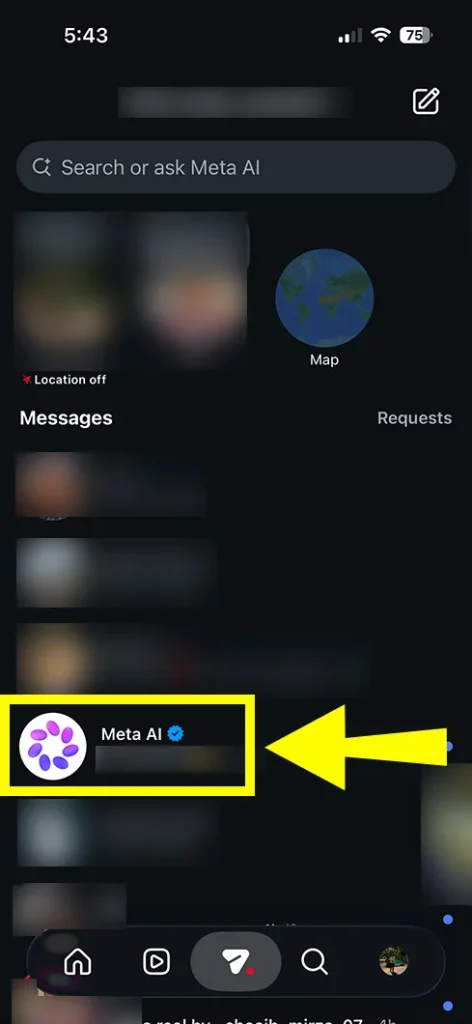
Open the Meta AI chat.
Tap the ⓘ information icon or the Meta AI name at the top.
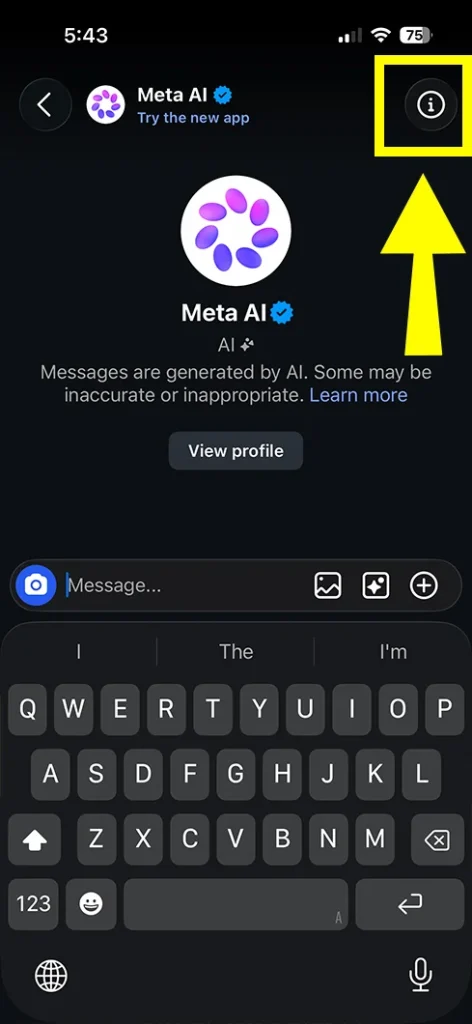
Tap Mute.
Turn on Mute messages.
Select Until I change it.
Blocking Meta AI prevents messages and replies from that particular AI profile. However, it may not remove Meta AI from Instagram search, and the blue ring icon will still show up.
Most guides on the internet claim you can block Meta AI with these steps:
Reality check: I tried finding this on both an iPhone 15 and an Android phone, but the block option was simply not showing up.
This means the block option is not available for every account or interface right now. It seems to only be accessible on specific accounts depending on how Meta rolls it out.
If you followed the steps and still see Meta AI everywhere, here is why:
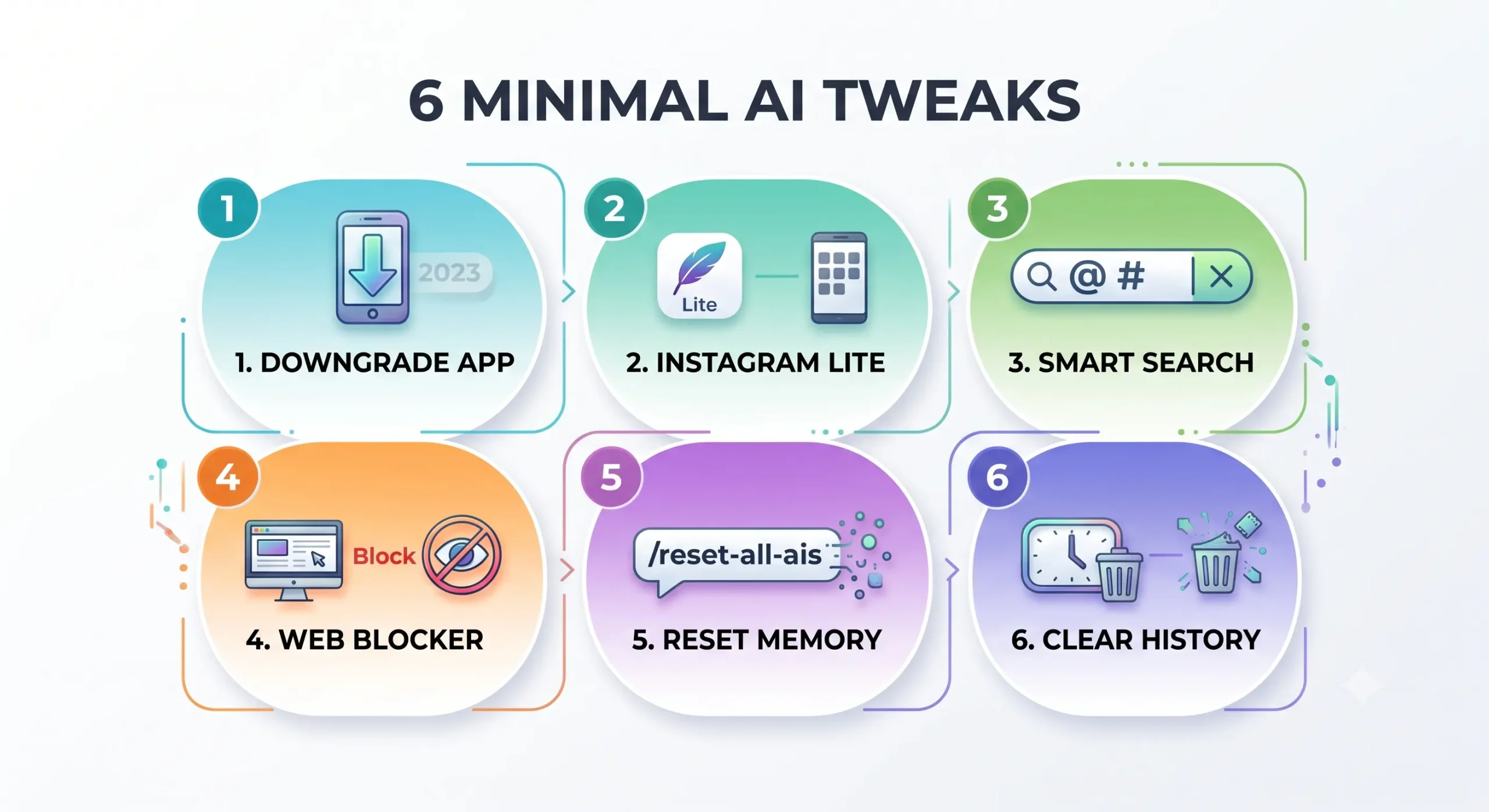
If muting alerts isn’t enough for you, then you can try these simple ways to keep Meta AI out of your way:
You can look things up without talking to the AI:
If you use Instagram on a computer browser like Chrome, get a free ad-blocker like uBlock Origin. Use its click-to-hide tool on the blue ring to make it disappear.
If you talked to Meta AI before, open the chat, send the message /reset-all-ais, and it will wipe its memory of what you said.
Privacy options depend on local laws, Meta policies, and your account settings. In some regions, Meta allows you to restrict how your data is processed.
Users in the European Union and the United Kingdom have stronger privacy rights under GDPR. In these regions, you can ask Meta not to use your personal information to train or improve its AI systems.
To submit an objection:
Note: Submitting this form does not remove Meta AI from the Instagram app interface; it only restricts the use of your eligible personal data for AI training.
Many users try different troubleshooting tricks hoping to get rid of Meta AI, but these methods do not work:
These methods fail because Meta AI is a server-side feature integrated into Instagram’s system, not an add-on file stored on your phone.
If you cannot find the mute or block options, it doesn’t always mean you are doing it wrong—it usually means an app glitch or an account rollout issue. Here is what you can try:
Related Troubleshooting Guides:
No, you can’t. Meta AI is built directly into Instagram, so there is no master switch to turn it off completely.
No, the blue ring icon cannot be removed. You can simply ignore it and search as normal, or access Instagram through a mobile web browser where the AI is less intrusive.
Go to your messages. On iPhone, swipe left on the Meta AI chat and tap Delete. On Android, tap and hold the chat, then select Delete.
Muting stops notifications and sound alerts from the AI chat, but it does not remove Meta AI from search or your app interface.
If you live in the EU or UK, you can submit an objection form in the Privacy Center. For other regions, keeping your account Private helps limit public data access.
No. Meta controls the feature from its servers, so reinstalling won’t change anything, and older APKs will eventually be forced to update.
There is no complete switch-off button for Meta AI on Instagram right now. The best practical option is to mute the chat by tapping the ⓘ information icon at the top of the conversation to stop unwanted notifications. You can also delete the chat thread to keep your inbox clean.
If you do not want to interact with Meta AI, mute the messages, keep your account private, and avoid sharing sensitive personal information inside the chat.