Physical Address
304 North Cardinal St.
Dorchester Center, MA 02124
Physical Address
304 North Cardinal St.
Dorchester Center, MA 02124


You can’t fully turn off Meta AI on Instagram. Meta hasn’t added a switch for it. What you can do is mute the chat, clean up your inbox, wipe what the AI remembers, and limit how your data gets used.
I tested these steps on an iPhone 15 and a Realme 12+ 5G. Some options showed up on one phone and not the other, so I’ll point out where things differ. Let’s start with the short version.
No, you can’t remove Meta AI completely. The blue circle in the search bar stays, even after you mute or delete the chat. A Meta spokesperson has said the assistant can’t be disabled from the search experience, and that you can still search the way you normally do (reported by the Associated Press via Yahoo).
Here is what does work:
Meta AI is a free chatbot built into Meta’s apps. On Instagram, it sits in the search bar and in your direct messages.
Meta first launched it in September 2023. The big change came in April 2024, when Meta put the Llama 3 powered assistant into the search bar of Facebook, Instagram, Messenger and WhatsApp. That’s why so many people suddenly saw a blue ring where the plain search box used to be.
You can use it to:
Whether you see it depends on your country, app version and account. Meta has rolled it out in stages, so two people on the same phone model can see different things.
Because Meta built it into the search system, not as a separate add-on. It runs on Meta’s servers, so nothing on your phone can remove it.
That’s also why the usual tricks fail. Here is a quick look at what each option really does:
| Action | Possible? | What actually happens |
|---|---|---|
| Remove Meta AI from Instagram | No | No universal option exists. |
| Mute the AI chat | Yes | Stops alerts from that chat. The blue icon stays. |
| Block the AI chat | Sometimes | Depends on your account and app version. |
| Delete the chat | Yes | Clears it from your inbox. Meta’s stored copy stays unless you reset it. |
| Reset the AI’s memory | Yes | Clears what the AI saved from your chats. |
| Object to AI training | Depends on region | Form is available in the EU and UK, not in the US. |
Open the Meta AI chat, tap the ⓘ icon, tap Mute, switch on Mute messages, then pick Until I change it. The steps are the same on iPhone and Android.
Muting is the one control that worked for me every time. It stopped the notifications right away. It does not hide the blue icon, and it does not stop the AI from showing up in search.
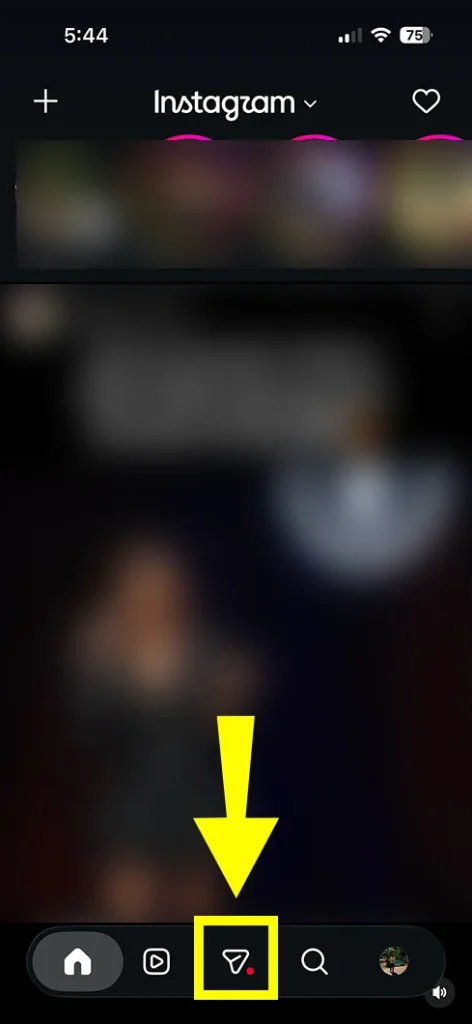
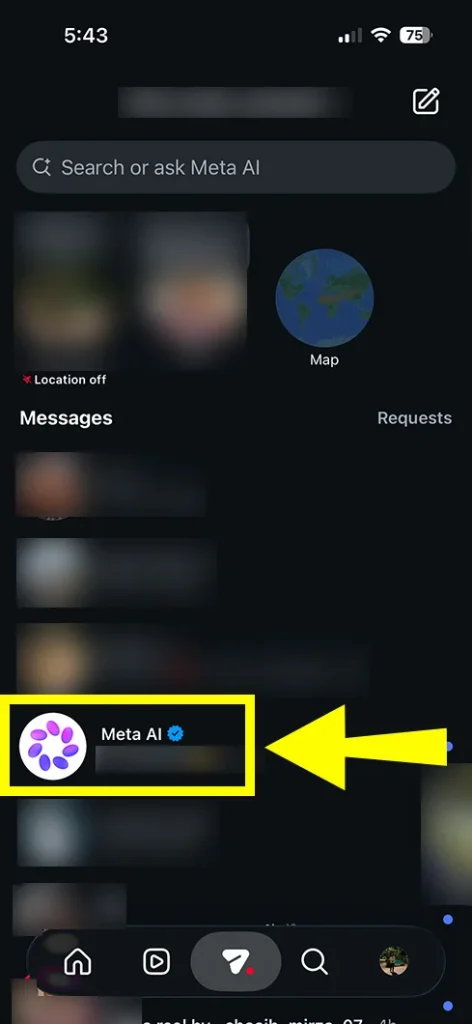
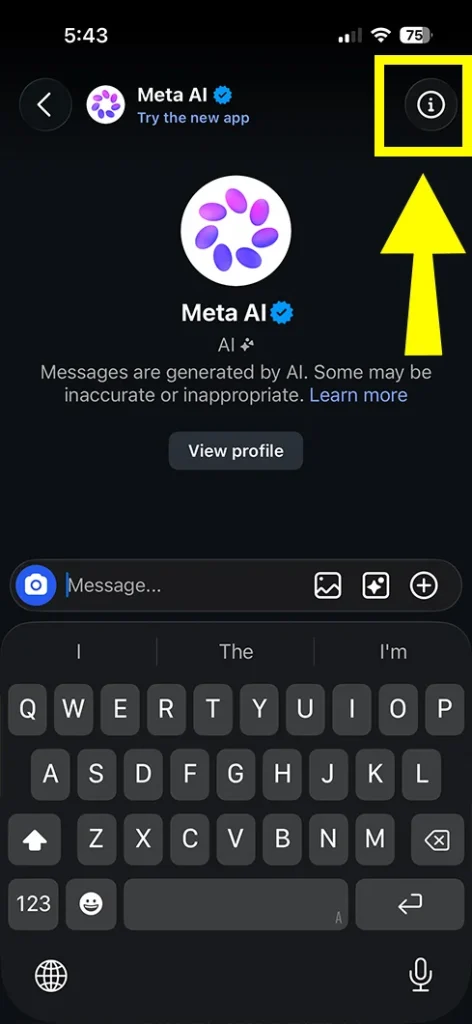
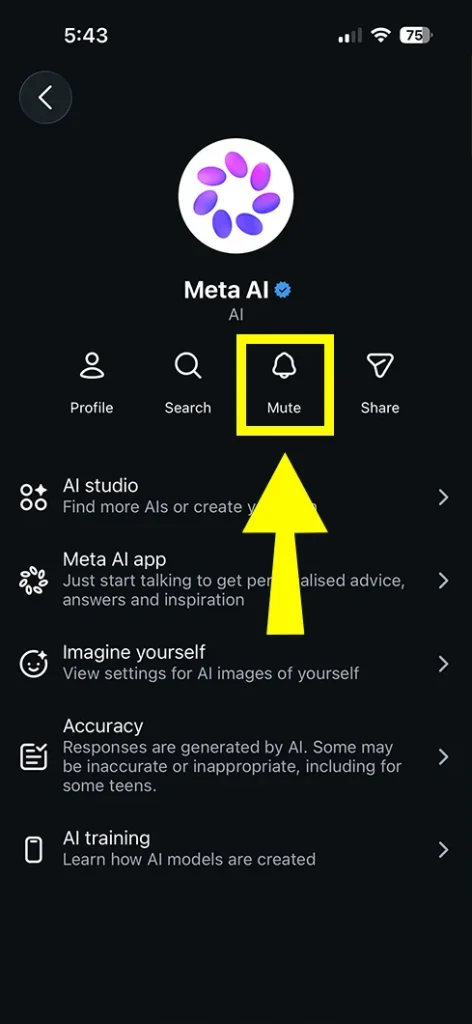
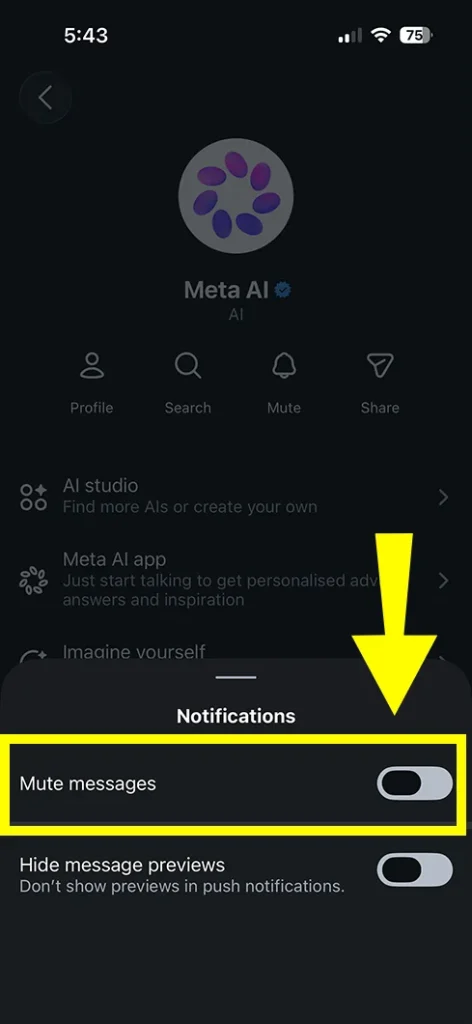
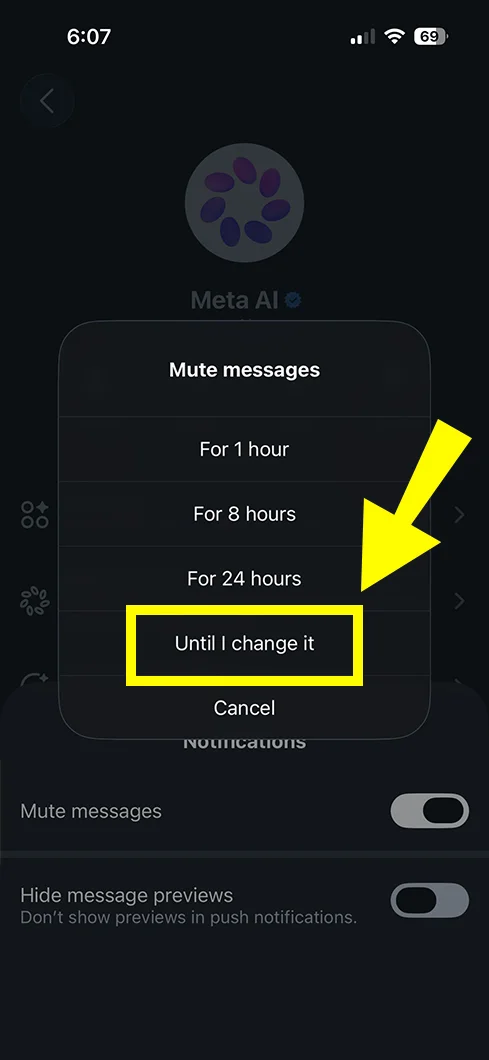
One more thing. Some guides say you can type /mute inside the chat. That shortcut has been reported on Instagram and Facebook, but I’d stick with the menu because it’s easier to confirm.
Maybe, but don’t count on it. Many older guides tell you to tap the Meta AI name and choose Block. On both my iPhone 15 and my Realme 12+ 5G (software version RMX3867_16.0.5.702), the Block option never showed up.
Other writers have noticed the same. One roundup says the block and restrict options existed earlier and were later removed. So the control seems to come and go with updates and account rollouts.
If you do see it, blocking only stops replies in that one chat. It won’t remove the AI from search. If you don’t see it, mute the chat instead and move on.
Tap a regular result, not the blue circle. That is the simplest fix, and it’s the one Meta itself points to.
A few habits help:
It takes a few days to build the habit. I accidentally opened the chat a few times in the first week, mostly when I was typing fast.
If your recent searches also act up while you’re doing this, our guide on Instagram search not showing recent searches covers the common causes. Clearing your search history (Settings > Security > Search history > Clear all) can also cut down on suggestions, though it won’t remove Meta AI from the bar.
Open the Meta AI chat and send /reset-ai for that one conversation, or /reset-all-ais to reset every Meta AI on Instagram. Both clear the AI’s saved copy of your messages and context.
Here’s the part most people miss. Deleting the chat only removes your visible copy. The reset command is what clears the AI side. Meta’s Privacy Center explains the difference between the two copies, and it also says the commands may not be available on every platform or for every person.
A clean-up order that works well:
After a big inbox clean-up, some people think messages went missing. If that happens, check why Instagram DM requests disappear before assuming something broke.
It depends on where you live. In the EU and UK you can file an objection. In the US, you can’t.
Instagram’s Privacy Center sends US users to a regional privacy notice, and there is no objection form. A fact-check by Yahoo News tried the same steps from a US device and found exactly that. Meta says it uses public posts, and not content from private accounts, so a Private account is the most useful step you can take.
To look at what’s offered for your account, go to Profile > menu > Settings and activity > Privacy Center and look for the AI-related topics. You can also read Meta’s own page on how it uses information for generative AI.
You have the right to object under Article 21 of the GDPR, and Meta offers a form for it. According to TechRadar’s coverage, you can find it in Instagram’s Privacy Centre under AI at Meta > Submit an Objection Request.
Two limits to know. The form doesn’t remove Meta AI from your app. And it only covers your eligible personal data going forward, so it won’t undo training that already happened.
Because muting only silences notifications. It doesn’t touch the search bar, where Meta AI is built in.
Beyond that, three things can make it seem like your settings didn’t stick:
Only a couple. Most of the “tricks” you’ll see online either do nothing or come with a catch.
On a computer, a content blocker like uBlock Origin has an element picker that can hide the blue circle. It only affects that browser. It can also stop working after Instagram changes its page layout.
I’d skip this. An old version may bring back the plain search bar for a while, but you’d miss security fixes, and Instagram will eventually force an update. Meta AI runs on the server side, so it can come back anyway.
A few guides say Lite avoids Meta AI. I couldn’t confirm that, and Lite isn’t offered everywhere. Treat it as a maybe, not a fix.
These all fail because the feature lives on Meta’s servers, not on your phone:
No. People often mix these up, and that’s why some fixes don’t seem to work.
Muting the Meta AI chat doesn’t turn any of these off, and turning them off doesn’t mute the chat.
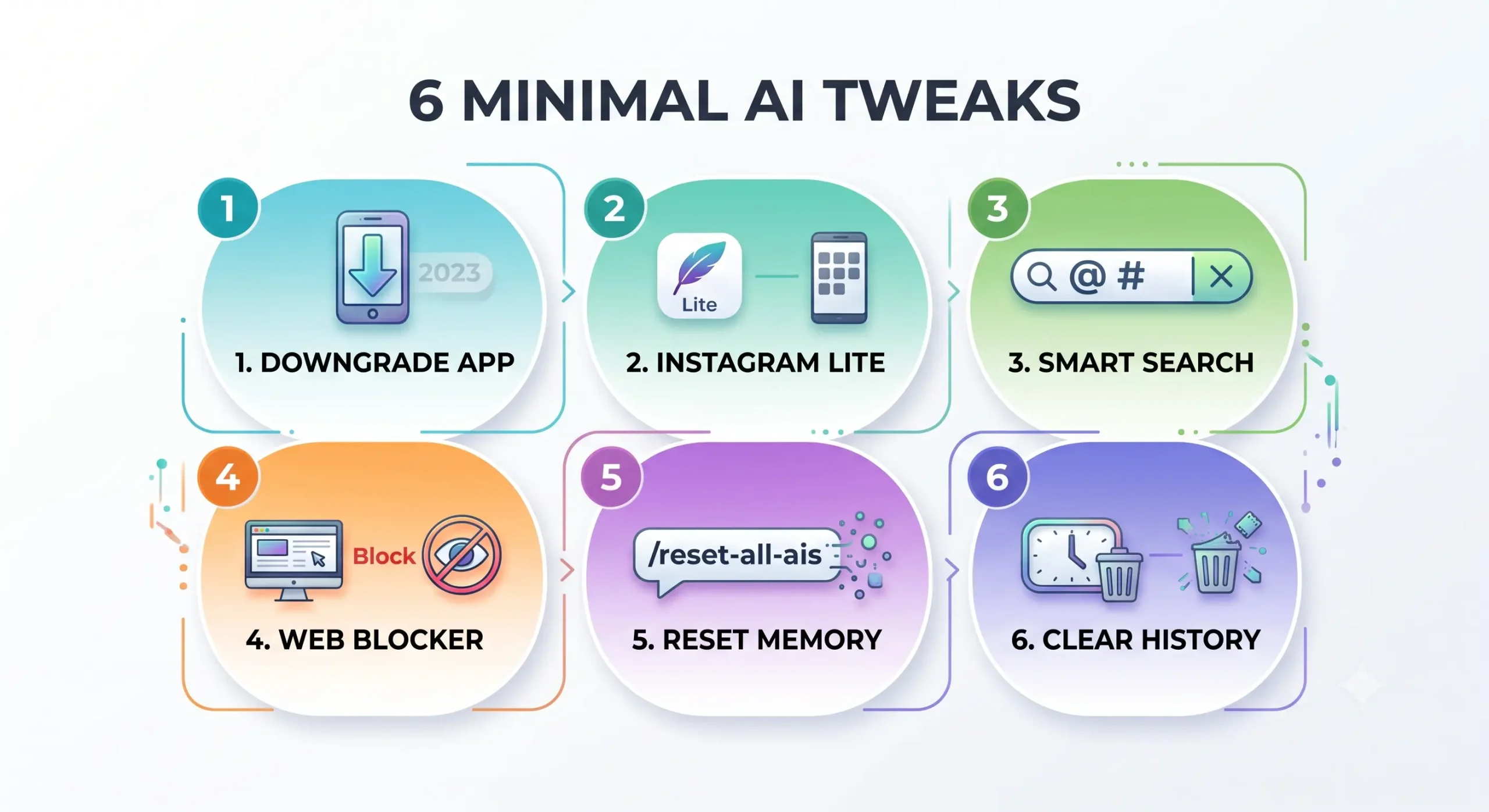
Usually it’s an app glitch or a staged rollout, not something you did wrong. Try these in order:
If the assistant is missing entirely and you actually want it back, these two guides help: Meta AI not showing on iPhone and fixing Meta AI not showing on iPhone and Android.
No. Each app has its own chat, so you mute it separately. Facebook also has a setting to turn off AI comment summaries, which you’ll find under Settings, in the Audience and Visibility section.
It can. Deleting only clears your inbox copy. If you tap the blue circle again, a new chat can open.
No. It only affects which of your content Meta may use. The assistant itself still appears in search.
It depends on your country, app version and account. Meta launched it in the EU only in March 2025, after pausing plans there, so rollout has been uneven.
Usually, but not always. Updates can reset where shortcuts sit. After a big update, open the chat and check the mute setting again.
There is no off switch, so the goal is to make Meta AI easy to ignore. Mute the chat, search by tapping regular results, and send /reset-all-ais to clear what it saved. If you live in the EU or UK, add the objection form. Everywhere else, a private account and careful sharing are your best tools.





[…] Learn to turn off Meta AI on Instagram […]
[…] No. Meta AI is a separate chatbot feature. If you only want to hide that, follow this guide on how to turn off Meta AI on Instagram. […]